2005 CHEVROLET MALIBU ignition
[x] Cancel search: ignitionPage 227 of 434
Playing a CD
If the ignition or radio is turned off, with a CD in the
player, it will stay in the player. When the ignition
or radio is turned on, the CD will start playing where it
stopped, if it was the last selected audio source.
When a CD is inserted, the CD symbol will appear on
the CD. As each new track starts to play, the track
number will appear on the display.
The CD player can play the smaller 3 inch (8 cm) single
CDs with an adapter ring. Full-size CDs and the
smaller CDs are loaded in the same manner.
If playing a CD-R the sound quality may be reduced
due to CD-R quality, the method of recording, the quality
of the music that has been recorded, and the way the
CD-R has been handled. There may be an increase
in skipping, difficulty in nding tracks, and/or difficulty in
loading and ejecting. If these problems occur try a
known good CD.
Do not add paper labels to CDs, they could get caught
in the CD player.Notice:If you add any label to a CD, insert more
than one CD into the slot at a time, or attempt
to play scratched or damaged CDs, you could
damage the CD player. When using the CD player,
use only CDs in good condition without any
label, load one CD at a time, and keep the CD player
and the loading slot free of foreign materials,
liquids, and debris.
If an error appears on the display, see “CD Messages”
later in this section.
LOAD:Press the LOAD button to load CDs into the CD
player. This CD player will hold up to six CDs.
To insert one CD, do the following:
1. Turn the ignition on.
2. Press and release the LOAD button.
3. Wait for INSERT CD to ash on the display.
4. Load a CD. Insert the CD partway into the slot,
label side up. The player will pull the CD in.
3-97
Page 228 of 434
To insert multiple CDs, do the following:
1. Turn the ignition on.
2. Press and hold the LOAD button for two seconds.
You will hear a beep and MULTI LOAD CD, then
INSERT CD and the number will appear on the
display.
3. Once INSERT CD and the number appears on the
display, load a CD. Insert the CD partway into the
slot, label side up. The player will pull the CD in.
Once the CD is loaded, INSERT CD and the number
will appear on the display again. Once INSERT CD
and the number appear on the display again, you can
load another CD. The CD player takes up to six CDs.
Do not try to load more than six.
To load more than one CD but less than six, complete
Steps 1 through 3. When nished loading CDs, the
radio will begin to play the last CD loaded.
If more than one CD has been loaded, a number for
each CD will be displayed and the currently selected slot
number will be underlined.EJECT/Z:To eject a single CD press this button.
The radio will display EJECTING CD # and the single CD
symbol will ash until the CD is ready to be removed.
When the CD is ready to be removed it will eject part way
from the radio and the display will change to a ashing
REMOVE CD # with the single CD symbol ashing until
the CD is removed. If the CD is not removed within
25 seconds the radio will pull it back in.
To eject multiple CDs, press and hold the eject button
until you hear a beep and EJECTING ALL CDS appears
on the display with the single CD symbol ashing. The
CD symbol will ash until a CD is ready to be removed.
When the CD is ready to be removed it will eject part way
from the radio and the display will change to a ashing
REMOVE CD # with the single CD symbol ashing until
the CD is removed. If the CD is not removed within
25 seconds the radio will pull it back in. After the CD is
removed the radio will repeat the previous actions until all
of the CDs have been removed or a CD is pulled back in.
3-98
Page 245 of 434
Tips and Troubleshooting Chart
Problem Recommended Action
No power. The ignition may not be in
run, accessory, or RAP.
The parental control
button might have been
pressed.
Disc will not play. The system might be off.
The parental control
button might have been
pressed. The system
might be in auxiliary
source mode. Press the
AUX button to switch
between the DVD player
and the auxiliary source.
The disc is upside down
or is not compatible.
No sound. The volume on the
headphones could be too
low. Adjust the volume on
the right earpiece on the
wireless headphones. If
the DVD system is being
heard through the vehicle
speakers, adjust the
volume from the radio.
The radio must have the
RSE enabled by using the
SRCE button.
Problem Recommended Action
The picture does not ll
the screen. There are
black borders on the
top and bottom or on
both sides or it looks
stretched out.Press and release the
size control button on the
remote control. This will
ll the screen. If there are
borders on the top and
bottom, the movie may
have been made that way
for a standard screen.
I ejected the disc and
tried to take it out, but it
was pulled back into
the slot.Eject the disc again.
The language in the audio
or on the screen is wrong.Press the main display
menu button on the
DVD player or the remote
control and change
the audio or language
selection on the
DVD menu.
The remote control does
not work.Point the remote control
directly at the transmitter
window. The batteries
could be weak or put in
wrong. The parental
control button might have
been pressed. The remote
control will not work the
RSA control, only the
RSE system.
3-115
Page 255 of 434
The broken tape detection feature of the cassette
tape player may identify the cleaning cassette as a
damaged tape, in error. To prevent the cleaning cassette
from being ejected, use the following steps:
1. Turn the ignition on.
2. Turn the radio off.
3. Press and hold the TAPE CD button for
ve seconds. READY will appear on the display
and a cassette symbol will ash for ve seconds.
4. Insert the scrubbing action cleaning cassette.
5. Eject the cleaning cassette after the manufacturer’s
recommended cleaning time.
After the cleaning cassette is ejected, the broken
tape detection feature will be active again.
A non-scrubbing action, wet-type cleaner which uses
a cassette with a fabric belt to clean the tape head can
be used. This type of cleaning cassette will not eject
on its own. A non-scrubbing action cleaner may
not clean as thoroughly as the scrubbing type cleaner.
The use of a non-scrubbing action, dry-type cleaning
cassette is not recommended.
After the player is cleaned, press and hold the cassette
eject button for two seconds to reset the clean tape
timer. The radio will display TP DECK CLEANED
to show the indicator was reset.Cassettes are subject to wear and the sound quality
may degrade over time. Always make sure the cassette
tape is in good condition before the tape player is
serviced.
Care of Your CDs and DVDs
Handle CDs carefully. Store them in their original cases
or other protective cases and away from direct
sunlight and dust. The CD player scans the bottom
surface of the disc. If the surface of a CD is damaged,
such as cracked, broken, or scratched, the CD will
not play properly or not at all. If the surface of a CD is
soiled, take a soft, lint free cloth or dampen a clean, soft
cloth in a mild, neutral detergent solution mixed with
water, and clean it. Make sure the wiping process starts
from the center to the edge.
Do not touch the bottom side of a CD while handling it;
this could damage the surface. Pick up CDs by
grasping the outer edges or the edge of the hole and
the outer edge.
Care of the CD and DVD Player
The use of CD lens cleaners for CDs is not advised,
due to the risk of contaminating the lens of the CD optics
with lubricants internal to the CD mechanism.
3-125
Page 279 of 434
If you drive regularly in steep country, or if you are
planning to visit there, here are some tips that can make
your trips safer and more enjoyable.
Keep your vehicle in good shape. Check all uid
levels and also the brakes, tires, cooling system,
and transaxle. These parts can work hard on
mountain roads.
Know how to go down hills. The most important
thing to know is this: let your engine do some of
the slowing down. Shift to a lower gear when you go
down a steep or long hill.
{CAUTION:
If you do not shift down, your brakes could get
so hot that they would not work well. You
would then have poor braking or even none
going down a hill. You could crash. Shift down
to let your engine assist your brakes on a
steep downhill slope.
{CAUTION:
Coasting downhill in NEUTRAL (N) or with the
ignition off is dangerous. Your brakes will have
to do all the work of slowing down. They could
get so hot that they would not work well. You
would then have poor braking or even none
going down a hill. You could crash. Always
have your engine running and your vehicle in
gear when you go downhill.
Know how to go uphill. Drive in the highest gear
possible.
Stay in your own lane when driving on two-lane
roads in hills or mountains. Do not swing wide
or cut across the center of the road. Drive at speeds
that let you stay in your own lane.
As you go over the top of a hill, be alert. There
could be something in your lane, like a stalled car or
an accident.
You may see highway signs on mountains that
warn of special problems. Examples are long
grades, passing or no-passing zones, a falling rocks
area, or winding roads. Be alert to these and take
appropriate action.
4-23
Page 292 of 434
Dinghy Towing
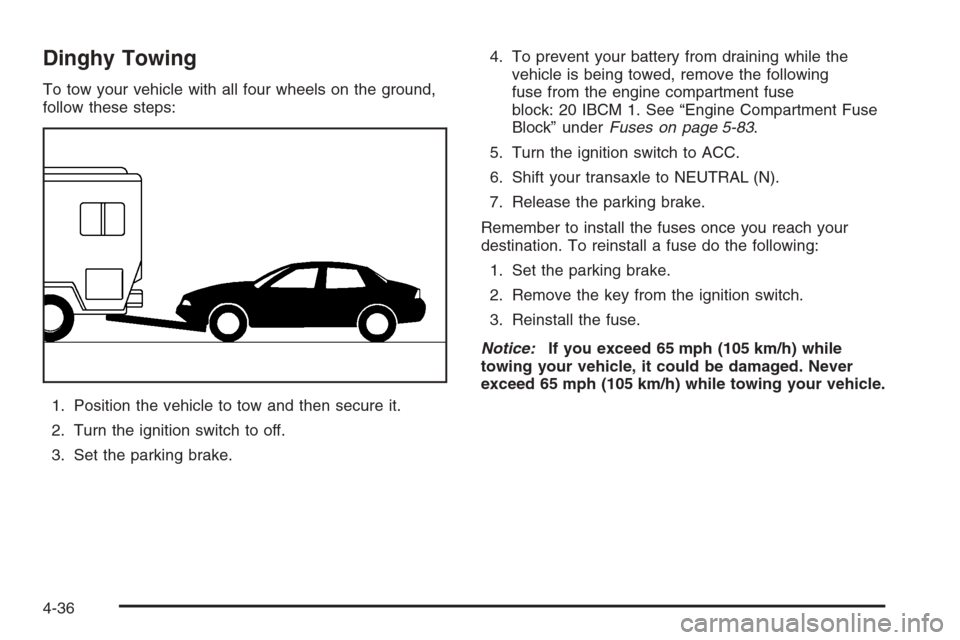
To tow your vehicle with all four wheels on the ground,
follow these steps:
1. Position the vehicle to tow and then secure it.
2. Turn the ignition switch to off.
3. Set the parking brake.4. To prevent your battery from draining while the
vehicle is being towed, remove the following
fuse from the engine compartment fuse
block: 20 IBCM 1. See “Engine Compartment Fuse
Block” underFuses on page 5-83.
5. Turn the ignition switch to ACC.
6. Shift your transaxle to NEUTRAL (N).
7. Release the parking brake.
Remember to install the fuses once you reach your
destination. To reinstall a fuse do the following:
1. Set the parking brake.
2. Remove the key from the ignition switch.
3. Reinstall the fuse.
Notice:If you exceed 65 mph (105 km/h) while
towing your vehicle, it could be damaged. Never
exceed 65 mph (105 km/h) while towing your vehicle.
4-36
Page 337 of 434
Notice:Ignoring these steps could result in costly
damage to your vehicle that would not be covered
by your warranty.
Trying to start your vehicle by pushing or pulling it
will not work, and it could damage your vehicle.
1. Check the other vehicle. It must have a 12-volt
battery with a negative ground system.
Notice:If the other vehicle’s system is not a 12-volt
system with a negative ground, both vehicles can
be damaged. Only use vehicles with 12-volt systems
with negative grounds to jump start your vehicle.
2. Get the vehicles close enough so the jumper cables
can reach, but be sure the vehicles are not touching
each other. If they are, it could cause a ground
connection you do not want. You would not be able
to start your vehicle, and the bad grounding
could damage the electrical systems.
To avoid the possibility of the vehicles rolling, set
the parking brake rmly on both vehicles involved in
the jump start procedure. Put an automatic
transaxle in PARK (P) or a manual transaxle in
NEUTRAL before setting the parking brake.Notice:If you leave your radio or other accessories
on during the jump starting procedure, they could
be damaged. The repairs would not be covered
by your warranty. Always turn off your radio and
other accessories when jump starting your vehicle.
3. Turn off the ignition on both vehicles. Unplug
unnecessary accessories plugged into the cigarette
lighter or the accessory power outlet. Turn off
the radio and all lamps that are not needed. This
will avoid sparks and help save both batteries. And
it could save the radio!
4. Open the hoods and locate the batteries. Find the
positive (+) and negative (−) terminal locations on
each vehicle. SeeEngine Compartment Overview
on page 5-12for more information on location.
{CAUTION:
An electric fan can start up even when the
engine is not running and can injure you. Keep
hands, clothing and tools away from any
underhood electric fan.
5-37
Page 385 of 434
Fuses Usage
POWER
MIRRORSPower Mirrors
EPS Electric Power Steering
RUN/CRANKCruise Control, Electronic Range
Select
HVAC
BLOWER
HIGH (Relay)Climate Control System
CLUSTER/
THEFTInstrument Panel Cluster, Theft
Deterrent System
ONSTAR OnStar
®System
NOT
INSTALLEDNot Used
AIRBAG (IGN) Airbag System
HVAC CTRL
(BATT)Climate Control System
PEDAL Adjustable Throttle and Brake Pedal
WIPER SW Windshield Wiper/Washer Switch
IGN SENSOR Ignition Switch
NOT
INSTALLEDNot Used
NOT
INSTALLEDNot Used
RADIO Audio System
INTERIOR
LIGHTSOverhead Lighting, Trunk/Cargo
Lighting
Fuses Usage
REAR WIPER Rear Wiper System/Washer Pump
HVAC
CTRL (IGN)Climate Control System
HVAC
BLOWERClimate Control System
DOOR LOCK Automatic Door Lock System
ROOF/
HEAT SEATSunroof, Heated Seats, Automatic
Dimming Rearview Mirror
POWER
WINDOWSPower Window Switch
NOT
INSTALLEDNot Used
NOT
INSTALLEDNot Used
AIRBAG
(BATT)Airbag System
FUSE PULLER Fuse Puller
SPARE FUSE
HOLDERSpare
SPARE FUSE
HOLDERSpare
SPARE FUSE
HOLDERSpare
SPARE FUSE
HOLDERSpare
5-85