2005 CHEVROLET EPICA ignition
[x] Cancel search: ignitionPage 145 of 340
Malfunction Indicator Lamp
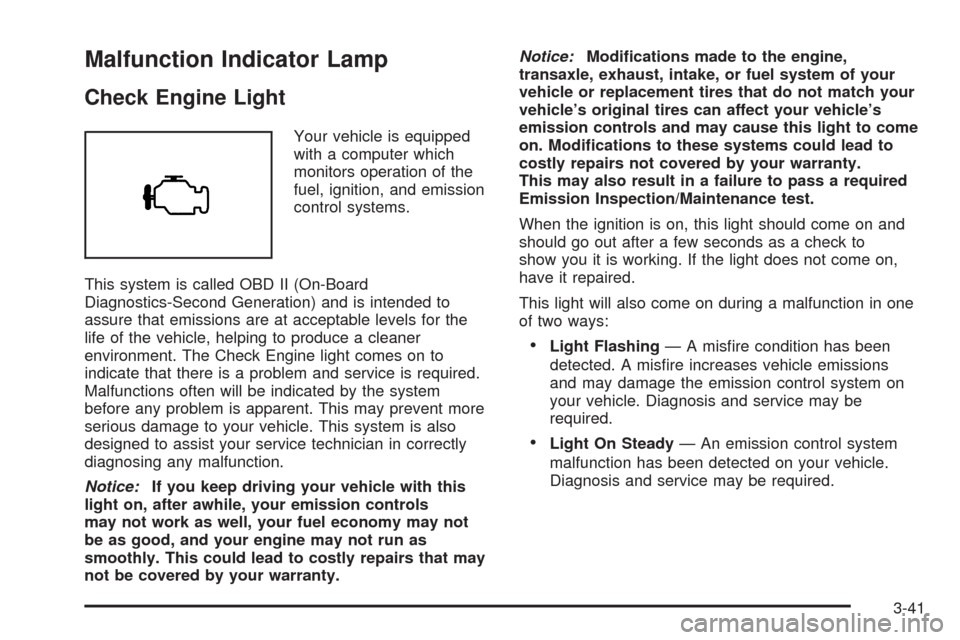
Check Engine Light
Your vehicle is equipped
with a computer which
monitors operation of the
fuel, ignition, and emission
control systems.
This system is called OBD II (On-Board
Diagnostics-Second Generation) and is intended to
assure that emissions are at acceptable levels for the
life of the vehicle, helping to produce a cleaner
environment. The Check Engine light comes on to
indicate that there is a problem and service is required.
Malfunctions often will be indicated by the system
before any problem is apparent. This may prevent more
serious damage to your vehicle. This system is also
designed to assist your service technician in correctly
diagnosing any malfunction.
Notice:If you keep driving your vehicle with this
light on, after awhile, your emission controls
may not work as well, your fuel economy may not
be as good, and your engine may not run as
smoothly. This could lead to costly repairs that may
not be covered by your warranty.Notice:Modications made to the engine,
transaxle, exhaust, intake, or fuel system of your
vehicle or replacement tires that do not match your
vehicle’s original tires can affect your vehicle’s
emission controls and may cause this light to come
on. Modications to these systems could lead to
costly repairs not covered by your warranty.
This may also result in a failure to pass a required
Emission Inspection/Maintenance test.
When the ignition is on, this light should come on and
should go out after a few seconds as a check to
show you it is working. If the light does not come on,
have it repaired.
This light will also come on during a malfunction in one
of two ways:
•Light Flashing— A misfire condition has been
detected. A misfire increases vehicle emissions
and may damage the emission control system on
your vehicle. Diagnosis and service may be
required.
•Light On Steady— An emission control system
malfunction has been detected on your vehicle.
Diagnosis and service may be required.
3-41
Page 148 of 340
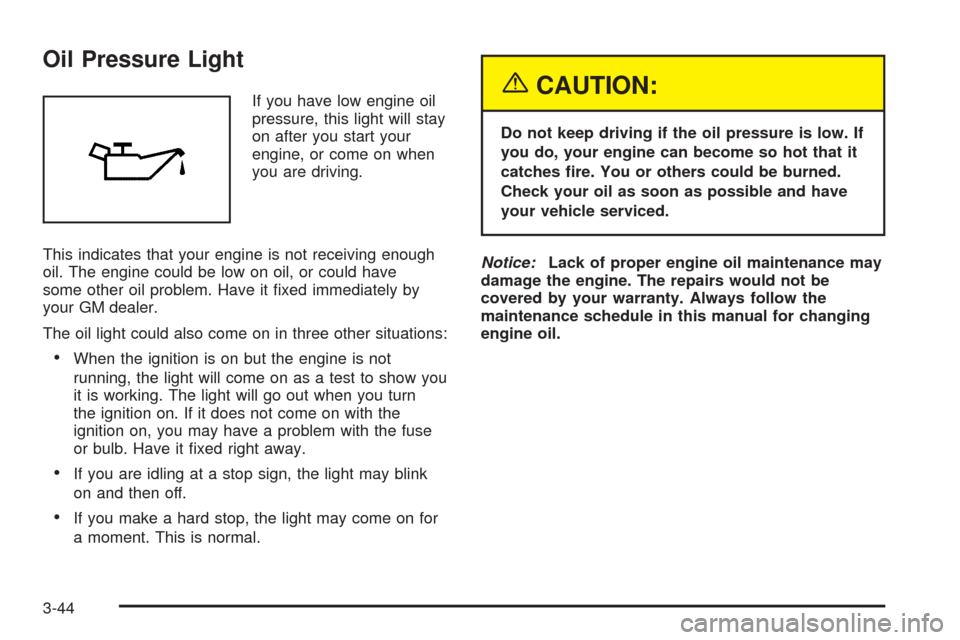
Oil Pressure Light
If you have low engine oil
pressure, this light will stay
on after you start your
engine, or come on when
you are driving.
This indicates that your engine is not receiving enough
oil. The engine could be low on oil, or could have
some other oil problem. Have it fixed immediately by
your GM dealer.
The oil light could also come on in three other situations:
•When the ignition is on but the engine is not
running, the light will come on as a test to show you
it is working. The light will go out when you turn
the ignition on. If it does not come on with the
ignition on, you may have a problem with the fuse
or bulb. Have it fixed right away.
•If you are idling at a stop sign, the light may blink
on and then off.
•If you make a hard stop, the light may come on for
a moment. This is normal.
{CAUTION:
Do not keep driving if the oil pressure is low. If
you do, your engine can become so hot that it
catches re. You or others could be burned.
Check your oil as soon as possible and have
your vehicle serviced.
Notice:Lack of proper engine oil maintenance may
damage the engine. The repairs would not be
covered by your warranty. Always follow the
maintenance schedule in this manual for changing
engine oil.
3-44
Page 149 of 340
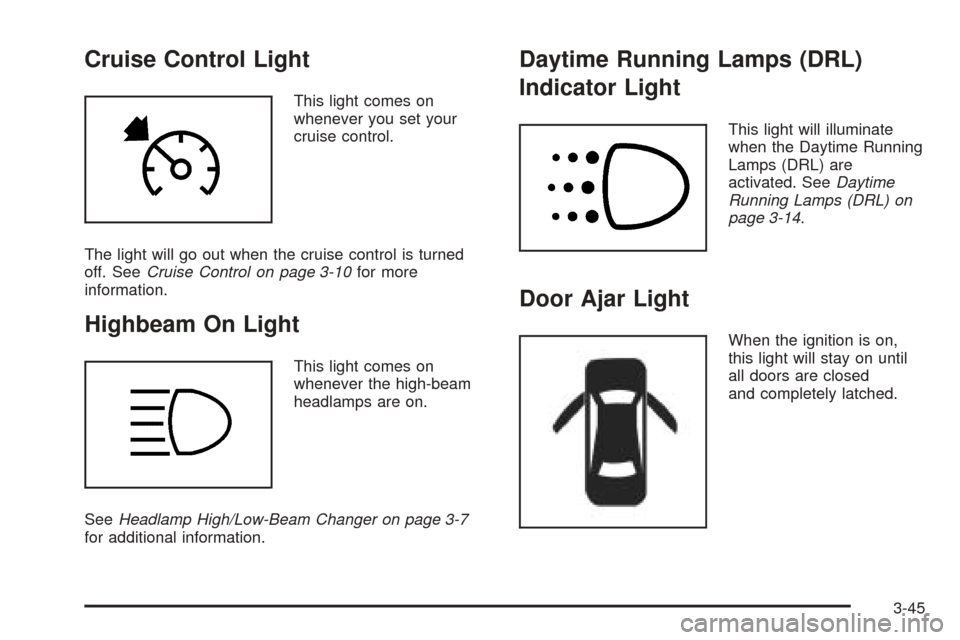
Cruise Control Light
This light comes on
whenever you set your
cruise control.
The light will go out when the cruise control is turned
off. SeeCruise Control on page 3-10for more
information.
Highbeam On Light
This light comes on
whenever the high-beam
headlamps are on.
SeeHeadlamp High/Low-Beam Changer on page 3-7
for additional information.
Daytime Running Lamps (DRL)
Indicator Light
This light will illuminate
when the Daytime Running
Lamps (DRL) are
activated. SeeDaytime
Running Lamps (DRL) on
page 3-14.
Door Ajar Light
When the ignition is on,
this light will stay on until
all doors are closed
and completely latched.
3-45
Page 150 of 340
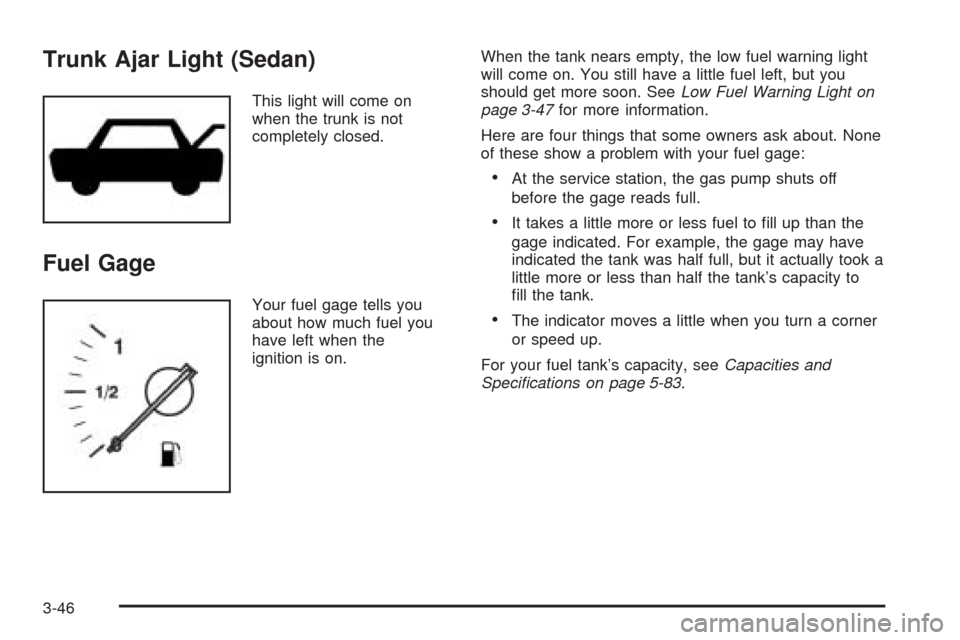
Trunk Ajar Light (Sedan)
This light will come on
when the trunk is not
completely closed.
Fuel Gage
Your fuel gage tells you
about how much fuel you
have left when the
ignition is on.When the tank nears empty, the low fuel warning light
will come on. You still have a little fuel left, but you
should get more soon. SeeLow Fuel Warning Light on
page 3-47for more information.
Here are four things that some owners ask about. None
of these show a problem with your fuel gage:
•At the service station, the gas pump shuts off
before the gage reads full.
•It takes a little more or less fuel to fill up than the
gage indicated. For example, the gage may have
indicated the tank was half full, but it actually took a
little more or less than half the tank’s capacity to
fill the tank.
•The indicator moves a little when you turn a corner
or speed up.
For your fuel tank’s capacity, seeCapacities and
Specifications on page 5-83.
3-46
Page 154 of 340
Playing a CD
Insert a CD partway into the slot, label side up. The
player will pull it in and the CD should begin playing.
You can insert a CD with the ignition off.
When the CD is inserted, CDP will appear on the
display. As the CD is loading Filecheck will appear on
the display. As each new track starts to play, Track and
the track number will appear on the display.
If the ignition or radio is turned off with a CD in the
player, it will stay in the player. When the ignition
or radio is turned on, the CD will start playing where it
stopped, if it was the last selected audio source.
The CD player can play the smaller 3 inch (8 cm) single
CDs with an adapter ring. Full-size CDs and the
smaller CDs are loaded in the same manner.
If playing a CD-R the sound quality may be reduced
due to CD-R quality, the method of recording, the quality
of the music that has been recorded, and the way the
CD-R has been handled. You may experience an
increase in skipping, difficulty in finding tracks, and/or
difficulty in loading and ejecting. If these problems occur
try a known good CD.
Do not add paper labels to CDs, they could get caught
in the CD player.
If an error appears on the display, see “CD Messages”
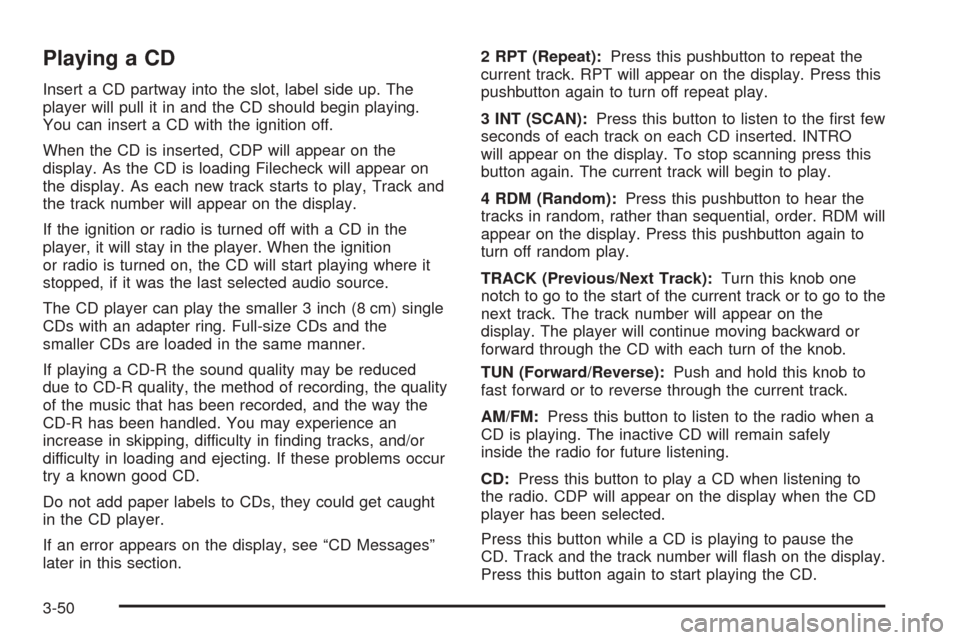
later in this section.2 RPT (Repeat):Press this pushbutton to repeat the
current track. RPT will appear on the display. Press this
pushbutton again to turn off repeat play.
3 INT (SCAN):Press this button to listen to the first few
seconds of each track on each CD inserted. INTRO
will appear on the display. To stop scanning press this
button again. The current track will begin to play.
4 RDM (Random):Press this pushbutton to hear the
tracks in random, rather than sequential, order. RDM will
appear on the display. Press this pushbutton again to
turn off random play.
TRACK (Previous/Next Track):Turn this knob one
notch to go to the start of the current track or to go to the
next track. The track number will appear on the
display. The player will continue moving backward or
forward through the CD with each turn of the knob.
TUN (Forward/Reverse):Push and hold this knob to
fast forward or to reverse through the current track.
AM/FM:Press this button to listen to the radio when a
CD is playing. The inactive CD will remain safely
inside the radio for future listening.
CD:Press this button to play a CD when listening to
the radio. CDP will appear on the display when the CD
player has been selected.
Press this button while a CD is playing to pause the
CD. Track and the track number will flash on the display.
Press this button again to start playing the CD.
3-50
Page 155 of 340
X(Eject):Press this button to eject a CD. Eject may
be activated with either the ignition or radio off.
CD Messages
CHECK CD:If this message appears on the display
and/or the CD comes out, it could be for one of the
following reasons:
•It is very hot. When the temperature returns to
normal, the CD should play.
•You are driving on a very rough road. When the
road becomes smoother, the CD should play.
•The CD is dirty, scratched, wet, or upside down.
•The air is very humid. If so, wait about an hour and
try again.
•There may have been a problem while burning
the CD.
•The label may be caught in the CD player.
If the CD is not playing correctly, for any other reason,
try a known good CD.
If any error occurs repeatedly or if an error cannot be
corrected, contact your dealer. If the radio displays
an error message, write it down and provide it to your
dealer when reporting the problem.
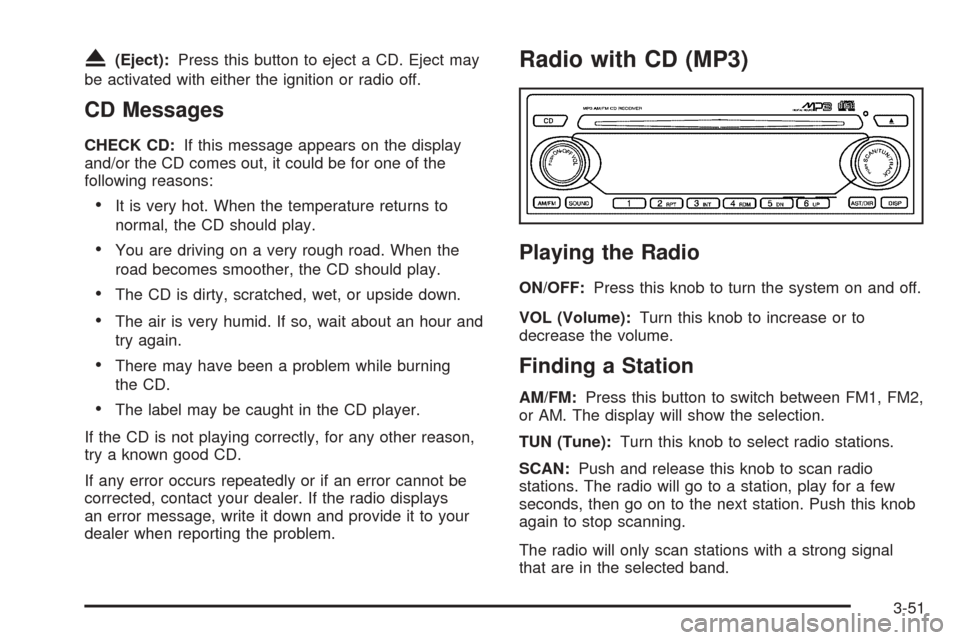
Radio with CD (MP3)
Playing the Radio
ON/OFF:Press this knob to turn the system on and off.
VOL (Volume):Turn this knob to increase or to
decrease the volume.
Finding a Station
AM/FM:Press this button to switch between FM1, FM2,
or AM. The display will show the selection.
TUN (Tune):Turn this knob to select radio stations.
SCAN:Push and release this knob to scan radio
stations. The radio will go to a station, play for a few
seconds, then go on to the next station. Push this knob
again to stop scanning.
The radio will only scan stations with a strong signal
that are in the selected band.
3-51
Page 157 of 340
Adjusting the Speakers (Balance/Fade)
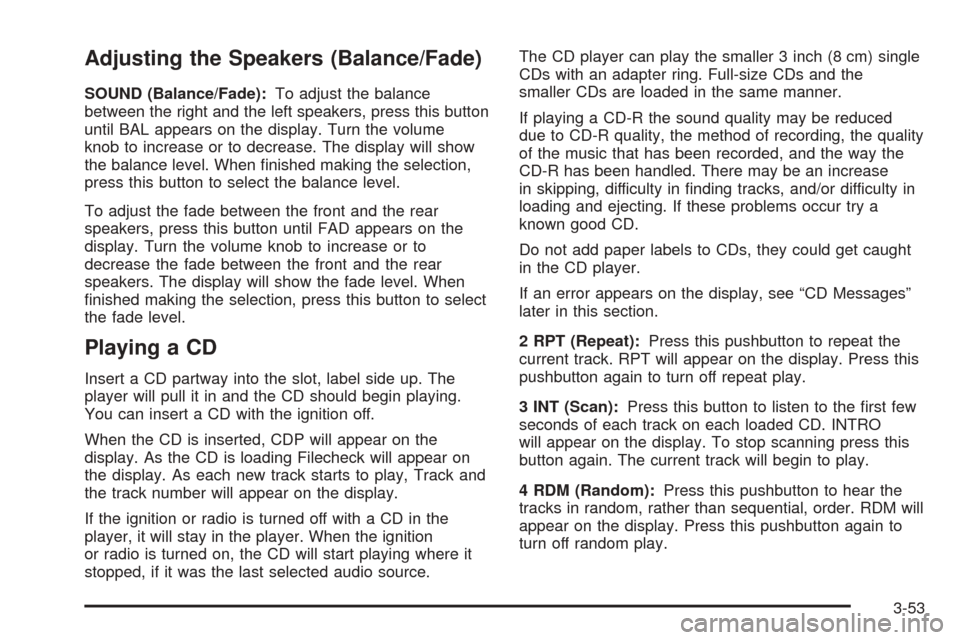
SOUND (Balance/Fade):To adjust the balance
between the right and the left speakers, press this button
until BAL appears on the display. Turn the volume
knob to increase or to decrease. The display will show
the balance level. When finished making the selection,
press this button to select the balance level.
To adjust the fade between the front and the rear
speakers, press this button until FAD appears on the
display. Turn the volume knob to increase or to
decrease the fade between the front and the rear
speakers. The display will show the fade level. When
finished making the selection, press this button to select
the fade level.
Playing a CD
Insert a CD partway into the slot, label side up. The
player will pull it in and the CD should begin playing.
You can insert a CD with the ignition off.
When the CD is inserted, CDP will appear on the
display. As the CD is loading Filecheck will appear on
the display. As each new track starts to play, Track and
the track number will appear on the display.
If the ignition or radio is turned off with a CD in the
player, it will stay in the player. When the ignition
or radio is turned on, the CD will start playing where it
stopped, if it was the last selected audio source.The CD player can play the smaller 3 inch (8 cm) single
CDs with an adapter ring. Full-size CDs and the
smaller CDs are loaded in the same manner.
If playing a CD-R the sound quality may be reduced
due to CD-R quality, the method of recording, the quality
of the music that has been recorded, and the way the
CD-R has been handled. There may be an increase
in skipping, difficulty in finding tracks, and/or difficulty in
loading and ejecting. If these problems occur try a
known good CD.
Do not add paper labels to CDs, they could get caught
in the CD player.
If an error appears on the display, see “CD Messages”
later in this section.
2 RPT (Repeat):Press this pushbutton to repeat the
current track. RPT will appear on the display. Press this
pushbutton again to turn off repeat play.
3 INT (Scan):Press this button to listen to the first few
seconds of each track on each loaded CD. INTRO
will appear on the display. To stop scanning press this
button again. The current track will begin to play.
4 RDM (Random):Press this pushbutton to hear the
tracks in random, rather than sequential, order. RDM will
appear on the display. Press this pushbutton again to
turn off random play.
3-53
Page 158 of 340
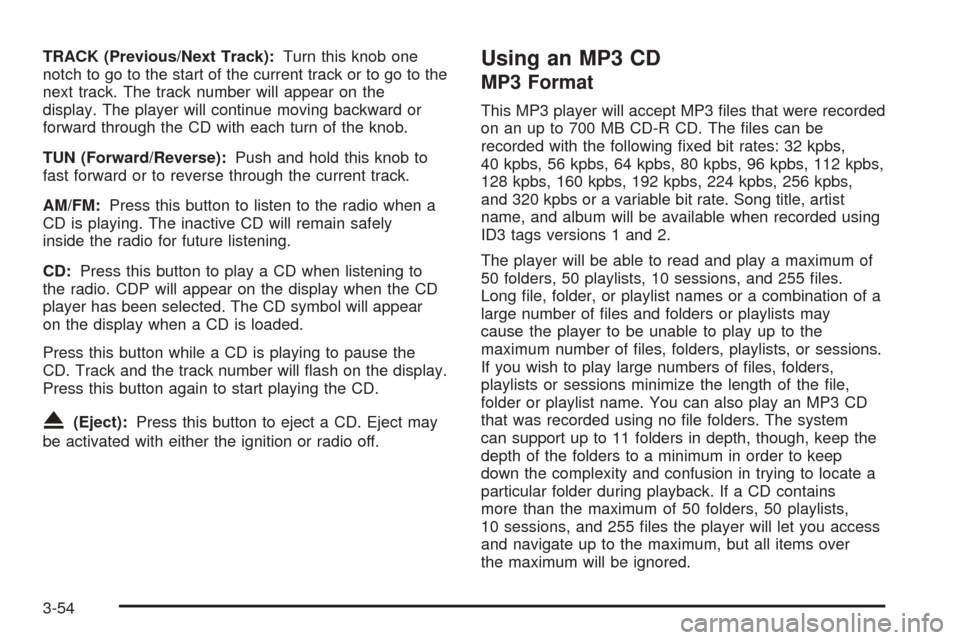
TRACK (Previous/Next Track):Turn this knob one
notch to go to the start of the current track or to go to the
next track. The track number will appear on the
display. The player will continue moving backward or
forward through the CD with each turn of the knob.
TUN (Forward/Reverse):Push and hold this knob to
fast forward or to reverse through the current track.
AM/FM:Press this button to listen to the radio when a
CD is playing. The inactive CD will remain safely
inside the radio for future listening.
CD:Press this button to play a CD when listening to
the radio. CDP will appear on the display when the CD
player has been selected. The CD symbol will appear
on the display when a CD is loaded.
Press this button while a CD is playing to pause the
CD. Track and the track number will flash on the display.
Press this button again to start playing the CD.
X(Eject):Press this button to eject a CD. Eject may
be activated with either the ignition or radio off.
Using an MP3 CD
MP3 Format
This MP3 player will accept MP3 files that were recorded
on an up to 700 MB CD-R CD. The files can be
recorded with the following fixed bit rates: 32 kpbs,
40 kpbs, 56 kpbs, 64 kpbs, 80 kpbs, 96 kpbs, 112 kpbs,
128 kpbs, 160 kpbs, 192 kpbs, 224 kpbs, 256 kpbs,
and 320 kpbs or a variable bit rate. Song title, artist
name, and album will be available when recorded using
ID3 tags versions 1 and 2.
The player will be able to read and play a maximum of
50 folders, 50 playlists, 10 sessions, and 255 files.
Long file, folder, or playlist names or a combination of a
large number of files and folders or playlists may
cause the player to be unable to play up to the
maximum number of files, folders, playlists, or sessions.
If you wish to play large numbers of files, folders,
playlists or sessions minimize the length of the file,
folder or playlist name. You can also play an MP3 CD
that was recorded using no file folders. The system
can support up to 11 folders in depth, though, keep the
depth of the folders to a minimum in order to keep
down the complexity and confusion in trying to locate a
particular folder during playback. If a CD contains
more than the maximum of 50 folders, 50 playlists,
10 sessions, and 255 files the player will let you access
and navigate up to the maximum, but all items over
the maximum will be ignored.
3-54