2005 CHEVROLET CAVALIER ignition
[x] Cancel search: ignitionPage 164 of 354
If the ignition or radio is turned off with a CD in the
player it will stay in the player. When the ignition or radio
is turned on, the CD will start to play where it stopped,
if it was the last selected audio source.
As each new track starts to play, the track number will
appear on the display.
The CD player can play the smaller 3 inch (8 cm) single
CDs with an adapter ring. Full-size CDs and the
smaller CDs are loaded in the same manner.
If playing a CD-R the sound quality may be reduced
due to CD-R quality, the method of recording, the quality
of the music that has been recorded, and the way the
CD-R has been handled. There may be an increase
in skipping, difficulty in nding tracks, and/or difficulty in
loading and ejecting. If these problems occur try a
known good CD.
Do not add paper labels to CDs, they could get caught
in the CD player.
If an error appears on the display, see “CD Messages”
later in this section.1 FLDx(Previous Folder):Press this pushbutton to
go to the rst track in the previous folder. Pressing
this button while in folder random mode will take you to
the previous folder and random the tracks in that
folder.
2 FLD
w(Next Folder):Press this pushbutton to go to
the rst track in the next folder. Pressing this button
while in folder random mode will take you to the
next folder and random the tracks in that folder.
3 REV (Reverse):Press and hold this pushbutton to
reverse quickly within a track. Press and hold this
pushbutton for less than two seconds to reverse at 10
times the normal playing speed. Press and hold it
for more than two seconds to reverse at 20 times the
normal playing speed. Release this pushbutton to
play the passage. REV and the elapsed time of the track
will appear on the display.
4 FWD (Forward):Press and hold this pushbutton to
advance quickly within a track. Press and hold this
pushbutton for less than two seconds to advance at 10
times the normal playing speed. Press and hold it
for more than two seconds to advance at 20 times the
normal playing speed. Release this pushbutton to
play the passage. FWD and the elapsed time of the
track will appear on the display.
3-66
Page 166 of 354

INFO (Information):INFO will appear on the display
whenever a current track has ID3 tag information. Press
this button to display the artist name and album
contained in the tag. INFO will disappear from the
display when the information in the ID3 tag has nished.
BAND:Press this button to listen to the radio when a
CD is playing. The inactive CD will remain safely
inside the radio for future listening.
CD AUX (Auxiliary):Press this button to play a CD
when listening to the radio. The CD symbol will appear
on the display when a CD is loaded.
ZEJT (Eject):Press this button to eject a CD. Eject
may be activated with either the ignition or radio off.
CDs may be loaded with the ignition and radio off if this
button is pressed rst.
CD Messages
CHECK CD:If this message appears on the display
and/or the CD comes out, it could be for one of the
following reasons:
It is very hot. When the temperature returns to
normal, the CD should play.
You are driving on a very rough road. When the
road becomes smoother, the CD should play.
The CD is dirty, scratched, wet, or upside down.
The air is very humid. If so, wait about an hour and
try again.
The format of the CD may not be compatible. See
“MP3 Format” earlier in this section.
There may have been a problem while burning
the CD.
The label may be caught in the CD player.
If the CD is not playing correctly, for any other reason,
try a known good CD.
If any error occurs repeatedly or if an error cannot be
corrected, contact your dealer. If the radio displays
an error message, write it down and provide it to your
dealer when reporting the problem.
3-68
Page 167 of 354
Personal Choice Radio Controls
This feature enables two drivers to store and recall
personal settings for radio presets, last tuned station,
volume, tone, radio, or CD.
The numbers, 1 and 2, are located on the back of the
remote keyless entry transmitter, correspond to the
drivers, 1 and 2.
To recall audio sources, press the unlock button on the
remote keyless entry transmitter and turn the ignition
on. The radio settings will adjust to where they were last
set by the identied driver, 1 or 2.
To program this feature, do the following:
1. Press the unlock button on the remote keyless
entry transmitter for the identied driver, 1 or 2.
2. Turn the ignition on.
3. Set all radio preferences. For more information see
“Setting Preset Stations” and “Setting the Tone”
listed for the radio.
Follow these steps each time you want to change the
stored settings.
All vehicles are shipped with this feature on. This
feature can be disabled by your dealer.
Theft-Deterrent Feature (Non RDS
Radios)
THEFTLOCK®is designed to discourage theft of your
vehicle’s radio. The feature works automatically by
learning a portion of the Vehicle Identication Number
(VIN). If the radio is moved to a different vehicle, it
will not operate and LOC will appear on the display.
When the radio and vehicle are turned off, the blinking
red light indicates that THEFTLOCK
®is armed.
With THEFTLOCK
®activated, the radio will not operate
if stolen.
Theft-Deterrent Feature (RDS
Radios)
THEFTLOCK®is designed to discourage theft of your
vehicle’s radio. The feature works automatically by
learning a portion of the Vehicle Identication Number
(VIN). If the radio is moved to a different vehicle, it
will not operate and LOCKED will appear on the display.
When the radio and vehicle are turned off and RAP is
not active, the blinking red light indicates that
THEFTLOCK
®is armed.
With THEFTLOCK
®activated, the radio will not operate
if stolen.
3-69
Page 169 of 354

Fixed Mast Antenna
The xed mast antenna can withstand most car washes
without being damaged. If the mast should ever
become slightly bent, straighten it out by hand. If the
mast is badly bent, replace it.
Check occasionally to make sure the mast is still
tightened to the fender. If tightening is required, tighten
by hand, then with a wrench one quarter turn.
XM™ Satellite Radio Antenna
System
The XM™ Satellite Radio antenna is located on the roof
of your vehicle. Keep this antenna clear of snow and
ice build up for clear radio reception.
The performance of the XM system may be affected if
the sunroof is open.
Chime Level Adjustment
Chime level adjustment is only available on RDS radios.
The radio is the vehicle chime producer. The chime is
produced from the driver’s side front door speakers.
To change the volume level, press and hold
pushbutton 6 with the ignition on and the radio power
off. The chime volume level will change from the normal
level to loud, and LOUD will appear on the radio
display. To change back to the default or normal setting,
press and hold pushbutton 6 again. The chime level
will change from the loud level to normal, and NORMAL
will appear on the radio display. Each time the chime
volume is changed, three chimes will sound as an
example of the new volume selected. Removing the
radio and not replacing it with a factory radio or chime
module will disable vehicle chimes.
3-71
Page 193 of 354

If you drive regularly in steep country, or if you are
planning to visit there, here are some tips that can make
your trips safer and more enjoyable.
Keep your vehicle in good shape. Check all uid
levels and also the brakes, tires, cooling system,
and transaxle. These parts can work hard on
mountain roads.
Know how to go down hills. The most important
thing to know is this: let your engine do some of
the slowing down. Shift to a lower gear when you go
down a steep or long hill.
{CAUTION:
If you do not shift down, your brakes could get
so hot that they would not work well. You
would then have poor braking or even none
going down a hill. You could crash. Shift down
to let your engine assist your brakes on a
steep downhill slope.
{CAUTION:
Coasting downhill in NEUTRAL (N) or with the
ignition off is dangerous. Your brakes will have
to do all the work of slowing down. They could
get so hot that they would not work well. You
would then have poor braking or even none
going down a hill. You could crash. Always
have your engine running and your vehicle in
gear when you go downhill.
Know how to go uphill. You may want to shift down to
a lower gear. The lower gears help cool your engine
and transaxle, and you can climb the hill better.
Stay in your own lane when driving on two-lane
roads in hills or mountains. Do not swing wide or cut
across the center of the road. Drive at speeds that let
you stay in your own lane.
As you go over the top of a hill, be alert. There could
be something in your lane, like a stalled car or an
accident.
You may see highway signs on mountains that warn
of special problems. Examples are long grades,
passing or no-passing zones, a falling rocks area, or
winding roads. Be alert to these and take appropriate
action.
4-23
Page 206 of 354
Dinghy Towing
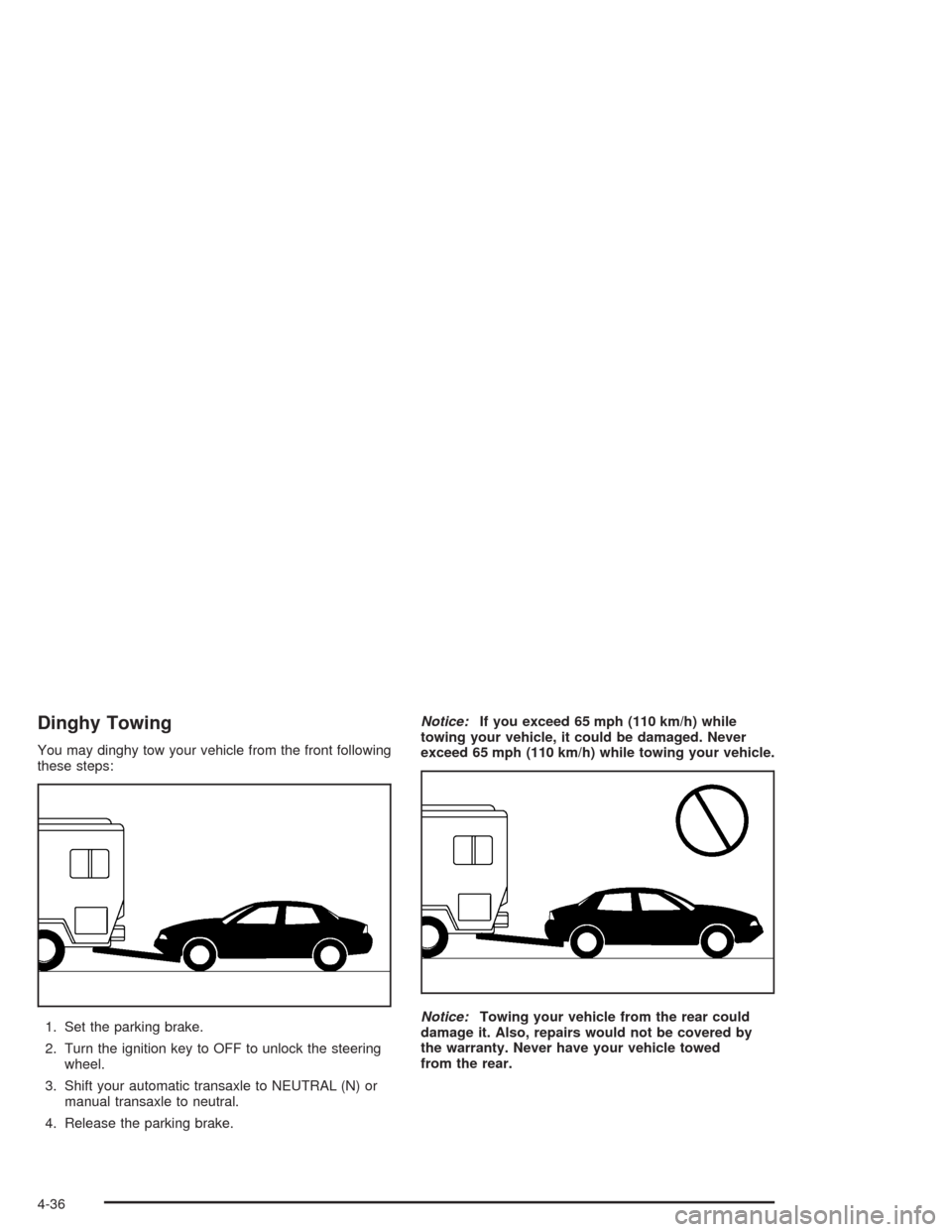
You may dinghy tow your vehicle from the front following
these steps:
1. Set the parking brake.
2. Turn the ignition key to OFF to unlock the steering
wheel.
3. Shift your automatic transaxle to NEUTRAL (N) or
manual transaxle to neutral.
4. Release the parking brake.Notice:If you exceed 65 mph (110 km/h) while
towing your vehicle, it could be damaged. Never
exceed 65 mph (110 km/h) while towing your vehicle.
Notice:Towing your vehicle from the rear could
damage it. Also, repairs would not be covered by
the warranty. Never have your vehicle towed
from the rear.
4-36
Page 252 of 354

Notice:If you leave your radio or other accessories
on during the jump starting procedure, they could
be damaged. The repairs would not be covered
by your warranty. Always turn off your radio and
other accessories when jump starting your vehicle.
3. Turn off the ignition on both vehicles. Unplug
unnecessary accessories plugged into the cigarette
lighter or the accessory power outlet. Turn off
the radio and all lamps that are not needed. This
will avoid sparks and help save both batteries.
And it could save the radio!
4. Open the hoods and locate the batteries. Find the
positive (+) and negative (−) terminal locations on
each vehicle. SeeEngine Compartment Overview
on page 5-12for more information on location.
{CAUTION:
An electric fan can start up even when the
engine is not running and can injure you.
Keep hands, clothing and tools away from
any underhood electric fan.
{CAUTION:
Using a match near a battery can cause battery
gas to explode. People have been hurt doing
this, and some have been blinded. Use a
ashlight if you need more light.
Be sure the battery has enough water. You do
not need to add water to the battery installed
in your new vehicle. But if a battery has ller
caps, be sure the right amount of uid is there.
If it is low, add water to take care of that rst.
If you don’t, explosive gas could be present.
Battery uid contains acid that can burn you.
Do not get it on you. If you accidentally get it
in your eyes or on your skin, ush the place
with water and get medical help immediately.
5-38
Page 296 of 354

Instrument Panel Fuse Block
The instrument panel fuse block is located on the driver’s
side of the instrument panel. To open, push the tab on
the access door to the left and pull the door forward.
Make sure to insert the tabs when replacing the cover.
Fuses Usage
TURN-B/U Turn Signals, Back-Up Lamps
ERLS Engine Relays
BCM/CLUBody Control Module, Instrument
Panel Cluster
PCM Powertrain Control Module
IGN MDL Ignition Module
F/P-INJ Fuel Pump, Fuel Injectors
AIR BG Airbag
5-82