2005 BUICK LACROSSE service
[x] Cancel search: servicePage 219 of 410
CD Messages
CHECK CD:If this message appears on the display
and/or the CD comes out, it could be for one of the
following reasons:
It is very hot. When the temperature returns to
normal, the CD should play.
You are driving on a very rough road. When the
road becomes smoother, the CD should play.
The CD is dirty, scratched, wet, or upside down.
The air is very humid. If so, wait about an hour and
try again.
The format of the CD may not be compatible. See
“MP3 Format” earlier in this section.
There may have been a problem while burning
the CD.
The label may be caught in the CD player.
If the CD is not playing correctly, for any other reason,
try a known good CD.
If any error occurs repeatedly or if an error cannot be
corrected, contact your GM dealer. If the radio displays
an error message, write it down and provide it to
your GM dealer when reporting the problem.
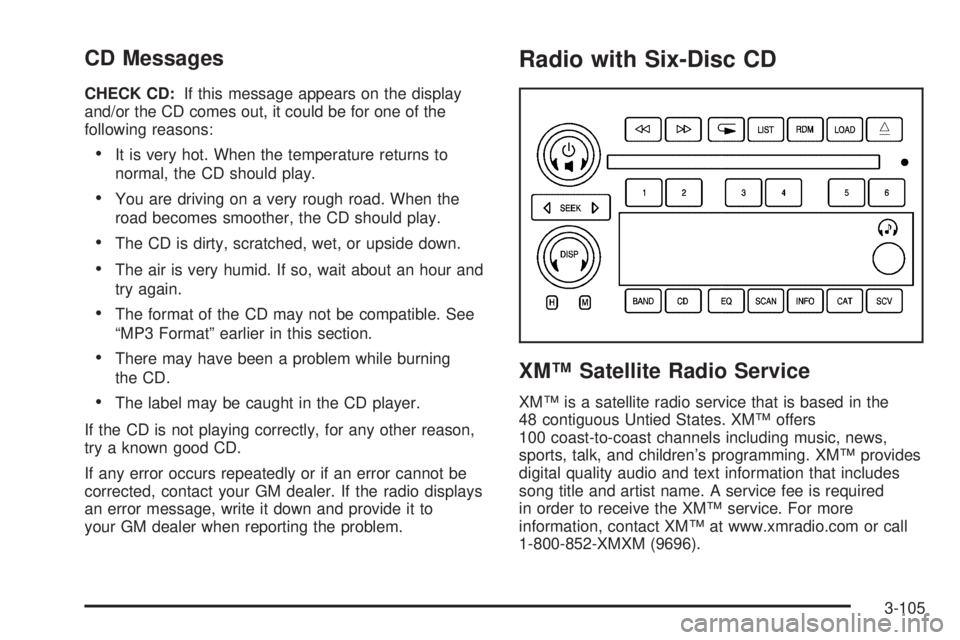
Radio with Six-Disc CD
XM™ Satellite Radio Service
XM™ is a satellite radio service that is based in the
48 contiguous Untied States. XM™ offers
100 coast-to-coast channels including music, news,
sports, talk, and children’s programming. XM™ provides
digital quality audio and text information that includes
song title and artist name. A service fee is required
in order to receive the XM™ service. For more
information, contact XM™ at www.xmradio.com or call
1-800-852-XMXM (9696).
3-105
Page 221 of 410
To scan the preset stations, press and hold either arrow
for more than four seconds. PSC will appear on the
display and the radio will produce two beeps. The radio
will go to a preset station, play for a few seconds, then go
on to the next preset station. Press either arrow again or
one of the pushbuttons to stop scanning presets.
The radio will only seek and scan stations with a strong
signal that are in the selected band.
SCAN:Press this button until SC appears on the
display. The radio will go to a station, play for a few
seconds, then go on to the next station. Press this
button again to stop scanning stations.
The radio will only scan stations with a strong signal
that are in the selected band.
INFO (Information) (XM™ Satellite Radio Service
Only):If the current station has a message, the
information symbol will appear on the display. Press this
button to see the message. The message may display
the artist, song title, call in phone numbers, etc.
If the entire message is not displayed, parts of the
message will appear every three seconds. To scroll
through the message, press and release the INFO
button. A new group of words will appear on the display
after every press of this button. Once the complete
message has been displayed, the information symbolwill disappear from the display until another new
message is received. The last message can be
displayed by pressing the INFO button. You can view
the last message until a new message is received
or a different station is tuned to.
When a message is not available from a station, NO
INFO will appear on the display.
Setting Preset Stations
Up to 30 stations (six FM1, six FM2, and six AM,
six XM1 and six XM2 (if equipped)), can be programmed
on the six numbered pushbuttons, by performing the
following steps:
1. Turn the radio on.
2. Press BAND to select FM1, FM2, AM, or XM1
or XM2.
3. Tune in the desired station.
4. Press EQ to select the equalization.
5. Press and hold one of the six numbered
pushbuttons until you hear a beep. Whenever that
numbered pushbutton is pressed, the station
that was set will return and the equalization that
was selected will be stored for that pushbutton.
6. Repeat the steps for each pushbutton.
3-107
Page 223 of 410
Finding a Category (CAT) Station
(XM™ Satellite Radio Service Only)
To select and nd a desired category perform the
following:
1. Press the CAT button to activate category select
mode. The current category will appear on the
display.
2. Turn the tune knob to select a category.
3. Once the desired category is displayed, press
either SEEK arrow to take you to the categories
rst station.
4. To go to another station within that category and
the category is displayed, press either SEEK
arrow again. If CAT times out and is no longer on
the display, go back to Step 1.
5. Press CAT to exit category select mode or wait for
CAT to time out.
If the radio cannot nd the desired category, NOT
FOUND will appear on the display and the radio will
return to the last station you were listening to.
Scanning Categories (CAT) (XM™
Satellite Radio Service Only)
To scan a desired category perform the following:
1. Press the CAT button to activate category select
mode. The current category will appear on the
display.
2. Turn the tune knob to select a category.
3. Once the desired category is displayed, press either
SEEK arrow for two seconds to scan the stations in
the category.
4. Press either SEEK arrow again to stop scanning.
If the radio cannot nd the desired category, NOT
FOUND will appear on the display and the radio will
return to the last station you were listening to.
Radio Messages
CALIBRATE:The audio system has been calibrated for
your vehicle from the factory. If CALIBRATE appears
on the display it means that the radio has not been
congured properly for your vehicle and it must
be returned to your GM dealer for service.
LOCKED:This message is displayed when the
THEFTLOCK
®system has locked up. Take your vehicle
to your GM dealer for service.
If any error occurs repeatedly or if an error cannot be
corrected, contact your GM dealer.
3-109
Page 224 of 410
XM™ Radio Messages
Radio Display
MessageCondition Action Required
XL (Explicit Language
Channels)XL on the radio display,
after the channel name,
indicates content with
explicit languageThese channels, or any others, can be blocked at a
customer’s request, by calling 1-800-852-XMXM (9696).
Updating Updating
encryption codeThe encryption code in the receiver is being updated, and
no action is required. This process should take no longer
than 30 seconds.
No Signl Loss of signal The system is functioning correctly, but the vehicle is in a
location that is blocking the XM™ signal. When the vehicle
is moved into an open area, the signal should return.
Loading Acquiring channel audio
(after 4 second delay)The radio system is acquiring and processing audio and text
data. No action is needed. This message should disappear
shortly.
Off Air Channel not in service This channel is not currently in service. Tune to another
channel.
CH Unavl Channel no
longer availableThis previously assigned channel is no longer assigned.
Tune to another station. If this station was one of the
presets, choose another station for that preset button.
No Info Artist Name/Feature
not availableNo artist information is available at this time on this channel.
The system is working properly.
No Info Song/Program Title
not availableNo song title information is available at this time on this
channel. The system is working properly.
3-110
Page 225 of 410
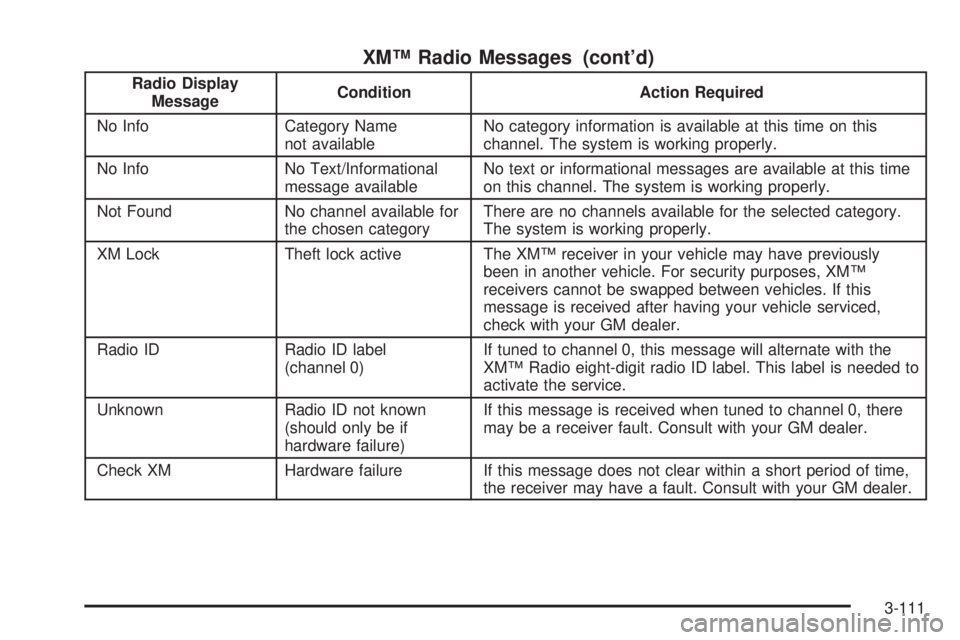
XM™ Radio Messages (cont’d)
Radio Display
MessageCondition Action Required
No Info Category Name
not availableNo category information is available at this time on this
channel. The system is working properly.
No Info No Text/Informational
message availableNo text or informational messages are available at this time
on this channel. The system is working properly.
Not Found No channel available for
the chosen categoryThere are no channels available for the selected category.
The system is working properly.
XM Lock Theft lock active The XM™ receiver in your vehicle may have previously
been in another vehicle. For security purposes, XM™
receivers cannot be swapped between vehicles. If this
message is received after having your vehicle serviced,
check with your GM dealer.
Radio ID Radio ID label
(channel 0)If tuned to channel 0, this message will alternate with the
XM™ Radio eight-digit radio ID label. This label is needed to
activate the service.
Unknown Radio ID not known
(should only be if
hardware failure)If this message is received when tuned to channel 0, there
may be a receiver fault. Consult with your GM dealer.
Check XM Hardware failure If this message does not clear within a short period of time,
the receiver may have a fault. Consult with your GM dealer.
3-111
Page 243 of 410
You may feel or hear the system working, but this is
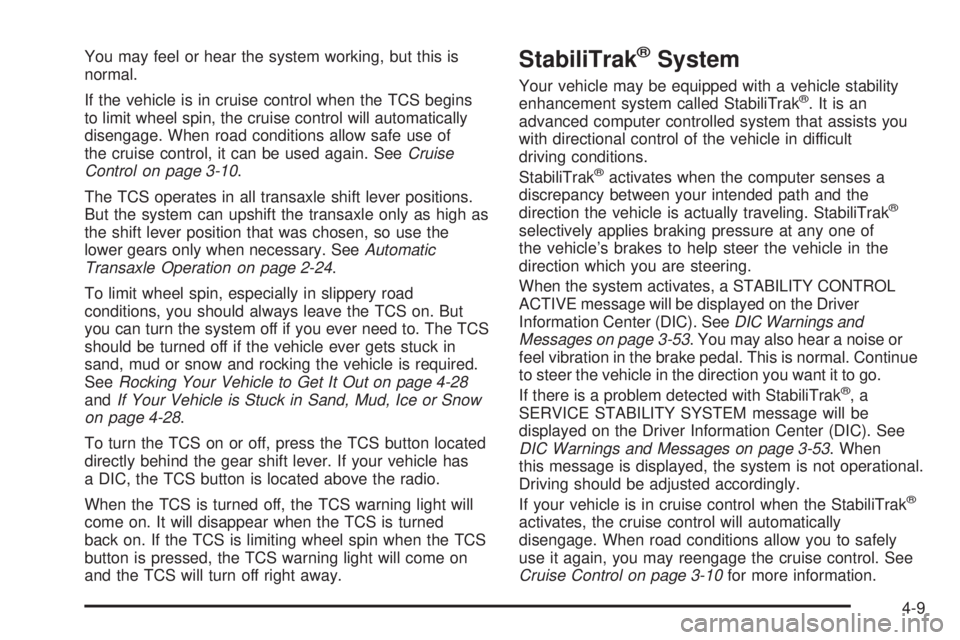
normal.
If the vehicle is in cruise control when the TCS begins
to limit wheel spin, the cruise control will automatically
disengage. When road conditions allow safe use of
the cruise control, it can be used again. SeeCruise
Control on page 3-10.
The TCS operates in all transaxle shift lever positions.
But the system can upshift the transaxle only as high as
the shift lever position that was chosen, so use the
lower gears only when necessary. SeeAutomatic
Transaxle Operation on page 2-24.
To limit wheel spin, especially in slippery road
conditions, you should always leave the TCS on. But
you can turn the system off if you ever need to. The TCS
should be turned off if the vehicle ever gets stuck in
sand, mud or snow and rocking the vehicle is required.
SeeRocking Your Vehicle to Get It Out on page 4-28
andIf Your Vehicle is Stuck in Sand, Mud, Ice or Snow
on page 4-28.
To turn the TCS on or off, press the TCS button located
directly behind the gear shift lever. If your vehicle has
a DIC, the TCS button is located above the radio.
When the TCS is turned off, the TCS warning light will
come on. It will disappear when the TCS is turned
back on. If the TCS is limiting wheel spin when the TCS
button is pressed, the TCS warning light will come on
and the TCS will turn off right away.StabiliTrak®System
Your vehicle may be equipped with a vehicle stability
enhancement system called StabiliTrak®.Itisan
advanced computer controlled system that assists you
with directional control of the vehicle in difficult
driving conditions.
StabiliTrak
®activates when the computer senses a
discrepancy between your intended path and the
direction the vehicle is actually traveling. StabiliTrak
®
selectively applies braking pressure at any one of
the vehicle’s brakes to help steer the vehicle in the
direction which you are steering.
When the system activates, a STABILITY CONTROL
ACTIVE message will be displayed on the Driver
Information Center (DIC). SeeDIC Warnings and
Messages on page 3-53. You may also hear a noise or
feel vibration in the brake pedal. This is normal. Continue
to steer the vehicle in the direction you want it to go.
If there is a problem detected with StabiliTrak
®,a
SERVICE STABILITY SYSTEM message will be
displayed on the Driver Information Center (DIC). See
DIC Warnings and Messages on page 3-53. When
this message is displayed, the system is not operational.
Driving should be adjusted accordingly.
If your vehicle is in cruise control when the StabiliTrak
®
activates, the cruise control will automatically
disengage. When road conditions allow you to safely
use it again, you may reengage the cruise control. See
Cruise Control on page 3-10for more information.
4-9
Page 255 of 410
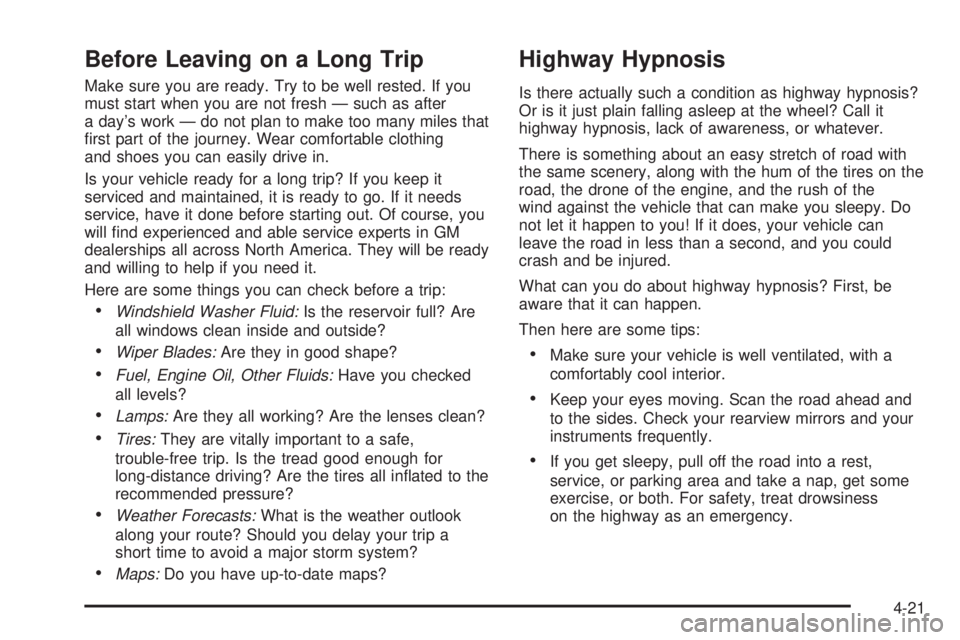
Before Leaving on a Long Trip
Make sure you are ready. Try to be well rested. If you
must start when you are not fresh — such as after
a day’s work — do not plan to make too many miles that
rst part of the journey. Wear comfortable clothing
and shoes you can easily drive in.
Is your vehicle ready for a long trip? If you keep it
serviced and maintained, it is ready to go. If it needs
service, have it done before starting out. Of course, you
will nd experienced and able service experts in GM
dealerships all across North America. They will be ready
and willing to help if you need it.
Here are some things you can check before a trip:
Windshield Washer Fluid:Is the reservoir full? Are
all windows clean inside and outside?
Wiper Blades:Are they in good shape?
Fuel, Engine Oil, Other Fluids:Have you checked
all levels?
Lamps:Are they all working? Are the lenses clean?
Tires:They are vitally important to a safe,
trouble-free trip. Is the tread good enough for
long-distance driving? Are the tires all inated to the
recommended pressure?
Weather Forecasts:What is the weather outlook
along your route? Should you delay your trip a
short time to avoid a major storm system?
Maps:Do you have up-to-date maps?
Highway Hypnosis
Is there actually such a condition as highway hypnosis?
Or is it just plain falling asleep at the wheel? Call it
highway hypnosis, lack of awareness, or whatever.
There is something about an easy stretch of road with
the same scenery, along with the hum of the tires on the
road, the drone of the engine, and the rush of the
wind against the vehicle that can make you sleepy. Do
not let it happen to you! If it does, your vehicle can
leave the road in less than a second, and you could
crash and be injured.
What can you do about highway hypnosis? First, be
aware that it can happen.
Then here are some tips:
Make sure your vehicle is well ventilated, with a
comfortably cool interior.
Keep your eyes moving. Scan the road ahead and
to the sides. Check your rearview mirrors and your
instruments frequently.
If you get sleepy, pull off the road into a rest,
service, or parking area and take a nap, get some
exercise, or both. For safety, treat drowsiness
on the highway as an emergency.
4-21
Page 268 of 410
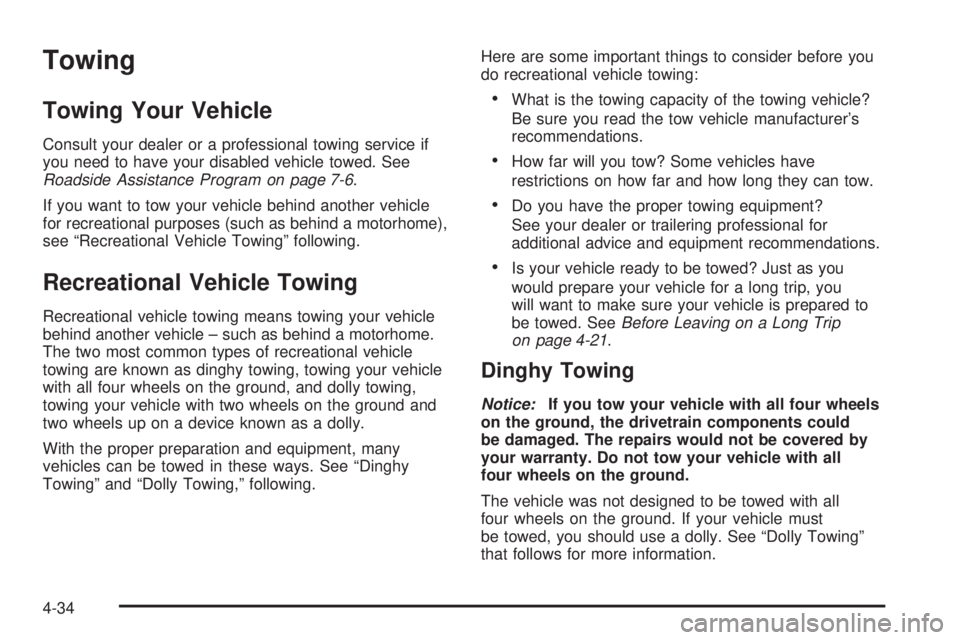
Towing
Towing Your Vehicle
Consult your dealer or a professional towing service if
you need to have your disabled vehicle towed. See
Roadside Assistance Program on page 7-6.
If you want to tow your vehicle behind another vehicle
for recreational purposes (such as behind a motorhome),
see “Recreational Vehicle Towing” following.
Recreational Vehicle Towing
Recreational vehicle towing means towing your vehicle
behind another vehicle – such as behind a motorhome.
The two most common types of recreational vehicle
towing are known as dinghy towing, towing your vehicle
with all four wheels on the ground, and dolly towing,
towing your vehicle with two wheels on the ground and
two wheels up on a device known as a dolly.
With the proper preparation and equipment, many
vehicles can be towed in these ways. See “Dinghy
Towing” and “Dolly Towing,” following.Here are some important things to consider before you
do recreational vehicle towing:
What is the towing capacity of the towing vehicle?
Be sure you read the tow vehicle manufacturer’s
recommendations.
How far will you tow? Some vehicles have
restrictions on how far and how long they can tow.
Do you have the proper towing equipment?
See your dealer or trailering professional for
additional advice and equipment recommendations.
Is your vehicle ready to be towed? Just as you
would prepare your vehicle for a long trip, you
will want to make sure your vehicle is prepared to
be towed. SeeBefore Leaving on a Long Trip
on page 4-21.
Dinghy Towing
Notice:If you tow your vehicle with all four wheels
on the ground, the drivetrain components could
be damaged. The repairs would not be covered by
your warranty. Do not tow your vehicle with all
four wheels on the ground.
The vehicle was not designed to be towed with all
four wheels on the ground. If your vehicle must
be towed, you should use a dolly. See “Dolly Towing”
that follows for more information.
4-34