2005 BUICK LACROSSE ECO mode
[x] Cancel search: ECO modePage 178 of 410
REDUCED POWER STOP WHEN SAFE
This message will display when your vehicle is in an
overheated engine operating mode. This operating mode
allows your vehicle to be driven to a safe place in an
emergency. In this mode, you will notice a signicant
loss in power and engine performance. SeeOverheated
Engine Protection Operating Mode on page 5-26for
more information. Anytime this message is on, the
vehicle should be taken to your GM dealer for service
as soon as possible.
This message will display and a chime will sound only
when the ignition is in RUN. Press any of the DIC
buttons to acknowledge this message and to clear it
from the screen.
This message will continue to display for two seconds if
it has not been acknowledged when the engine is
turned off. It will also re-display for two seconds if the
message has been acknowledged, but the condition still
exists when the engine is turned off.
If the condition still exists, the message will re-appear
when the engine is turned on.
REMOTE START DISABLED
This warning message will come on if a remote start
attempt is unsuccessful. This may be caused if any of
the following conditions are true when a remote
start attempt is made:
The remote start system is disabled through
the DIC.
The key is in the ignition.
The hood or the doors are not closed.
There is an emission control system malfunction.
The engine coolant temperature is too high.
The oil pressure is low.
The hazard warning ashers are turned on.
The maximum number of remote starts or
remote start attempts between ignition cycles
has been reached.
The content theft-deterrent alarm is on while
attempting to remote start the vehicle.
See “REMOTE START” underDIC Vehicle
Personalization on page 3-71and “Remote Vehicle
Start” underRemote Keyless Entry System Operation
on page 2-4for more information.
3-64
Page 198 of 410
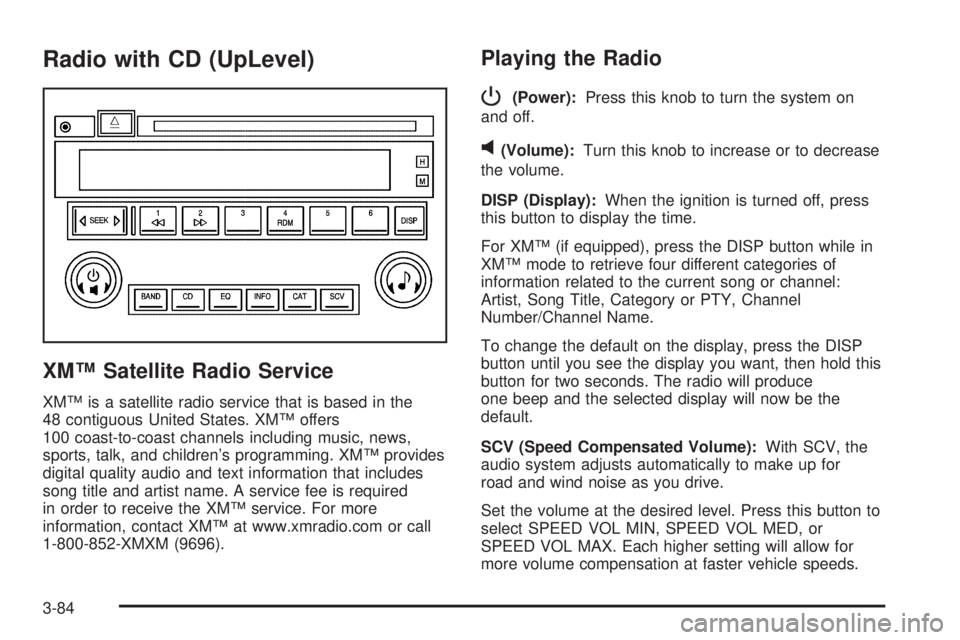
Radio with CD (UpLevel)
XM™ Satellite Radio Service
XM™ is a satellite radio service that is based in the
48 contiguous United States. XM™ offers
100 coast-to-coast channels including music, news,
sports, talk, and children’s programming. XM™ provides
digital quality audio and text information that includes
song title and artist name. A service fee is required
in order to receive the XM™ service. For more
information, contact XM™ at www.xmradio.com or call
1-800-852-XMXM (9696).
Playing the Radio
P
(Power):Press this knob to turn the system on
and off.
v(Volume):Turn this knob to increase or to decrease
the volume.
DISP (Display):When the ignition is turned off, press
this button to display the time.
For XM™ (if equipped), press the DISP button while in
XM™ mode to retrieve four different categories of
information related to the current song or channel:
Artist, Song Title, Category or PTY, Channel
Number/Channel Name.
To change the default on the display, press the DISP
button until you see the display you want, then hold this
button for two seconds. The radio will produce
one beep and the selected display will now be the
default.
SCV (Speed Compensated Volume):With SCV, the
audio system adjusts automatically to make up for
road and wind noise as you drive.
Set the volume at the desired level. Press this button to
select SPEED VOL MIN, SPEED VOL MED, or
SPEED VOL MAX. Each higher setting will allow for
more volume compensation at faster vehicle speeds.
3-84
Page 201 of 410
To adjust the balance and the fade to the middle
position, push the speaker knob, then push it again and
hold it until you hear one beep.
To adjust all tone and speaker controls to the middle
position, push and hold the speaker knob when no tone
or speaker control is displayed. ALL CENTERED will
appear on the display and you will hear a beep.
Finding a Category (CAT) Station (XM™
Satellite Radio Service Only)
To select and nd a desired category perform the
following:
1. Press the CAT button to activate category select
mode. The current category will appear on the
display.
2. Turn the tune knob to select a category.
3. Once the desired category is displayed, press
either SEEK arrow to take you to the categories
rst station.
4. To go to another station within that category and
the category is displayed, press either SEEK
arrow again. If CAT times out and is no longer on
the display, go back to Step 1.
5. Press CAT to exit category select mode or wait for
CAT to time out.
If the radio cannot nd the desired category, NOT
FOUND will appear on the display and the radio will
return to the last station you were listening to.
Scanning Categories (CAT) (XM™
Satellite Radio Service Only)
To scan a desired category perform the following:
1. Press the CAT button to activate category select
mode. The current category will appear on the
display.
2. Turn the tune knob to select a category.
3. Once the desired category is displayed, press either
SEEK arrow for two seconds to scan the stations in
the category.
4. Press either SEEK arrow again to stop scanning.
If the radio cannot nd the desired category, NOT
FOUND will appear on the display and the radio will
return to the last station you were listening to.
Radio Messages
CALIBRATE:The audio system has been calibrated for
your vehicle from the factory. If CALIBRATE appears
on the display it means that the radio has not been
congured properly for your vehicle and it must
be returned to your GM dealer for service.
LOCKED:This message is displayed when the
THEFTLOCK
®system has locked up. Take your vehicle
to your GM dealer for service.
If any error occurs repeatedly or if an error cannot be
corrected, contact your GM dealer.
3-87
Page 206 of 410
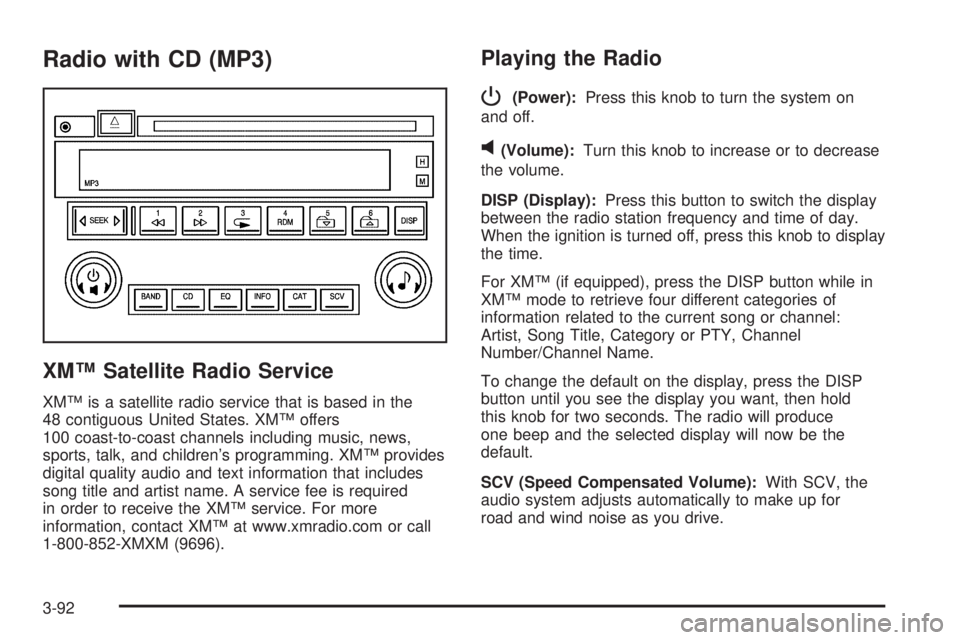
Radio with CD (MP3)
XM™ Satellite Radio Service
XM™ is a satellite radio service that is based in the
48 contiguous United States. XM™ offers
100 coast-to-coast channels including music, news,
sports, talk, and children’s programming. XM™ provides
digital quality audio and text information that includes
song title and artist name. A service fee is required
in order to receive the XM™ service. For more
information, contact XM™ at www.xmradio.com or call
1-800-852-XMXM (9696).
Playing the Radio
P
(Power):Press this knob to turn the system on
and off.
v(Volume):Turn this knob to increase or to decrease
the volume.
DISP (Display):Press this button to switch the display
between the radio station frequency and time of day.
When the ignition is turned off, press this knob to display
the time.
For XM™ (if equipped), press the DISP button while in
XM™ mode to retrieve four different categories of
information related to the current song or channel:
Artist, Song Title, Category or PTY, Channel
Number/Channel Name.
To change the default on the display, press the DISP
button until you see the display you want, then hold
this knob for two seconds. The radio will produce
one beep and the selected display will now be the
default.
SCV (Speed Compensated Volume):With SCV, the
audio system adjusts automatically to make up for
road and wind noise as you drive.
3-92
Page 210 of 410
Scanning Categories (CAT) (XM™
Satellite Radio Service Only)
To scan a desired category perform the following:
1. Press the CAT button to activate category select
mode. The current category will appear on the
display.
2. Turn the tune knob to select a category.
3. Once the desired category is displayed, press either
SEEK arrow for two seconds to scan the stations in
the category.
4. Press either SEEK arrow again to stop scanning.
If the radio cannot nd the desired category, NOT
FOUND will appear on the display and the radio will
return to the last station you were listening to.
Radio Messages
CALIBRATE:The audio system has been calibrated for
your vehicle from the factory. If CALIBRATE appears
on the display it means that the radio has not been
congured properly for your vehicle and it must
be returned to your GM dealer for service.
LOCKED:This message is displayed when the
THEFTLOCK
®system has locked up. Take your vehicle
to your GM dealer for service.
If any error occurs repeatedly or if an error cannot be
corrected, contact your GM dealer.
3-96
Page 217 of 410
If playing a CD-R the sound quality may be reduced
due to CD-R quality, the method of recording, the quality
of the music that has been recorded, and the way the
CD-R has been handled. There may be an increase
in skipping, difficulty in nding tracks, and/or difficulty in
loading and ejecting. If these problems occur try a
known good CD.
Do not add paper labels to CDs, they could get caught
in the CD player.
If an error appears on the display, see “CD Messages”
later in this section.
1
s(Reverse):Press this button to reverse within
the current track.
2
\(Fast Forward):Press this button to fast forward
within the current track.
3
N(Repeat):With repeat, one track, the entire
folder, or playlist can be repeated.
Press and release this pushbutton until REPEAT
TRACK, REPEAT FOLDER, or REPEAT P-LIST
appears on the display. The current track, folder or
playlist will continue to repeat. Press and release this
pushbutton until REPEAT OFF appears on the display to
turn off repeated play.4 RDM (Random):Press this pushbutton to hear tracks
in random, rather than sequential order. You can
random the entire folder, playlist, or CD.
Press and release this pushbutton until RANDOM
FOLDER, RANDOM P-LIST, or RANDOM DISC appears
on the display. Once all of the tracks in the current
folder or playlist have been played the system will move
on to the next folder or playlist and play all of the
tracks in random order.
When in random, pressing and releasing either SEEK
arrow will take you to the next or previous random track.
Press and release this pushbutton until RANDOM
OFF appears on the display, to turn off random play.
5
!(Previous Folder):Press this pushbutton to go
to the rst track in the previous folder. Pressing this
button while in folder random mode will take you to the
previous folder and random the tracks in that folder.
6
#(Next Folder):Press this pushbutton to go to the
rst track in the next folder. Pressing this button while
in folder random mode will take you to the next
folder and random the tracks in that folder.
3-103
Page 218 of 410
oSEEKp:Press the left arrow to go to the start of
the previous track. Press the right arrow to go to the
start of the next track.
To scan tracks, press either arrow for more than
two seconds until SCAN appears on the display. The CD
will search the previous or next tracks at two seconds per
track. Press either arrow to stop scanning.
DISP (Display):Press this button to switch between
track mode, folder/playlist mode, and ID3 tag. The
display will show only eight characters, but there can be
up to four pages of text. If there are more than
eight characters in the song, folder, or playlist name,
pressing this knob within two seconds will take you
to the next page of text. If there are no other pages to
be shown, pressing this button within two seconds
will take you to the next display mode.
Song name and time of day mode will display the
current song name and time of day.
Folder/playlist mode will display the current folder or
playlist number the track number and the elapsed
time of the track.
Song name and track number mode will display the
current song name and track number.
ID3 Tag and folder mode will display the ID3 tag
information and the folder number.
Song and folder mode will display the number of
songs in the folder and the folder number.To change the default on the display, press the DISP
knob until you see the display you want, then hold
this knob for two seconds. The radio will produce
one beep and the selected display will now be the
default.
INFO (Information):INFO will appear on the display
whenever a current track has ID3 tag information. Press
this button to display the artist name and album
contained in the tag.
BAND:Press this button to listen to the radio when a
CD is playing. The inactive CD will remain safely
inside the radio for future listening.
CD:Press this button to play a CD when listening to
the radio. The CD symbol will appear on the display
when a CD is loaded.
EQ (Equalization):Press EQ to select an equalization
setting while playing a CD. The equalization will be
set whenever a CD is played. See “EQ” listed previously
for more information. If you select an EQ setting for
your CD, it will be activated each time you play a CD.
Z(Eject):Press this button to eject a CD. Eject may
be activated with either the ignition or radio off. CDs
may be loaded with the ignition and radio off if this
button is pressed rst.
3-104
Page 220 of 410
Playing the Radio
P
(Power):Press this knob to turn the system on
and off.
v(Volume):Turn this knob to increase or to decrease
the volume.
DISP (Display):When the ignition is turned off, press
this knob to display the time.
For XM™ (if equipped), press the DISP knob while in
XM™ mode to retrieve four different categories of
information related to the current song or channel:
Artist, Song Title, Category or PTY, Channel
Number/Channel Name.
To change the default on the display, press the DISP
knob until you see the display you want, then hold
this knob for two seconds. The radio will produce
one beep and the selected display will now be the
default.
SCV (Speed Compensated Volume):With SCV, the
audio system adjusts automatically to make up for
road and wind noise as you drive.Set the volume at the desired level. Press this button to
select LOW, MEDIUM, or HIGH. Each higher setting
will allow for more volume compensation at faster
vehicle speeds. Then as you drive, SCV increases the
volume, as necessary, to overcome noise at any
speed. The volume level should always sound the same
to you as you drive. To turn SCV off, press this button
until OFF appears on the display.
Finding a Station
BAND:Press this button to switch between FM1, FM2,
AM, or XM1 or XM2 (if equipped). The display will
show the selection.
e(Tune):Turn this knob to select radio stations.
oSEEKp:Press and release the right or the left
arrow to go to the next or to the previous station
and stay there.
To scan radio stations, press and hold either arrow for
more than two seconds. SCAN will appear on the
display and the radio will produce one beep. The radio
will go to a station, play for a few seconds, then go
on to the next station. Press either arrow again or
one of the pushbuttons to stop scanning presets.
3-106