Page 162 of 364
Setting Preset Stations
The six numbered pushbuttons let you return to your
favorite stations. You can set up to 30 stations (six FM1,
six FM2, and six AM, six XM1 and six XM2 (48
contiguous US states, if equipped), by performing the
following steps:
1. Turn the radio on.
2. Press BAND to select FM1, FM2, AM, or XM1
or XM2.
3. Tune in the desired station.
4. Press EQ to select the equalization.
5. Press and hold one of the six numbered
pushbuttons until you hear a beep. Whenever you
press that numbered pushbutton, the station
you set will return and the equalization that you
selected will be automatically stored for that
pushbutton.
6. Repeat the steps for each pushbutton.
Setting the Tone (Bass/Treble)
TONE:Press and release this button until BASS, MID,
or TREB appears on the display. The SELECT LED
indicator will light to show that the tone control can be
adjusted. Turn the SELECT knob to increase or to
decrease. If a station is weak or noisy, you may want to
decrease the treble.
Pressing and holding the TONE button until FLAT
appears on the display will return all of the tone controls
to the middle position.
EQ (Equalizer):Press this button to select customized
bass, midrange, and treble equalization settings.
You can set up to six customized equalization settings
by performing the following steps:
1. Turn the radio on.
2. Use the TONE button and the SELECT knob to
create the desired equalization.
3. Press and hold the EQ button for two seconds.
SELECT EQ # will appear on the display and the
EQ symbol will flash.
4. Press EQ or turn the SELECT knob to select the
desired EQ number.
3-56
Page 164 of 364

wSCANx:You can scan the stations within a PTY
by performing the following:
1. Press PROG TYPE to activate program type select
mode. The PTY symbol will appear on the display.
2. Turn the SELECT knob to select a PTY.
3. Once the desired PTY is displayed, press and hold
either SCAN arrow, and the radio will begin
scanning the stations in the PTY.
4. Press either SCAN arrow to stop at a station.
If both PTY and TRAF are on, the radio will scan for
stations with the selected PTY and traffic
announcements.
BAND (Alternate Frequency):Alternate frequency
allows the radio to switch to a stronger station with the
same program type. To turn alternate frequency on
press and hold BAND for two seconds. AF ON
will appear on the display. The radio may switch to
stronger stations.
To turn alternate frequency off press and hold BAND
again for two seconds. AF OFF will appear on the
display. The radio will not switch to other stations.
This function does not apply for XM™ Satellite Radio
Service.Setting Preset PTYs (RDS Only)
The six numbered pushbuttons let you return to your
favorite PTYs. These pushbuttons have factory
PTY presets. You can set up to 12 PTYs (six FM1 and
six FM2) by performing the following steps:
1. Press BAND to select FM1 or FM2.
2. Press PROG TYPE to activate program type select
mode. The PTY symbol will appear on the display.
3. Turn the SELECT knob to select a PTY.
4. Press and hold one of the six numbered
pushbuttons until you hear a beep. Whenever you
press that numbered pushbutton, the PTY you
set will return, if program type select mode
is activated.
5. Repeat the steps for each pushbutton.
RDS Messages
ALERT!:Alert warns of national or local emergencies.
When an alert announcement comes on the current
radio station, ALERT! will appear on the display. You will
hear the announcement, even if the volume is muted
or a CD is playing. If a CD is playing, play will stop
during the announcement. You will not be able to turn
off alert announcements.
3-58
Page 170 of 364
If you wish to play large numbers of files, folders,
playlists, or sessions minimize the length of the file,
folder, or playlist name. You can also play an MP3 CD
that was recorded using no file folders. The system
can support up to 11 folders in depth, though, keep the
depth of the folders to a minimum in order to keep
down the complexity and confusion in trying to locate a
particular folder during playback. If a CD contains
more than the maximum of 50 folders, 50 playlists,
10 sessions, and 255 files the player will let you access
and navigate up to the maximum, but all items over
the maximum will be ignored.
Root Directory
The root directory will be treated as a folder. If the root
directory has compressed audio files, the directory
will be displayed as F1 ROOT. All files contained directly
under the root directory will be accessed prior to any
root directory folders. However, playlists (Px) will always
be accessed before root folders or files.
Empty Directory or Folder
If a root directory or a folder exists somewhere in the
file structure that contains only folders/subfolders and no
compressed files directly beneath them, the player will
advance to the next folder in the file structure that
contains compressed audio files and the empty folder
will not be displayed or numbered.
No Folder
When the CD contains only compressed files, the files will
be located under the root folder. The next and previous
folder functions will have no function on a CD that was
recorded without folders or playlists. When displaying the
name of the folder the radio will display ROOT.
When the CD contains only playlists and compressed
audio files, but no folders, all files will be located under
the root folder. The folder down and the folder up
buttons will search playlists (Px) first and then go to the
root folder. When the radio displays the name of the
folder the radio will display ROOT.
Order of Play
Tracks will be played in the following order:
•Play will begin from the first track in the first playlist
and will continue sequentially through all tracks in
each playlist. When the last track of the last playlist
has been played, play will continue from the first
track of the first playlist.
•If the CD does not contain any playlists, then play will
begin from the first track under the root directory.
When all tracks from the root directory have been
played, play will continue from files according to their
numerical listing. After playing the last track from the
last folder, play will begin again at the first track of
the first folder or root directory.
3-64
Page 175 of 364
Audio Steering Wheel Controls
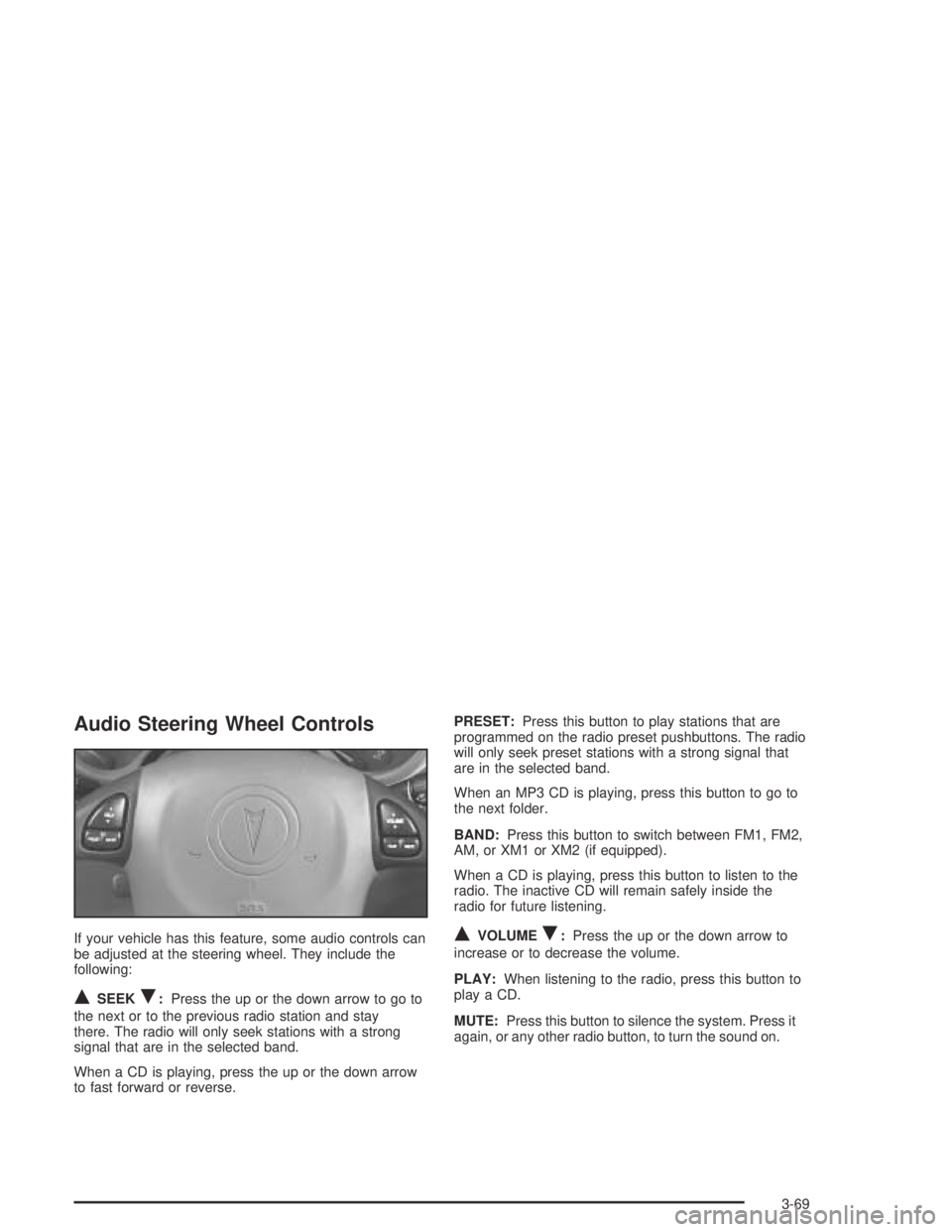
If your vehicle has this feature, some audio controls can
be adjusted at the steering wheel. They include the
following:
QSEEKR:Press the up or the down arrow to go to
the next or to the previous radio station and stay
there. The radio will only seek stations with a strong
signal that are in the selected band.
When a CD is playing, press the up or the down arrow
to fast forward or reverse.PRESET:Press this button to play stations that are
programmed on the radio preset pushbuttons. The radio
will only seek preset stations with a strong signal that
are in the selected band.
When an MP3 CD is playing, press this button to go to
the next folder.
BAND:Press this button to switch between FM1, FM2,
AM, or XM1 or XM2 (if equipped).
When a CD is playing, press this button to listen to the
radio. The inactive CD will remain safely inside the
radio for future listening.
QVOLUMER:Press the up or the down arrow to
increase or to decrease the volume.
PLAY:When listening to the radio, press this button to
play a CD.
MUTE:Press this button to silence the system. Press it
again, or any other radio button, to turn the sound on.
3-69