Page 2 of 304
Seating and Safety Restraints 146
Seating 146
Safety restraints 151
Air bags 165
Child restraints 172
Driving 184
Starting 184
Brakes 188
Traction control 190
Air suspension 192
Transmission operation 192
Vehicle loading 199
Trailer towing 202
Recreational towing 204
Roadside Emergencies 206
Getting roadside assistance 206
Hazard flasher switch 207
Fuel pump shut-off switch 207
Fuses and relays 208
Changing tires 216
Lug Nut Torque 222
Jump starting 222
Wrecker towing 227
Customer Assistance 228
Reporting safety defects (U.S. only) 236
Cleaning 237
Table of Contents
2
REVIEW COPY
2004 Town Car(tow), Owners Guide (post-2002-fmt)(own2002),
Market:USA_English(fus)
Page 3 of 304
Maintenance and Specifications 243
Engine compartment 245
Engine oil 246
Battery 250
Fuel information 258
Air filter(s) 272
Tire Information 274
Refill capacities 287
Lubricant specifications 288
Accessories 296
Index 298
All rights reserved. Reproduction by any means, electronic or mechanical
including photocopying, recording or by any information storage and retrieval
system or translation in whole or part is not permitted without written
authorization from Ford Motor Company. Ford may change the contents without
notice and without incurring obligation.
Copyright © 2004 Ford Motor Company
Table of Contents
3
REVIEW COPY
2004 Town Car(tow), Owners Guide (post-2002-fmt)(own2002),
Market:USA_English(fus)
Page 9 of 304
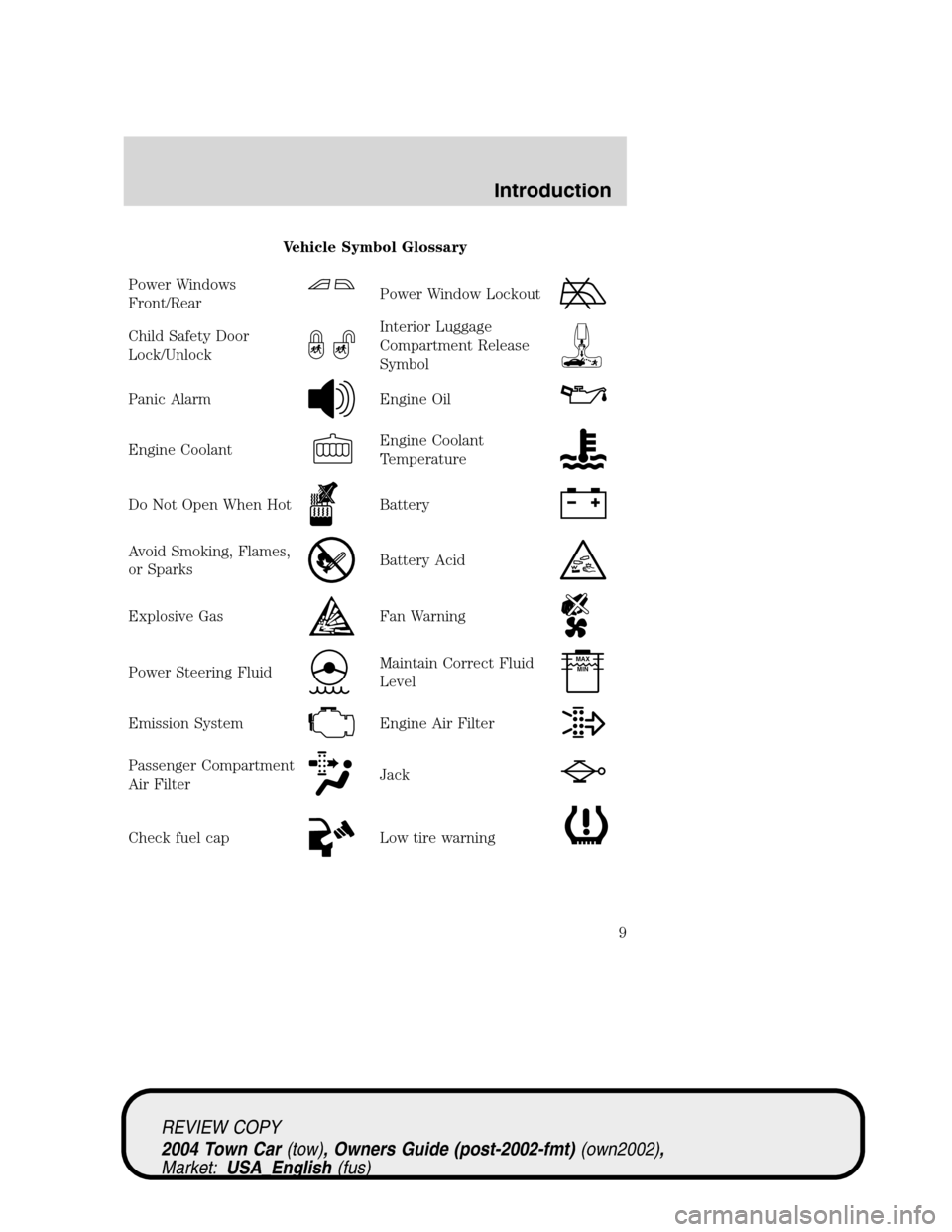
Vehicle Symbol Glossary
Power Windows
Front/Rear
Power Window Lockout
Child Safety Door
Lock/UnlockInterior Luggage
Compartment Release
Symbol
Panic AlarmEngine Oil
Engine CoolantEngine Coolant
Temperature
Do Not Open When HotBattery
Avoid Smoking, Flames,
or SparksBattery Acid
Explosive GasFan Warning
Power Steering FluidMaintain Correct Fluid
LevelMAX
MIN
Emission SystemEngine Air Filter
Passenger Compartment
Air FilterJack
Check fuel capLow tire warning
REVIEW COPY
2004 Town Car(tow), Owners Guide (post-2002-fmt)(own2002),
Market:USA_English(fus)
Introduction
9
Page 26 of 304
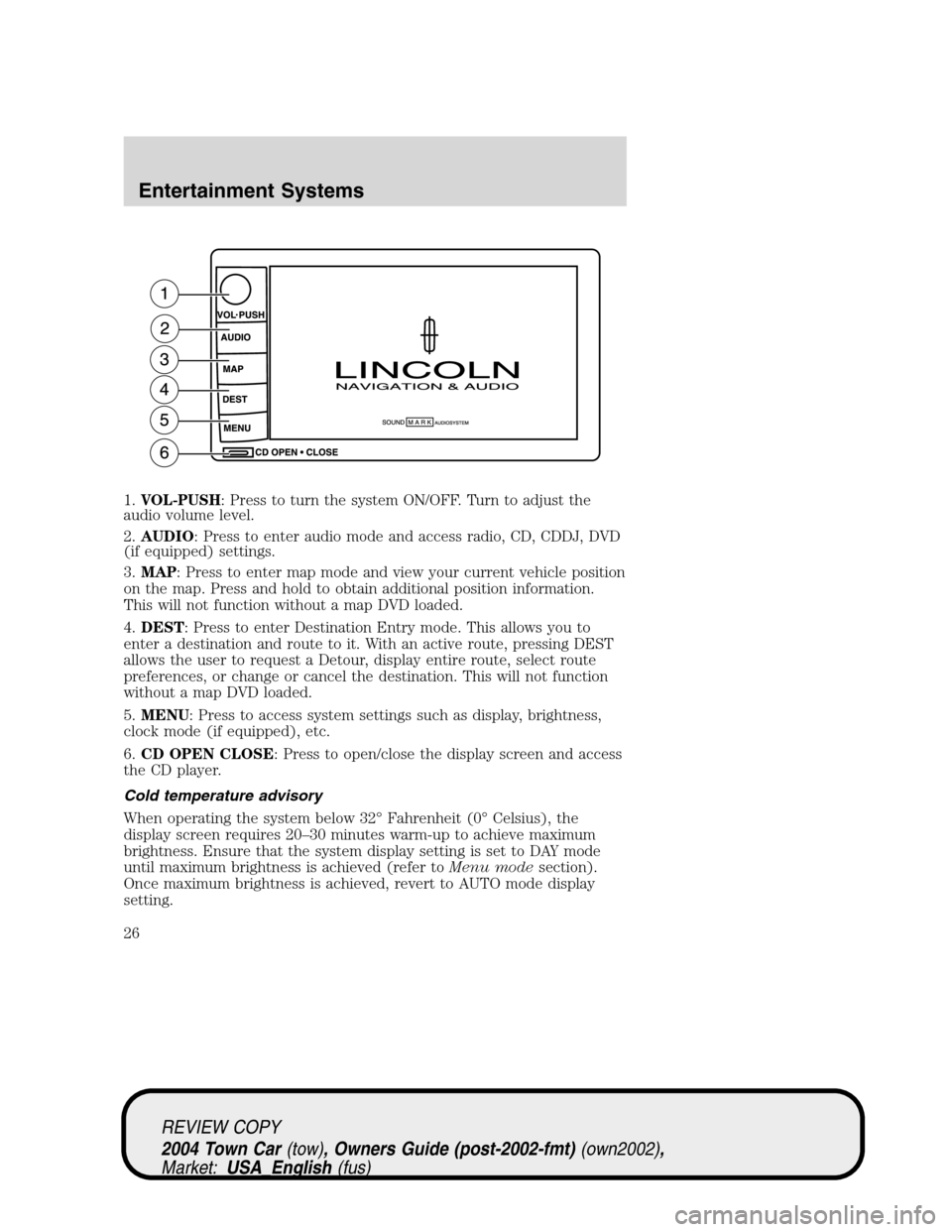
1.VOL-PUSH: Press to turn the system ON/OFF. Turn to adjust the
audio volume level.
2.AUDIO: Press to enter audio mode and access radio, CD, CDDJ, DVD
(if equipped) settings.
3.MAP: Press to enter map mode and view your current vehicle position
on the map. Press and hold to obtain additional position information.
This will not function without a map DVD loaded.
4.DEST: Press to enter Destination Entry mode. This allows you to
enter a destination and route to it. With an active route, pressing DEST
allows the user to request a Detour, display entire route, select route
preferences, or change or cancel the destination. This will not function
without a map DVD loaded.
5.MENU: Press to access system settings such as display, brightness,
clock mode (if equipped), etc.
6.CD OPEN CLOSE: Press to open/close the display screen and access
the CD player.
Cold temperature advisory
When operating the system below 32°Fahrenheit (0°Celsius), the
display screen requires 20–30 minutes warm-up to achieve maximum
brightness. Ensure that the system display setting is set to DAY mode
until maximum brightness is achieved (refer toMenu modesection).
Once maximum brightness is achieved, revert to AUTO mode display
setting.
REVIEW COPY
2004 Town Car(tow), Owners Guide (post-2002-fmt)(own2002),
Market:USA_English(fus)
Entertainment Systems
26
Page 34 of 304
•Change to arrow guidance•Change to arrow guide
•Turn list guidance•Turn list guide
•Change to turn list guidance•Change to turn list guide
•Entire route map•Entire route
•Route overview•Reroute
•Detour•Detour entire route
Navigation help commands you may speak at any time:
•Help•Map
•Destination•Guidance
•Radio•Disc
•Map help•Destination help
•Guidance help•Radio help
•Disc help
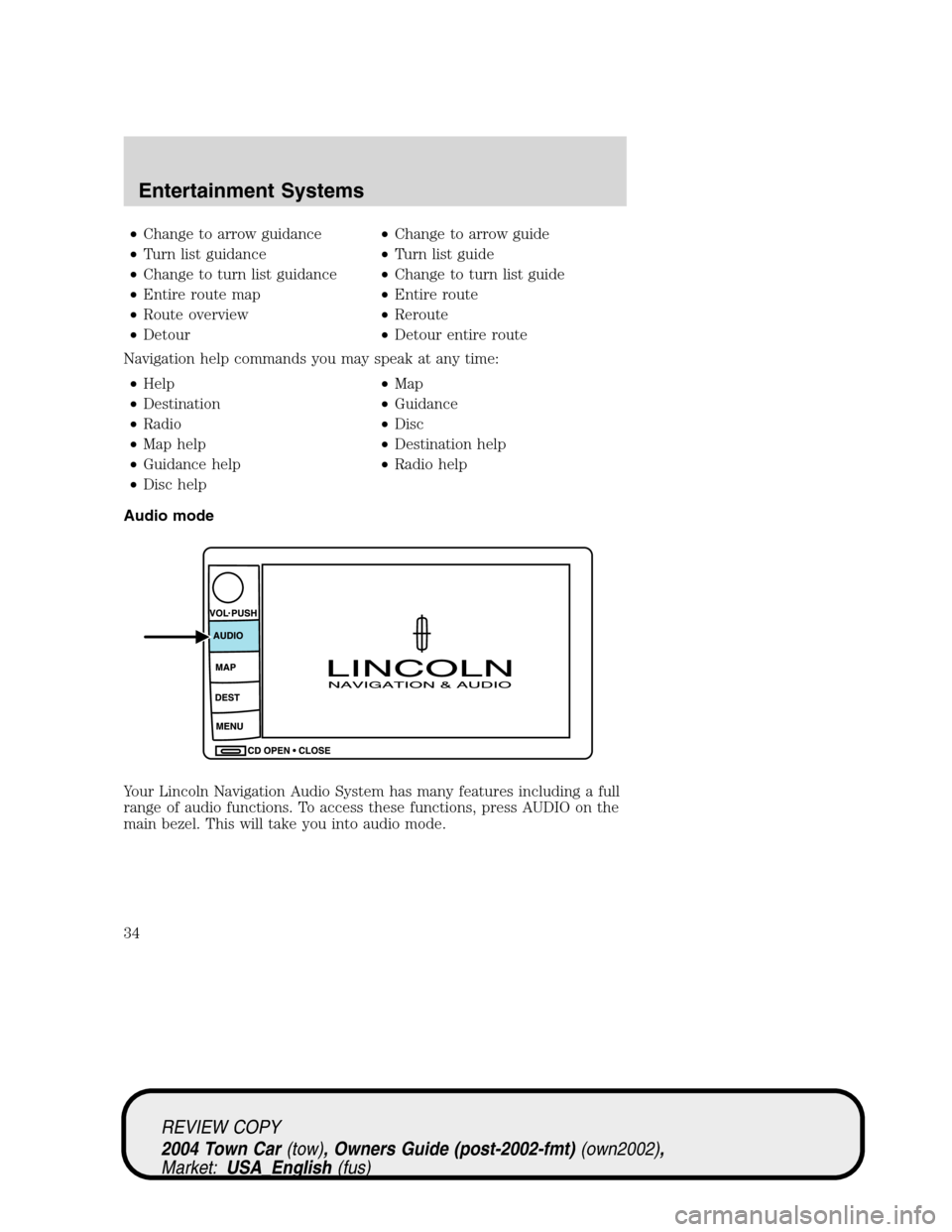
Audio mode
Your Lincoln Navigation Audio System has many features including a full
range of audio functions. To access these functions, press AUDIO on the
main bezel. This will take you into audio mode.
REVIEW COPY
2004 Town Car(tow), Owners Guide (post-2002-fmt)(own2002),
Market:USA_English(fus)
Entertainment Systems
34
Page 51 of 304
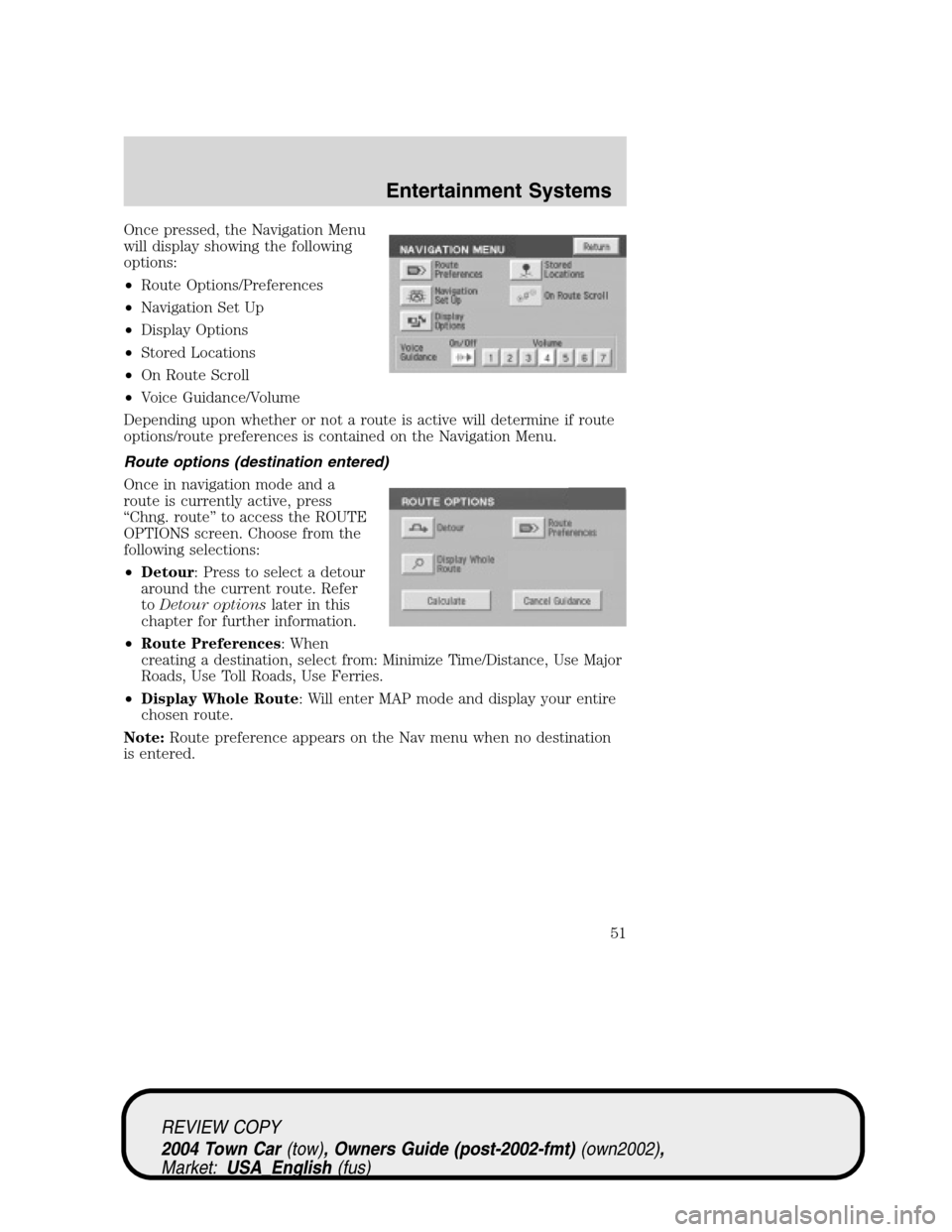
Once pressed, the Navigation Menu
will display showing the following
options:
•Route Options/Preferences
•Navigation Set Up
•Display Options
•Stored Locations
•On Route Scroll
•Voice Guidance/Volume
Depending upon whether or not a route is active will determine if route
options/route preferences is contained on the Navigation Menu.
Route options (destination entered)
Once in navigation mode and a
route is currently active, press
“Chng. route”to access the ROUTE
OPTIONS screen. Choose from the
following selections:
•Detour: Press to select a detour
around the current route. Refer
toDetour optionslater in this
chapter for further information.
•Route Preferences: When
creating a destination, select from: Minimize Time/Distance, Use Major
Roads, Use Toll Roads, Use Ferries.
•Display Whole Route: Will enter MAP mode and display your entire
chosen route.
Note:Route preference appears on the Nav menu when no destination
is entered.
REVIEW COPY
2004 Town Car(tow), Owners Guide (post-2002-fmt)(own2002),
Market:USA_English(fus)
Entertainment Systems
51
Page 53 of 304
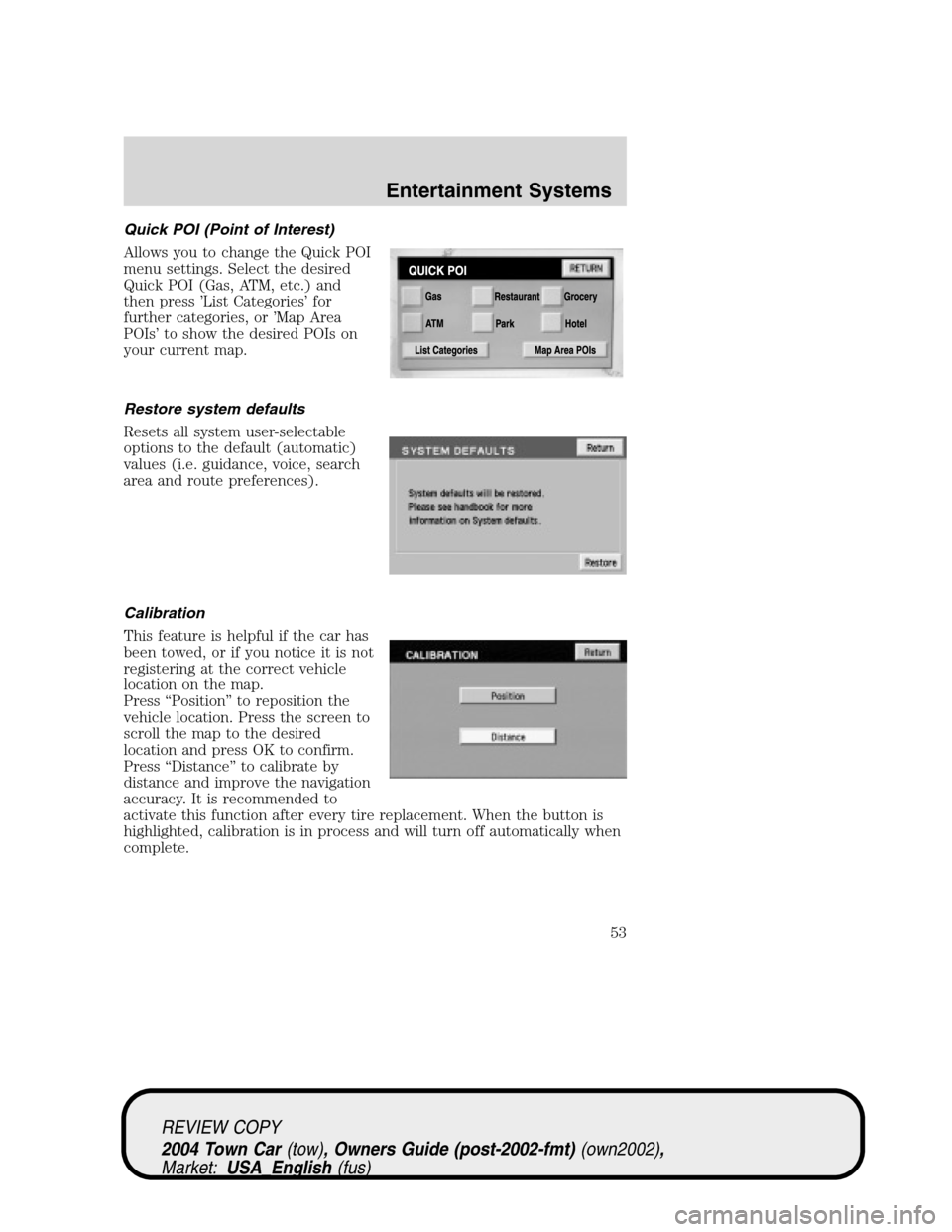
Quick POI (Point of Interest)
Allows you to change the Quick POI
menu settings. Select the desired
Quick POI (Gas, ATM, etc.) and
then press’List Categories’for
further categories, or’Map Area
POIs’to show the desired POIs on
your current map.
Restore system defaults
Resets all system user-selectable
options to the default (automatic)
values (i.e. guidance, voice, search
area and route preferences).
Calibration
This feature is helpful if the car has
been towed, or if you notice it is not
registering at the correct vehicle
location on the map.
Press“Position”to reposition the
vehicle location. Press the screen to
scroll the map to the desired
location and press OK to confirm.
Press“Distance”to calibrate by
distance and improve the navigation
accuracy. It is recommended to
activate this function after every tire replacement. When the button is
highlighted, calibration is in process and will turn off automatically when
complete.
REVIEW COPY
2004 Town Car(tow), Owners Guide (post-2002-fmt)(own2002),
Market:USA_English(fus)
Entertainment Systems
53
Page 55 of 304
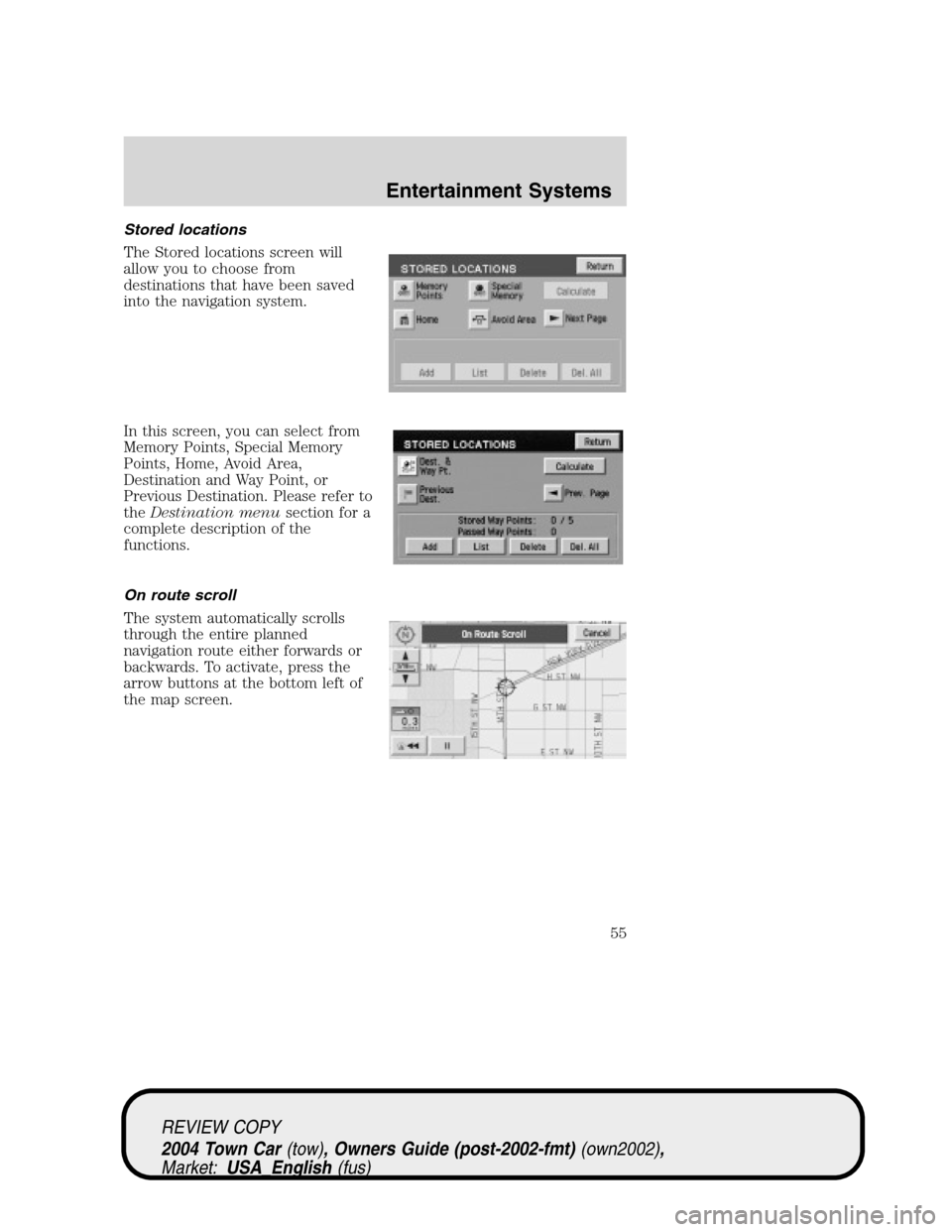
Stored locations
The Stored locations screen will
allow you to choose from
destinations that have been saved
into the navigation system.
In this screen, you can select from
Memory Points, Special Memory
Points, Home, Avoid Area,
Destination and Way Point, or
Previous Destination. Please refer to
theDestination menusection for a
complete description of the
functions.
On route scroll
The system automatically scrolls
through the entire planned
navigation route either forwards or
backwards. To activate, press the
arrow buttons at the bottom left of
the map screen.
REVIEW COPY
2004 Town Car(tow), Owners Guide (post-2002-fmt)(own2002),
Market:USA_English(fus)
Entertainment Systems
55