Page 104 of 336

The following view is the power
window switch on the rear door trim
panels.
²Press and hold the top or bottom
of the rear rocker switches to
open or close.
One touch up or down
This feature is present on the driver's window only.
To operate ONE TOUCH DOWN:
²Press the switch completely down
to the second detent and release
quickly. The driver's window will
open fully. Momentarily press the
switch to any position to stop the
window operation.
If the switch is pressed and held to
the normal close or ONE TOUCH
UP position during a ONE TOUCH
DOWN event, the window will stop. If, after 1/2 second the switch is still
held, the window will perform a normal close or ONE TOUCH UP.
To operate ONE TOUCH UP:
²Pull the switch completely up to
the second detent and release
quickly. The driver's window will
close fully. Momentarily press the
switch to any position to stop the
one touch up.
If the switch is pressed and held to
the normal open or ONE TOUCH
DOWN position during a ONE
TOUCH UP event, the window will stop. If, after 1/2 second the switch is
still held, the window will perform a normal open or ONE TOUCH
DOWN.
Driver Controls
104
Page 105 of 336

Bounce-Back
When an obstacle has been detected in the window opening as the
window is moving upward, the window will automatically reverse
direction and move down. This is known as ªbounce-backº. If the ignition
is turned OFF (without accessory delay being active) during
bounce-back, the window will move down until the bounce back position
is reached.
Security Override
If during a bounce-back condition, the switch is released to the neutral
position, then held in the one touch up position within two seconds after
the window reaches the bounce-back position,the window will travel
up with no bounce-back protection.If the switch is released before
the window reaches fully closed or the ignition is turned OFF (without
accessory delay being active), the window will stop. Security override
can be used if there is ice on the window or seals, causing a restriction.
Window lock
The window lock feature allows only
the driver to operate the rear power
windows.
To lock out the rear window
controls push the control down. To
restore the rear window controls,
push the control down. The control
will spring back up to the neutral
position.
Accessory delay
With accessory delay, the radio, windows, and moonroof operate for up
to ten minutes after the ignition switch is turned from the ON to the
OFF position or until any door is opened.
MIRRORS
Automatic dimming rear view mirror (if equipped)
Your vehicle may be equipped with an inside rear view mirror with an
auto-dimming function. When the mirror is put in the AUTO position, it
will detect bright lights (glare) from behind the vehicle, and will change
from the undarkened high reflective state to the darkened state during
night driving to minimize glare.
Driver Controls
105
Page 114 of 336
Navigation control features
Press and hold VOICE briefly until
the voice
icon appears on the
Navigation display to use the
Navigation voice command.
Press RPT (REPEAT) control to
hear previous command repeated
from the navigation system.
Climate control features
Press TEMP + or - to adjust
temperature.
HOMELINKTWIRELESS CONTROL SYSTEM
The HomeLinktWireless Control System, located on the overhead
console, provides a convenient way to replace up to three hand-held
transmitters with a single built-in device. This feature will learn the radio
frequency codes of most current transmitters to operate garage doors,
entry gate operators, security systems, entry door locks, and home or
office lighting.
Driver Controls
114
Page 115 of 336

When programming your HomeLinktWireless Control System to
a garage door or gate, be sure that people and objects are out of
the way to prevent potential harm or damage.
Do not use the HomeLinktWireless Control System with any garage
door opener that lacks safety stop and reverse features as required by
U.S. federal safety standards (this includes any garage door opener
model manufactured before April 1, 1982). A garage door which cannot
detect an object, signaling the door to stop and reverse, does not meet
current U.S. federal safety standards. For more information, contact
HomeLinktat:www.homelink.comor1±800±355±3515.
Retain the original transmitter for use in other vehicles as well as for
future programming procedures (i.e. new HomeLinktequipped vehicle
purchase). It is also suggested that upon the sale of the vehicle, the
programmed Homelinktbuttons be erased for security purposes, refer to
Programmingin this section.
Programming
Do not program HomeLinktwith the vehicle parked in the garage.
Note:Some vehicles may require the ignition switch to be turned to the
second (or ªACCº) position for programming and/or operation of the
HomeLinkt. It is also recommended that a new battery be placed in the
hand-held transmitter of the device being programmed to HomeLinktfor
quicker training and accurate transmission of the radio-frequency signal.
1. Press and hold the two outside
buttons releasing only when the red
light begins to flash after 20
seconds.Do notrepeat step one to
program additional hand-held
transmitters to the remaining two
HomeLinktbuttons. This will erase
previously programmed hand-held
transmitter signals into HomeLinkt.
2. Position the end of your
hand-held transmitter 2±8 cm (1±3
inches) away from the HomeLinktbutton you wish to program (located
on your overhead console) while keeping the red light in view.
Driver Controls
115
Page 116 of 336
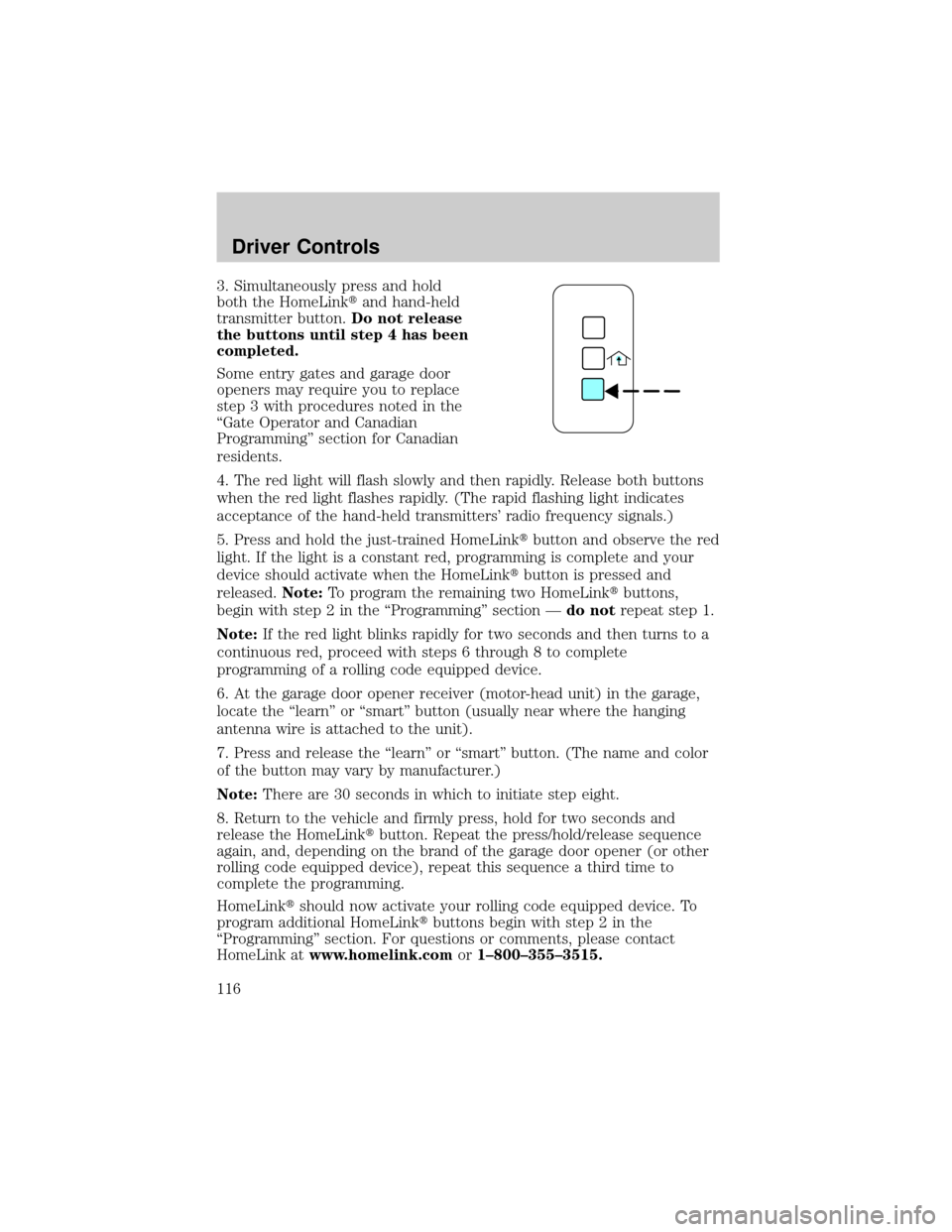
3. Simultaneously press and hold
both the HomeLinktand hand-held
transmitter button.Do not release
the buttons until step 4 has been
completed.
Some entry gates and garage door
openers may require you to replace
step 3 with procedures noted in the
ªGate Operator and Canadian
Programmingº section for Canadian
residents.
4. The red light will flash slowly and then rapidly. Release both buttons
when the red light flashes rapidly. (The rapid flashing light indicates
acceptance of the hand-held transmitters' radio frequency signals.)
5. Press and hold the just-trained HomeLinktbutton and observe the red
light. If the light is a constant red, programming is complete and your
device should activate when the HomeLinktbutton is pressed and
released.Note:To program the remaining two HomeLinktbuttons,
begin with step 2 in the ªProgrammingº section Ðdo notrepeat step 1.
Note:If the red light blinks rapidly for two seconds and then turns to a
continuous red, proceed with steps 6 through 8 to complete
programming of a rolling code equipped device.
6. At the garage door opener receiver (motor-head unit) in the garage,
locate the ªlearnº or ªsmartº button (usually near where the hanging
antenna wire is attached to the unit).
7. Press and release the ªlearnº or ªsmartº button. (The name and color
of the button may vary by manufacturer.)
Note:There are 30 seconds in which to initiate step eight.
8. Return to the vehicle and firmly press, hold for two seconds and
release the HomeLinktbutton. Repeat the press/hold/release sequence
again, and, depending on the brand of the garage door opener (or other
rolling code equipped device), repeat this sequence a third time to
complete the programming.
HomeLinktshould now activate your rolling code equipped device. To
program additional HomeLinktbuttons begin with step 2 in the
ªProgrammingº section. For questions or comments, please contact
HomeLink atwww.homelink.comor1±800±355±3515.
Driver Controls
116
Page 117 of 336

Gate Operator & Canadian Programming
During programming, your
hand-held transmitter may
automatically stop transmitting Ð
not allowing enough time for
HomeLinktto accept the signal
from the hand-held transmitter.
After completing steps 1 and 2
outlined in theªProgrammingº
section, replace step 3 with the
following:
Note:If programming a garage door opener or gate operator, it is
advised to unplug the device during the ªcyclingº process to prevent
overheating.
²Continue to press and hold the HomeLinktbutton (note step 3 in the
ªProgrammingº section) while you press and release Ðevery two
seconds(ªcycleº) your hand-held transmitter until the frequency
signal has been accepted by the HomeLinkt. The red indicator light
will flash slowly and then rapidly after HomeLinktaccepts the radio
frequency signal.
²Proceed with step 4 in the ªProgrammingº section.
Operating the HomeLinkTWireless Control System
To operate, simply press and release
the appropriate HomeLinktbutton.
Activation will now occur for the
trained product (garage door, gate
operator, security system, entry
door lock, or home or office lighting
etc.). For convenience, the
hand-held transmitter of the device
may also be used at any time. In the
event that there are still
programming difficulties, contact
HomeLinktatwww.homelink.comor1±800±355±3515.
Driver Controls
117
Page 120 of 336

Compass zone/calibration adjustment
Perform this adjustment in an open area free from steel structures and
high voltage lines.
For optimum calibration, turn off all electrical accessories (heater/air
conditioning, wipers, etc.) and make sure all vehicle doors are shut.
1. Turn ignition to the ON position.
2. Start the engine.
3. Determine your magnetic zone by
referring to the zone map.
4. From Info menu, select the
Compass/Odometer function. (Do
not select Trip, DTE, or AFE. The
top of the message center must be
blank).
5. Press and hold the RESET and
SETUP control until the message
center display changes to show the
current zone setting.
6. Release the RESET AND SETUP
control, then slowly press RESET
down again.
7. Press the SETUP control
repeatedly until the correct zone
setting for your geographic location is displayed on the message center.
To exit the zone setting mode press and release the RESET control.
8. Press the RESET control to start
the compass calibration function.
1 2 3
4
5
6 7 8 9 101112 13 14 15
Driver Controls
120
Page 127 of 336

Warning display Status
Door ajar Liftgate ajar Warning returns after cycling through
the system sequence
Low fuel level
Check charging system
Low brake fluid level
Low oil pressure
Transmission overheated
Check transmission
Check engine temperature
Reduced engine power
Stop engine safely
AWD disabled locked (vehicles
equipped with AdvanceTracy
only)
Low washer fluid level Warning returns after the ignition key
is turned from OFF to ON.
Check tire pressure
Tire pressure system fault
Tire pressure sensor fault
Check AdvTrac (if equipped)
Check AWD (vehicles equipped
with AdvanceTracyonly)
AWD Disabled (vehicles
equipped with AdvanceTracy
only)
Check fuel cap
Oil change required
CHECK PARK ASSIST.Displayed when the transmission is in R
(Reverse) and the park assist does not operate properly. See your dealer
as soon as possible.
ADVTRAC ON (if equipped).Displayed when the AdvanceTrac is ON.
ADVTRAC OFF (if equipped).Displayed when the AdvanceTrac is
OFF.
TEMPORARY AWD LOCKED (vehicles equipped with
AdvanceTracyonly).Displayed when the AWD system automatically
locks to prevent damage from overheating.
Driver Controls
127
