2004 CHEVROLET TRAIL BLAZER key
[x] Cancel search: keyPage 222 of 448
z(Set-up Menu):Press this button to adjust the
color, tint, brightness, contrast, and display mode
(normal, full, or zoom). The dynamic range compression
feature can be used to reduce loud audio and increase
low audio produced by some DVDs.
e(Audio):Press this button to display a menu that
will only appear when a DVD is being played. The format
and content of this function will vary for each disc.
r(Fast Reverse):Press this button to fast reverse
the DVD or CD. To stop fast reversing, press this button
again. This button may not work when the DVD is
playing the copyright information or the previews.
SRCE (Source):Press this button to switch between
the DVD player and an auxiliary source.
c(Stop):Press this button to stop playing, rewinding,
or fast forwarding a DVD or CD. Press this button
twice to return to the beginning of the DVD.
t(Previous Track/Chapter):Press this button to
return to the start of the current track or chapter. Press
this button again to return to the previous track or
chapter. This button may not work when the DVD is
playing the copyright information or the previews.1 through 0 (Numeric Keypad):The numeric keypad
provides you with the capability of direct chapter,
title, and track number selection.
}10 (Double Digit Entries):Press this button to
select chapter, title, and track numbers greater than 9.
Press this button before inputting the number.
\(Clear):Press this button within three seconds after
inputting a numeric selection to clear all numeric inputs.
P(Illumination):Press this button to turn the remote
control backlight on. The backlight will time out after
about 7 to 10 seconds if no other button is pressed while
the backlight is on.
y(Main DVD Menu):Press this button to access the
DVD menu. The DVD menu is different on every
DVD. Use the up, down, left, and right arrow buttons to
move the cursor around the DVD menu. After making
a selection press the enter button. This button only
operates when playing a DVD.
r(Enter):Press this button to select the choices
that are highlighted in any menu.
q(Return):Press this button to exit the current
active menu and return to the previous menu. This
button will operate only when a DVD is playing and a
menu is active.
3-106
Page 228 of 448
SEEK:Press this button to go to the next station and
stay there. The display will show the selection. This
function is inactive if the front seat passengers are
listening to the radio.
To scan preset stations, press and hold the SEEK
button. The radio will go to a preset station, play for a
few seconds, then go the next preset station. The
display will show the selections. This function is inactive
if the front seat passengers are listening to the radio.
When a cassette tape is playing, press the SEEK button
to go to the next selection on the tape. Press and
hold the SEEK button to go to the other side of the tape.
This function is inactive if the front seat passengers
are listening to a cassette tape.
When a CD is playing, press the SEEK button to go to
the next track on the CD. This function is inactive if
the front seat passengers are listening to a CD.
When a CD is playing in the six-disc CD player, press
and hold the SEEK button for 2 seconds to go you to the
next CD, if multiple CDs are loaded. This function is
inactive if the front seat passengers are listening
to a CD.Radio Personalization
If your vehicle has this feature, it allows the driver to
return to the last used source: radio, cassette, or
CD using the remote keyless entry transmitter. This
feature can also store and recall AM and FM presets,
volume, tone, and the last selected radio station.
The number on the back of each transmitter, 1 or 2,
corresponds to driver 1 or 2. If transmitter 1 is used to
enter the vehicle, the last used audio source and/or
settings set by driver 1 will be recalled. If transmitter 2 is
used to enter the vehicle, the last used audio source
and/or settings set by driver 2 will be recalled.
Theft-Deterrent Feature
THEFTLOCK®is designed to discourage theft of your
vehicle’s radio. The feature works automatically by
learning a portion of the Vehicle Identication
Number (VIN). If the radio is moved to a different
vehicle, it will not operate and LOCKED will appear on
the display.
When the radio and vehicle are turned off, the blinking
red light indicates that THEFTLOCK
®is armed.
With THEFTLOCK
®activated, the radio will not operate
if stolen.
3-112
Page 235 of 448
Many adults — by some estimates, nearly half the adult
population — choose never to drink alcohol, so they
never drive after drinking. For persons under 21,
it is against the law in every U.S. state to drink alcohol.
There are good medical, psychological and
developmental reasons for these laws.
The obvious way to eliminate the leading highway
safety problem is for people never to drink alcohol and
then drive. But what if people do? How much is “too
much” if someone plans to drive? It is a lot less
than many might think. Although it depends on each
person and situation, here is some general information
on the problem.
The Blood Alcohol Concentration (BAC) of someone
who is drinking depends upon four things:
The amount of alcohol consumed
The drinker’s body weight
The amount of food that is consumed before and
during drinking
The length of time it has taken the drinker to
consume the alcohol.
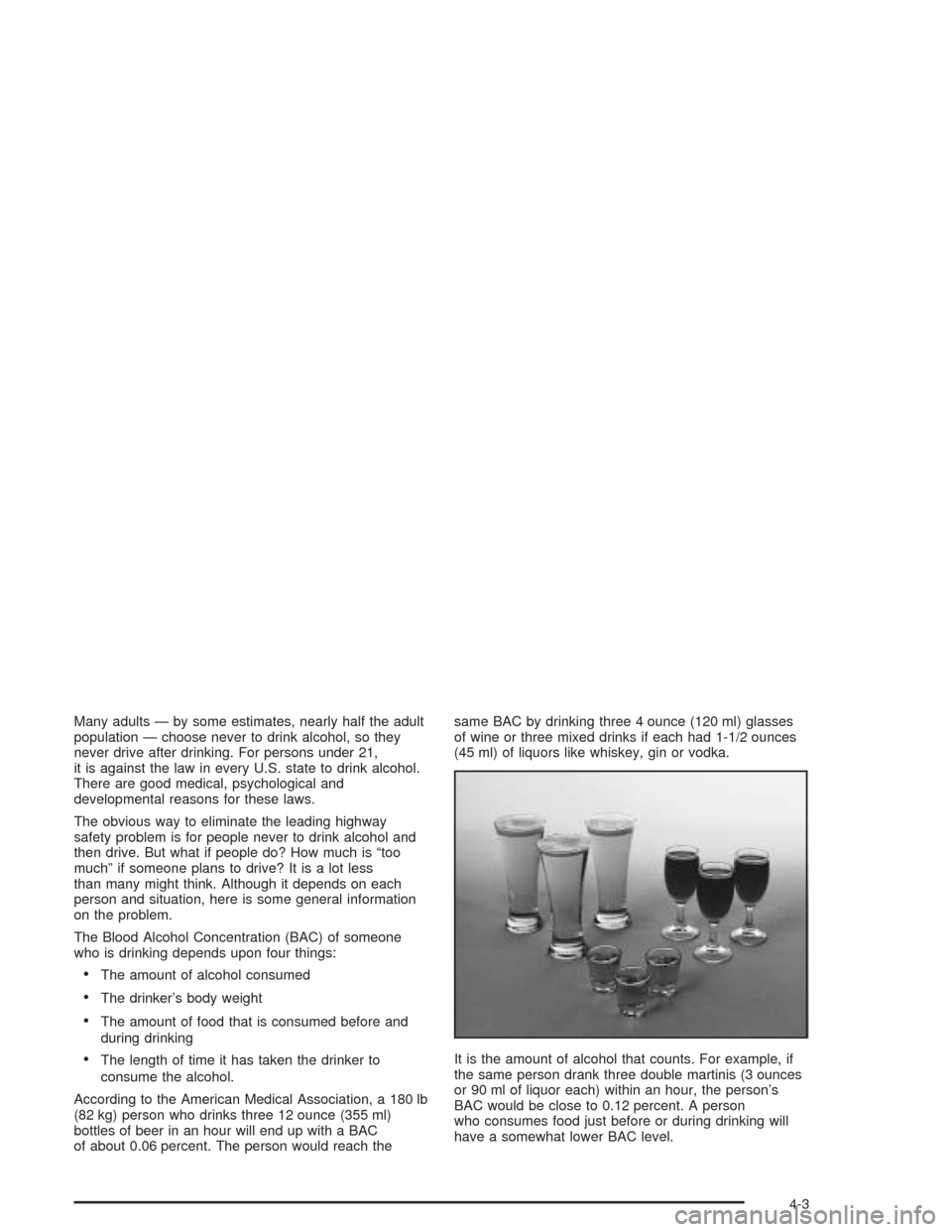
According to the American Medical Association, a 180 lb
(82 kg) person who drinks three 12 ounce (355 ml)
bottles of beer in an hour will end up with a BAC
of about 0.06 percent. The person would reach thesame BAC by drinking three 4 ounce (120 ml) glasses
of wine or three mixed drinks if each had 1-1/2 ounces
(45 ml) of liquors like whiskey, gin or vodka.
It is the amount of alcohol that counts. For example, if
the same person drank three double martinis (3 ounces
or 90 ml of liquor each) within an hour, the person’s
BAC would be close to 0.12 percent. A person
who consumes food just before or during drinking will
have a somewhat lower BAC level.
4-3
Page 250 of 448
Controlling your vehicle is the key to successful off-road
driving. One of the best ways to control your vehicle
is to control your speed. Here are some things to keep
in mind. At higher speeds:
you approach things faster and you have less time
to scan the terrain for obstacles.
you have less time to react.
you have more vehicle bounce when you drive over
obstacles.
you will need more distance for braking, especially
since you are on an unpaved surface.
{CAUTION:
When you are driving off-road, bouncing and
quick changes in direction can easily throw
you out of position. This could cause you to
lose control and crash. So, whether you’re
driving on or off the road, you and your
passengers should wear safety belts.
Scanning the Terrain
Off-road driving can take you over many different kinds
of terrain. You need to be familiar with the terrain
and its many different features. Here are some things to
consider.
Surface Conditions:Off-roading can take you over
hard-packed dirt, gravel, rocks, grass, sand, mud, snow
or ice. Each of these surfaces affects the steering,
acceleration and braking of your vehicle in different
ways. Depending upon the kind of surface you are on,
you may experience slipping, sliding, wheel spinning,
delayed acceleration, poor traction and longer braking
distances.
Surface Obstacles:Unseen or hidden obstacles can
be hazardous. A rock, log, hole, rut or bump can startle
you if you are not prepared for them. Often these
obstacles are hidden by grass, bushes, snow or even
the rise and fall of the terrain itself. Here are some
things to consider:
Is the path ahead clear?
Will the surface texture change abruptly up ahead?
Does the travel take you uphill or downhill?
(There is more discussion of these subjects later.)
Will you have to stop suddenly or change direction
quickly?
4-18
Page 315 of 448
How to Reset the CHANGE ENGINE OIL
Light
The GM Oil Life System calculates when to change
your engine oil and lter based on vehicle use. Anytime
your oil is changed, reset the system so it can
calculate when the next oil change is required. If a
situation occurs where you change your oil prior to a
CHANGE ENGINE OIL light being turned on, reset the
system.
To reset the CHANGE ENGINE OIL light, do the
following:
1. Turn the ignition key to RUN with the engine off.
2. Fully press and release the accelerator pedal slowly
three times within ve seconds.
3. Turn the key to LOCK.
If the CHANGE ENGINE OIL light comes back on when
you start your vehicle, the engine oil life system has
not reset. Repeat the procedure.
For vehicles with the Driver Information Center, see
Driver Information Center (DIC) on page 3-48to reset
the system.
What to Do with Used Oil
Used engine oil contains certain elements that may be
unhealthy for your skin and could even cause cancer.
Do not let used oil stay on your skin for very long. Clean
your skin and nails with soap and water, or a good
hand cleaner. Wash or properly dispose of clothing or
rags containing used engine oil. See the manufacturer’s
warnings about the use and disposal of oil products.
Used oil can be a threat to the environment. If you
change your own oil, be sure to drain all the oil from the
lter before disposal. Never dispose of oil by putting it
in the trash, pouring it on the ground, into sewers, or into
streams or bodies of water. Instead, recycle it by
taking it to a place that collects used oil. If you have a
problem properly disposing of your used oil, ask
your dealer, a service station or a local recycling center
for help.
5-19
Page 331 of 448
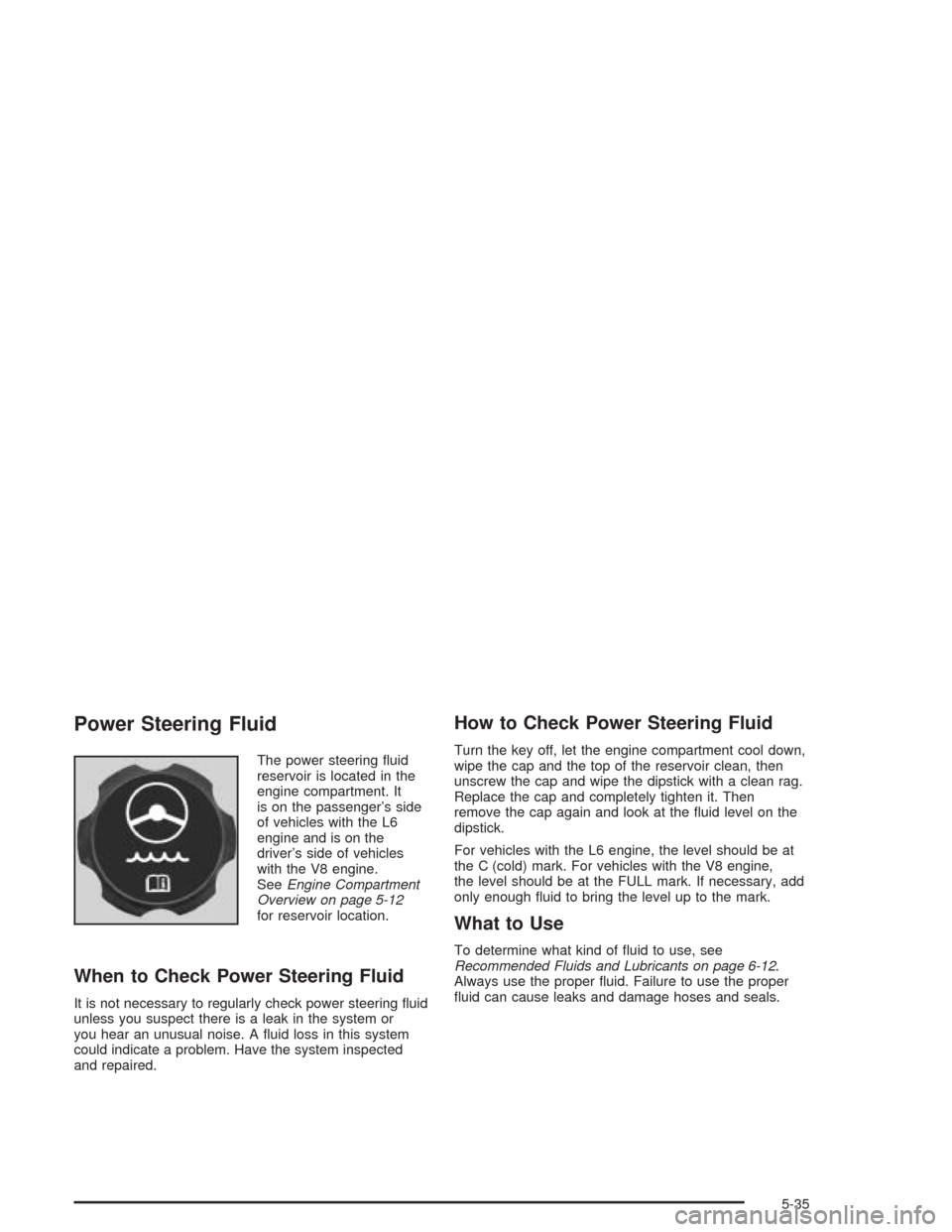
Power Steering Fluid
The power steering uid
reservoir is located in the
engine compartment. It
is on the passenger’s side
of vehicles with the L6
engine and is on the
driver’s side of vehicles
with the V8 engine.
SeeEngine Compartment
Overview on page 5-12
for reservoir location.
When to Check Power Steering Fluid
It is not necessary to regularly check power steering uid
unless you suspect there is a leak in the system or
you hear an unusual noise. A uid loss in this system
could indicate a problem. Have the system inspected
and repaired.
How to Check Power Steering Fluid
Turn the key off, let the engine compartment cool down,
wipe the cap and the top of the reservoir clean, then
unscrew the cap and wipe the dipstick with a clean rag.
Replace the cap and completely tighten it. Then
remove the cap again and look at the uid level on the
dipstick.
For vehicles with the L6 engine, the level should be at
the C (cold) mark. For vehicles with the V8 engine,
the level should be at the FULL mark. If necessary, add
only enough uid to bring the level up to the mark.
What to Use
To determine what kind of uid to use, see
Recommended Fluids and Lubricants on page 6-12.
Always use the proper uid. Failure to use the proper
uid can cause leaks and damage hoses and seals.
5-35
Page 410 of 448
(c)Visually inspect hoses and have them replaced if
they are cracked, swollen or deteriorated. Inspect
all pipes, ttings and clamps; replace with genuine GM
parts as needed. To help ensure proper operation, a
pressure test of the cooling system and pressure
cap and cleaning the outside of the radiator and air
conditioning condenser is recommended at least once
a year.
(d)Visually inspect wiper blades for wear or cracking.
Replace blade inserts that appear worn or damaged
or that streak or miss areas of the windshield.
(e)Make sure the safety belt reminder light and all your
belts, buckles, latch plates, retractors and anchorages
are working properly. Look for any other loose or
damaged safety belt system parts. If you see anything
that might keep a safety belt system from doing its
job, have it repaired. Have any torn or frayed safety belts
replaced. Also look for any opened or broken air bag
coverings, and have them repaired or replaced. (The air
bag system does not need regular maintenance.)
(f)Lubricate all key lock cylinders, hood latch assembly,
secondary latch, pivots, spring anchor, release pawl,
rear compartment hinges, outer liftgate handle pivot
points, rear door detent link, roller mechanism, liftgate
handle pivot points, latch bolt, fuel door hinge, cargo
door hinge, locks and folding seat hardware.More frequent lubrication may be required when
exposed to a corrosive environment. Applying silicone
grease on weatherstrips with a clean cloth will make
them last longer, seal better and not stick or squeak.
(g)Add uid as needed. A uid loss could indicate
a problem; repair as needed. Check vent hose at
transfer case for kinks and proper installation.
(h)Change automatic transmission uid and lter if the
vehicle is mainly driven under one or more of these
conditions:
In heavy city traffic where the outside temperature
regularly reaches 90°F (32°C) or higher.
In hilly or mountainous terrain.
When doing frequent trailer towing.
Uses such as found in taxi, police or delivery
service.
(i)Drain, ush and rell cooling system. See Engine
Coolant on page 5-23for what to use. Inspect hoses.
Clean radiator, condenser, pressure cap and ller neck.
Pressure test the cooling system and pressure cap.
(j)A uid loss in any vehicle system could indicate a
problem. Have the system inspected and repaired and
the uid level checked. Add uid if needed.
6-8
Page 412 of 448
At Least Once a Year
Starter Switch Check
{CAUTION:
When you are doing this inspection, the
vehicle could move suddenly. If the vehicle
moves, you or others could be injured.
1. Before you start, be sure you have enough room
around the vehicle.
2. Firmly apply both the parking brake and the regular
brake. SeeParking Brake on page 2-28if
necessary.
Do not use the accelerator pedal, and be ready to
turn off the engine immediately if it starts.
3. Try to start the engine in each gear. The starter
should work only in PARK (P) or NEUTRAL (N).
If the starter works in any other position, contact
your GM Goodwrench dealer for service.
Automatic Transmission Shift Lock
Control System Check
{CAUTION:
When you are doing this inspection, the
vehicle could move suddenly. If the vehicle
moves, you or others could be injured.
1. Before you start, be sure you have enough room
around the vehicle. It should be parked on a level
surface.
2. Firmly apply the parking brake. SeeParking Brake
on page 2-28if necessary.
Be ready to apply the regular brake immediately if
the vehicle begins to move.
3. With the engine off, turn the key to the RUN
position, but do not start the engine. Without
applying the regular brake, try to move the shift
lever out of PARK (P) with normal effort. If the
shift lever moves out of PARK (P), contact your
GM Goodwrench dealer for service.
6-10