2004 BMW 760LI SEDAN AC System
[x] Cancel search: AC SystemPage 18 of 232
Cockpit
16
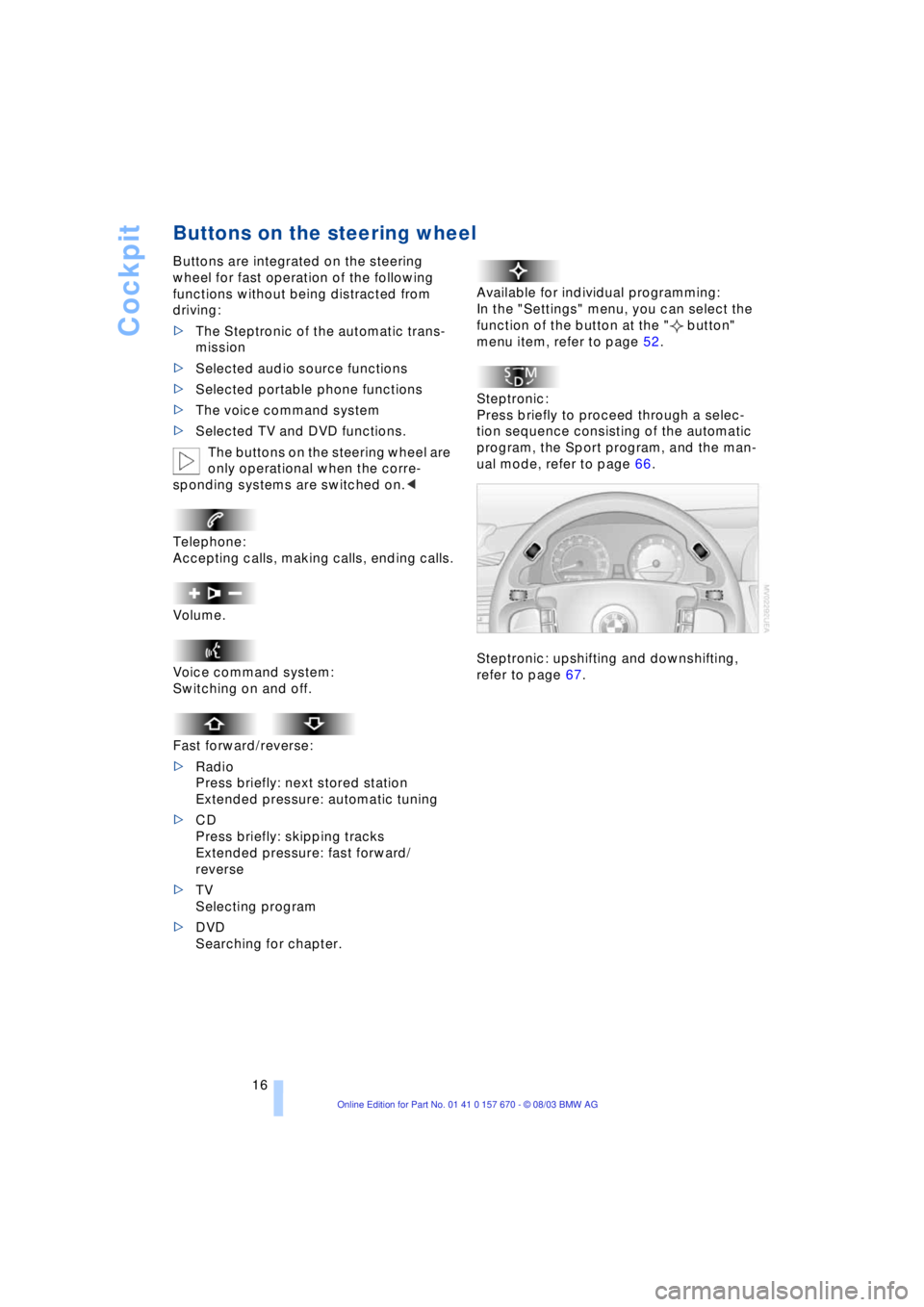
Buttons on the steering wheel
Buttons are integrated on the steering
wheel for fast operation of the following
functions without being distracted from
driving:
>The Steptronic of the automatic trans-
mission
>Selected audio source functions
>Selected portable phone functions
>The voice command system
>Selected TV and DVD functions.
The buttons on the steering wheel are
only operational when the corre-
sponding systems are switched on.<
Telephone:
Accepting calls, making calls, ending calls.
Volume.
Voice command system:
Switching on and off.
Fast forward/reverse:
>Radio
Press briefly: next stored station
Extended pressure: automatic tuning
>CD
Press briefly: skipping tracks
Extended pressure: fast forward/
reverse
>TV
Selecting program
>DVD
Searching for chapter.Available for individual programming:
In the "Settings" menu, you can select the
function of the button at the " button"
menu item, refer to page 52.
Steptronic:
Press briefly to proceed through a selec-
tion sequence consisting of the automatic
program, the Sport program, and the man-
ual mode, refer to page 66.
Steptronic: upshifting and downshifting,
refer to page 67.
Page 19 of 232
At a glance
17Reference
Controls
Driving tips
Communications
Navigation
Entertainment
Mobility
Control Center
The concept
The Control Center has been designed to
avoid the unnecessary complexity created
by an extended number of switches and
controls. It consists of the controller and
the Control Display.
The controller is used to select the func-
tions that will appear on the Control Dis-
play. In addition, it also shows you Check
Control messages, refer to page 82.
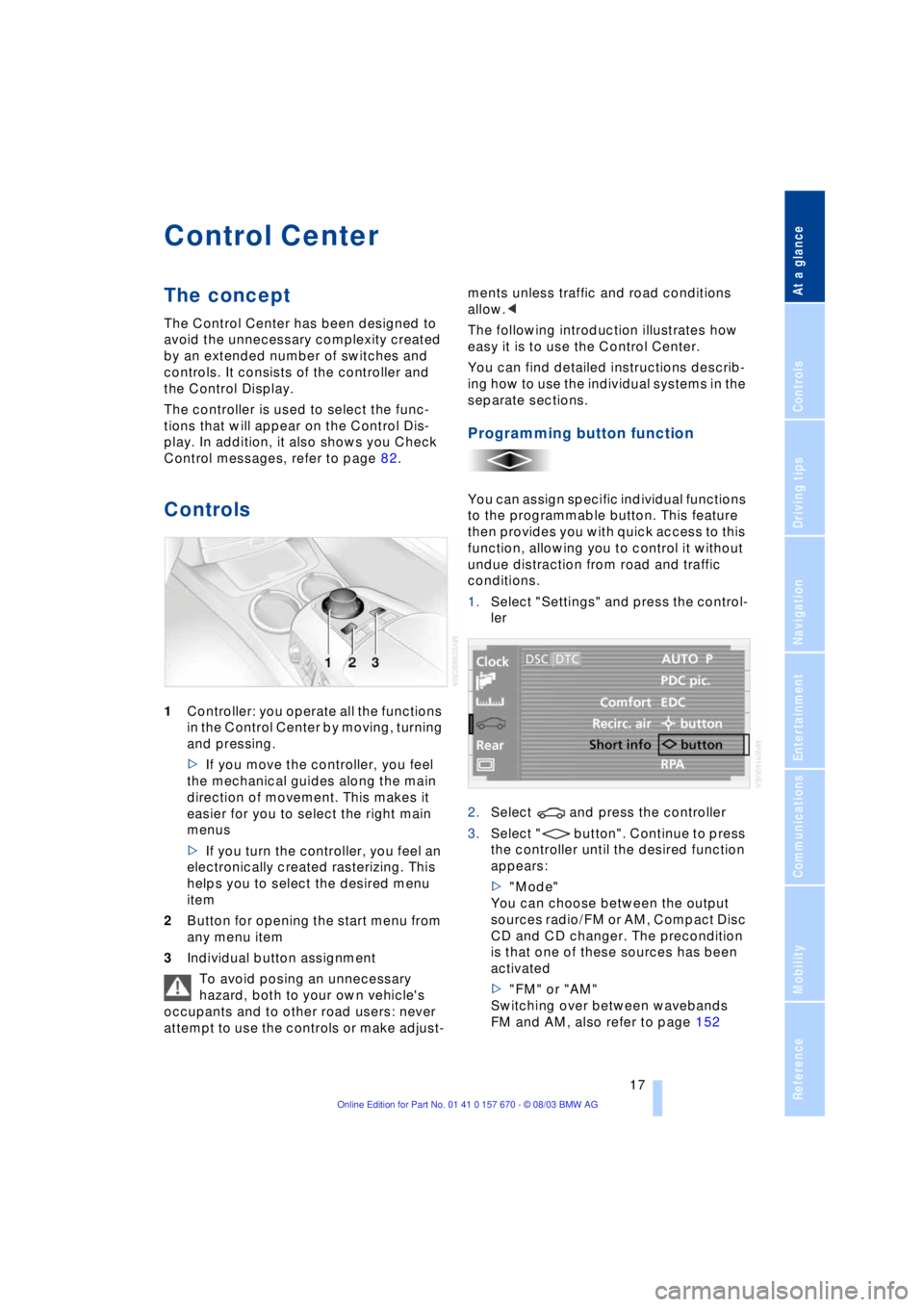
Controls
1Controller: you operate all the functions
in the Control Center by moving, turning
and pressing.
>If you move the controller, you feel
the mechanical guides along the main
direction of movement. This makes it
easier for you to select the right main
menus
>If you turn the controller, you feel an
electronically created rasterizing. This
helps you to select the desired menu
item
2Button for opening the start menu from
any menu item
3Individual button assignment
To avoid posing an unnecessary
hazard, both to your own vehicle's
occupants and to other road users: never
attempt to use the controls or make adjust-ments unless traffic and road conditions
allow.<
The following introduction illustrates how
easy it is to use the Control Center.
You can find detailed instructions describ-
ing how to use the individual systems in the
separate sections.
Programming button function
You can assign specific individual functions
to the programmable button. This feature
then provides you with quick access to this
function, allowing you to control it without
undue distraction from road and traffic
conditions.
1.Select "Settings" and press the control-
ler
2.Select and press the controller
3.Select " button". Continue to press
the controller until the desired function
appears:
>"Mode"
You can choose between the output
sources radio/FM or AM, Compact Disc
CD and CD changer. The precondition
is that one of these sources has been
activated
>"FM" or "AM"
Switching over between wavebands
FM and AM, also refer to page 152
Page 24 of 232
Control Center
22 >Units of measure and
display format88
>Brightness89
>Locking Control Center in rear24
8Climate
>Automatic climate control102
>Heated seats49
>Independent ventilation109
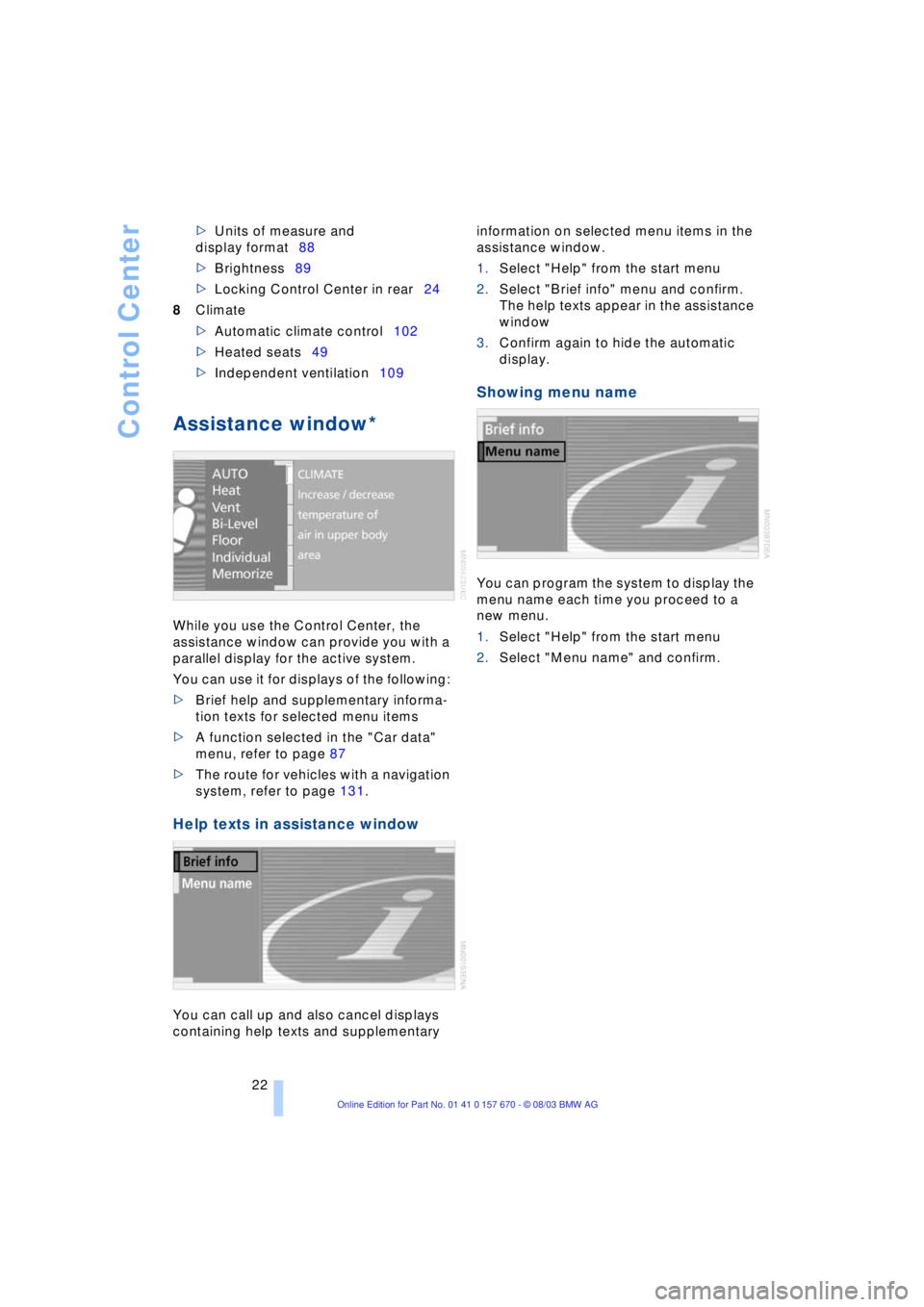
Assistance window*
While you use the Control Center, the
assistance window can provide you with a
parallel display for the active system.
You can use it for displays of the following:
>Brief help and supplementary informa-
tion texts for selected menu items
>A function selected in the "Car data"
menu, refer to page 87
>The route for vehicles with a navigation
system, refer to page 131.
Help texts in assistance window
You can call up and also cancel displays
containing help texts and supplementary information on selected menu items in the
assistance window.
1.Select "Help" from the start menu
2.Select "Brief info" menu and confirm.
The help texts appear in the assistance
window
3.Confirm again to hide the automatic
display.
Showing menu name
You can program the system to display the
menu name each time you proceed to a
new menu.
1.Select "Help" from the start menu
2.Select "Menu name" and confirm.
Page 25 of 232
At a glance
23Reference
Controls
Driving tips
Communications
Navigation
Entertainment
Mobility
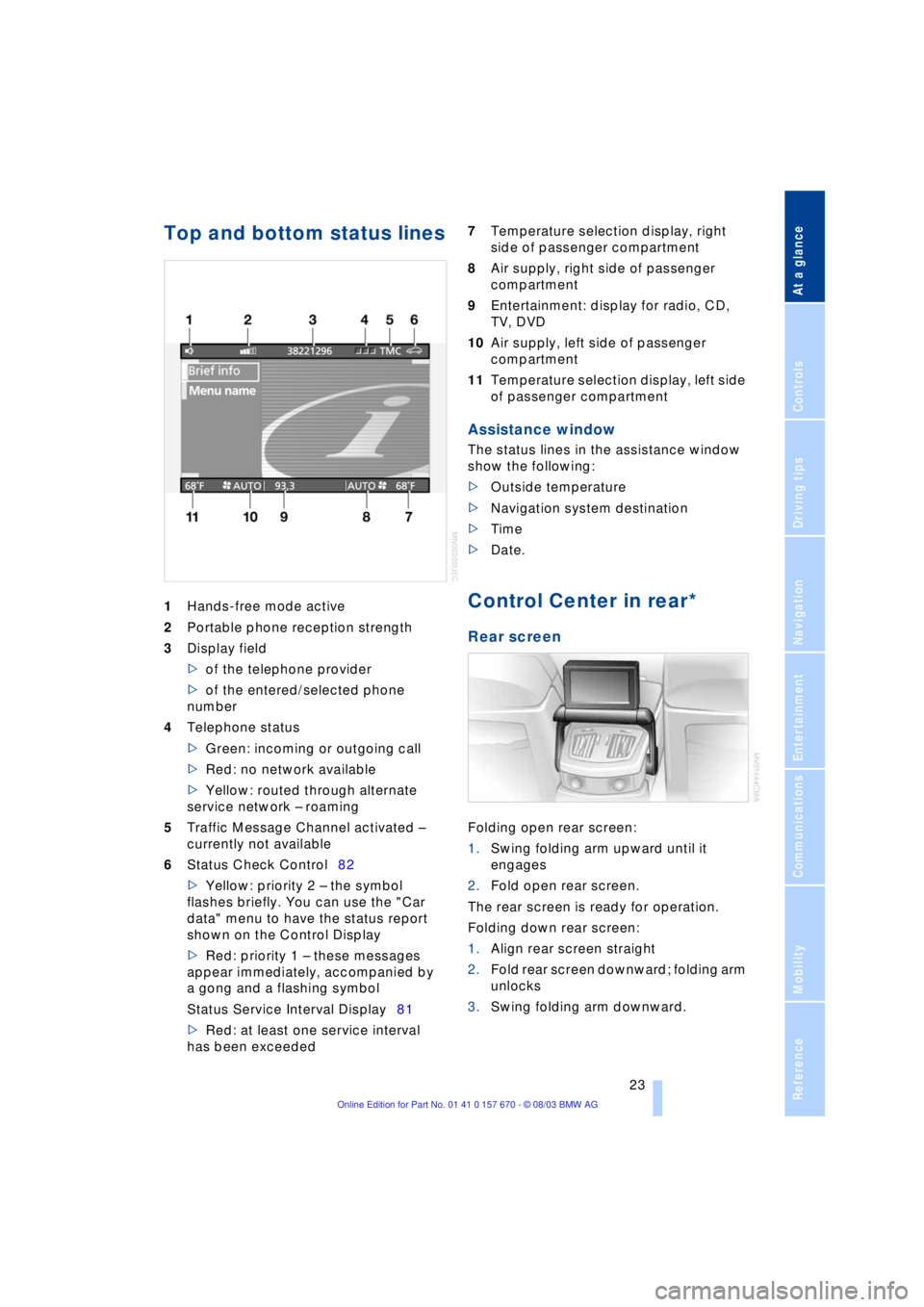
Top and bottom status lines
1Hands-free mode active
2Portable phone reception strength
3Display field
>of the telephone provider
>of the entered/selected phone
number
4Telephone status
>Green: incoming or outgoing call
>Red: no network available
>Yellow: routed through alternate
service network Ð roaming
5Traffic Message Channel activated Ð
currently not available
6Status Check Control82
>Yellow: priority 2 Ð the symbol
flashes briefly. You can use the "Car
data" menu to have the status report
shown on the Control Display
>Red: priority 1 Ð these messages
appear immediately, accompanied by
a gong and a flashing symbol
Status Service Interval Display81
>Red: at least one service interval
has been exceeded 7Temperature selection display, right
side of passenger compartment
8Air supply, right side of passenger
compartment
9Entertainment: display for radio, CD,
TV, DVD
10Air supply, left side of passenger
compartment
11Temperature selection display, left side
of passenger compartment
Assistance window
The status lines in the assistance window
show the following:
>Outside temperature
>Navigation system destination
>Time
>Date.
Control Center in rear*
Rear screen
Folding open rear screen:
1.Swing folding arm upward until it
engages
2.Fold open rear screen.
The rear screen is ready for operation.
Folding down rear screen:
1.Align rear screen straight
2.Fold rear screen downward; folding arm
unlocks
3.Swing folding arm downward.
Page 27 of 232
At a glance
25Reference
Controls
Driving tips
Communications
Navigation
Entertainment
Mobility
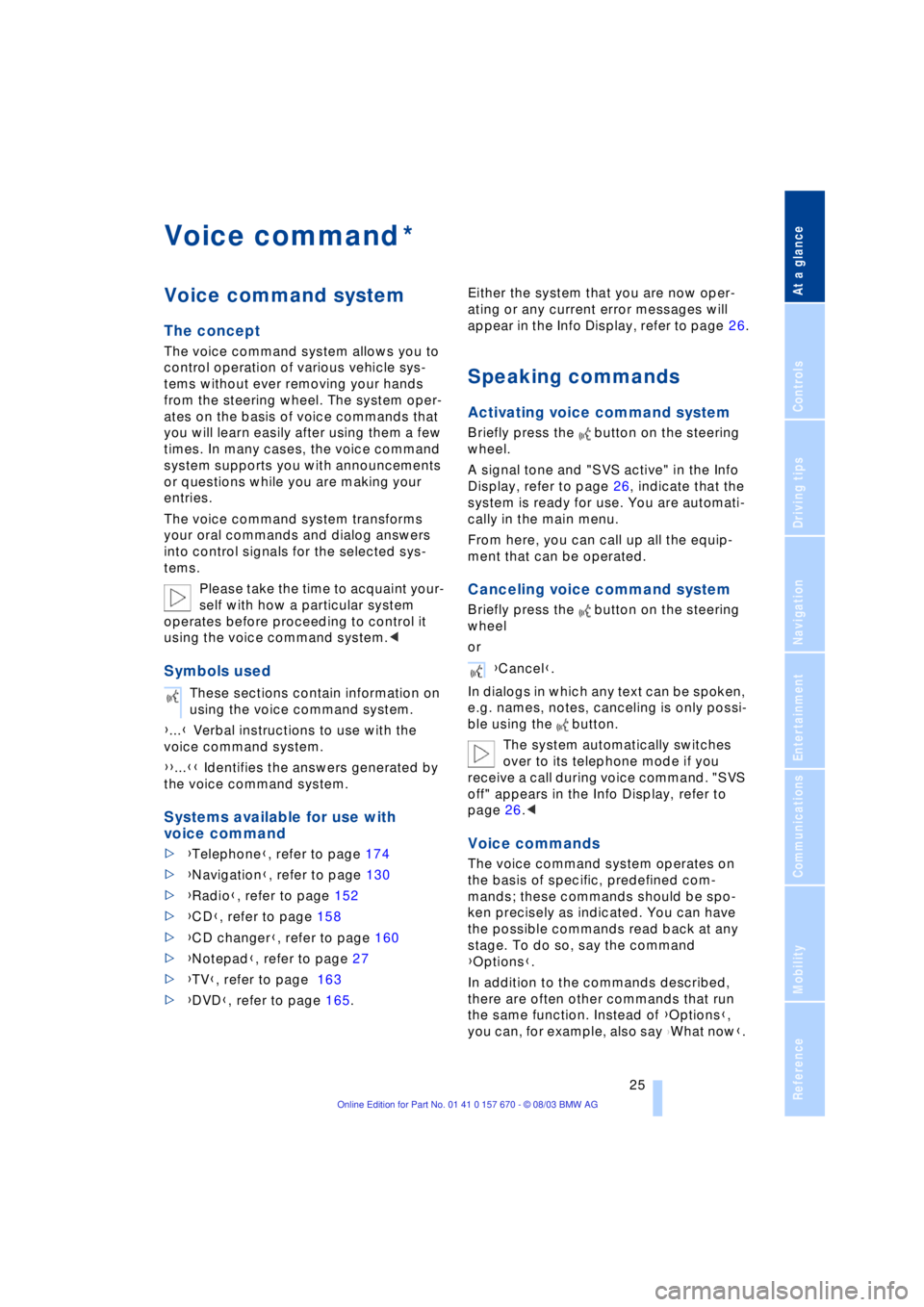
Voice command
Voice command system
The concept
The voice command system allows you to
control operation of various vehicle sys-
tems without ever removing your hands
from the steering wheel. The system oper-
ates on the basis of voice commands that
you will learn easily after using them a few
times. In many cases, the voice command
system supports you with announcements
or questions while you are making your
entries.
The voice command system transforms
your oral commands and dialog answers
into control signals for the selected sys-
tems.
Please take the time to acquaint your-
self with how a particular system
operates before proceeding to control it
using the voice command system.<
Symbols used
{...} Verbal instructions to use with the
voice command system.
{{...}} Identifies the answers generated by
the voice command system.
Systems available for use with
voice command
>{Telephone}, refer to page 174
>{Navigation}, refer to page 130
>{Radio}, refer to page 152
>{CD}, refer to page 158
>{CD changer}, refer to page 160
>{Notepad}, refer to page 27
>{TV}, refer to page 163
>{DVD}, refer to page 165. Either the system that you are now oper-
ating or any current error messages will
appear in the Info Display, refer to page 26.
Speaking commands
Activating voice command system
Briefly press the button on the steering
wheel.
A signal tone and "SVS active" in the Info
Display, refer to page 26, indicate that the
system is ready for use. You are automati-
cally in the main menu.
From here, you can call up all the equip-
ment that can be operated.
Canceling voice command system
Briefly press the button on the steering
wheel
or
In dialogs in which any text can be spoken,
e.g. names, notes, canceling is only possi-
ble using the button.
The system automatically switches
over to its telephone mode if you
receive a call during voice command. "SVS
off" appears in the Info Display, refer to
page 26.<
Voice commands
The voice command system operates on
the basis of specific, predefined com-
mands; these commands should be spo-
ken precisely as indicated. You can have
the possible commands read back at any
stage. To do so, say the command
{Options}.
In addition to the commands described,
there are often other commands that run
the same function. Instead of {Options},
you can, for example, also say
{What now}.
*
These sections contain information on
using the voice command system.
{Cancel}.
Page 28 of 232
Voice command
26 More detailed commands such as {Change
scale} instead of {Scale} are also often
possible.
Short commands
With the {Main menu} level, you can run
certain functions directly with short com-
mands, refer to page 28, without having to
open an equipment level.
For example, if you want to dial a phone
number, you do not have to say
rather you can say directly
Special commands
Special commands are available for spe-
cific systems. In this Owner's Manual you will find these commands in the sections
describing the individual systems.
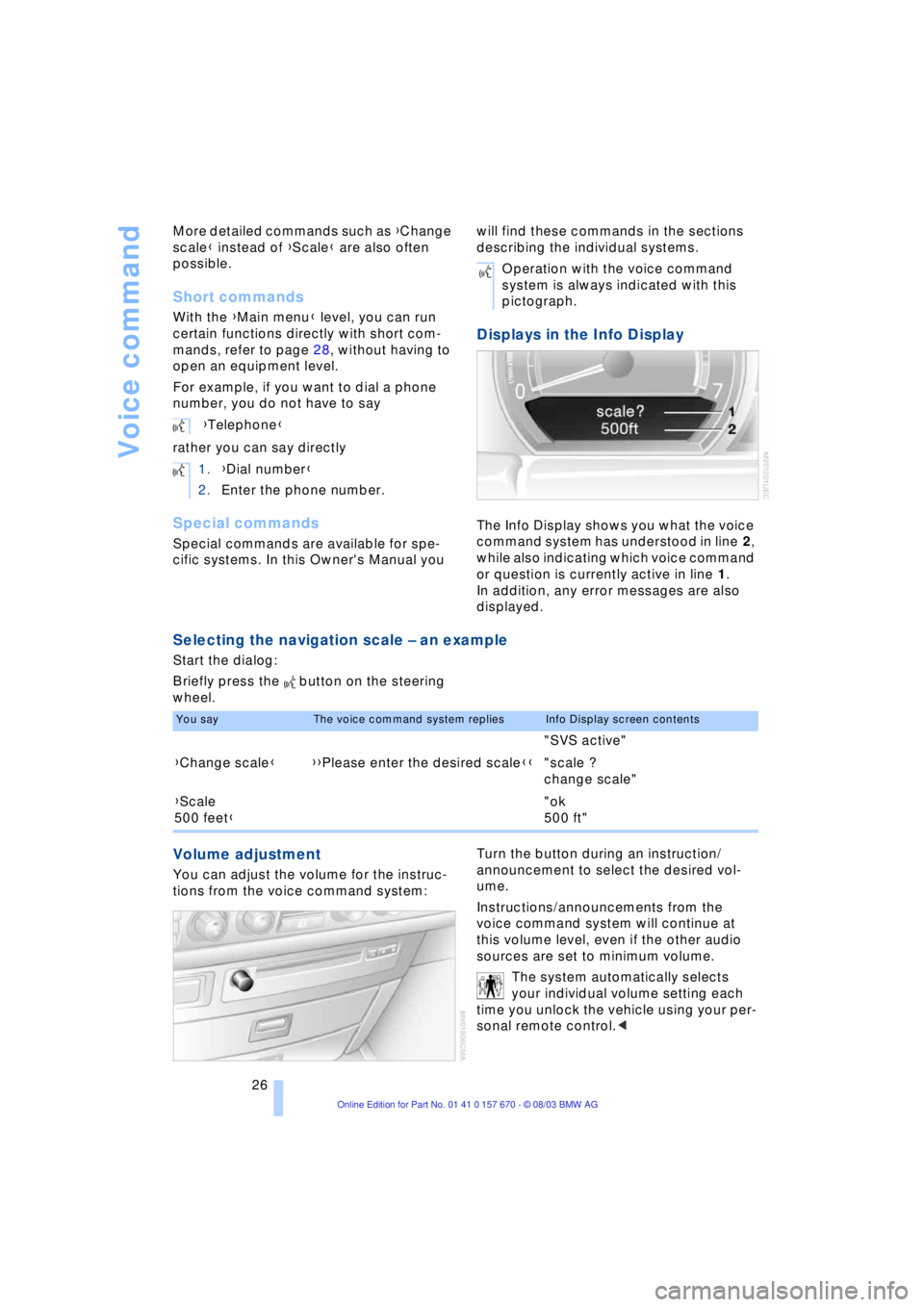
Displays in the Info Display
The Info Display shows you what the voice
command system has understood in line 2,
while also indicating which voice command
or question is currently active in line 1.
In addition, any error messages are also
displayed.
Selecting the navigation scale Ð an example
Start the dialog:
Briefly press the button on the steering
wheel.
Volume adjustment
You can adjust the volume for the instruc-
tions from the voice command system:Turn the button during an instruction/
announcement to select the desired vol-
ume.
Instructions/announcements from the
voice command system will continue at
this volume level, even if the other audio
sources are set to minimum volume.
The system automatically selects
your individual volume setting each
time you unlock the vehicle using your per-
sonal remote control.< {Telephone}
1.{Dial number}
2.Enter the phone number.
Operation with the voice command
system is always indicated with this
pictograph.
You sayThe voice command system repliesInfo Display screen contents
"SVS active"
{Change scale}{{Please enter the desired scale}}"scale ?
change scale"
{Scale
500 feet}"ok
500 ft"
Page 29 of 232
At a glance
27Reference
Controls
Driving tips
Communications
Navigation
Entertainment
Mobility
Notes
Do not use the voice command sys-
tem to make emergency calls. Your
voice and habitual tone could be affected
by stressful situations, as a result of which
the process of establishing the telephone
connection could be unnecessarily
delayed. Instead, use the emergency call
button near the interior rearview mirror,
refer to page 177.<
Environmental conditions
The voice command system uses a special
hands-free microphone located in the front
of your vehicle's headliner. Although the
system is designed to filter out ambient
noise, you can help ensure that your com-
mands will be understood by observing the
following instructions:
>Speak smoothly and clearly, at a normal
volume. Do not place any unusual
stress on individual syllables, and avoid
pauses
>Do not speak while the voice command
system is talking
>Keep the doors, windows and glass
roof closed to prevent interference from
ambient noise
>Avoid other sources of noise in the
vehicle while speaking, and ask other
vehicle occupants to refrain from talk-
ing while you are using the system
>The hands-free microphone is aimed
toward the driver. This means that the
system might be unable to register the
voices of other vehicle occupants prop-
erly.
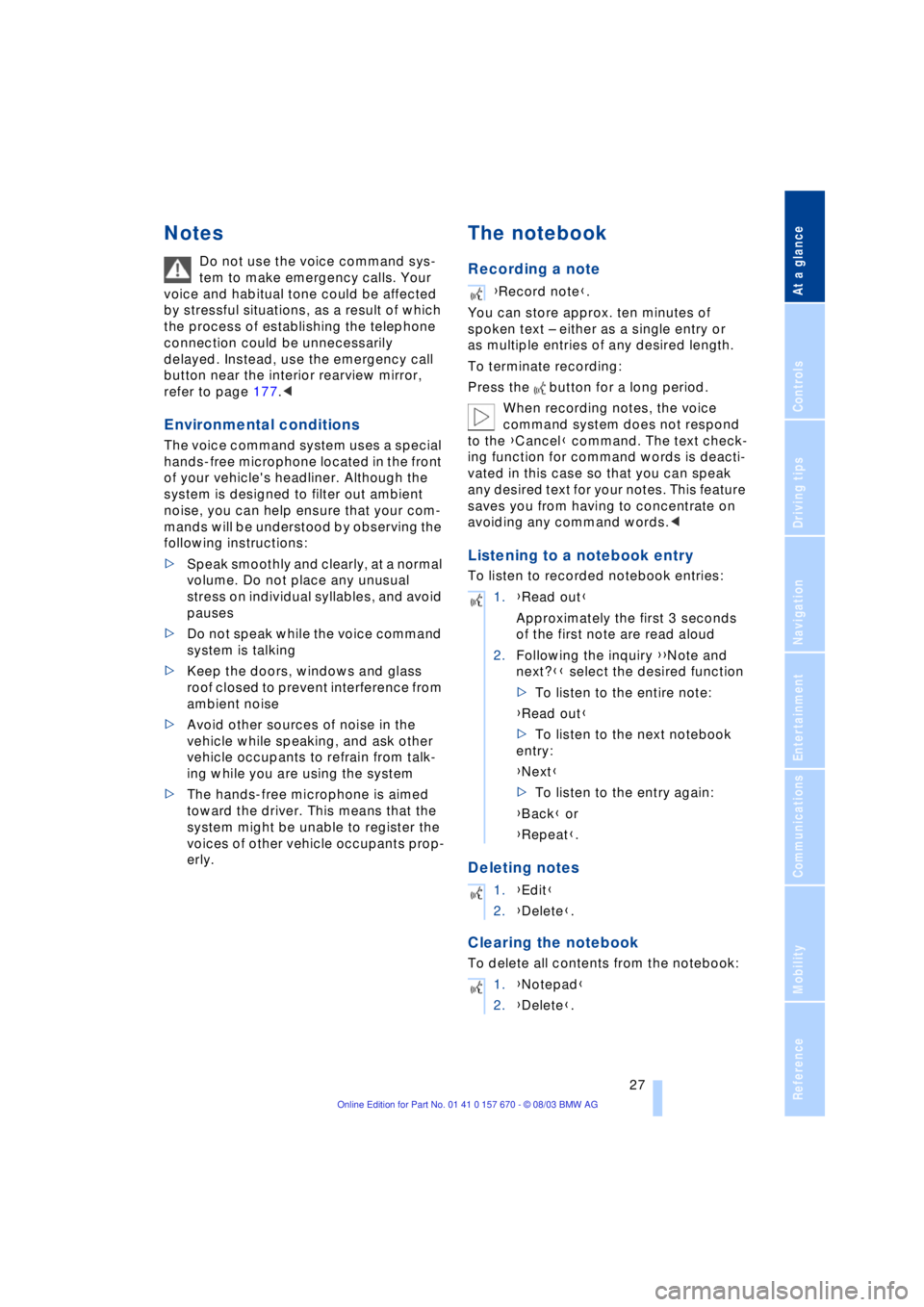
The notebook
Recording a note
You can store approx. ten minutes of
spoken text Ð either as a single entry or
as multiple entries of any desired length.
To terminate recording:
Press the button for a long period.
When recording notes, the voice
command system does not respond
to the {Cancel} command. The text check-
ing function for command words is deacti-
vated in this case so that you can speak
any desired text for your notes. This feature
saves you from having to concentrate on
avoiding any command words.<
Listening to a notebook entry
To listen to recorded notebook entries:
Deleting notes
Clearing the notebook
To delete all contents from the notebook:
{Record note}.
1.{Read out}
Approximately the first 3 seconds
of the first note are read aloud
2.Following the inquiry {{Note and
next?}} select the desired function
>To listen to the entire note:
{Read out}
>To listen to the next notebook
entry:
{Next}
>To listen to the entry again:
{Back} or
{Repeat}.
1.{Edit}
2.{Delete}.
1.{Notepad}
2.{Delete}.
Page 30 of 232
Voice command
28
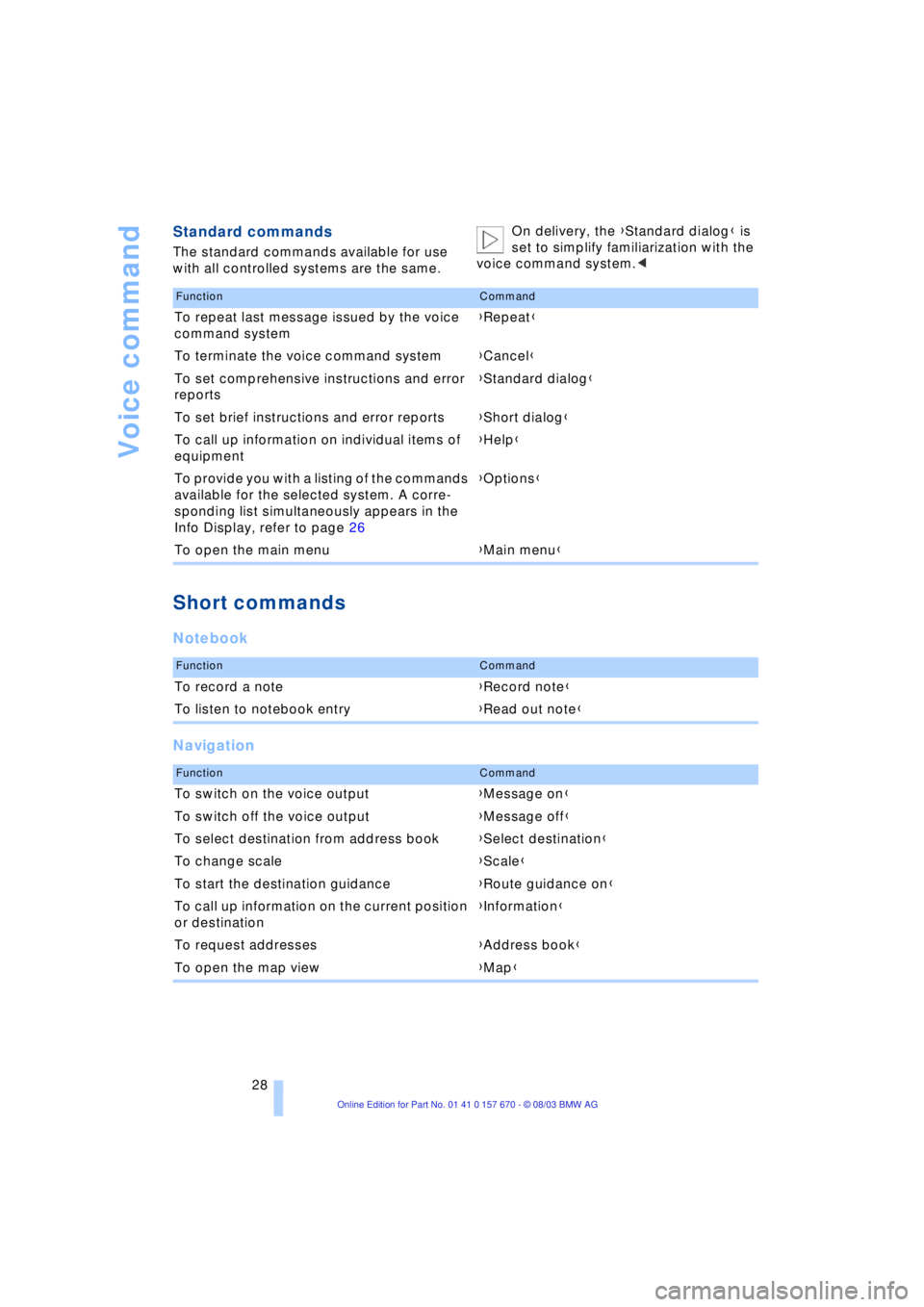
Standard commands
The standard commands available for use
with all controlled systems are the same.On delivery, the {Standard dialog} is
set to simplify familiarization with the
voice command system.<
Short commands
Notebook
Navigation
FunctionCommand
To repeat last message issued by the voice
command system{Repeat}
To terminate the voice command system{Cancel}
To set comprehensive instructions and error
reports{Standard dialog}
To set brief instructions and error reports{Short dialog}
To call up information on individual items of
equipment{Help}
To provide you with a listing of the commands
available for the selected system. A corre-
sponding list simultaneously appears in the
Info Display, refer to page 26{Options}
To open the main menu{Main menu}
FunctionCommand
To record a note{Record note}
To listen to notebook entry{Read out note}
FunctionCommand
To switch on the voice output{Message on}
To switch off the voice output{Message off}
To select destination from address book{Select destination}
To change scale{Scale}
To start the destination guidance {Route guidance on}
To call up information on the current position
or destination{Information}
To request addresses{Address book}
To open the map view{Map}