Page 212 of 242
 to program a favorite function from the men\
u, such as SCAN,")
2003 VOLVO XC90
RadioFrequency band
FM 87.7 - 107.9 MHz
AM 530 - 1710 kHz
MY KEY - programming a shortcut
Use the MY KEY buttons (2) to program a favorite function from the men\
u, such as SCAN,
AUTOSTORE, etc. See
page 174 for the functions that can be programmed with the MY KEY button.
1. Use the MENU buttons to scroll among the functions.
2. Select the desired function from the menu by holding one of the MY KE\
Y buttons depressed for more
than two seconds.
3. When MY KEY STORED is shown in the display, the function has been sto\
red.
4. Activate the function by briefly pressing the MY KEY button with whic\
h the functions was stored.
Repeat steps 1-4 to store new functions on the MY KEY buttons.
NOTE: The MY KEY buttons can only be programmed for one shortcut function at a\
time.
pg. 170 Audio
Automatically storing stations - AUTOSTORE
This function automatically searches for, and stores up to 10 strong AM \
or FM stations in a separate
memory. If more than 10 stations are found, the 10 strongest ones will b\
e stored. The function is
especially useful in areas in which you are not acquainted with radio st\
ations or their frequencies.
file:///K|/ownersdocs/2003/2003_XC90/03xc90_11a.htm (12 of 17)12/30/20\
06 4:19:06 PM
Page 213 of 242
2003 VOLVO XC90
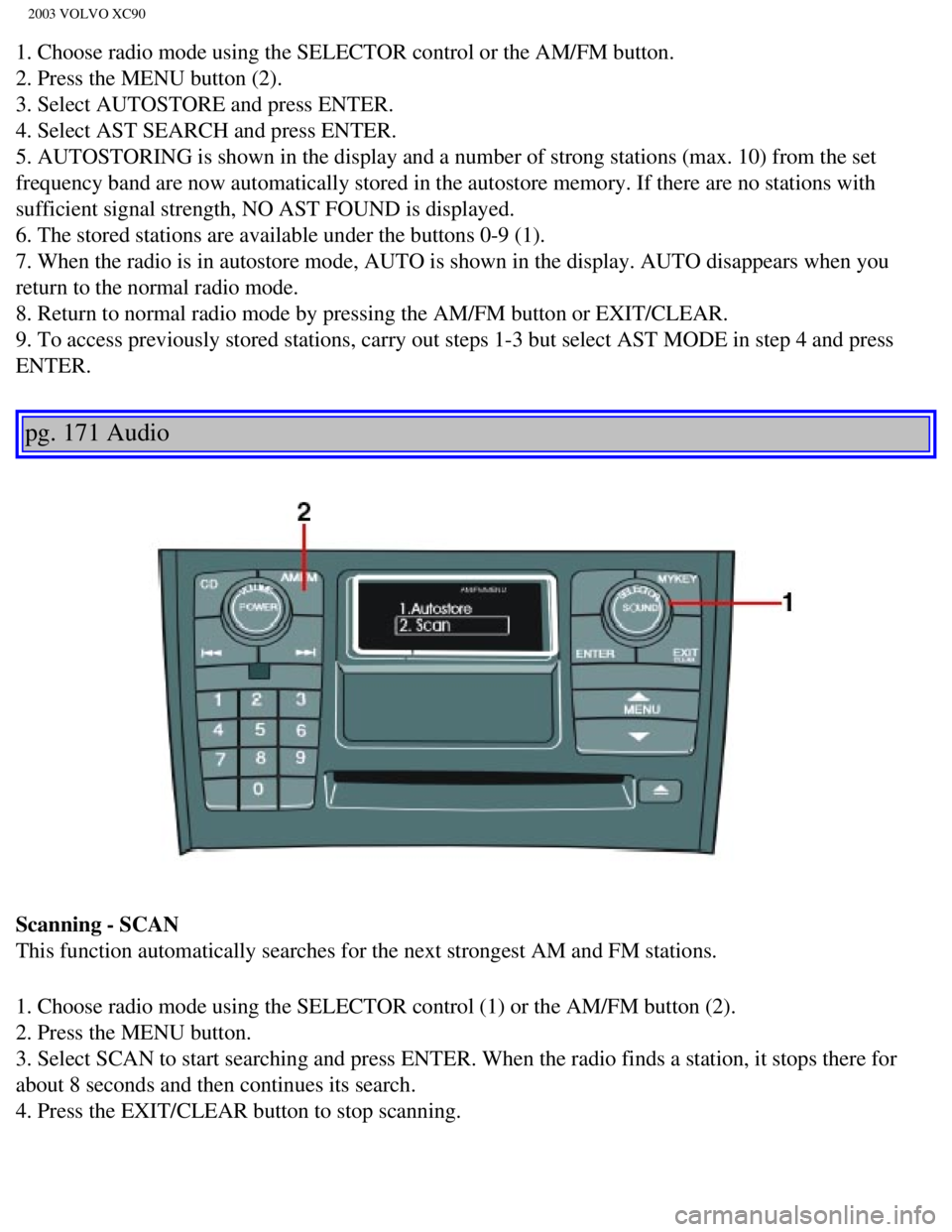
1. Choose radio mode using the SELECTOR control or the AM/FM button.
2. Press the MENU button (2).
3. Select AUTOSTORE and press ENTER.
4. Select AST SEARCH and press ENTER.
5. AUTOSTORING is shown in the display and a number of strong stations (\
max. 10) from the set
frequency band are now automatically stored in the autostore memory. If \
there are no stations with
sufficient signal strength, NO AST FOUND is displayed.
6. The stored stations are available under the buttons 0-9 (1).
7. When the radio is in autostore mode, AUTO is shown in the display. AU\
TO disappears when you
return to the normal radio mode.
8. Return to normal radio mode by pressing the AM/FM button or EXIT/CLEA\
R.
9. To access previously stored stations, carry out steps 1-3 but select \
AST MODE in step 4 and press
ENTER.
pg. 171 Audio
Scanning - SCAN
This function automatically searches for the next strongest AM and FM st\
ations.
1. Choose radio mode using the SELECTOR control (1) or the AM/FM butto\
n (2).
2. Press the MENU button.
3. Select SCAN to start searching and press ENTER. When the radio finds \
a station, it stops there for
about 8 seconds and then continues its search.
4. Press the EXIT/CLEAR button to stop scanning.
file:///K|/ownersdocs/2003/2003_XC90/03xc90_11a.htm (13 of 17)12/30/20\
06 4:19:06 PM
Page 214 of 242
2003 VOLVO XC90
pg. 172 Audio
Program type/Format - PTY
The PTY function allows you to find programs that suit your taste. Use t\
he PTY function to select from
among the different program types shown in the list.
Which PTY does the set station have?
1. Select RADIO SETTINGS using the SELECTOR control and press ENTER.
2. Select PTY in the menu and press ENTER.
3. Select SHOW PTY TEXT and press ENTER. The PTY of the selected station\
is now shown in the
display.
NOTE: Not all radio stations have PTY designations. Program type Text displayed
Switch off/
deactivate CLEAR ALL PTY
News NEWS
Information INFORMATION
Sports SPORT
Talk TALK
Rock ROCK
Classic rock CLASSIC ROCK
Adult hits ADULT HITS
Soft rock SOFT ROCK
file:///K|/ownersdocs/2003/2003_XC90/03xc90_11a.htm (14 of 17)12/30/20\
06 4:19:06 PM
Page 215 of 242
2003 VOLVO XC90
Top 40 TOP 40
Country COUNTRY
Oldies OLDIES
Soft SOFT
Nostalgia NOSTALGIA
Jazz JAZZ
Classical CLASSICAL
Rhythm & Blues RHYTHM & BLUES
Soft R&B SOFT R&B
Language LANGUAGE
Religious music RELIGIOUS MUSIC
Religious talk RELIGION TALK
Personality PERSONALITY
Public PUBLIC
College COLLEGE
Weather WEATHER
Radio text
Certain stations broadcast program information, which can be shown in th\
e display.
1. Press the MENU button.
2. Select RADIOTEXT in the menu and press ENTER.
3. Select RADIOTEXT again to deactivate.
pg. 173 Audio
file:///K|/ownersdocs/2003/2003_XC90/03xc90_11a.htm (15 of 17)12/30/20\
06 4:19:06 PM
Page 218 of 242
2003 VOLVO XC90
pg. 174 Audio
Menu settings and selections
Main menus/submenus
RADIO (FM)
1. AUTOSTORE*
1.1. AST MODE
1.2. AST SEARCH
2. SCAN*
3. RADIO TEXT
4. RADIO SETTINGS
4.1. PTY
4.1.1. SELECT PTY
4.1.2. SEARCH PTY
4.1.3. SHOW PTY
4.2. AF (default setting is OFF)
4.3. RESET ALL
5. AUDIO SETTINGS
5.1. SURROUND MODE* (option)
5.1.1. Pro Logic II (default)
5.1.2. 3CH
5.1.3. OFF
5.2. SUBWOOFER* (option)
5.3. EQ FRONT (option)
5.4. EQ REAR (option)
5.5. RESET ALL
RADIO (AM)
1. AUTOSTORE
1.1. AST MODE
1.2. AST SEARCH
2. SCAN*
3. AUDIO SETTINGS
3.1. SURROUND MODE (option)
3.1.1. Pro Logic II
3.1.2. 3CH
3.1.3. OFF
3.2. SUBWOOFER (option)
3.3. EQ FRONT (option)
3.4. EQ REAR (option)
3.5. RESET ALL
file:///K|/ownersdocs/2003/2003_XC90/03xc90_11b.htm (1 of 11)12/30/200\
6 4:19:07 PM
Page 219 of 242
2003 VOLVO XC90
CD (single disc)
1. RANDOM*
2. SCAN*
3. AUDIO SETTINGS*
3.1. SURROUND MODE* (option)
3.1.1. Pro Logic II (default)
3.1.2. 3CH
3.1.3. OFF
3.2. SUBWOOFER* (option)
3.3. EQ FRONT (option)
3.4. EQ REAR (option)
3.5. RESET ALL
CDX (CD changer - option)
1. RANDOM*
1.1. OFF
1.2. SINGLE DISC
1.3. ALL DISCS
2. SCAN*
3. DISC TEXT
4. AUDIO SETTINGS*
4.1. SURROUND MODE* (option)
4.1.1. Pro Logic II (default)
4.1.2. 3CH
4.1.3. OFF
4.2. SUBWOOFER* (option)
4.3. EQ FRONT (option)
4.4. EQ REAR (option)
4.5. RESET ALL
* These functions can be programmed with MY KEY (see
page 169).
pg. 175 Audio
CD player
file:///K|/ownersdocs/2003/2003_XC90/03xc90_11b.htm (2 of 11)12/30/200\
6 4:19:07 PM
Page 220 of 242
 or the CD button \
(2).
2. Insert a CD into the player.
Changing tracks
Press
to go to the next track or to g")
2003 VOLVO XC90
Starting the CD
1. Select the CD mode using the SELECTOR control (1) or the CD button \
(2).
2. Insert a CD into the player.
Changing tracks
Press
to go to the next track or to go to the previous track. The track number is shown in the
display. If you have a keypad in the steering wheel, you can use the arr\
ow keys in the same way.
Searching within a track
Press and hold down
or to search within a track or the whole disc. The search continues as
long as the buttons are depressed. If you have a keypad in the steering \
wheel, you can use the arrow keys
in the same way.
Random play
This function plays the tracks on a CD in random order (shuffle).
1. Press the MENU button.
2. Select RANDOM and press ENTER.
3. RND is shown in the display as long as the function is activated.
4. Go into the menu and select RANDOM OFF to stop random play, or press \
EXIT.
pg. 176 Audio
CD player (contd)
file:///K|/ownersdocs/2003/2003_XC90/03xc90_11b.htm (3 of 11)12/30/200\
6 4:19:07 PM
Page 221 of 242
2003 VOLVO XC90
SCAN This function plays the first ten seconds of each track.
1. Press the MENU button.
2. Select SCAN and press ENTER.
3. Press EXIT/CLEAR to listen to an entire track.
Disctext
Certain CDs contain information about the disc, such as the titles of th\
e tracks, etc. This information can
be shown in the display by activating the DISCTEXT function.
1. Press the MENU button.
2. Select DISCTEXT in the menu and press ENTER.
3. Any information that may be stored on the disc will be displayed.
4. To deactivate this function, select DISCTEXT and press ENTER.
NOTE: This function is only available on the CD changer.
CD eject
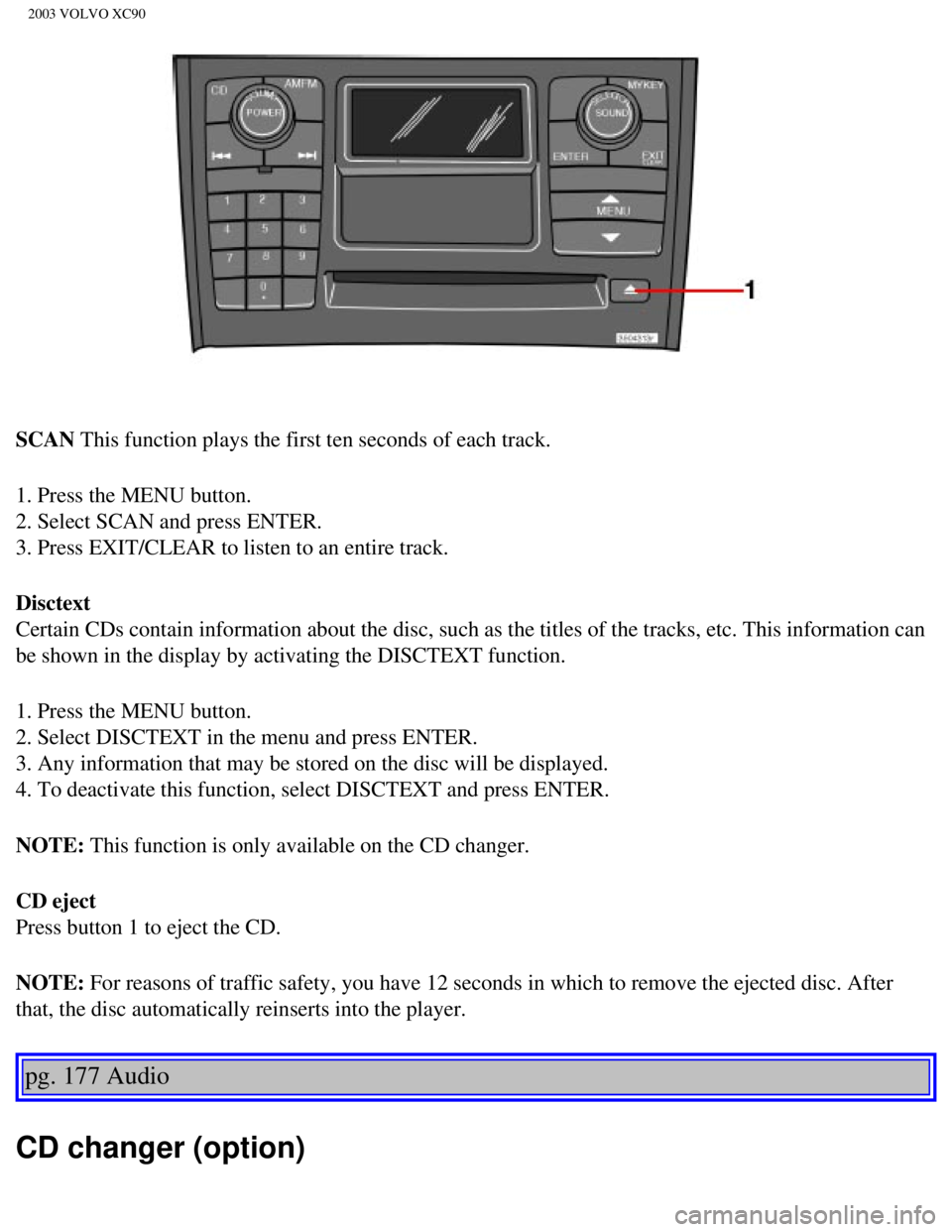
Press button 1 to eject the CD.
NOTE: For reasons of traffic safety, you have 12 seconds in which to remove th\
e ejected disc. After
that, the disc automatically reinserts into the player.
pg. 177 Audio
CD changer (option)
file:///K|/ownersdocs/2003/2003_XC90/03xc90_11b.htm (4 of 11)12/30/200\
6 4:19:07 PM