2003 PEUGEOT 607 service
[x] Cancel search: servicePage 66 of 183

10-02-2003
YOUR 607 IN DETAIL67
Sending a mini message Note: Before typing your first message, check that your SMS service centre number is correctly stored in the sub-menu
'SMS parameters' .
If it is not correctly stored, any message you have typed before inputting this number will be deleted and not sent.In the 'SMS' menu, confirm the 'Send new message' function with the 'OK' button.
Input your message with the alphanumerical keypad and confirm it with the 'OK'button, then enter the number of the recip-
ient or select it from the list and confirm with the 'OK' button.
Then confirm the 'Send message'or 'Store message' function with the 'OK' button.
For sending multiple messages, the 'Store message'function allows you to re-use an existing message, to delay sending
a message, to modify a message and to send it with the 'Send the message' function.
Description of menus'PHONEBOOK'Find by name: gives you access to a stored name, a telephone number and allows you to erase information. The search
may be carried out either by scrolling through the list or by inputting the first letter of the name being searched for and con -
firming it.Find by address: enables you to erase information and gives you access to a stored name and number by inputting the
memory number and confirming it.New entry: this allows you to add a name and telephone number to the directory.
'SMS'Received messages: allows you to access the old messages received.
Sending a message: allows you to key in and send short messages.
Stored messages: allows you to access and send old messages.
SMS setting: allows you to allocate to a message the service centre number (supplied by the network operator), an 'E Mail,
fax or messenger' (network service) type detail, duration of validity, etc.
Page 72 of 183
10-02-2003
Ending a call During, or at the end of, a communi- cation, press the end of the steeringwheel control to display the "Hang
up the call" function, then validate
the "YES" button by pressing the
control again. Second call* This function enables you to:
- receive a second call: you are informed by a bleep and a display,
- make a second call (this function is carried out directly using the tele- phone keypad).
When a second call is receivedduring a call, the message "take/do
not take the call" appears. If you
do not take the second call, youcontinue the first call, but if you takeit, the first call is put on hold.
* If the option and service are available. Switching between calls During a call, press the end of the steering wheel control to display thecontrol button:
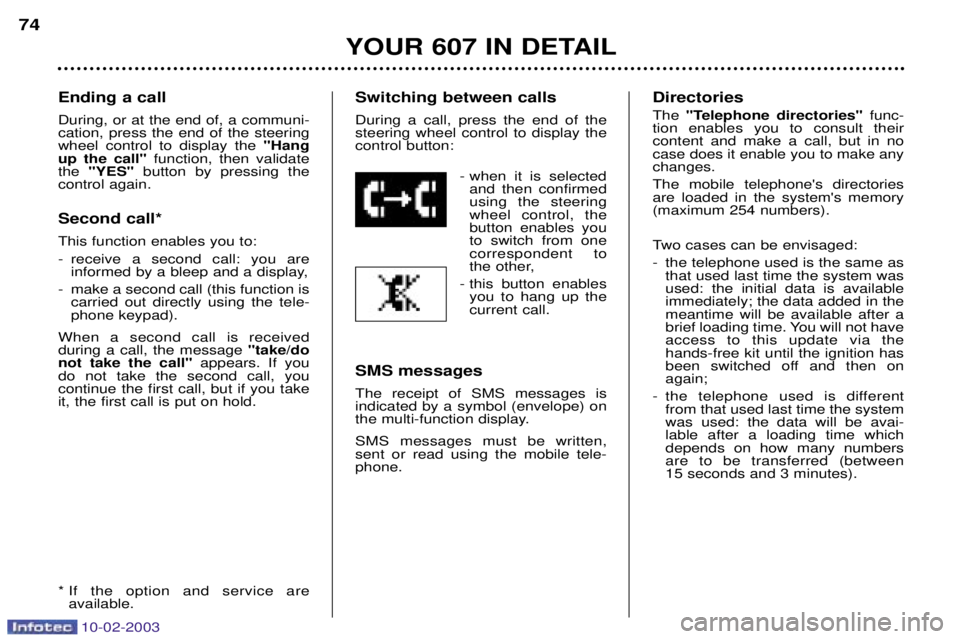
- when it is selectedand then confirmedusing the steeringwheel control, thebutton enables youto switch from onecorrespondent to
the other,
- this button enables you to hang up thecurrent call.
SMS messages The receipt of SMS messages is indicated by a symbol (envelope) on
the multi-function display. SMS messages must be written, sent or read using the mobile tele-phone. Directories The
"Telephone directories" func-
tion enables you to consult their content and make a call, but in nocase does it enable you to make anychanges. The mobile telephone's directories are loaded in the system's memory(maximum 254 numbers).
Two cases can be envisaged:
- the telephone used is the same as that used last time the system was used: the initial data is availableimmediately; the data added in themeantime will be available after a
brief loading time. You will not haveaccess to this update via thehands-free kit until the ignition has
been switched off and then onagain;
- the telephone used is different from that used last time the systemwas used: the data will be avai-lable after a loading time whichdepends on how many numbersare to be transferred (between 15 seconds and 3 minutes).
YOUR 607 IN DETAIL
74
Page 73 of 183

10-02-2003
Voice recognition The voice recognition system enables you to make telephone callsusing voice commands (pre-recor-
ded words or phrases) associatedwith numbers in the directories (SIMand telephone only) of a specificmobile telephone.
YOUR 607 IN DETAIL 75
Note: if the telephone contains more
than 254 directory files, only the first 254 files will be transferred to the sys-tem (in alphabetical order). It will bepossible to consult the rest of the filesdirectly on the telephone. In addition to your telephone's directories, you have an assistancedirectory which enables you to:
- call 112 "Emergency call" ,
- call the PEUGEOT customer service "PEUGEOT Service" .
Note: the emergency call is only
possible if all of the access condi- tions are fulfilled (PIN, network signallevel).
To gain access to the directories:
- press and hold the end of the steering wheel stalk (no call in progress),
or
- press the "MENU"button on the
screen's control keypad to gain access to the "General menu" ,
select "Telephone" and confirm,
then select "telephone directo-
ries" and confirm.
Select the directory of your choi-ce, then a correspondent to makea call.
Page 74 of 183

10-02-2003
YOUR 607 IN DETAIL
76
Functions available with telephones which have the Bluetooth system The table below lists the functions available depending on the type of telephone. Functions Nokia
6310i
Operator name Ye s
Network levelYe s
Make a call using the mobile telephone's keypad Yes
Make a call using the GSM voice recognition Yes
Make a call using a known numberYes
Pick up an incoming callYe s
Do not pick up an incoming call Yes
End a callYe s
Read the telephone directory Yes
Read the BIS directories, calls receivedYes
Make a call using a known number Yes
Displaying of the numberYe s
Secrecy modeYe s
Management of a second call Yes
Continuity of service Ye s
Page 75 of 183
10-02-2003
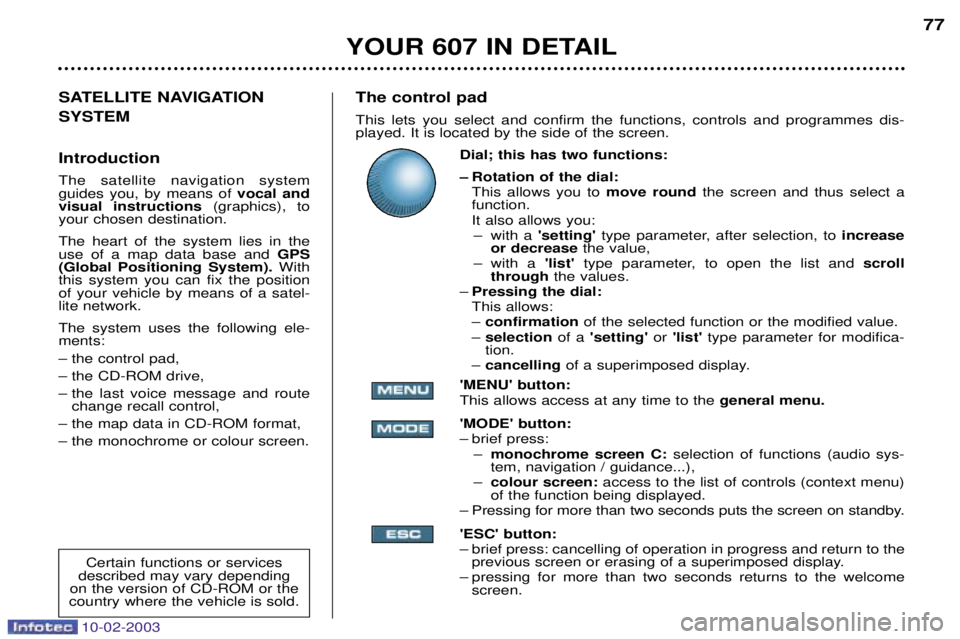
The control pad This lets you select and confirm the functions, controls and programmes dis- played. It is located by the side of the screen.Dial; this has two functions:
Ð Rotation of the dial:This allows you to move roundthe screen and thus select a
function.
It also allows you: Ð with a 'setting' type parameter, after selection, to increase
or decrease the value,
Ð with a 'list'type parameter, to open the list and scroll
through the values.
Ð Pressing the dial: This allows:Ð confirmation of the selected function or the modified value.
Ð selection of a 'setting' or 'list' type parameter for modifica-
tion.
Ð cancelling of a superimposed display.
'MENU' button:This allows access at any time to the general menu.
'MODE' button:
Ð brief press: Ð monochrome screen C: selection of functions (audio sys-
tem, navigation / guidance...),
Ð colour screen: access to the list of controls (context menu)
of the function being displayed.
Ð Pressing for more than two seconds puts the screen on standby. 'ESC' button:
Ð brief press: cancelling of operation in progress and return to the previous screen or erasing of a superimposed display.
Ð pressing for more than two seconds returns to the welcome screen. 77
SATELLITE NAVIGATION SYSTEM Introduction The satellite navigation system guides you, by means of vocal and
visual instructions (graphics), to
your chosen destination. The heart of the system lies in the use of a map data base and GPS
(Global Positioning System). With
this system you can fix the positionof your vehicle by means of a satel-lite network. The system uses the following ele- ments: Ð the control pad,Ð the CD-ROM drive,
Ð the last voice message and route change recall control,
Ð the map data in CD-ROM format,Ð the monochrome or colour screen.
Certain functions or services
described may vary depending
on the version of CD-ROM or the
country where the vehicle is sold.
YOUR 607 IN DETAIL
Page 78 of 183
10-02-2003
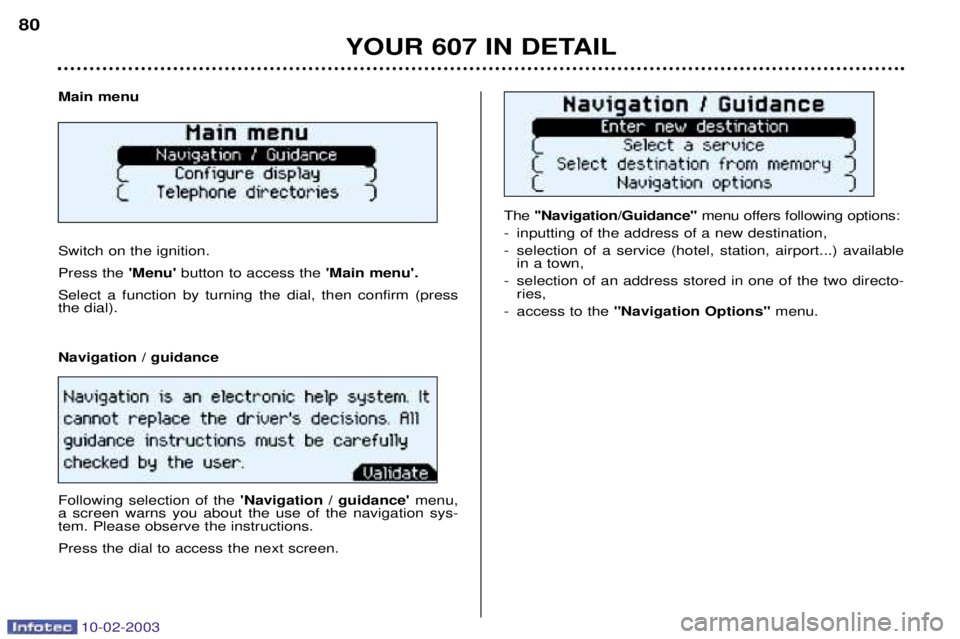
The ''Navigation/Guidance'' menu offers following options:
- inputting of the address of a new destination,
- selection of a service (hotel, station, airport...) available in a town,
- selection of an address stored in one of the two directo- ries,
- access to the "Navigation Options" menu.
Main menu Switch on the ignition. Press the
'Menu'button to access the 'Main menu'.
Select a function by turning the dial, then confirm (press the dial). Navigation / guidance Following selection of the 'Navigation / guidance'menu,
a screen warns you about the use of the navigation sys- tem. Please observe the instructions. Press the dial to access the next screen.
YOUR 607 IN DETAIL
80
Page 81 of 183
10-02-2003
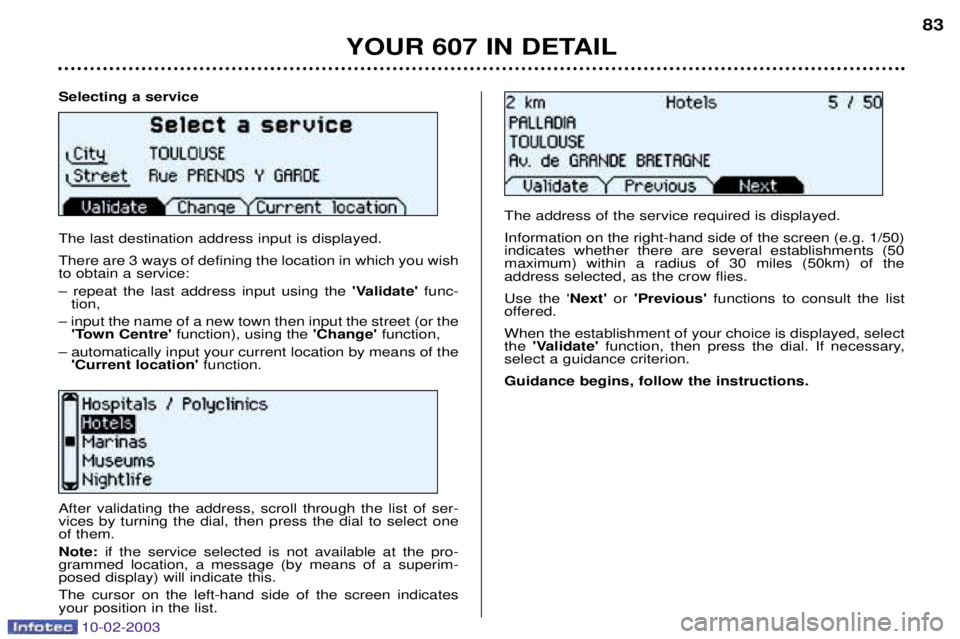
Selecting a service The last destination address input is displayed. There are 3 ways of defining the location in which you wish to obtain a service: Ð repeat the last address input using the'Validate'func-
tion,
Ð input the name of a new town then input the street (or the 'Town Centre' function), using the 'Change'function,
Ð automatically input your current location by means of the 'Current location' function.
YOUR 607 IN DETAIL 83
After validating the address, scroll through the list of ser- vices by turning the dial, then press the dial to select oneof them. Note:
if the service selected is not available at the pro-
grammed location, a message (by means of a superim- posed display) will indicate this. The cursor on the left-hand side of the screen indicates your position in the list. The address of the service required is displayed. Information on the right-hand side of the screen (e.g. 1/50) indicates whether there are several establishments (50maximum) within a radius of 30 miles (50km) of theaddress selected, as the crow flies. Use the '
Next'or 'Previous' functions to consult the list
offered.When the establishment of your choice is displayed, select the 'Validate' function, then press the dial. If necessary,
select a guidance criterion. Guidance begins, follow the instructions.
Page 86 of 183
10-02-2003
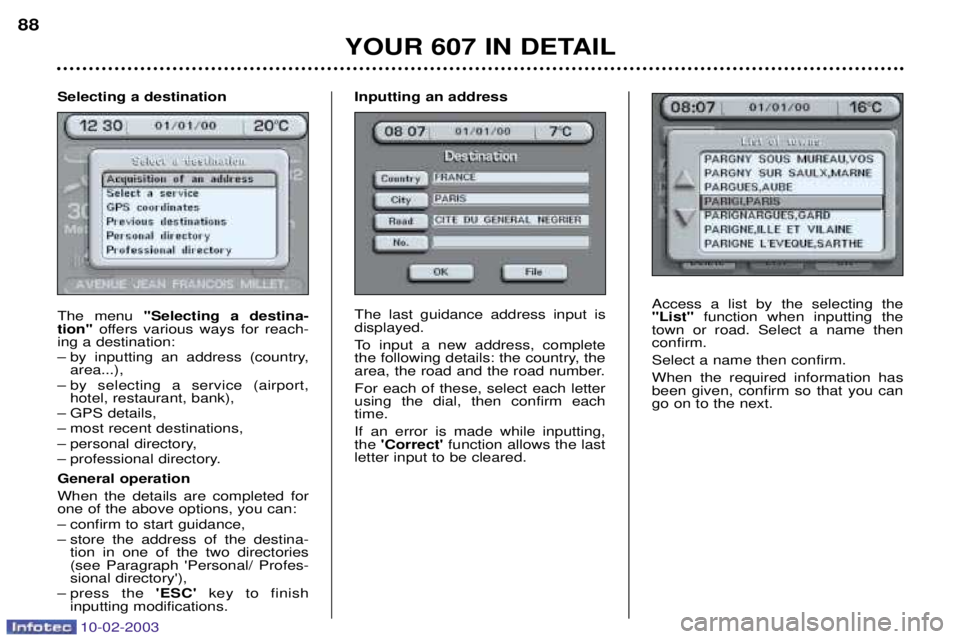
Access a list by the selecting the "List"function when inputting the
town or road. Select a name thenconfirm. Select a name then confirm.When the required information has been given, confirm so that you cango on to the next.
YOUR 607 IN DETAIL
88
Selecting a destination The menu ''Selecting a destina-
tion'' offers various ways for reach-
ing a destination:
Ð by inputting an address (country, area...),
Ð by selecting a service (airport, hotel, restaurant, bank),
Ð GPS details,
Ð most recent destinations,
Ð personal directory,
Ð professional directory. General operation When the details are completed for one of the above options, you can:
Ð confirm to start guidance,
Ð store the address of the destina- tion in one of the two directories (see Paragraph 'Personal/ Profes-sional directory'),
Ð press the 'ESC' key to finish
inputting modifications. Inputting an address The last guidance address input is displayed.
To input a new address, complete
the following details: the country, the
area, the road and the road number. For each of these, select each letter using the dial, then confirm eachtime. If an error is made while inputting, the
'Correct' function allows the last
letter input to be cleared.