2003 PEUGEOT 607 key
[x] Cancel search: keyPage 38 of 183
10-02-2003
INSTRUMENTS AND CONTROLS
42
THE MULTI-FUNCTION DISPLAY
General The multifunction, monochrome C or colour display shows the following:
Ð the time,
Ð the date,
Ð the outside temperature (symbol
¡C flashes if there is a risk of ice),
Ð the audio system displays,
Ð the telephone displays,
Ð the name of the road along which the vehicle is travelling (permanent locating),
Ð status of the openings,
Ð warning messages (e.g. 'Fuel level low') and vehicle function status
messages, displayed temporarily,
Ð trip computer display (see corre- sponding section),
Ð satellite navigation system dis- plays* (see corresponding sec-tion),
Ð video images. It is controlled by a keypad. Superimposed display When the status of a function (audio
system, telephone, trip computer,satellite navigation system,....)changes while the display has been
showing a different function, a win-dow opens to announce the modifi-cation (information / warning mes-sage), then disappears.
* According to country The control pad This enables the functions, controls and parameters displayed to be selected
and validated. It is located next to the display.
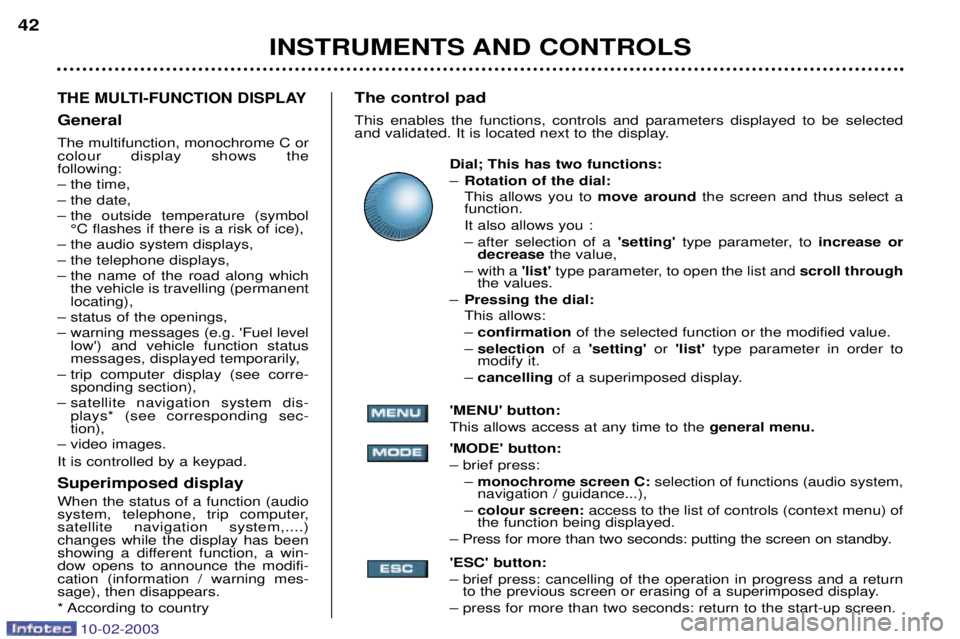
Dial; This has two functions: ÐRotation of the dial: This allows you to move around the screen and thus select a
function.
It also allows you :
Ð after selection of a 'setting' type parameter, to increase or
decrease the value,
Ð with a 'list'type parameter, to open the list and scroll through
the values.
Ð Pressing the dial: This allows: Ð confirmation of the selected function or the modified value.
Ð selection of a 'setting' or 'list' type parameter in order to
modify it.
Ð cancelling of a superimposed display.
'MENU' button:This allows access at any time to the general menu.
'MODE' button:Ð brief press: Ð monochrome screen C: selection of functions (audio system,
navigation / guidance...),
Ð colour screen: access to the list of controls (context menu) of
the function being displayed.
Ð Press for more than two seconds: putting the screen on standby. 'ESC' button:
Ð brief press: cancelling of the operation in progress and a return to the previous screen or erasing of a superimposed display.
Ð press for more than two seconds: return to the start-up screen.
Page 40 of 183
10-02-2003
INSTRUMENTS AND CONTROLS
42
THE MULTI-FUNCTION DISPLAY
General The multifunction, monochrome C or colour display shows the following:
Ð the time,
Ð the date,
Ð the outside temperature (symbol
¡C flashes if there is a risk of ice),
Ð the audio system displays,
Ð the telephone displays,
Ð the name of the road along which the vehicle is travelling (permanent locating),
Ð status of the openings,
Ð warning messages (e.g. 'Fuel level low') and vehicle function status
messages, displayed temporarily,
Ð trip computer display (see corre- sponding section),
Ð satellite navigation system dis- plays* (see corresponding sec-tion),
Ð video images. It is controlled by a keypad. Superimposed display When the status of a function (audio
system, telephone, trip computer,satellite navigation system,....)changes while the display has been
showing a different function, a win-dow opens to announce the modifi-cation (information / warning mes-sage), then disappears.
* According to country The control pad This enables the functions, controls and parameters displayed to be selected
and validated. It is located next to the display.
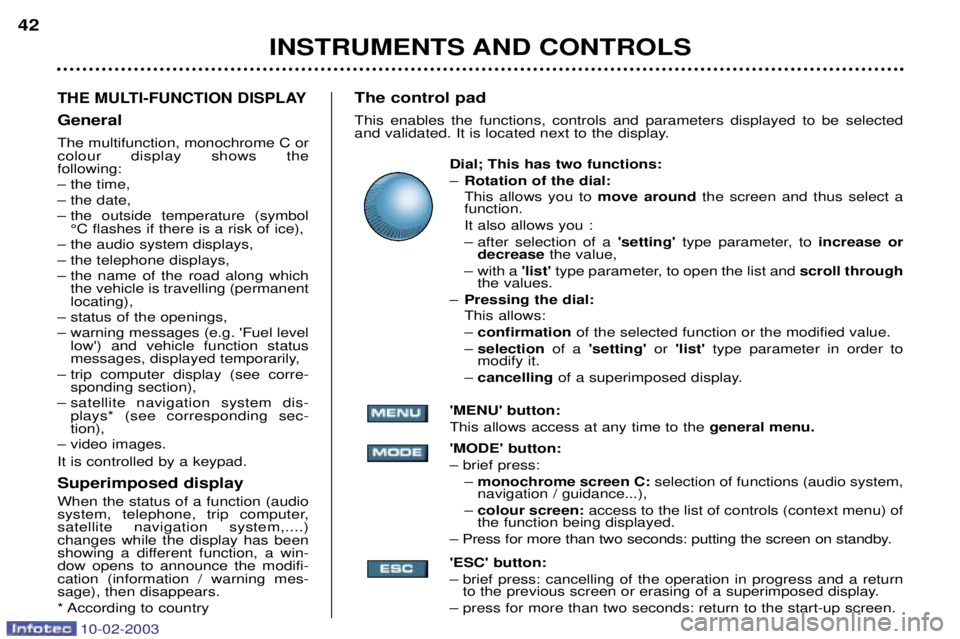
Dial; This has two functions: ÐRotation of the dial: This allows you to move around the screen and thus select a
function.
It also allows you :
Ð after selection of a 'setting' type parameter, to increase or
decrease the value,
Ð with a 'list'type parameter, to open the list and scroll through
the values.
Ð Pressing the dial: This allows: Ð confirmation of the selected function or the modified value.
Ð selection of a 'setting' or 'list' type parameter in order to
modify it.
Ð cancelling of a superimposed display.
'MENU' button:This allows access at any time to the general menu.
'MODE' button:Ð brief press: Ð monochrome screen C: selection of functions (audio system,
navigation / guidance...),
Ð colour screen: access to the list of controls (context menu) of
the function being displayed.
Ð Press for more than two seconds: putting the screen on standby. 'ESC' button:
Ð brief press: cancelling of the operation in progress and a return to the previous screen or erasing of a superimposed display.
Ð press for more than two seconds: return to the start-up screen.
Page 45 of 183

10-02-2003
Videos
Video sockets may be used what-
ever the position of the key. It isimpossible to use the video whendriving above 20 mph (30 km/h).
You have three cinch (RCA) points, located in the glove box, for connect-
ing a camcorder, a DVD drive, etc.: Ð a video socket (yellow),
Ð two audio system sockets (red +white) for stereophonic sound.
The video connection is compatible
with PAL, SECAM and NTSC. Open the glove box and connect the equipment. Switch on the equipment.
To set the video, press the 'MENU'
button to access the general menu,
then select the 'Video'symbol and
confirm.
INSTRUMENTS AND CONTROLS 47
Select the 'Day' function, then
confirm:
Ð turn the dial clockwise to scroll for- wards through the days, or turn it
anti-clockwise to scroll backwards through the days,
Ð confirm, to finish setting the day.
Proceed in the same way for the'Month' and 'Year' functions.
Record the changes. Changing the units Select the units required, then con- firm and record the changes.
Page 48 of 183

10-02-2003
GENERAL FUNCTIONSOn/off With the ignition key in the accessories position (1st notch) or with the ignition on (2nd notch), press button Ato switch the set on or off.
The set can operate for 30 minutes without the vehicle ignition being switched on.
Anti-theft system The audio system is coded in such a way that it can operate only on your vehicle. It would not function if fitted to another vehicle. This system is automatic and requires no action on your part. ADJUSTING THE SOUND Turn buttonAto increase or decrease the volume.
Note: the automatic volume correction function "CAV", which depends on the speed of the vehicle, is acces-
sible using the audio menu on the multi-function display.
AUDIO SETTINGS Press the 'AUDIO' button several times in succession to access the bass (BASS), treble (TREB), loudness
(LOUD), fader (FAD) , balance (BAL)and automatic volume correction (CAV).
Exit from audio mode is automatic after a few seconds without pressing any button, or by pressing the 'AUDIO' button after adjusting the balance.
Note: bass and treble settings are specific to each source. It is possible to set them differently for radio, cassette (RM2 audio) or CD changer.
YOUR 607 IN DETAIL
52
Page 60 of 183
10-02-2003
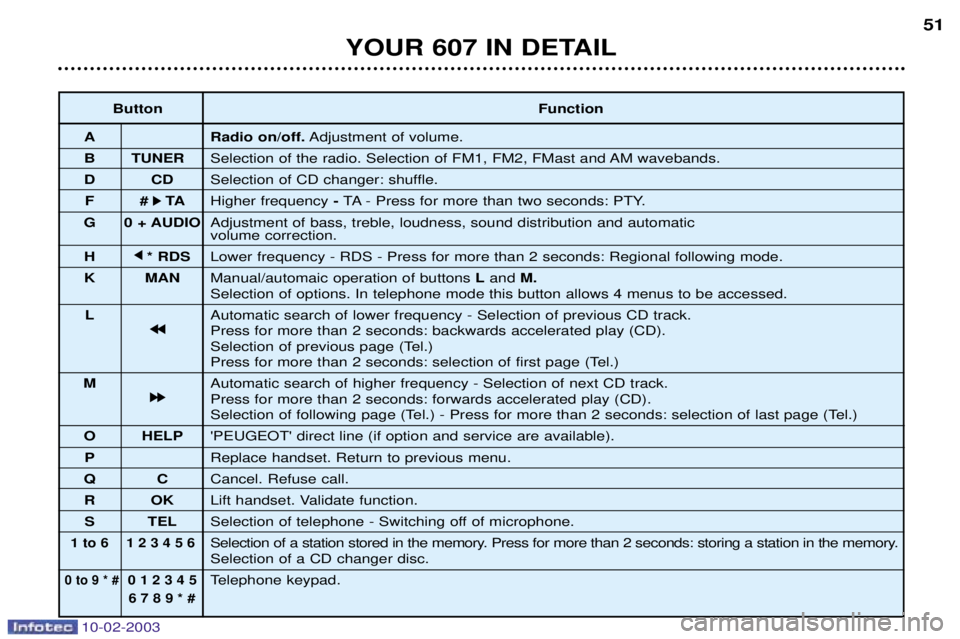
Button Function
A Radio on/off. Adjustment of volume.
B TUNER Selection of the radio. Selection of FM1, FM2, FMast and AM wavebands.
D CD Selection of CD changer: shuffle.
F # k
k TA
Higher frequency - TA - Press for more than two seconds: PTY.
G 0 + AUDIO Adjustment of bass, treble, loudness, sound distribution and automatic volume correction.
H j
j
* RDS Lower frequency - RDS - Press for more than 2 seconds: Regional following mode.
K MAN Manual/automaic operation of buttons Land M.
Selection of options. In telephone mode this button allows 4 menus to be accessed.
L Automatic search of lower frequency - Selection of previous CD track.
j
j j
j
Press for more than 2 seconds: backwards accelerated play (CD).
Selection of previous page (Tel.)
Press for more than 2 seconds: selection of first page (Tel.)
M Automatic search of higher frequency - Selection of next CD track.
k
k k
k
Press for more than 2 seconds: forwards accelerated play (CD).
Selection of following page (Tel.) - Press for more than 2 seconds: selection of last page (Tel.)
O HELP 'PEUGEOT' direct line (if option and service are available).
P Replace handset. Return to previous menu.
Q C Cancel. Refuse call.
R OK Lift handset. Validate function.
S TEL Selection of telephone - Switching off of microphone.
1 to 6 1 2 3 4 5 6Selection of a station stored in the memory. Press for more than 2 seconds: storing a station in the memory.Selection of a CD changer disc.
0 to 9 * #0 1 2 3 4 5Telephone keypad.
6 7 8 9 * #
51
YOUR 607 IN DETAIL
Page 61 of 183
10-02-2003
TELEPHONE: Audio/Telephone RT2 This function is a GSM 900 MHZ telephone incorporated in the audio system. It possesses a 'hands free'function, provided by a microphone located in the front courtesy light and a steering column
remote control which allows access to most of the functions. It also possesses a 'confidential' function, provided by the instrument panel located in the upper casing of the centre front
armrest. Note: An echo may be heard for a few seconds at the beginning of the call.
The principal "mobile"type functions are shown on the display incorporated in the audio system; the menu lists can be
referrred to on the multi-function display.This function is active when the ignition key is in the accessories position (1st notch), the ignition is switched on (2nd notch),
the engine is running or the vehicle is being driven. Note: when the ignition key is in the accessories position (1st notch) or the ignition is switched on (2nd notch), this function
will be interrupted after thirty minutes, when the message 'Economy mode active'appears on the multi-function display. If
you are using the telephone at that time, you will be able to finish your call.
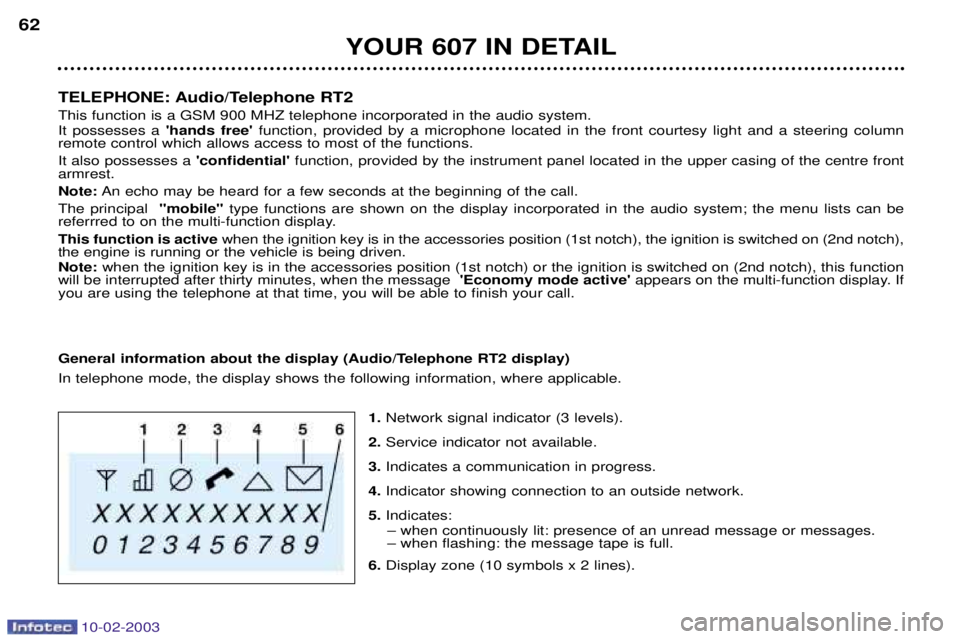
General information about the display (Audio/Telephone RT2 display) In telephone mode, the display shows the following information, where applicable.
1.Network signal indicator (3 levels).
2. Service indicator not available.
3. Indicates a communication in progress.
4. Indicator showing connection to an outside network.
5. Indicates:
Ð when continuously lit: presence of an unread message or messages. Ð when flashing: the message tape is full.
6. Display zone (10 symbols x 2 lines).
YOUR 607 IN DETAIL
62
Page 62 of 183

10-02-2003
Selecting telephone mode / Entering a number / Switching off the microphoneTo change to telephone mode, press the 'TEL' button or for more than 2 seconds on the steering column
remote control. Insert your SIM card fully into the slot at the front (use only the new generation 3V SIM card with bank card
format).
Note: the SIM card must not be taken out while the audio/telephone system is still in use. If you forget to do this, an audible
signal will sound for a few seconds after the ignition is switched off.
Enter your PIN number and confirm with the 'OK' button in order to access the network. The welcome screen is
displayed.Note: the PIN code is erased each time the ignition is switched off, but the ''PIN code protection'' function may be
cancelled.
Enter the number of the person you wish to speak to on the digital keypad and pres the 'OK'button to make the call.
To switch off the microphone mid-communication, press the 'TEL'button.
Cancelling the PIN code request
To cancel the PIN code request, select 'PIN code protection' in the 'Telephone parameters' menu and confirm; select 'OFF' and confirm, then input your PIN code and confirm. Receiving / Ending a call When a ringing sounds to let you know that a call is waiting, you can choose either to accept it by press- ing the 'OK'button or not to accept it by pressing button Por by selecting 'Refuse call' using the steer-
ing column remote control, pressing the end to confirm. If you do not accept it, the call is diverted to your voice mail (if this service is available and active).
To end the call, press button Por the end of the steering wheel remote control.
Note: Not accepting or ending a call by means of the steering wheel control returns the system to radio mode.
Receiving two incoming calls
During a call, when there is another incoming call, you are informed of this by a ring and a message. You may choose:
Ð to accept the call by pressing button 2then "OK" ; the first caller is put on hold and you are in contact with the second.
However, pressing button 2again allows you to return to the first caller,
Ð to finish the call you are on and talk to the second caller by pressing button 1 then "OK",
Ð not to accept the new call by pressing button "C".
YOUR 607 IN DETAIL 63
Page 65 of 183
10-02-2003
YOUR 607 IN DETAIL
66
Storing numbers in the telephone directory (SIM) In the 'PHONEBOOK' menu, validate the 'New Entry' function with the 'OK'button.
Using the alphanumerical keypad input the name, telephone number and address (the memory number) or keep the one suggested. Confirm each operation with the 'OK'button.
To access a number in the memory:
Ð look for and select it in the menu 'Find by name'or 'Find by address ' of the 'PHONEBOOK' menu and
press the 'OK'button to make the call,
Ð or press the end of the steering wheel remote control for more than two seconds, look for and select the number, then press the end of the remote control to make the call,
Ð or enter the memory number using the keypad, then press button Ffollowed by the 'OK' button to make the
call.
Note: the first nine numbers in this list are directly accessible. Hold one of the nine buttons of the keypad down, then press
the 'OK' button to call.
Selecting the previous item of a menu Press button Las many times as necessary to select the required item. Confirm with the 'OK'button.
Selecting the following item of a menu Press button Mas many times as necessary to select the required item. Validate with the 'OK' button.
Accessing mini messages In telephone mode: when the buzzer sounds and the 'envelope' symbol is displayed on the screen, you can access new
messages by pressing the 'MAN' button.
In radio mode: when the symbol appears, you must change to telephone mode (press the "TEL"button) to be able to
access the new messages.Note: the old stored messages are accessible. In the 'SMS'menu, confirm the 'Messages received' function with the 'OK'
button, then select the message using button 'M'or 'L' to consult it.