Page 38 of 272
with permanent felt tip marker rather than adhesive labels. Ball
point pens may damage CDs. Please contact your dealer for
further information.
Playing a previously loaded CD:
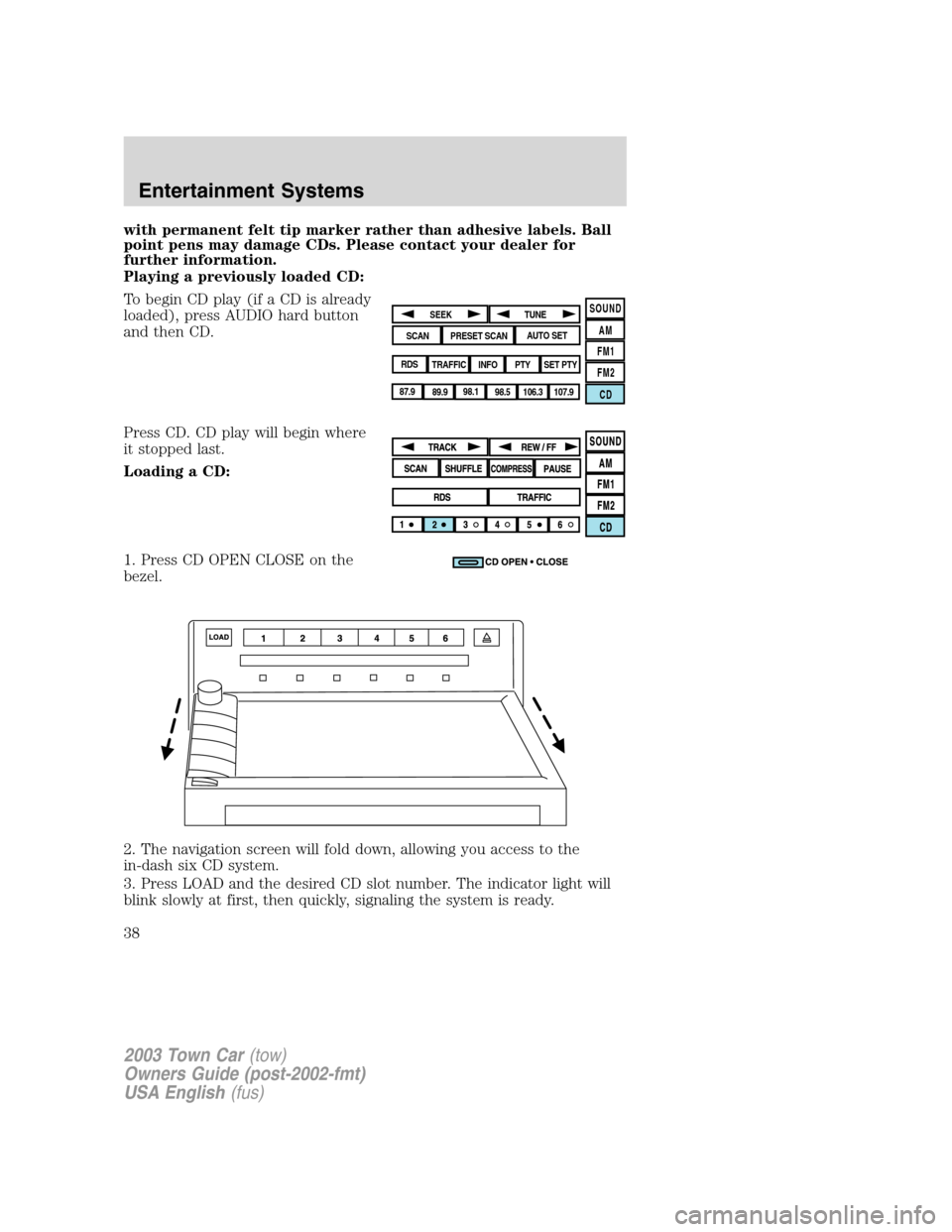
To begin CD play (if a CD is already
loaded), press AUDIO hard button
and then CD.
Press CD. CD play will begin where
it stopped last.
Loading a CD:
1. Press CD OPEN CLOSE on the
bezel.
2. The navigation screen will fold down, allowing you access to the
in-dash six CD system.
3. Press LOAD and the desired CD slot number. The indicator light will
blink slowly at first, then quickly, signaling the system is ready.
SOUND
AM
FM1
FM2
CDSEEK
TUNE
PRESET SCANAUTO SET
SCAN
RDS
TRAFFIC
INFO PTYSET PTY
87.9
89.9 98.1
98.5 106.3 107.9
2003 Town Car(tow)
Owners Guide (post-2002-fmt)
USA English(fus)
Entertainment Systems
38
Page 43 of 272
Route preferences
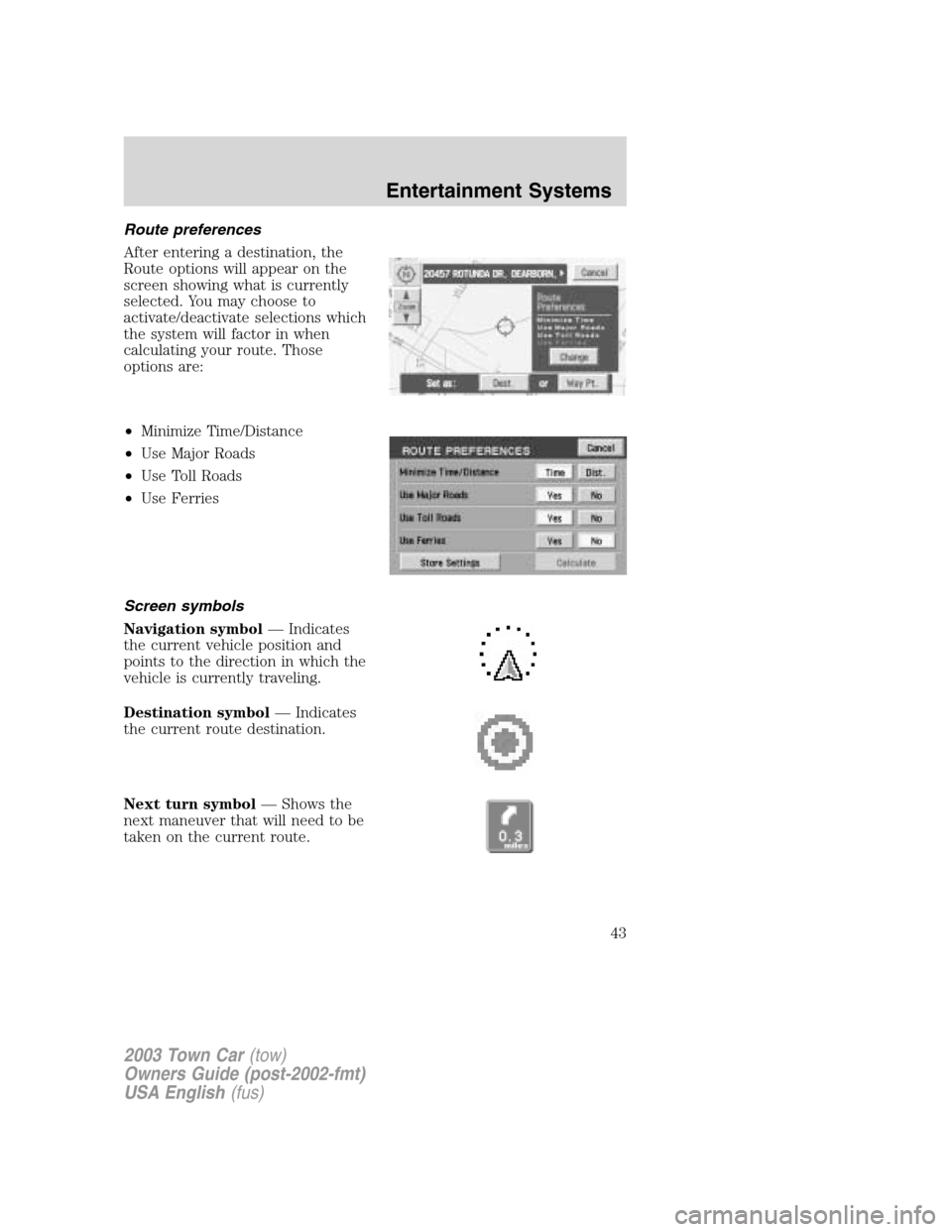
After entering a destination, the
Route options will appear on the
screen showing what is currently
selected. You may choose to
activate/deactivate selections which
the system will factor in when
calculating your route. Those
options are:
•Minimize Time/Distance
•Use Major Roads
•Use Toll Roads
•Use Ferries
Screen symbols
Navigation symbol—Indicates
the current vehicle position and
points to the direction in which the
vehicle is currently traveling.
Destination symbol—Indicates
the current route destination.
Next turn symbol—Shows the
next maneuver that will need to be
taken on the current route.
2003 Town Car(tow)
Owners Guide (post-2002-fmt)
USA English(fus)
Entertainment Systems
43
Page 45 of 272
GPS symbol—Indicates that
insufficient GPS satellite signals are
being received for accurate map
positioning. The symbol is not
displayed under normal operation.
Speaker icon symbol—Press to
turn voice guidance on/off.
Navigation menu
To access the Navigation Menu,
press NAV MENU at the bottom of
the map screen.
Once pressed, the Navigation Menu
will display showing the following
options:
•Route Options/Preferences
•Navigation Set Up
•Display Options
•Stored Locations
•On Route Scroll
•Voice Guidance/Volume
Depending upon whether or not a route is active will determine if route
options/route preferences is contained on the Navigation Menu.
Route options (destination entered)
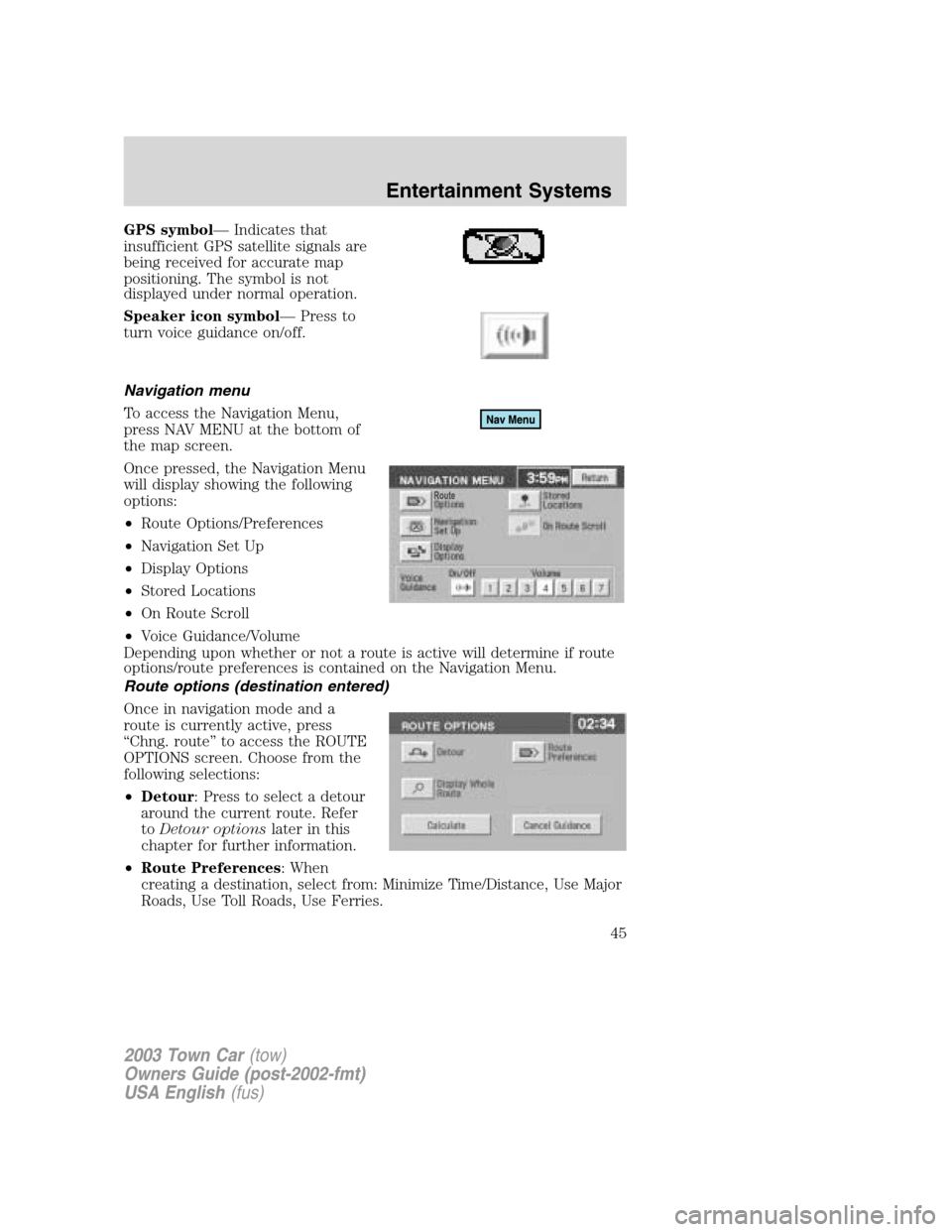
Once in navigation mode and a
route is currently active, press
“Chng. route”to access the ROUTE
OPTIONS screen. Choose from the
following selections:
•Detour: Press to select a detour
around the current route. Refer
toDetour optionslater in this
chapter for further information.
•Route Preferences: When
creating a destination, select from: Minimize Time/Distance, Use Major
Roads, Use Toll Roads, Use Ferries.
2003 Town Car(tow)
Owners Guide (post-2002-fmt)
USA English(fus)
Entertainment Systems
45
Page 46 of 272
•Display Whole Route: Will enter MAP mode and display your entire
chosen route.
Note:Route preference appears on the Nav menu when no destination
is entered.
While driving under route guidance, only follow an instruction
when it is safe to do so as the system cannot be aware of
changing conditions. Use voice guidance as much as possible, and only
view the display when driving conditions permit.
Ensure that you follow highway code restrictions and do not
take any risks. For example, if you are unable to make a U-turn,
continue on your journey. The navigation system will recalculate your
route to get you back to an appropriate road to your destination.
Navigation set up
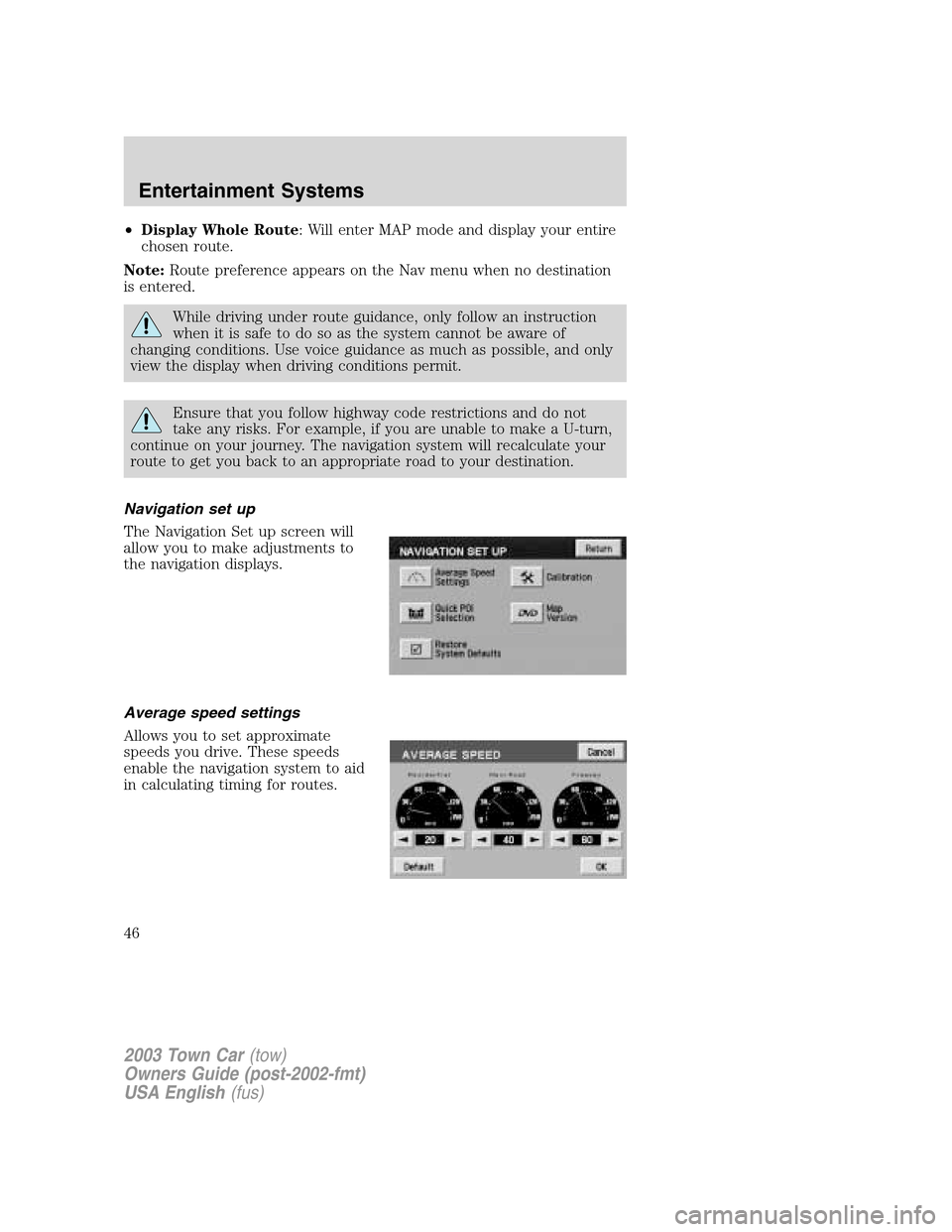
The Navigation Set up screen will
allow you to make adjustments to
the navigation displays.
Average speed settings
Allows you to set approximate
speeds you drive. These speeds
enable the navigation system to aid
in calculating timing for routes.
2003 Town Car(tow)
Owners Guide (post-2002-fmt)
USA English(fus)
Entertainment Systems
46
Page 47 of 272
Quick POI (Point of Interest)
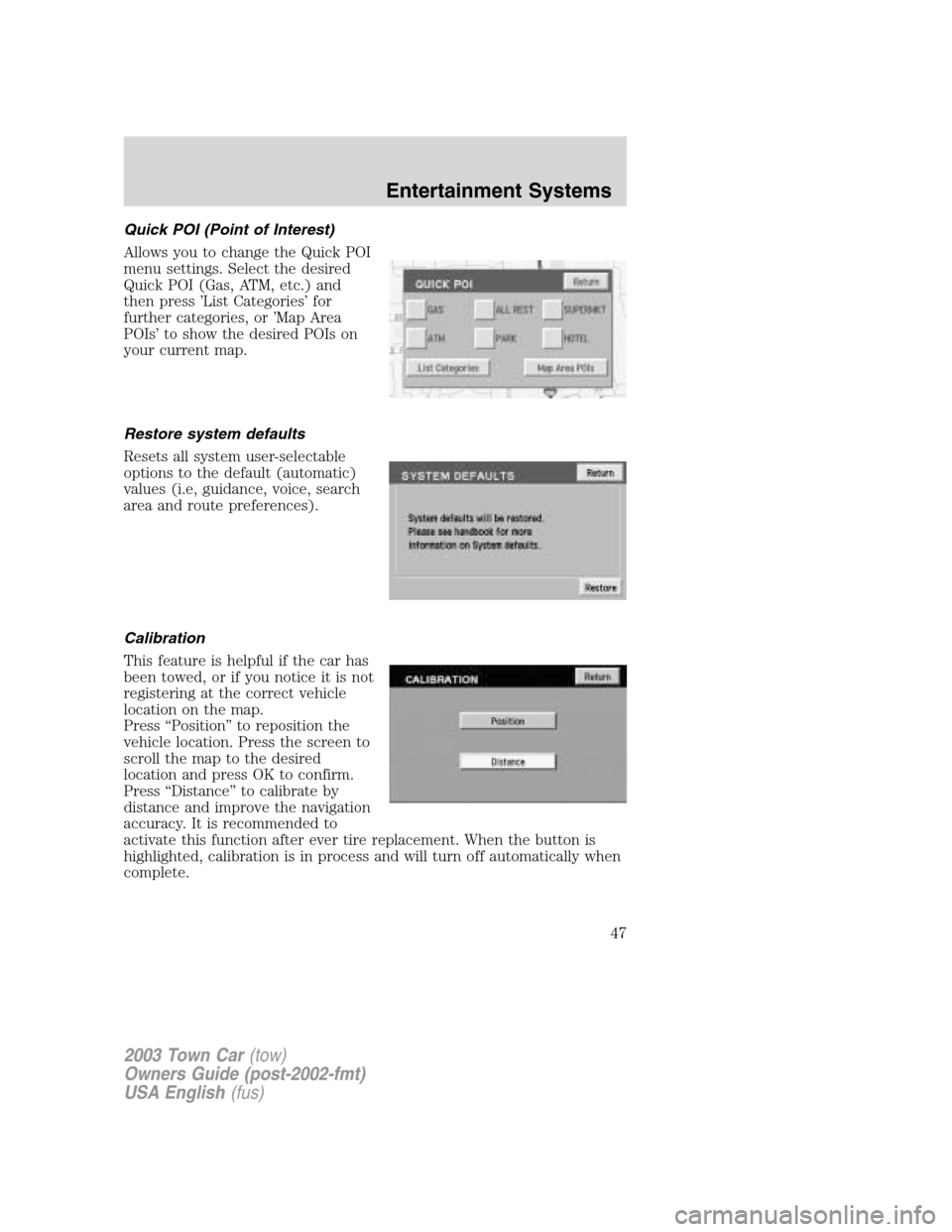
Allows you to change the Quick POI
menu settings. Select the desired
Quick POI (Gas, ATM, etc.) and
then press’List Categories’for
further categories, or’Map Area
POIs’to show the desired POIs on
your current map.
Restore system defaults
Resets all system user-selectable
options to the default (automatic)
values (i.e, guidance, voice, search
area and route preferences).
Calibration
This feature is helpful if the car has
been towed, or if you notice it is not
registering at the correct vehicle
location on the map.
Press“Position”to reposition the
vehicle location. Press the screen to
scroll the map to the desired
location and press OK to confirm.
Press“Distance”to calibrate by
distance and improve the navigation
accuracy. It is recommended to
activate this function after ever tire replacement. When the button is
highlighted, calibration is in process and will turn off automatically when
complete.
2003 Town Car(tow)
Owners Guide (post-2002-fmt)
USA English(fus)
Entertainment Systems
47
Page 48 of 272
DVD map version
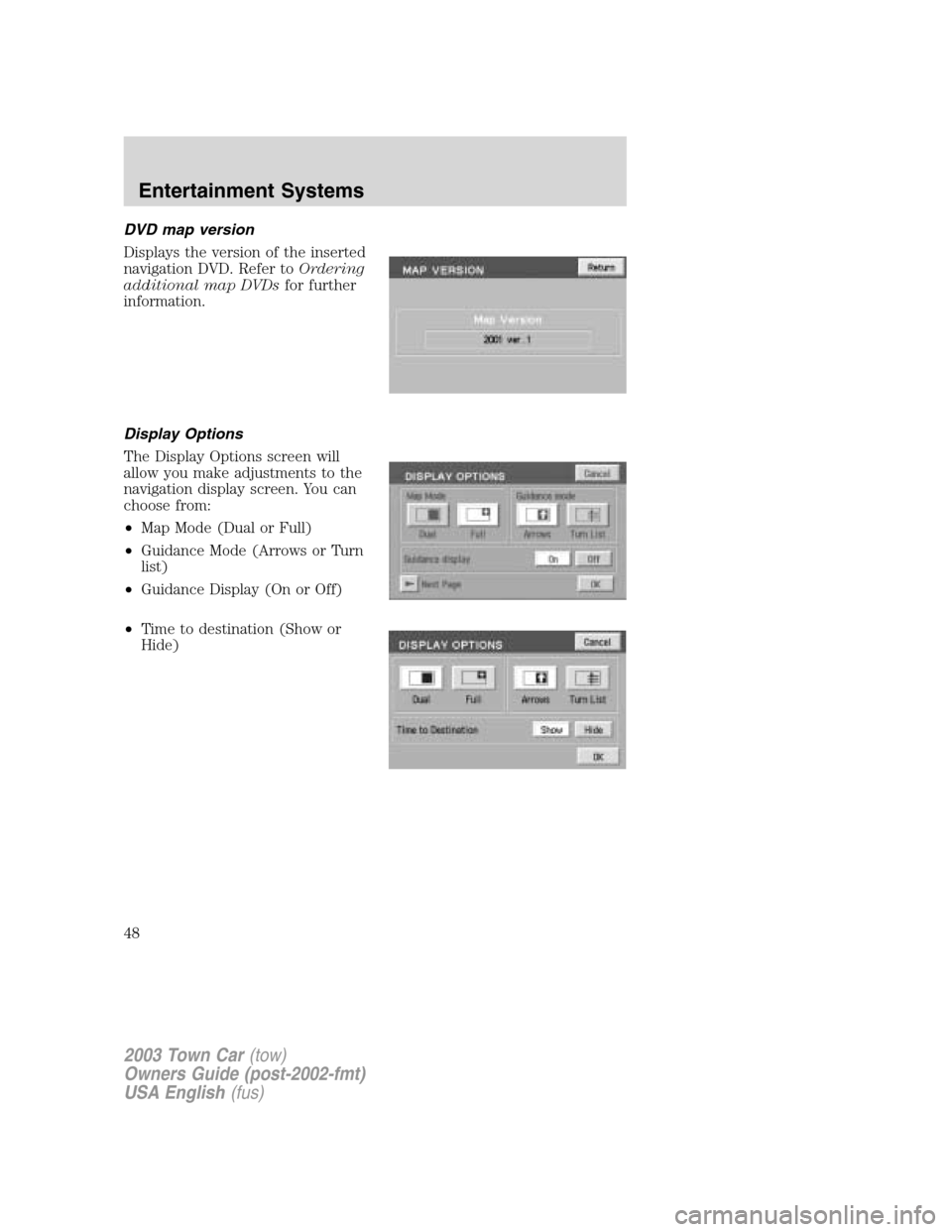
Displays the version of the inserted
navigation DVD. Refer toOrdering
additional map DVDsfor further
information.
Display Options
The Display Options screen will
allow you make adjustments to the
navigation display screen. You can
choose from:
•Map Mode (Dual or Full)
•Guidance Mode (Arrows or Turn
list)
•Guidance Display (On or Off)
•Time to destination (Show or
Hide)
2003 Town Car(tow)
Owners Guide (post-2002-fmt)
USA English(fus)
Entertainment Systems
48
Page 49 of 272
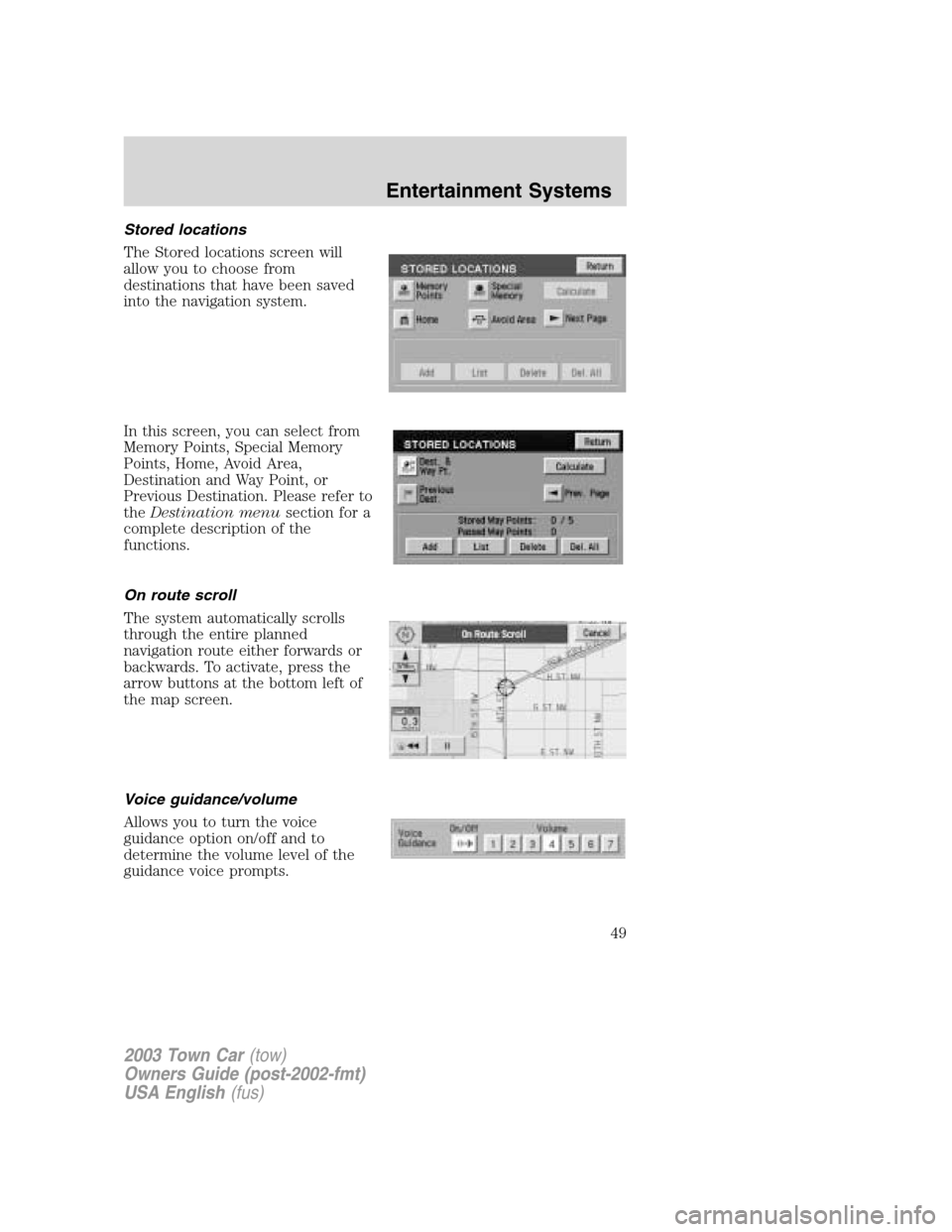
Stored locations
The Stored locations screen will
allow you to choose from
destinations that have been saved
into the navigation system.
In this screen, you can select from
Memory Points, Special Memory
Points, Home, Avoid Area,
Destination and Way Point, or
Previous Destination. Please refer to
theDestination menusection for a
complete description of the
functions.
On route scroll
The system automatically scrolls
through the entire planned
navigation route either forwards or
backwards. To activate, press the
arrow buttons at the bottom left of
the map screen.
Voice guidance/volume
Allows you to turn the voice
guidance option on/off and to
determine the volume level of the
guidance voice prompts.
2003 Town Car(tow)
Owners Guide (post-2002-fmt)
USA English(fus)
Entertainment Systems
49
Page 50 of 272
Destination menu
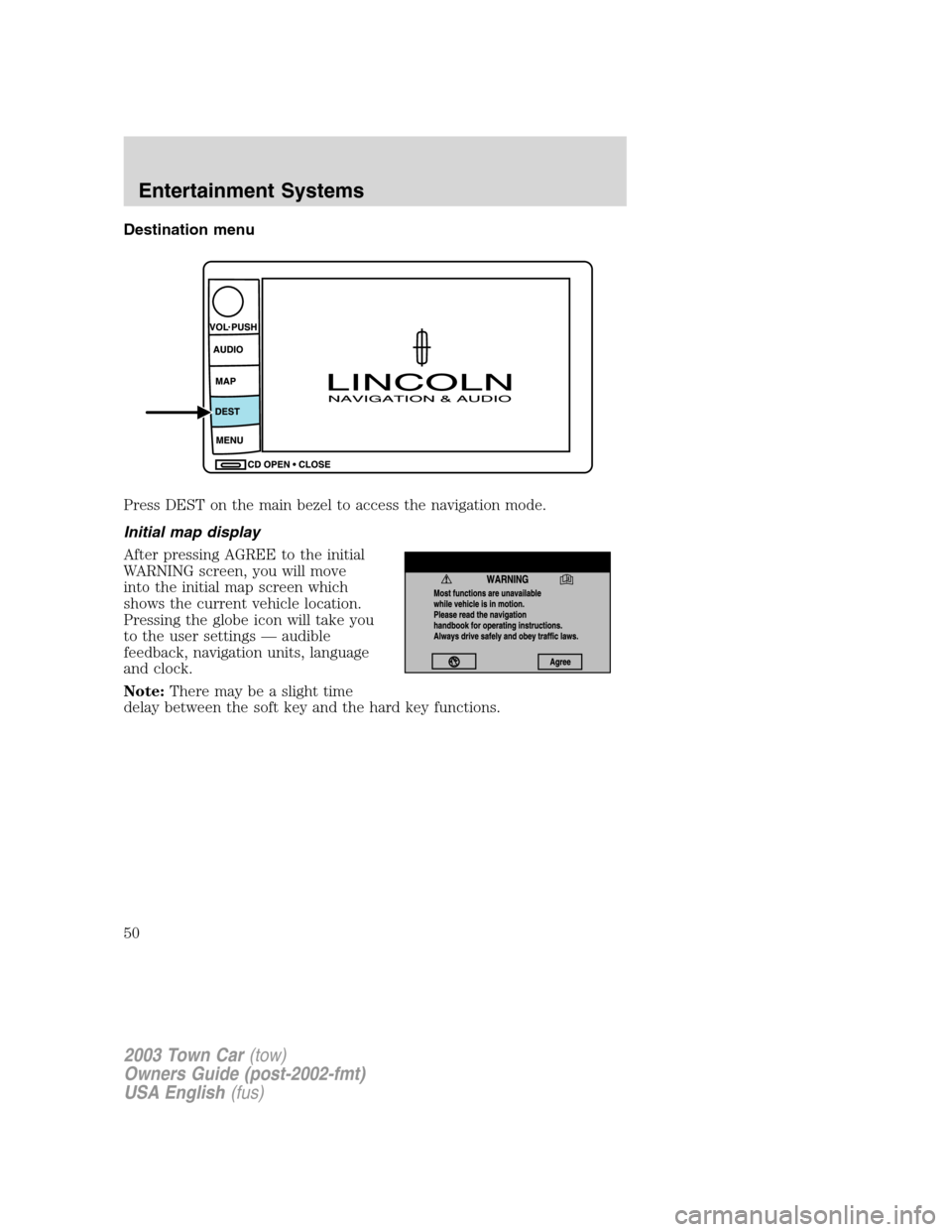
Press DEST on the main bezel to access the navigation mode.
Initial map display
After pressing AGREE to the initial
WARNING screen, you will move
into the initial map screen which
shows the current vehicle location.
Pressing the globe icon will take you
to the user settings—audible
feedback, navigation units, language
and clock.
Note:There may be a slight time
delay between the soft key and the hard key functions.
2003 Town Car(tow)
Owners Guide (post-2002-fmt)
USA English(fus)
Entertainment Systems
50