2003 GMC SIERRA DENALI change time
[x] Cancel search: change timePage 171 of 428
Fuel Information Button
Use the fuel information button to scroll through the
range, average fuel economy, instant fuel economy and
the GM
Oil Life SystemTM.
If your vehicle is not equipped with the DIC steering
wheel control buttons you will not be able to display the
fuel information.
Fuel Range
Press the fuel information button until RANGE appears
to display the remaining distance you can drive
without refueling. It’s based on fuel economy and the
fuel remaining in the tank. The display will show
LOW if
the fuel level is low.
The fuel economy data used to determine fuel range is
an average of recent driving conditions. As your
driving conditions change, this data is gradually updated.
Fuel range cannot be reset.
Average Fuel Economy
Press the fuel information button until AVG appears in
the display. Average fuel economy is how many
miles per gallon your vehicle is getting based on current
and past driving conditions.
Press and hold the select button while AVG.ECON is
displayed to reset the average fuel economy. Average
fuel economy will then
be calculated starting from
that point.
If the average fuel economy is not reset, it
will be continually updated each time you drive.
Instant Fuel Economy
Press the fuel information button until INST appears in
the display. Instant fuel economy is how many miles
per gallon your vehicle is at the particular moment
in time. The instant fuel economy cannot be reset.
GM Oil Life SystemTM
Press the fuel information button until ENGINE OIL LIFE
appears in the display. The GM
Oil Life SystemTM
shows an estimate of the oil’s remaining useful life. It
will show
100% when the system is reset after an
oil change. It will alert you
to change your oil on a
schedule consistent with your driving conditions.
Always reset the engine oil life after and oil change.
To
reset the Oil Life System press and hold the select
button while ENGINE
OIL LIFE is displayed.
The DIC does not replace the need to maintain your
vehicle as recommended in the Maintenance Schedule
in this manual. Also, the oil change reminder will not
detect dusty conditions or engine malfunctions that may
affect the oil. Also, the oil change reminder does not
measure how much
oil you have in your engine. So, be
sure to check your oil level often. See
Engine Oil on
page 5- 13.
3-46
Page 178 of 428

Display Language Select Button
To select your personalization for display language,
press the select button while DISPLAY LANGUAGE is
displayed on the DIC. Pressing the select button
will scroll through the following languages:
English
French
0 Spanish
You can also scroll through the different languages by
pressing and holding the trip reset stem for four
seconds, as long as you are in the season
odometer mode.
Choose one of the three options and press the
personalization button while it
is displayed on the DIC to
select it.
If you accidentally choose a language that you don’t
want or understand, press and hold the personalization
button and the trip information button at the same
time. The DIC will begin scrolling through the languages
in their particular language. English will be in English,
French
will be in French and so on. When you see
the language that you would like, release both buttons.
The
DIC will then display the information in the
language you chose. The
select button is used to reset certain functions and
turn
off or acknowledge messages on the DIC display.
The select button also toggles through the options
available in each personalization menu. For example, this
button will reset the trip odometers, turn
off the FUEL
LEVEL LOW message, and toggle through the languages
you can select the DIC
to display information in.
DIC Warnings and Messages
Warning messages are displayed on the DIC to notify
the driver that the status of the vehicle has changed and
that some action may be needed by the driver to
correct the condition. If there is more than one message
that needs to be displayed they will appear one after
another. Some messages may not require immediate
action but you should press the select button to
acknowledge that you received the message and clear it
from the display because they are more urgent. These
messages require action before they can be removed
from the DIC display. The following are the possible
messages that can be displayed and some information
about them.
3-53
Page 189 of 428
DlSP (Display): Push this knob to switch the display
between radio station frequency and time. Time display
is available with the ignition turned off.
For RDS, push this knob to change what appears on
the display while using RDS. The display options
are station name, RDS station frequency, PTY and the
name of the program
(if available).
For XMTM (USA only,
if your radio is equipped with
XMTM Satellite Radio Service), push this knob while in
XM mode to retrieve various pieces of information
related to the current song or channel. By pressing and
releasing this knob, you may retrieve four different
categories of information: Artist, Song Title, Category
or
PTY, Channel NumberKhannel Name.
For DAB (Canada only,
if your radio is equipped with
DAB), pushing this knob switches the display between
channel name and PTY name.
To change the default on the display, push this knob
until you see the display you want, then hold the knob
for two seconds. The radio will produce one beep
and selected display will now be the default.
Finding a Station
BAND: Press this button to switch between AM, FM,
FM2, or XM1, XM2 (USA only,
if your radio is equipped
with XMTM Satellite Radio Service) or DABl, DAB2
(Canada only,
if your radio is equipped with DAB). The
display will show your selection.
TUNE: Turn this knob to choose radio stations.
For DAB (Canada only,
if your radio is equipped with
DAB), the TUNE knob allows
you to navigate the
DAB frequency range. Turning this knob will tune up or
tune down the range. The radio will display the letter
L with a number next to it (1 through 23). Each L number
refers to a frequency and there can be multiple
stations contained in one frequency. It may also take a
few seconds, once you have tuned to a frequency,
for that frequency to gather all of the stations.
Depending on how many stations are within a frequency,
with every tune up or down, you may be tuning to
another station or to another frequency. The display will
show your selections.
4 SEEK b : Press the right or the left arrow to seek
to the next or to the previous station and stay there.
The radio will seek only to stations that are in the
selected band and only to those with a strong signal.
3-64
Page 200 of 428
3 REV (Reverse): Press and hold this pushbutton to
reverse quickly within a track. Press and hold this
pushbutton for less than two seconds to reverse at six
times the normal playing speed. Press and hold it
for more than two seconds to reverse at
17 times the
normal playing speed. Release it to play the passage.
The display will show
ET and the elapsed time.
4 FWD (Forward): Press and hold this pushbutton to
advance quickly within a track. Press and hold this
pushbutton for less than two seconds to advance at six
times the normal playing speed. Press and hold it for
more than two seconds to advance at
17 times the
normal playing speed. Release it to play the passage.
The display will show
ET and the elapsed time.
6 RDM (Random): Press this pushbutton to hear the
tracks in random, rather than sequential, order. RDM ON
will appear on the display. RDM T and the track
number will appear on the display when each track
starts to play. Press this pushbutton again to turn
off random play. RDM OFF will appear on the display.
4 SEEK b : Press the left arrow to go to the start
of the current or to the previous track. Press the right
arrow to go to the start of the next track. If either
arrow is held or pressed more then once, the player will
continue moving backward or forward through the CD.
4 SCAN b : To scan the disc, press and hold either
SCAN arrow for more than two seconds until SCAN
appears on the display and you hear a beep. Use this
feature to listen to
10 seconds of each track of the disc.
Press either
SCAN arrow again, to stop scanning.
DlSP (Display): Press this knob to see how long the
current track has been playing. ET and the elapsed time
will appear on the display. To change the default on
the display (track or elapsed time), push the knob until
you see the display you want, then hold the knob
for two seconds. The radio will produce one beep and
selected display will now be the default.
BAND: Press this button to listen to the radio when a
CD is playing. The CD will stop but remain in the player.
TAPE DISC: Press this button to play a tape when
listening to the radio. Press this button to switch
between the tape and compact disc
if both are loaded.
The inactive tape or CD will remain safely inside the
radio for future listening.
& (Eject): Press this button to stop a CD when it is
playing or to eject a CD when
it is not playing. Eject
may be activated with either the ignition or radio
off. CDs
may be loaded with the radio and ignition
off if this
button is pressed first.
3-75
Page 204 of 428
To load a CD, perform the following steps:
1. Press the LOAD button. Available positions will
blink amber.
2. Select a position by pressing the desired numbered
button with the amber blinking light. If a button is
not pressed within five seconds, the changer will go
to the lowest available position.
amber. An internal door will open allowing a single
CD to be inserted into the changer. After
approximately
10 seconds the changer will be ready
to play.
3. Load the CD when the loading slot indicators turn
To load two or more CDs, perform the
following steps:
1. Press and hold the LOAD button. The first CD will
be loaded into the lowest numbered empty position.
2. Load a single CD when the loading slot indicators
turn amber. After about
10 seconds the changer will
cycle to the next available position.
the desired positions. If you do not wish to load all
of the positions, you can cancel the load all
function by pressing a button with a green flashing
indicator light or wait
20 seconds for the changer
to time out.
3. Repeat Step 2 until all CDs are loaded into all of
To eject a single CD, perform the following
steps:
1. Press the eject button (upward pointing arrow). The
buttons with loaded CDs will blink amber.
2. Press one of the amber blinking buttons to select
the location of the CD you want to eject. The
changer will move to that location and eject the CD.
If you do not remove the CD from the player
within
10 seconds, it will be reloaded. If the eject
button is pressed and a numbered location button is
not pressed within five seconds, the current or last played CD will be ejected.
To eject all CDs, press and hold the eject button.
There are two ways to play a CD. Perform
one of the following:
With the radio on, press the desired numbered
button with a green indicator light on the CD
changer.
changer will go to its last played position.
Press the TAPE DISC button on the radio. The CD
9-79
Page 217 of 428
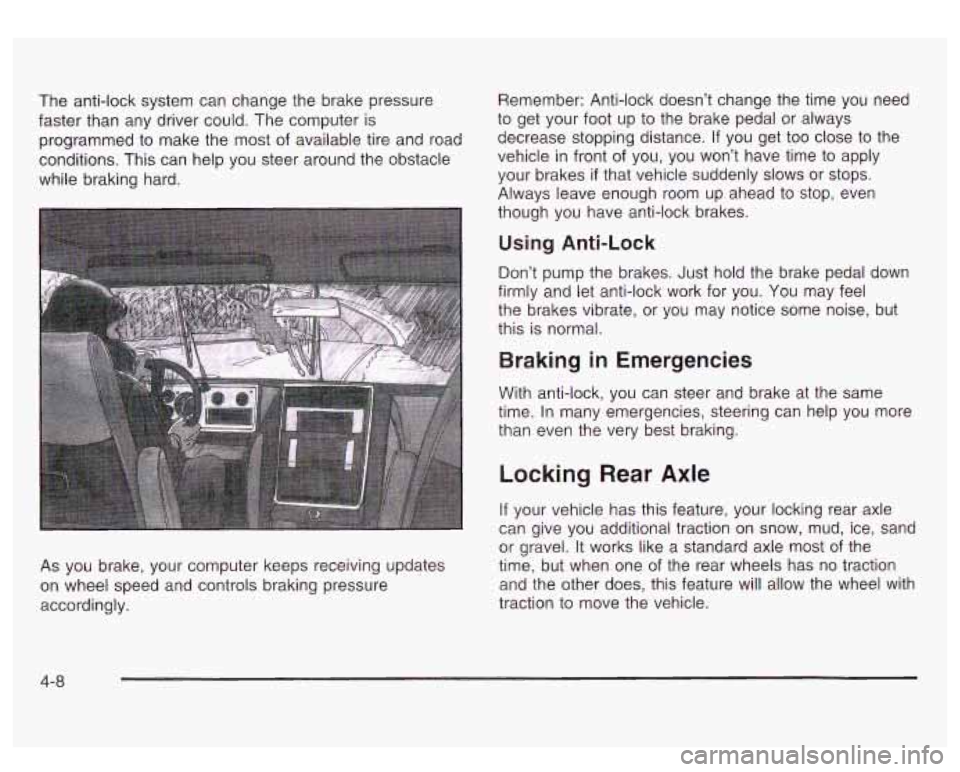
The anti-lock system can change the brake pressure
faster than any driver could. The computer is
programmed to make the most
of available tire and road
conditions. This can help you steer around the obstacle
while braking hard.
As you brake, your computer keeps receiving updates
on wheel speed and controls braking pressure
accordingly. Remember:
Anti-lock doesn’t change the time you need
to get your foot up
to the brake pedal or always
decrease stopping distance.
If you get too close to the
vehicle in front of you, you won’t have time to apply
your brakes
if that vehicle suddenly slows or stops.
Always leave enough room up ahead
to stop, even
though you have anti-lock brakes.
Using Anti-Lock
Don’t pump the brakes. Just hold the brake pedal down
firmly and let anti-lock work for you. You may feel
the brakes vibrate, or you may notice some noise, but
this is normal.
Braking in Emergencies
With anti-lock, you can steer and brake at the same
time. In many emergencies, steering can help you more
than even the very best braking.
Locking Rear Axle
If your vehicle has this feature, your locking rear axle
can give you additional traction on snow, mud, ice, sand
or gravel. It works like a standard axle most of the
time, but when one of the rear wheels has no traction
and the other does, this feature will allow the wheel with
traction to move the vehicle.
4-8
Page 218 of 428
Steering
Power Steering
If you lose power steering assist because the engine
stops or the system is not functioning, you can steer but
it will take much more effort.
Steering Tips
Driving on Curves
It’s important to take curves at a reasonable speed.
A lot of the “driver lost control” accidents mentioned on
the news happen on curves. Here’s why:
Experienced driver or beginner, each of us is subject to
the same laws of physics when driving on curves.
The traction of the tires against the road surface makes
it possible for the vehicle to change its path when
you turn the front wheels.
If there’s no traction, inertia
will keep the vehicle going in the same direction.
If
you’ve ever tried to steer a vehicle on wet ice, you’ll
understand this.
The traction you can get in a curve depends on the
condition of your tires and the road surface, the angle at
which the curve is banked, and your speed. While you’re
in a curve, speed
is the one factor you can control. Suppose
you’re steering through a sharp curve. Then you
suddenly accelerate. Both control systems
- steering
and acceleration
- have to do their work where the tires
meet the road. Adding the sudden acceleration can
demand too much of those places. You can
lose control.
What should you do
if this ever happens? Ease up on
the accelerator pedal, steer the vehicle the way
you want
it to go, and slow down.
Speed limit signs near curves warn that you should
adjust your speed. Of course, the posted speeds
are based on good weather and road conditions. Under
less favorable conditions you’ll want to go slower.
If you need to reduce your speed as you approach a
curve, do it before you enter the curve, while your front
wheels are straight ahead.
Try to adjust your speed
so you can “drive” through the
curve. Maintain a reasonable, steady speed. Wait to
accelerate until you are out of the curve, and then
accelerate gently into the straightaway.
Steering in Emergencies
There are times when steering can be more effective than
braking. For example, you come over a hill and find a
truck stopped in your lane, or a car suddenly pulls out
from nowhere, or a child darts out from between parked
cars and stops right in front of you. You can avoid these
problems by braking
- if you can stop in time. But
sometimes you can’t; there isn’t room. That’s the time for
evasive action
- steering around the problem.
4-9
Page 224 of 428
a
Check your mirrors, glance over your shoulder and
start your left lane change signal before moving out
of the right lane
to pass. When you are far enough
ahead of the passed vehicle to see its front in your
inside mirror, activate your right lane change signal
and move back into the right lane. (Remember that
if
your right outside mirror is convex, the vehicle you
just passed may seem
to be farther away from you
than it really is.)
Try not to pass more than one vehicle at a time on
two-lane roads. Reconsider before passing the next
vehicle.
Don’t overtake a slowly moving vehicle too rapidly.
Even though the brake lamps are not flashing, it may
be slowing down or starting to turn.
If you’re being passed, make
it easy for the following
driver to get ahead
of you. Perhaps you can ease a
little
to the right.
Loss of Control
Let’s review what driving experts say about what
happens when the three control systems (brakes,
steering and acceleration) don’t have enough friction
where the tires meet the road to do what the driver
has asked.
In any emergency, don’t give up. Keep trying
to steer
and constantly seek an escape route or area of
less danger.
Skidding
In a skid, a driver can lose control of the vehicle.
Defensive drivers avoid most skids by taking reasonable
care suited
to existing conditions, and by not
“overdriving” those conditions. But skids are always
possible.
The three types of skids correspond to your vehicle’s
three control systems. In the braking skid, your wheels
aren’t rolling. In the steering or cornering skid, too
much speed or steering
in a curve causes tires to slip
and lose cornering force. And in the acceleration
skid, too much throttle causes the driving wheels
to spin.
A cornering skid is best handled by easing your foot
off
the accelerator pedal.
If your vehicle starts to slide, ease your foot off the
accelerator pedal and quickly steer the way you want
the vehicle
to go. If you start steering quickly enough,
your vehicle may straighten out. Always be ready
for a second skid
if it occurs.
Of course, traction is reduced when water, snow, ice,
gravel or other material
is on the road. For safety, you’ll
want to slow down and adjust your driving
to these
conditions.
It is important to slow down on slippery
surfaces because stopping distance will be longer and
vehicle control more limited.
4-1 5