2003 FORD FOCUS radio
[x] Cancel search: radioPage 27 of 216
11.Scan:Press SCAN to move up
the radio frequency band. SCAN
automatically finds a station, plays it
for five seconds, then moves to the next station. Press again to stop.
CD:Press SCAN to sample CD selections for eight seconds. Press again
to stop.
DSP:
Press once to enter occupancy mode and use the volume control to
optimize sound for ALL seats, DRIVER or REAR. Press twice to select one
of the settings: DSP OFF, NEWS, JAZZ, CONCERT, CHURCH or STADIUM.
12.Clock:Press CLK to access
clock mode. Press and release
SEEK
/to select
hours/minutes. Turn the volume control to set both hours and minutes.
13.Menu:Press MENU to access
main menu functions. Use
SEEK
/for adjustments.
Tune adjust:Press MENU until MAN appears in the display. Press
orto manually move up/down the radio frequency band.
Compression:Press MENU until COMP appears in the display. Press
SEEK to engage/disengage the feature. Compression adjust brings soft
and loud CD passages together for a more consistent listening level.
Shuffle:Press MENU until SHUF appears in the display. Press SEEK to
engage/disengage the feature.
Audio distortion reduction (CLIP):Press and hold MENU until the
display changes. Then, press MENU until the CLIP menu displays. Press
SEEK to engage/disengage the feature. The feature automatically detects
sound distortions and reduces the volume level until the distortion has
been eliminated.
Automatic volume control (AVC) (if equipped):With this feature,
radio volume changes automatically with vehicle speed to compensate for
road and wind noise. Press MENU until AVC is displayed, then use the
SEEK
/control to adjust the volume.
SCAN
CLK
MENU
Entertainment Systems
27
Page 28 of 216
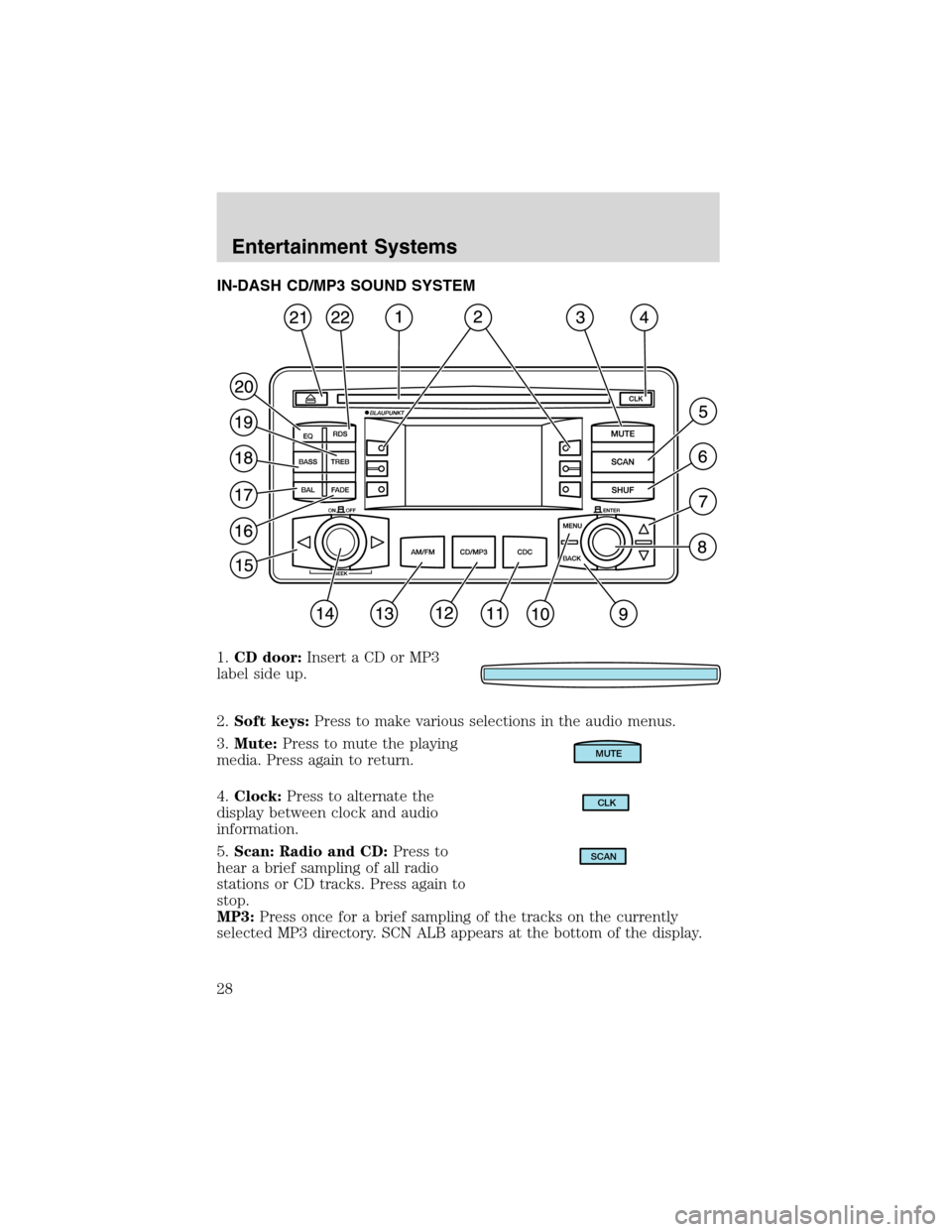
IN-DASH CD/MP3 SOUND SYSTEM
1.CD door:Insert a CD or MP3
label side up.
2.Soft keys:Press to make various selections in the audio menus.
3.Mute:Press to mute the playing
media. Press again to return.
4.Clock:Press to alternate the
display between clock and audio
information.
5.Scan: Radio and CD:Press to
hear a brief sampling of all radio
stations or CD tracks. Press again to
stop.
MP3:Press once for a brief sampling of the tracks on the currently
selected MP3 directory. SCN ALB appears at the bottom of the display.
MUTE
CLK
SCAN
Entertainment Systems
28
Page 29 of 216
Press again for a brief sampling of all MP3 directories on the disc. SCAN
ALL appears at the bottom of the display.
6.Shuffle: CD/CD changer:Press
to play the songs on the current CD
in random order. SHUF ALB appears
in the display.
MP3:Press once to shuffle the tracks in the current MP3 directory.
Press again to shuffle the tracks in all the MP3 directories. SHUF ALL
appears in the display.
7.
Reverse/forward:Radio/CD:Press
/
for previous (reverse)/next (fast
forward) strong station or CD track.
MP3:Press to select directories.
Turn the control to select the previous/next track.
8.Enter:Turn to manually tune up
or down the radio frequencies.
Also press to access:
Sharx:This function reduces the
amount of interference from other
radio stations in areas with a high
density of stations. Select AUDIO and press ENTER. Select SHARX and
press ENTER. Turn the control to turn the function on/off. Press ENTER
to save the setting.
Program type (PTY):When selected, this function allows you to view
the radio broadcast information (if any) or search for stations
broadcasting a particular program type. Select AUDIO and press ENTER.
Select PTY to view the broadcast information or PTY SEARCH to search
for stations broadcasting a particular program type. There are 30
different possible program types, some being: News, Inform, Sports, Talk,
Rock, Country, Jazz, etc. If no station is found broadcasting the selected
program type, NO PTY will appear in the display at the end of the search
9.Back:Use in the various menus
to go back to the previous
screen/choice.
10.Menu:Press MENU to access
main menu functions. Use
SEEK
/for adjustments.
SHUF
Entertainment Systems
29
Page 30 of 216
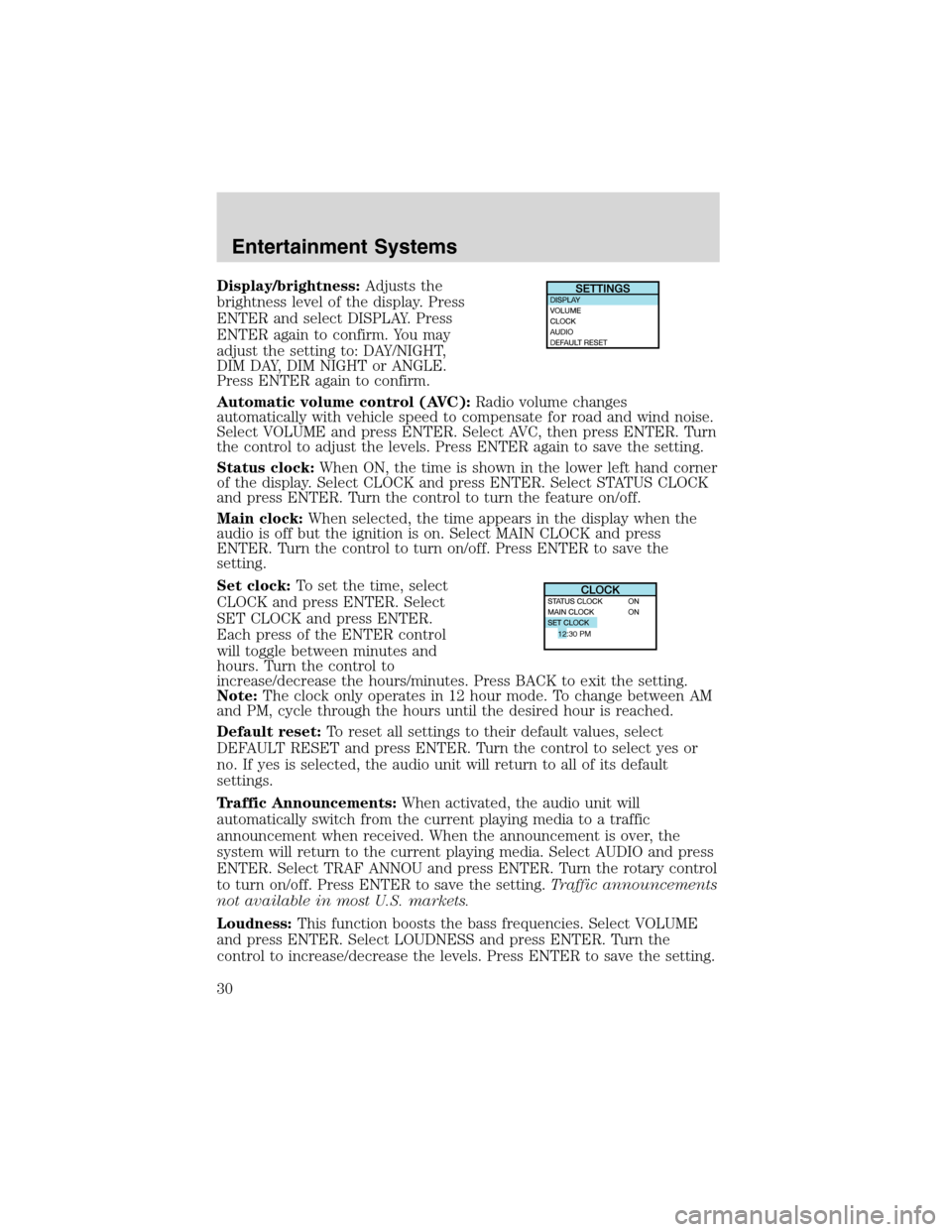
Display/brightness:Adjusts the
brightness level of the display. Press
ENTER and select DISPLAY. Press
ENTER again to confirm. You may
adjust the setting to: DAY/NIGHT,
DIM DAY, DIM NIGHT or ANGLE.
Press ENTER again to confirm.
Automatic volume control (AVC):Radio volume changes
automatically with vehicle speed to compensate for road and wind noise.
Select VOLUME and press ENTER. Select AVC, then press ENTER. Turn
the control to adjust the levels. Press ENTER again to save the setting.
Status clock:When ON, the time is shown in the lower left hand corner
of the display. Select CLOCK and press ENTER. Select STATUS CLOCK
and press ENTER. Turn the control to turn the feature on/off.
Main clock:When selected, the time appears in the display when the
audio is off but the ignition is on. Select MAIN CLOCK and press
ENTER. Turn the control to turn on/off. Press ENTER to save the
setting.
Set clock:To set the time, select
CLOCK and press ENTER. Select
SET CLOCK and press ENTER.
Each press of the ENTER control
will toggle between minutes and
hours. Turn the control to
increase/decrease the hours/minutes. Press BACK to exit the setting.
Note:The clock only operates in 12 hour mode. To change between AM
and PM, cycle through the hours until the desired hour is reached.
Default reset:To reset all settings to their default values, select
DEFAULT RESET and press ENTER. Turn the control to select yes or
no. If yes is selected, the audio unit will return to all of its default
settings.
Traffic Announcements:When activated, the audio unit will
automatically switch from the current playing media to a traffic
announcement when received. When the announcement is over, the
system will return to the current playing media. Select AUDIO and press
ENTER. Select TRAF ANNOU and press ENTER. Turn the rotary control
to turn on/off. Press ENTER to save the setting.Traffic announcements
not available in most U.S. markets.
Loudness:This function boosts the bass frequencies. Select VOLUME
and press ENTER. Select LOUDNESS and press ENTER. Turn the
control to increase/decrease the levels. Press ENTER to save the setting.
12:30 PM
Entertainment Systems
30
Page 31 of 216
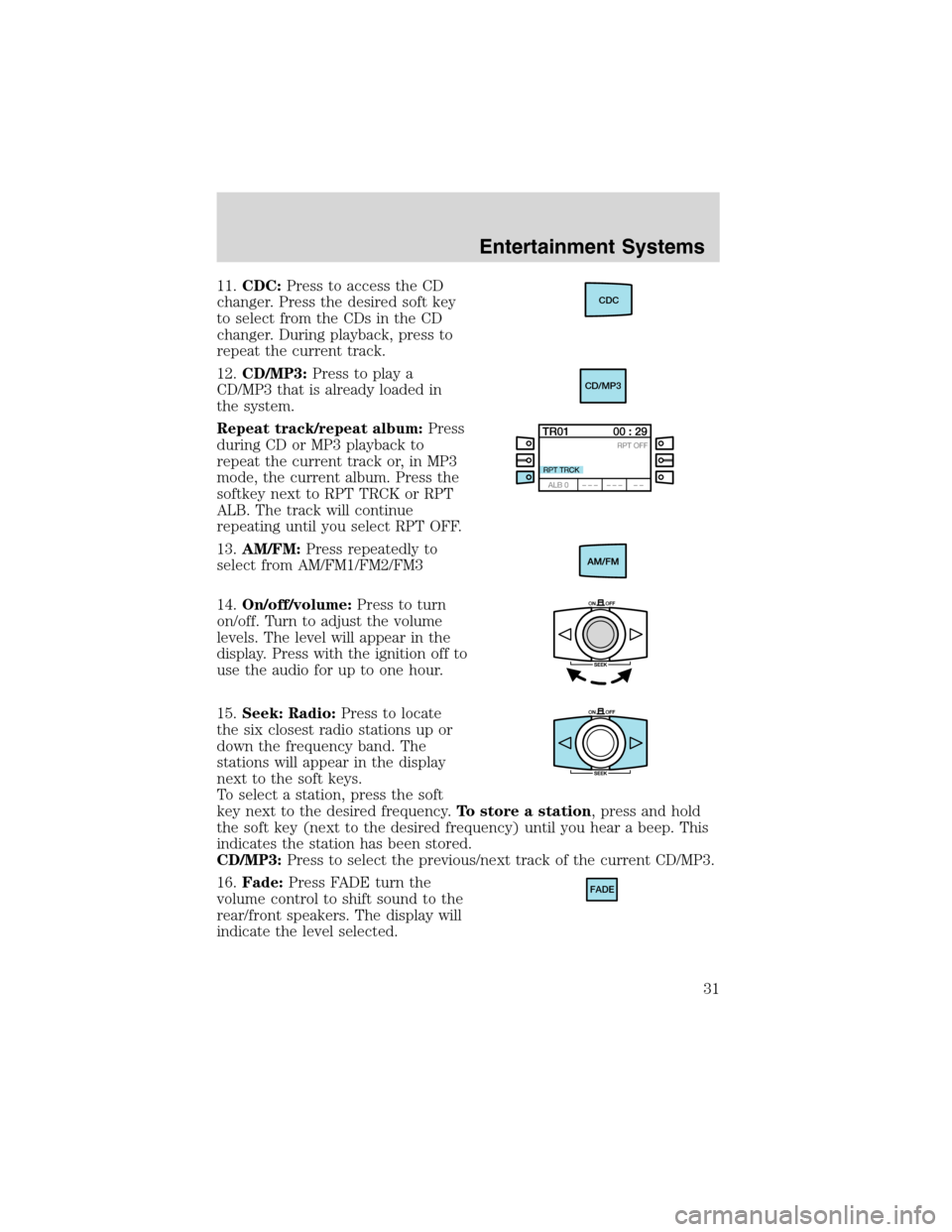
11.CDC:Press to access the CD
changer. Press the desired soft key
to select from the CDs in the CD
changer. During playback, press to
repeat the current track.
12.CD/MP3:Press to play a
CD/MP3 that is already loaded in
the system.
Repeat track/repeat album:Press
during CD or MP3 playback to
repeat the current track or, in MP3
mode, the current album. Press the
softkey next to RPT TRCK or RPT
ALB. The track will continue
repeating until you select RPT OFF.
13.AM/FM:Press repeatedly to
select from AM/FM1/FM2/FM3
14.On/off/volume:Press to turn
on/off. Turn to adjust the volume
levels. The level will appear in the
display. Press with the ignition off to
use the audio for up to one hour.
15.Seek: Radio:Press to locate
the six closest radio stations up or
down the frequency band. The
stations will appear in the display
next to the soft keys.
To select a station, press the soft
key next to the desired frequency.To store a station, press and hold
the soft key (next to the desired frequency) until you hear a beep. This
indicates the station has been stored.
CD/MP3:Press to select the previous/next track of the current CD/MP3.
16.Fade:Press FADE turn the
volume control to shift sound to the
rear/front speakers. The display will
indicate the level selected.CDC
CD/MP3
FADE
Entertainment Systems
31
Page 32 of 216
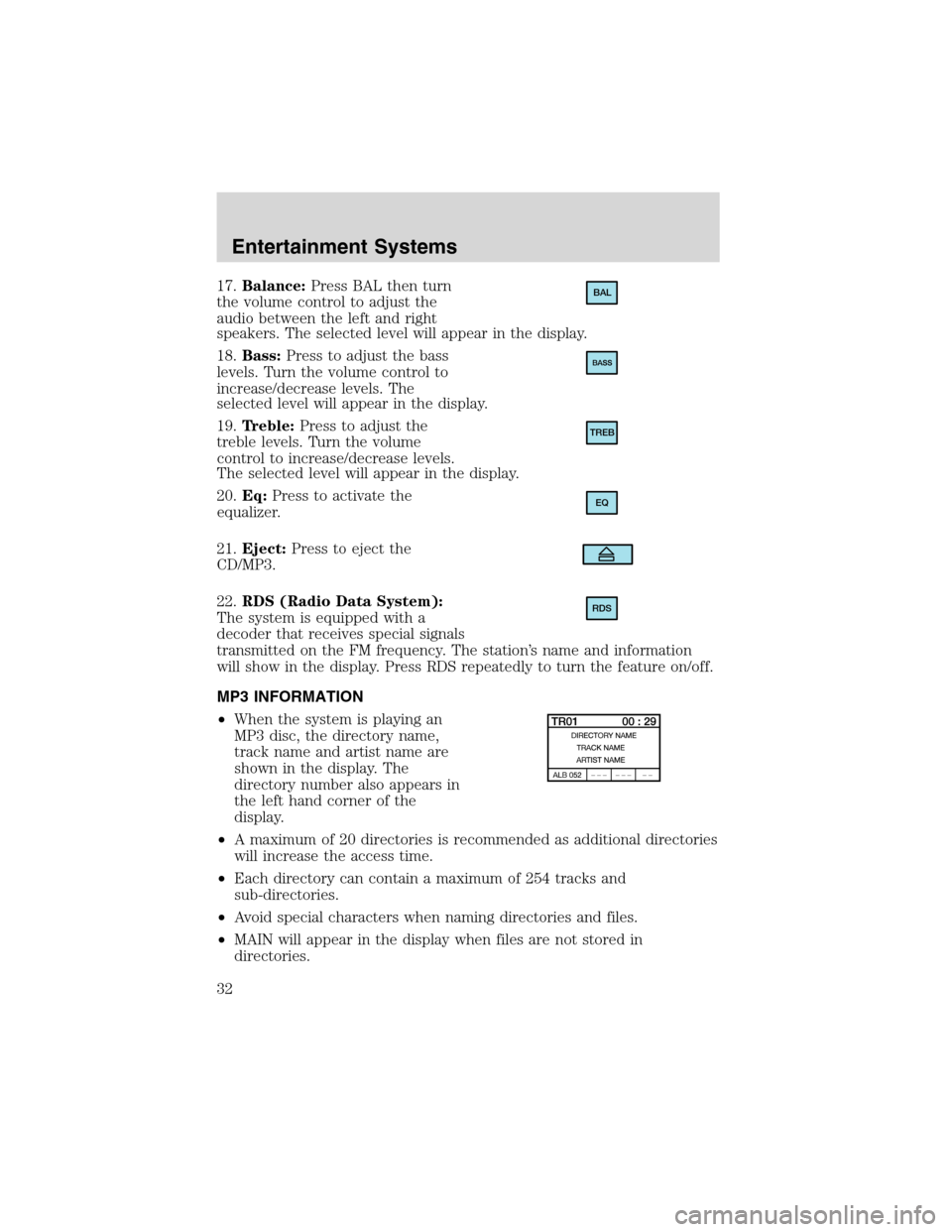
17.Balance:Press BAL then turn
the volume control to adjust the
audio between the left and right
speakers. The selected level will appear in the display.
18.Bass:Press to adjust the bass
levels. Turn the volume control to
increase/decrease levels. The
selected level will appear in the display.
19.Treble:Press to adjust the
treble levels. Turn the volume
control to increase/decrease levels.
The selected level will appear in the display.
20.Eq:Press to activate the
equalizer.
21.Eject:Press to eject the
CD/MP3.
22.RDS (Radio Data System):
The system is equipped with a
decoder that receives special signals
transmitted on the FM frequency. The station’s name and information
will show in the display. Press RDS repeatedly to turn the feature on/off.
MP3 INFORMATION
•When the system is playing an
MP3 disc, the directory name,
track name and artist name are
shown in the display. The
directory number also appears in
the left hand corner of the
display.
•A maximum of 20 directories is recommended as additional directories
will increase the access time.
•Each directory can contain a maximum of 254 tracks and
sub-directories.
•Avoid special characters when naming directories and files.
•MAIN will appear in the display when files are not stored in
directories.BAL
TREB
EQ
RDS
Entertainment Systems
32
Page 33 of 216
•CD-R media is supported, but CD-RW is not.
•If more than one session is written to the CD, only the first session
will be detected.
RADIO FREQUENCIES
AM and FM frequencies are established by the Federal Communications
Commission (FCC) and the Canadian Radio and Telecommunications
Commission (CRTC). Those frequencies are:
AM - 530, 540–1700, 1710 kHz
FM- 87.7, 87.9–107.7, 107.9 MHz
RADIO RECEPTION FACTORS
There are three factors that can affect radio reception:
•Distance/strength: The further you travel from an FM station, the
weaker the signal and the weaker the reception.
•Terrain: Hills, mountains, tall buildings, power lines, electric fences,
traffic lights and thunderstorms can interfere with your reception.
•Station overload: When you pass a broadcast tower, a stronger signal
may overtake a weaker one and play while the weak station frequency
is displayed.
CASSETTE/PLAYER CARE
Do:
•Use only cassettes that are 90 minutes long or less.
•Tighten very loose tapes by inserting a finger or pencil into the hole
and turning the hub.
•Remove loose labels before inserting tapes.
•Allow tapes which have been subjected to extreme heat, humidity or
cold to reach a moderate temperature before playing.
•Clean the cassette player head with a cassette cleaning cartridge after
10–12 hours of play to maintain good sound/operation.
Don’t:
•Expose tapes to direct sunlight, extreme humidity, heat or cold.
•Leave tapes in the cassette player for a long time when not being
played.
Entertainment Systems
33
Page 58 of 216
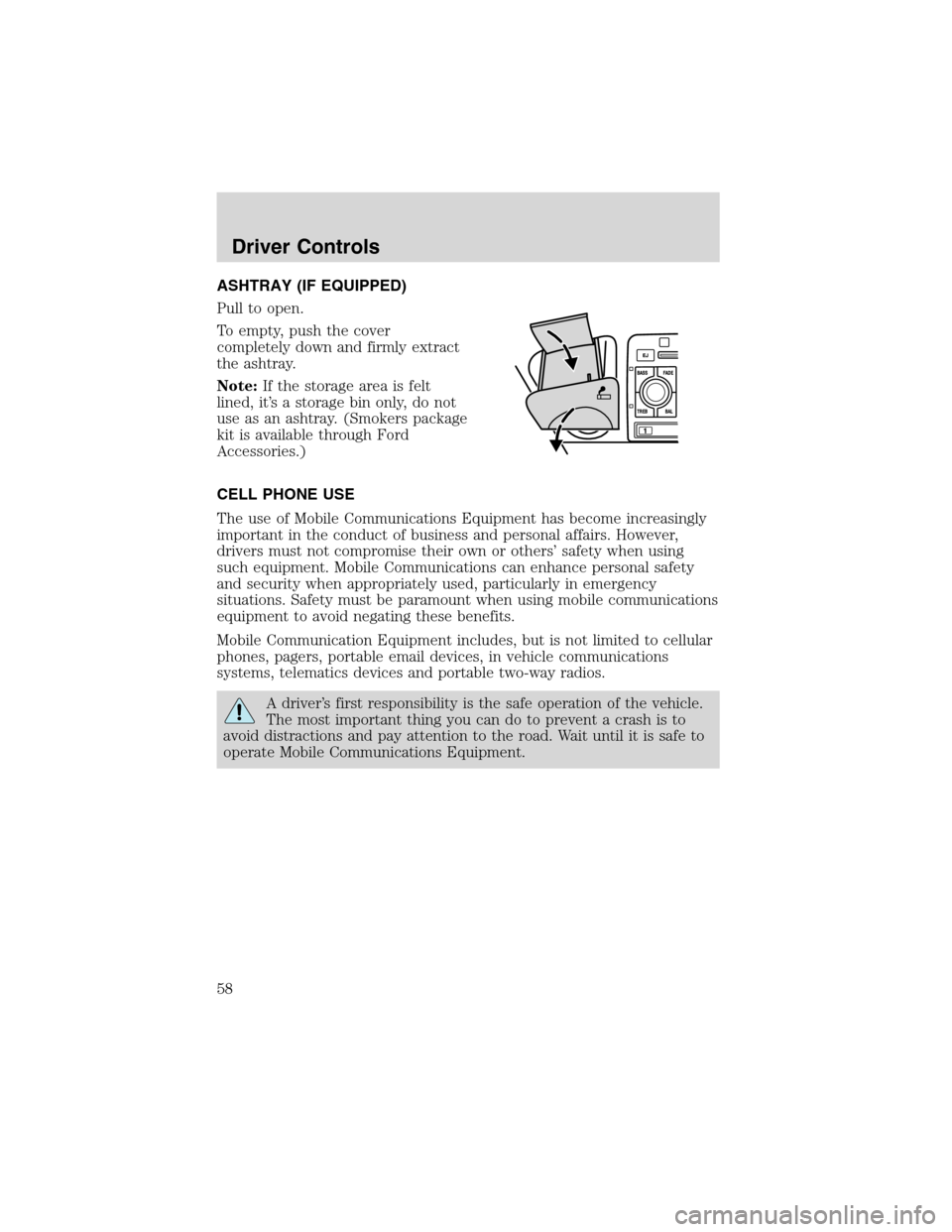
ASHTRAY (IF EQUIPPED)
Pull to open.
To empty, push the cover
completely down and firmly extract
the ashtray.
Note:If the storage area is felt
lined, it’s a storage bin only, do not
use as an ashtray. (Smokers package
kit is available through Ford
Accessories.)
CELL PHONE USE
The use of Mobile Communications Equipment has become increasingly
important in the conduct of business and personal affairs. However,
drivers must not compromise their own or others’safety when using
such equipment. Mobile Communications can enhance personal safety
and security when appropriately used, particularly in emergency
situations. Safety must be paramount when using mobile communications
equipment to avoid negating these benefits.
Mobile Communication Equipment includes, but is not limited to cellular
phones, pagers, portable email devices, in vehicle communications
systems, telematics devices and portable two-way radios.
A driver’s first responsibility is the safe operation of the vehicle.
The most important thing you can do to prevent a crash is to
avoid distractions and pay attention to the road. Wait until it is safe to
operate Mobile Communications Equipment.
Driver Controls
58