2003 CHEVROLET TRAIL BLAZER CD player
[x] Cancel search: CD playerPage 217 of 436

cSTOP:Press this button to stop playing, reversing
or fast forwarding the DVD.
XEJECT/LOAD:Press this button to eject a DVD
while it is playing. If the disc has been ejected and not
removed from the player, pressing this button will
load the disc. The stop/eject button on the DVD player
will also load the disc if the disc is ejected and not
removed.
rREW (Rewind):Press this button to reverse the
DVD at 5x speed. To stop reversing, press this
button again. This button may not work when the DVD
is playing the copyright or the previews.
[FWD (Fast Forward):Press this button to fast
forward the DVD at 5x speed. To stop fast forwarding,
press this button again. This button may not work
when the DVD is playing the copyright or the previews.
gPREV (Previous):Press this button to return to
the start of the current chapter. Press this button again
to return to the previous chapter. This button may
not work when the DVD is playing the copyright or the
previews.
lNEXT:Press this button to jump to the beginning
of the next chapter. This button may not work when
the DVD is playing the copyright or the previews.MENU:Press this button to view the media menu. The
media menu is different on every disc. Use the up
and down and the right and the left arrow buttons to
move the cursor around the media menu. After making
your selection, press the ENTER button. Some discs
may contain a short skit leading up to the media menu.
~WIRED VOLUME:Press the plus or the minus
symbol to increase or to decrease the volume of
the wired headphones. You can press repeatedly or
press and hold the plus or the minus symbol to increase
or to decrease the volume in large amounts.
bSIZE/ANGLE:This button controls the screen
ratio of the video display. Press and release this
button to stretch a 4:3 picture to ®t the wide aspect
ratio 16:9 screen.
Press and release this button to choose different angles
of the same scene. Press and hold this button again
to change angles. This feature is not available on
all DVD discs.
DISP/S-TITLE (Display Subtitle) CHAP TRK (Chapter
Track):Press and release this button to display the
title, chapter and elapsed time of the current video
segment or the track and time if a CD is being played.
Press and hold this button to see the DVDs subtitle
language. Press and release this button again to change
it. This feature is not available on all DVD discs.
3-99
Page 218 of 436

COMP/AUDIO (Compression) COMP:Press and
release this button to display the current compression
displayed on the screen. Press this button again to
select the next compression state. Three compression
states are available including minimum, standard
and off. The compression feature only functions on AC3
(Dolby
žDigital Surround) encoded DVD video discs.
Press and hold this button to see if the DVD playing has
optional audio tracks, such as different languages or
commentaries. Press and release to change selections.
INPUT/TITLE DVD AUX (Auxiliary):Press and
release this button to switch between the auxiliary input
device and the DVD player.
Press and hold this button to see a display of the DVD's
titles. Press and release to change the titles available.
qRTN (Return):When a DVD menu is active
and this button is pressed, the selected option will be
disabled. This button could have different functions with
different discs.
ESCREEN BRIGHTNESS:Press the plus or the
minus symbol to increase or to decrease the brightness
of the screen. This button can also be found on the
video screen.
OLIGHT:Press this button to illuminate the keypad
for about eight seconds.
Setup Menu
To access the setup menu, ensure a DVD is in the
player and the video is in stop mode. Press the menu
key. Once the menu is activated, use the UP, DOWN,
RIGHT, LEFT, and Enter buttons to navigate the screen.
The setup menu allows the use to select default
preferences for Menu Language, Subtitle Language,
Audio Language, TV Aspect, TV Mode, and Dynamic
Range Compression.
Not all DVDs support all the feature defaults in the
setup menus. In the event a particular feature is
not supported, defaults will be provided by the DVD
media.
Exit the setup menu by pressing the RETURN button on
the remote control. If you make changes to the system
setup defaults, the disc will resume play from the
beginning and not where it previously left off.
Battery Replacement
To change the batteries, do the following:
1. Unclip the battery door located on the back of the
remote control.
2. Replace the two AAA batteries in the compartment.
Make sure that they are installed correctly.
3. Close the battery door securely.
If the remote control is to be stored for a long period of
time, remove the batteries and keep them in a cool,
dry place.
3-100
Page 220 of 436

Problem Recommended Action
The remote does not
work.Point the remote directly
at the player, but not the
screen.
The batteries could be
dead or put in wrong.
If the power button on
the player is ¯ashing, the
parental control is on,
which disables the
remote.
I can not hear anything
when I lower the volume.Quickly press and
release the
COMP/AUDIO button on
the remote. This tells you
the current default
setting. Press and
release the
COMP/AUDIO button
again to choose another
setting.Problem Recommended Action
How do I get subtitles on
or off?Press and hold the
DISP/S-TITLE buttons on
the remote to go to the
DVDs main menu. Then
follow the prompts.
After stopping the player,
I push PLAY but
sometimes the DVD
starts where I left off and
sometimes at the
beginning.Press the STOP button
on the remote to resume
where the DVD left off.
Press the STOP button
twice to start the DVD at
the beginning.
If the power is off and the
DVD is still in the player,
press and release the
PLAY button.
The DVD is playing but
there is no picture or
sound.
The auxiliary medium
(video game, camcorder,
etc.) is running but there
is no picture or sound.Press the INPUT/TITLE
button on the remote to
get to auxiliary input.
The auxiliary medium's
cords could be plugged
into the wrong jack.
3-102
Page 221 of 436

Problem Recommended Action
The audio or video skips
or jumps.The DVD could be dirty
or scratched. Try
cleaning the DVD.
When I return to the DVD
from the system menu,
sometimes it plays from
the beginning and
sometimes from where it
left off.If the STOP button was
pressed once, it resumes
play from where it left off.
If the STOP button was
pressed twice, it will
start at the beginning of
the DVD.
However, if a change
was made to the menu,
the DVD will start from
the beginning, even if the
STOP button was only
pressed once.
The fast forward, fast
reverse, previous and
next functions do
not work.Some commands that do
one thing for DVDs will
not always work or
perform the same
function for audio, CDs
or games.Problem Recommended Action
My disc is stuck in the
player. The EJECT/LOAD
button does not work.Press the EJECT/LOAD
button on the remote, or
the STOP/EJECT button
on the DVD player.
Turn the power off, then
on again.
Do not attempt to forcibly
remove the disc from the
player.
I lost the remote and/or
the headphones.See your dealer for
assistance.
What is the best way to
clean the screen?Pour some isopropyl or
rubbing alcohol on a
clean cloth and wipe.
Sometimes the wireless
headphone audio cuts
out or buzzes for a
moment then it
comes back.This could be caused by
interference from cell
towers or by using your
cell phone in the vehicle.
3-103
Page 224 of 436
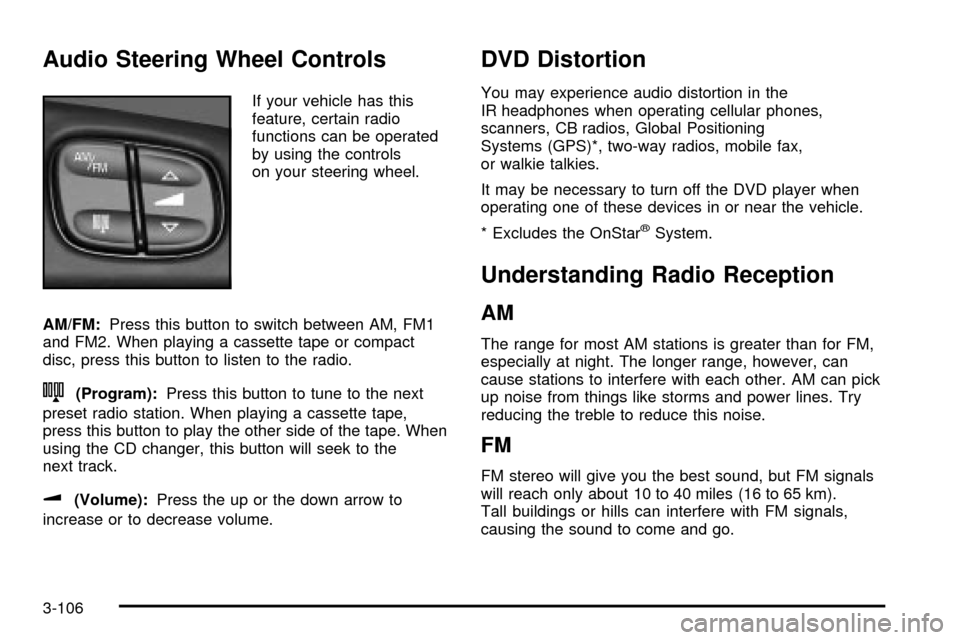
Audio Steering Wheel Controls
If your vehicle has this
feature, certain radio
functions can be operated
by using the controls
on your steering wheel.
AM/FM:Press this button to switch between AM, FM1
and FM2. When playing a cassette tape or compact
disc, press this button to listen to the radio.
n(Program):Press this button to tune to the next
preset radio station. When playing a cassette tape,
press this button to play the other side of the tape. When
using the CD changer, this button will seek to the
next track.
u(Volume):Press the up or the down arrow to
increase or to decrease volume.
DVD Distortion
You may experience audio distortion in the
IR headphones when operating cellular phones,
scanners, CB radios, Global Positioning
Systems (GPS)*, two-way radios, mobile fax,
or walkie talkies.
It may be necessary to turn off the DVD player when
operating one of these devices in or near the vehicle.
* Excludes the OnStar
žSystem.
Understanding Radio Reception
AM
The range for most AM stations is greater than for FM,
especially at night. The longer range, however, can
cause stations to interfere with each other. AM can pick
up noise from things like storms and power lines. Try
reducing the treble to reduce this noise.
FM
FM stereo will give you the best sound, but FM signals
will reach only about 10 to 40 miles (16 to 65 km).
Tall buildings or hills can interfere with FM signals,
causing the sound to come and go.
3-106
Page 225 of 436

Care of Your Cassette Tape Player
A tape player that is not cleaned regularly can cause
reduced sound quality, ruined cassettes or a damaged
mechanism. Cassette tapes should be stored in their
cases away from contaminants, direct sunlight and
extreme heat. If they aren't, they may not operate
properly or may cause failure of the tape player.
Your tape player should be cleaned regularly after every
50 hours of use. Your radio may display CLEAN to
indicate that you have used your tape player for
50 hours without resetting the tape clean timer. If this
message appears on the display, your cassette
tape player needs to be cleaned. It will still play tapes,
but you should clean it as soon as possible to
prevent damage to your tapes and player. If you notice
a reduction in sound quality, try a known good
cassette to see if the tape or the tape player is at fault.
If this other cassette has no improvement in sound
quality, clean the tape player.
For best results, use a scrubbing action, non-abrasive
cleaning cassette with pads which scrub the tape
head as the hubs of the cleaner cassette turn. The
recommended cleaning cassette is available through
your dealership.
The broken tape detection feature of your cassette tape
player may identify the cleaning cassette as a
damaged tape, in error. To prevent the cleaning cassette
from being ejected, use the following steps:1. Turn the ignition on.
2. Turn the radio off.
3. Press and hold the TAPE CD button for ®ve
seconds. READY will appear on the display and a
cassette symbol will ¯ash for ®ve seconds.
4. Insert the scrubbing action cleaning cassette.
5. Eject the cleaning cassette after the manufacturer's
recommended cleaning time.
After the cleaning cassette is ejected, the broken tape
detection feature will be active again.
You may also choose a non-scrubbing action, wet-type
cleaner which uses a cassette with a fabric belt to
clean the tape head. This type of cleaning cassette will
not eject on its own. A non-scrubbing action cleaner
may not clean as thoroughly as the scrubbing type
cleaner. The use of a non-scrubbing action, dry-type
cleaning cassette is not recommended.
After you clean the player, press and hold the EJT
button for ®ve seconds to reset the CLEAN indicator.
The radio will display CLEANED to show the indicator
was reset.
Cassettes are subject to wear and the sound quality
may degrade over time. Always make sure the cassette
tape is in good condition before you have your tape
player serviced.
3-107
Page 226 of 436

Care of Your CDs and DVDs
Handle discs carefully. Store them in their original cases
or other protective cases and away from direct sunlight
and dust. If the surface of a disc is soiled, dampen
a clean, soft cloth in a mild, neutral detergent solution
and clean it, wiping from the center to the edge.
Be sure never to touch the side without writing when
handling discs. Pick up discs by grasping the outer
edges or the edge of the hole and the outer edge.
Care of Your CD and DVD Player
The use of CD lens cleaner discs is not advised, due to
the risk of contaminating the lens of the CD optics
with lubricants internal to the CD mechanism.
Cleaning the Video Screen
Pour some isopropyl or rubbing alcohol on a clean cloth
and gently wipe the video screen. Do not spray
directly onto the screen and do not press too hard or
too long on the video screen.
Fixed Mast Antenna
The ®xed mast antenna can withstand most car washes
without being damaged. If the mast should ever
become slightly bent, you can straighten it out by hand.
If the mast is badly bent, you should replace it.
Check occasionally to be sure the mast is still tightened
to the fender. If tightening is required, tighten by
hand, then with a wrench one quarter turn.
Chime Level Adjustment
The volume level of the vehicle's chimes can be
controlled by the radio. To change the volume level,
press and hold pushbutton 6 with the ignition on and the
radio power off. The chime volume level will change
from the normal level to loud, and LOUD will be
displayed on the radio. To change back to the default or
normal setting, press and hold pushbutton 6 again.
The chime level will change from the loud level
to normal, and NORMAL will be displayed.
3-108
Page 399 of 436

Part B: Owner Checks and Services
Listed in this part are owner checks and services
which should be performed at the intervals speci®ed to
help ensure the safety, dependability and emission
control performance of your vehicle.
Be sure any necessary repairs are completed at once.
Whenever any ¯uids or lubricants are added to your
vehicle, make sure they are the proper ones, as shown
in Part D.
At Each Fuel Fill
It is important for you or a service station attendant to
perform these underhood checks at each fuel ®ll.
Engine Oil Level Check
Check the engine oil level and add the proper oil if
necessary. SeeEngine Oil on page 5-16for further
details.
Engine Coolant Level Check
Check the engine coolant level and add DEX-COOLž
coolant mixture if necessary. SeeEngine Coolant
on page 5-24for further details.
Windshield Washer Fluid Level Check
Check the windshield washer ¯uid level in the windshield
washer tank and add the proper ¯uid if necessary.
See
Windshield Washer Fluid on page 5-37for further
details.
At Least Once a Month
Tire In¯ation Check
Visually inspect your tires and make sure tires are
in¯ated to the correct pressures. Don't forget to check
your spare tire. See
Tires on page 5-54for further
details.
Cassette Tape Player Service
Clean cassette tape player. Cleaning should be done
every 50 hours of tape play. SeeAudio System(s)
on page 3-64for further details.
6-11