2003 CHEVROLET TRAIL BLAZER change time
[x] Cancel search: change timePage 199 of 436

6 RDM (Random):Press this pushbutton to hear the
tracks in random, rather than sequential, order. RDM ON
will appear on the display. RDM T and the track
number will appear on the display when each track
starts to play. Press this pushbutton again to turn
off random play. RDM OFF will appear on the display.
qSEEKr:Press the left arrow to go to the start
of the current or to the previous track. Press the right
arrow to go to the start of the next track. If either
arrow is held or pressed more then once, the player will
continue moving backward or forward through the CD.
DISPL (Display):Press this knob to see how long
the current track has been playing. ET and the elapsed
time will appear on the display. To change the default
on the display (track or elapsed time), push the
knob until you see the display you want, then hold the
knob for two seconds. The radio will produce one
beep and selected display will now be the default.
AM FM:Press this button to listen to the radio when a
CD is playing. The CD will stop but remain in the
player.
TAPE CD:Press this button to play a tape when
listening to the radio. Press this button to switch
between the tape and compact disc if both are loaded.
The inactive tape or CD will remain safely inside the
radio for future listening.
ZEJT (Eject):Press this button to stop a CD when
it is playing or to eject a CD when it is not playing.
Eject may be activated with either the ignition or radio
off. CDs may be loaded with the radio and ignition off if
this button is pressed ®rst.
Compact Disc Messages
If the disc comes out, it could be for one of the following
reasons:
·You're driving on a very rough road. When the road
becomes smoother the disc should play.
·It's very hot. When the temperature returns to
normal, the disc should play.
·The disc is dirty, scratched, wet or upside down.
·The air is very humid. If so, wait about an hour and
try again.
·There may have been a problem while burning
the CD.
·The label may be caught in the CD player.
If the CD is not playing correctly, for any other reason,
try a known good CD.
If any error occurs repeatedly or if an error can't be
corrected, contact your dealer.
3-81
Page 200 of 436
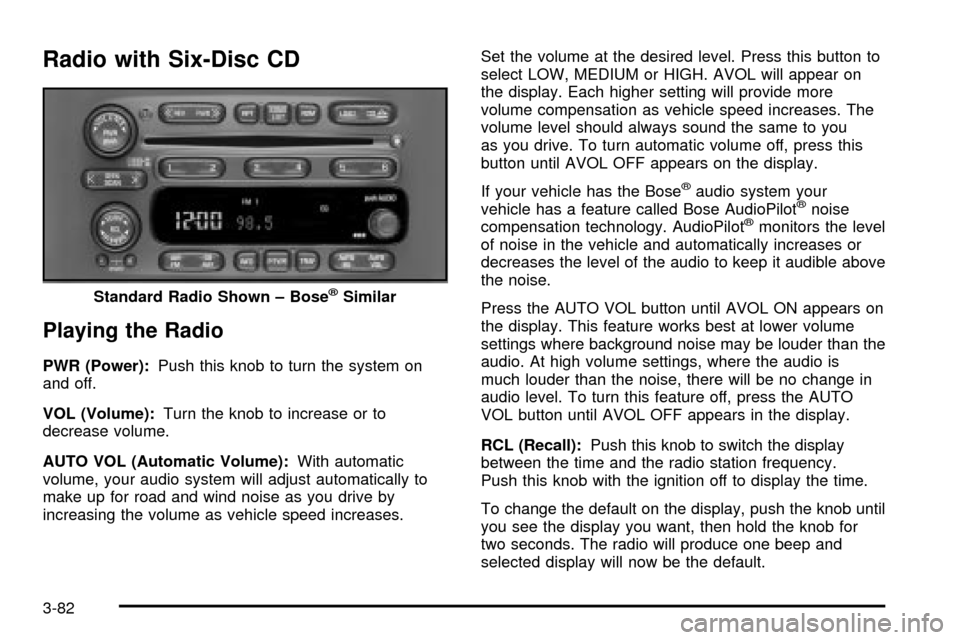
Radio with Six-Disc CD
Playing the Radio
PWR (Power):Push this knob to turn the system on
and off.
VOL (Volume):Turn the knob to increase or to
decrease volume.
AUTO VOL (Automatic Volume):With automatic
volume, your audio system will adjust automatically to
make up for road and wind noise as you drive by
increasing the volume as vehicle speed increases.Set the volume at the desired level. Press this button to
select LOW, MEDIUM or HIGH. AVOL will appear on
the display. Each higher setting will provide more
volume compensation as vehicle speed increases. The
volume level should always sound the same to you
as you drive. To turn automatic volume off, press this
button until AVOL OFF appears on the display.
If your vehicle has the Bose
žaudio system your
vehicle has a feature called Bose AudioPilotžnoise
compensation technology. AudioPilotžmonitors the level
of noise in the vehicle and automatically increases or
decreases the level of the audio to keep it audible above
the noise.
Press the AUTO VOL button until AVOL ON appears on
the display. This feature works best at lower volume
settings where background noise may be louder than the
audio. At high volume settings, where the audio is
much louder than the noise, there will be no change in
audio level. To turn this feature off, press the AUTO
VOL button until AVOL OFF appears in the display.
RCL (Recall):Push this knob to switch the display
between the time and the radio station frequency.
Push this knob with the ignition off to display the time.
To change the default on the display, push the knob until
you see the display you want, then hold the knob for
two seconds. The radio will produce one beep and
selected display will now be the default. Standard Radio Shown ± Bose
žSimilar
3-82
Page 208 of 436

RPT (Repeat):With repeat, you can repeat one track
or an entire disc. To use repeat, do the following:
·To repeat the track you are listening to, press and
release the RPT button. RPT will appear on the
display. Press RPT again to turn it off.
·To repeat the disc you are listening to, press and
hold the RPT button for two seconds. RPT will
appear on the display. Press RPT again to turn it off.
RDM (Random):With random, you can listen to
the tracks in random, rather than sequential, order, on
one disc or on all of the discs. To use random, do one of
the following:
·To play the tracks on the disc you are listening to in
random order, press and release the RDM button.
RANDOM ONE will appear on the display. Press
RDM again to turn it off.
·To play the tracks on all of the discs that are
loaded in random order, press and release RDM
for more than two seconds. You will hear a
beep and RANDOM ALL will appear on the display.
Press RDM again to turn it off.
AUTO EQ (Automatic Equalization):Press AUTO EQ
to select the desired equalization setting while playing
a compact disc. The equalization will be automatically
set whenever you play a compact disc. For more
information on AUTO EQ, see ªAUTO EQº listed
previously in this section.
sSEEKt:Press the left arrow to go to the start of
the current track, if more than ten seconds have passed.
Press the right arrow to go to the next track. If you
press the button more than once, the player will continue
moving backward or forward through the disc.
sSCANt:To scan one disc, press and hold either
SCAN arrow for more than two seconds until SCAN
appears on the display and you hear a beep. Use this
feature to listen to 10 seconds of each track of the
currently selected disc. SCAN will appear on the display.
Press either SCAN arrow again, to stop scanning.
To scan all loaded discs, press and hold either SCAN
arrow for more than four seconds until DISC SCAN
appears on the display and you hear a beep. Use this
feature to listen to 10 seconds of the ®rst tracks of each
disc loaded. Press either SCAN arrow again, to stop
scanning.
RCL (Recall):Push this knob to see how long the
current track has been playing. To change the default
on the display (track and elapsed time), push the
knob until you see the display you want, then hold the
knob until the display ¯ashes. The selected display
will now be the default.
AM FM:Press this button to play the radio when a
disc(s) is in the player.
3-90
Page 212 of 436

Battery Replacement
To change the batteries, do the following:
1. Loosen the screw on the battery compartment door
located on the left side of the headphones.
2. Replace the two AAA batteries in the compartment.
Make sure that they are installed correctly.
3. Tighten the screws to close the compartment door.
If the headphones are to be stored for a long period
of time, remove the batteries and keep them in a cool,
dry place.
Stereo RCA Jacks
The RCA jacks and the mini-headphone jacks are
located behind the video screen on the overhead
console. The RCA jacks allow you to hook up an
auxiliary device such as a camcorder or a video game
unit. The yellow RCA jack is used for video and the
red and white RCA jacks are used for audio. You may
require adapter connectors or cables to connect
your auxiliary device to the RCA jacks. Refer to the
manufacturer's instructions for proper usage. The
mini-headphone jacks allow you to hook up
two customer provided wired headphones.To use the auxiliary audio and video inputs on the RSE,
connect an external auxiliary device such as a
camcorder to the RCA jacks and turn on both the
auxiliary device power and the power on the front of the
RSE player. If a disc is not present in the player, the
auxiliary signal will immediately be displayed on
the RSE. If a disc is present when the RSE power is
turned on, the player will automatically begin playing the
disc and the user will need to press the AUX button
on the remote control to display and/or hear the auxiliary
input signals. Each press of the AUX button on the
remote control will switch the system between disc and
auxiliary input. The wired headphone volume control
will only operate when the DVD player power is turned
on and it controls both wired headphone jacks at
the same time. SeeRemote Controllater in this section
for more information.
Audio Speakers
Audio from the DVD player can only be heard either
through the IR headphones or wired headphones
(not included). The sound will not come through the
vehicle's speakers.
3-94
Page 217 of 436

cSTOP:Press this button to stop playing, reversing
or fast forwarding the DVD.
XEJECT/LOAD:Press this button to eject a DVD
while it is playing. If the disc has been ejected and not
removed from the player, pressing this button will
load the disc. The stop/eject button on the DVD player
will also load the disc if the disc is ejected and not
removed.
rREW (Rewind):Press this button to reverse the
DVD at 5x speed. To stop reversing, press this
button again. This button may not work when the DVD
is playing the copyright or the previews.
[FWD (Fast Forward):Press this button to fast
forward the DVD at 5x speed. To stop fast forwarding,
press this button again. This button may not work
when the DVD is playing the copyright or the previews.
gPREV (Previous):Press this button to return to
the start of the current chapter. Press this button again
to return to the previous chapter. This button may
not work when the DVD is playing the copyright or the
previews.
lNEXT:Press this button to jump to the beginning
of the next chapter. This button may not work when
the DVD is playing the copyright or the previews.MENU:Press this button to view the media menu. The
media menu is different on every disc. Use the up
and down and the right and the left arrow buttons to
move the cursor around the media menu. After making
your selection, press the ENTER button. Some discs
may contain a short skit leading up to the media menu.
~WIRED VOLUME:Press the plus or the minus
symbol to increase or to decrease the volume of
the wired headphones. You can press repeatedly or
press and hold the plus or the minus symbol to increase
or to decrease the volume in large amounts.
bSIZE/ANGLE:This button controls the screen
ratio of the video display. Press and release this
button to stretch a 4:3 picture to ®t the wide aspect
ratio 16:9 screen.
Press and release this button to choose different angles
of the same scene. Press and hold this button again
to change angles. This feature is not available on
all DVD discs.
DISP/S-TITLE (Display Subtitle) CHAP TRK (Chapter
Track):Press and release this button to display the
title, chapter and elapsed time of the current video
segment or the track and time if a CD is being played.
Press and hold this button to see the DVDs subtitle
language. Press and release this button again to change
it. This feature is not available on all DVD discs.
3-99
Page 218 of 436

COMP/AUDIO (Compression) COMP:Press and
release this button to display the current compression
displayed on the screen. Press this button again to
select the next compression state. Three compression
states are available including minimum, standard
and off. The compression feature only functions on AC3
(Dolby
žDigital Surround) encoded DVD video discs.
Press and hold this button to see if the DVD playing has
optional audio tracks, such as different languages or
commentaries. Press and release to change selections.
INPUT/TITLE DVD AUX (Auxiliary):Press and
release this button to switch between the auxiliary input
device and the DVD player.
Press and hold this button to see a display of the DVD's
titles. Press and release to change the titles available.
qRTN (Return):When a DVD menu is active
and this button is pressed, the selected option will be
disabled. This button could have different functions with
different discs.
ESCREEN BRIGHTNESS:Press the plus or the
minus symbol to increase or to decrease the brightness
of the screen. This button can also be found on the
video screen.
OLIGHT:Press this button to illuminate the keypad
for about eight seconds.
Setup Menu
To access the setup menu, ensure a DVD is in the
player and the video is in stop mode. Press the menu
key. Once the menu is activated, use the UP, DOWN,
RIGHT, LEFT, and Enter buttons to navigate the screen.
The setup menu allows the use to select default
preferences for Menu Language, Subtitle Language,
Audio Language, TV Aspect, TV Mode, and Dynamic
Range Compression.
Not all DVDs support all the feature defaults in the
setup menus. In the event a particular feature is
not supported, defaults will be provided by the DVD
media.
Exit the setup menu by pressing the RETURN button on
the remote control. If you make changes to the system
setup defaults, the disc will resume play from the
beginning and not where it previously left off.
Battery Replacement
To change the batteries, do the following:
1. Unclip the battery door located on the back of the
remote control.
2. Replace the two AAA batteries in the compartment.
Make sure that they are installed correctly.
3. Close the battery door securely.
If the remote control is to be stored for a long period of
time, remove the batteries and keep them in a cool,
dry place.
3-100
Page 221 of 436
Problem Recommended Action
The audio or video skips
or jumps.The DVD could be dirty
or scratched. Try
cleaning the DVD.
When I return to the DVD
from the system menu,
sometimes it plays from
the beginning and
sometimes from where it
left off.If the STOP button was
pressed once, it resumes
play from where it left off.
If the STOP button was
pressed twice, it will
start at the beginning of
the DVD.
However, if a change
was made to the menu,
the DVD will start from
the beginning, even if the
STOP button was only
pressed once.
The fast forward, fast
reverse, previous and
next functions do
not work.Some commands that do
one thing for DVDs will
not always work or
perform the same
function for audio, CDs
or games.Problem Recommended Action
My disc is stuck in the
player. The EJECT/LOAD
button does not work.Press the EJECT/LOAD
button on the remote, or
the STOP/EJECT button
on the DVD player.
Turn the power off, then
on again.
Do not attempt to forcibly
remove the disc from the
player.
I lost the remote and/or
the headphones.See your dealer for
assistance.
What is the best way to
clean the screen?Pour some isopropyl or
rubbing alcohol on a
clean cloth and wipe.
Sometimes the wireless
headphone audio cuts
out or buzzes for a
moment then it
comes back.This could be caused by
interference from cell
towers or by using your
cell phone in the vehicle.
3-103
Page 234 of 436
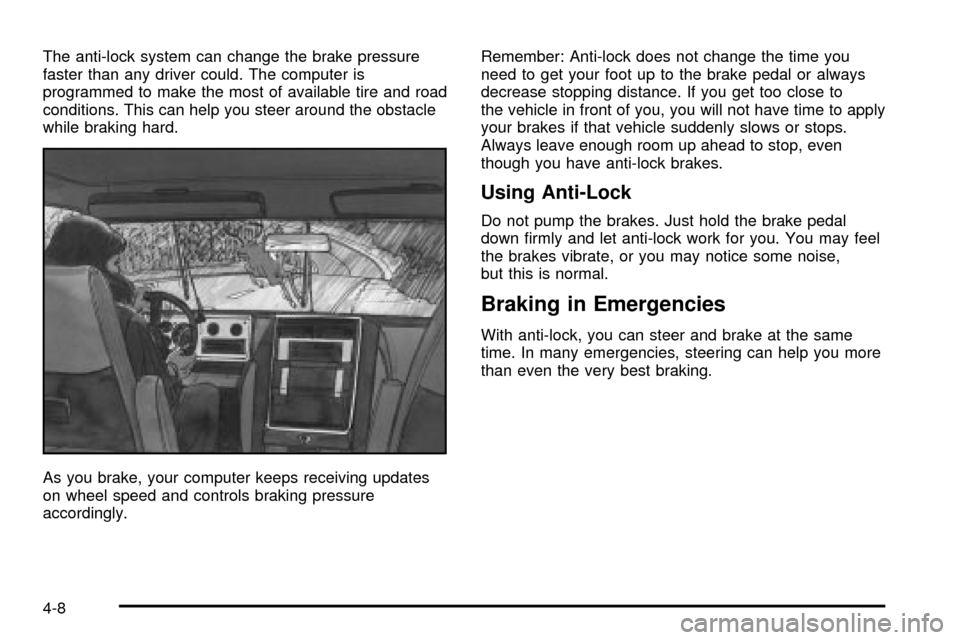
The anti-lock system can change the brake pressure
faster than any driver could. The computer is
programmed to make the most of available tire and road
conditions. This can help you steer around the obstacle
while braking hard.
As you brake, your computer keeps receiving updates
on wheel speed and controls braking pressure
accordingly.Remember: Anti-lock does not change the time you
need to get your foot up to the brake pedal or always
decrease stopping distance. If you get too close to
the vehicle in front of you, you will not have time to apply
your brakes if that vehicle suddenly slows or stops.
Always leave enough room up ahead to stop, even
though you have anti-lock brakes.
Using Anti-Lock
Do not pump the brakes. Just hold the brake pedal
down ®rmly and let anti-lock work for you. You may feel
the brakes vibrate, or you may notice some noise,
but this is normal.
Braking in Emergencies
With anti-lock, you can steer and brake at the same
time. In many emergencies, steering can help you more
than even the very best braking.
4-8