2003 CHEVROLET TRAIL BLAZER audio
[x] Cancel search: audioPage 202 of 436

Setting the Tone (Bass/Treble)
AUDIO:Push the AUDIO knob until BASS, MID or
TREB appears on the display. Turn the knob to increase
or to decrease. If a station is weak or noisy, you may
want to decrease the treble.
To adjust bass, midrange or treble to the middle
position, select BASS, MID or TREB and push and hold
the AUDIO knob. The radio will produce one beep
and adjust the display level to zero.
To adjust all tone and speaker controls to the middle
position, push and hold the AUDIO knob when no tone
or speaker control is displayed. The radio will produce
one beep and CENTERED will appear on the display.
AUTO EQ (Automatic Equalization):Press this button
to choose between bass and treble equalization
settings designed for country, jazz, talk, pop, rock and
classical program types.
To return to the manual mode, press the AUTO EQ
button until CUSTOM appears on the display or adjust
the bass and treble. Then you will be able to manually
adjust the bass and treble using the AUDIO knob.The radio will save separate AUTO EQ settings for each
preset and source.
If your vehicle has the Bosežaudio system, your AUTO
EQ settings are either CUSTOM or TALK.
Adjusting the Speakers (Balance/Fade)
AUDIO:To adjust the balance between the right
and the left speakers, push the AUDIO knob until BAL
appears on the display. Turn the knob to move the
sound toward the left or the right speakers.
To adjust the fade between the front and rear speakers,
push and hold the AUDIO knob until FAD appears on
the display. Turn the knob to move the sound toward the
front or the rear speakers.
To adjust the balance and the fade to the middle
position, select balance or fade and push and hold the
AUDIO knob. The radio will beep once and will
adjust the display level to the middle position.
To adjust all tone and speaker controls to the middle
position, push and hold the AUDIO knob when no tone
or speaker controls are displayed. The radio will
produce one beep and CENTERED will appear on the
display.
3-84
Page 203 of 436

Using RDS
Your audio system is equipped with a Radio Data
System (RDS). RDS features are available for use only
on FM stations that broadcast RDS information.
Using this system, the radio can do the following:
·Seek to stations broadcasting the selected type of
programming,
·receive announcements concerning local and
national emergencies,
·display messages from radio stations, and
·seek to stations with traffic announcements.
This system relies upon receiving speci®c information
from these stations and will only work when the
information is available. In rare cases, a radio station
may broadcast incorrect information that will cause
the radio features to work improperly. If this happens,
contact the radio station.
While you are tuned to an RDS station, the station
name or the call letters will appear on the display instead
of the frequency. RDS stations may also provide the
time of day, a program type (PTY) for current
programming and the name of the program being
broadcast.
Finding a PTY Station
To select and ®nd a desired PTY perform the following:
1. Press the P-TYPE button. P-TYPE and the last
selected PTY will be displayed on the screen.
2. Select a category by turning the P-TYPE knob.
3. Once the desired category is displayed, press either
SEEK arrow to select the category and take you to
the category's ®rst station.
4. If you want to go to another station within that
category and the category is displayed, press
either SEEK arrow once. If the category is not
displayed, press either SEEK arrow twice to display
the category and then to go to another station.
5. If PTY times out and is no longer on the display, go
back to Step 1.
If both P-TYPE and TRAF are on, the radio will search
for stations with the selected PTY and traffic
announcements.
To use the PTY interrupt feature, press and hold the
P-TYPE button until you hear a beep on the PTY
you want to interrupt with. When selected, an asterisk
will appear beside that PTY on the display. You
may select multiple interrupts if desired. When you are
listening to a compact disc, the last selected RDS
station will interrupt play if that selected program type
format is broadcast.
3-85
Page 212 of 436

Battery Replacement
To change the batteries, do the following:
1. Loosen the screw on the battery compartment door
located on the left side of the headphones.
2. Replace the two AAA batteries in the compartment.
Make sure that they are installed correctly.
3. Tighten the screws to close the compartment door.
If the headphones are to be stored for a long period
of time, remove the batteries and keep them in a cool,
dry place.
Stereo RCA Jacks
The RCA jacks and the mini-headphone jacks are
located behind the video screen on the overhead
console. The RCA jacks allow you to hook up an
auxiliary device such as a camcorder or a video game
unit. The yellow RCA jack is used for video and the
red and white RCA jacks are used for audio. You may
require adapter connectors or cables to connect
your auxiliary device to the RCA jacks. Refer to the
manufacturer's instructions for proper usage. The
mini-headphone jacks allow you to hook up
two customer provided wired headphones.To use the auxiliary audio and video inputs on the RSE,
connect an external auxiliary device such as a
camcorder to the RCA jacks and turn on both the
auxiliary device power and the power on the front of the
RSE player. If a disc is not present in the player, the
auxiliary signal will immediately be displayed on
the RSE. If a disc is present when the RSE power is
turned on, the player will automatically begin playing the
disc and the user will need to press the AUX button
on the remote control to display and/or hear the auxiliary
input signals. Each press of the AUX button on the
remote control will switch the system between disc and
auxiliary input. The wired headphone volume control
will only operate when the DVD player power is turned
on and it controls both wired headphone jacks at
the same time. SeeRemote Controllater in this section
for more information.
Audio Speakers
Audio from the DVD player can only be heard either
through the IR headphones or wired headphones
(not included). The sound will not come through the
vehicle's speakers.
3-94
Page 214 of 436
DVD Player
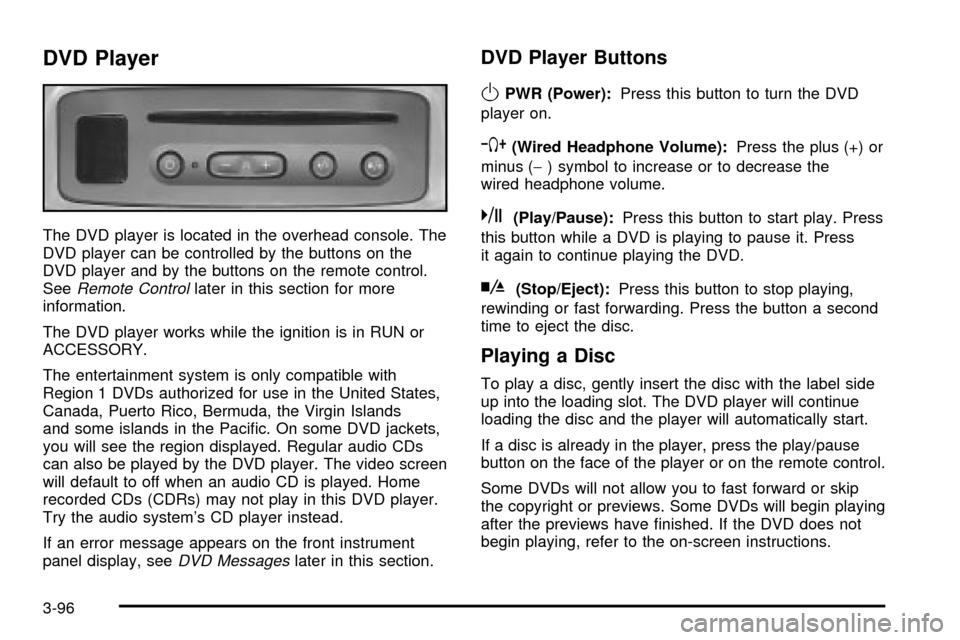
The DVD player is located in the overhead console. The
DVD player can be controlled by the buttons on the
DVD player and by the buttons on the remote control.
See
Remote Controllater in this section for more
information.
The DVD player works while the ignition is in RUN or
ACCESSORY.
The entertainment system is only compatible with
Region 1 DVDs authorized for use in the United States,
Canada, Puerto Rico, Bermuda, the Virgin Islands
and some islands in the Paci®c. On some DVD jackets,
you will see the region displayed. Regular audio CDs
can also be played by the DVD player. The video screen
will default to off when an audio CD is played. Home
recorded CDs (CDRs) may not play in this DVD player.
Try the audio system's CD player instead.
If an error message appears on the front instrument
panel display, see
DVD Messageslater in this section.
DVD Player Buttons
OPWR (Power):Press this button to turn the DVD
player on.
`(Wired Headphone Volume):Press the plus (+) or
minus (-) symbol to increase or to decrease the
wired headphone volume.
k(Play/Pause):Press this button to start play. Press
this button while a DVD is playing to pause it. Press
it again to continue playing the DVD.
h(Stop/Eject):Press this button to stop playing,
rewinding or fast forwarding. Press the button a second
time to eject the disc.
Playing a Disc
To play a disc, gently insert the disc with the label side
up into the loading slot. The DVD player will continue
loading the disc and the player will automatically start.
If a disc is already in the player, press the play/pause
button on the face of the player or on the remote control.
Some DVDs will not allow you to fast forward or skip
the copyright or previews. Some DVDs will begin playing
after the previews have ®nished. If the DVD does not
begin playing, refer to the on-screen instructions.
3-96
Page 215 of 436

Stopping and Resume Playback
To stop a disc, press and release the stop/eject button
on the DVD player or the stop button on the remote.
To resume playback, press the play/pause button on the
DVD player or the remote. As long as the disc has
not been ejected and the stop button has not been
pressed twice on the remote control, the movie should
resume play from where it was last stopped. If the
disc has been ejected or if the stop button on the remote
has been pressed twice, the disc will resume play at
the beginning.
Parental Control Button:This button is located on the
front of the DVD console which is mounted vertically
above the driver's right shoulder. Press this button while
a DVD is playing to freeze the video and mute the
audio to the headphones. It will also disable all other
button operations from the remote and DVD player. The
driver will then be able to gain the attention of the
rear seat passengers. Press this button again to restore
normal play of the DVD.
Ejecting a Disc
Press the stop/eject button on the DVD player once to
stop and a second time to eject the disc.
If a disc is ejected from the player, but not removed, the
DVD player will reload the disc after approximately
10 to 20 seconds.
DVD Messages
The following errors may be displayed:
·Disc Format Error:This message will be displayed
if a disc is inserted upside down, if the disc is not
able to be read or if the disc format is not
compatible.
·Disc Play Error:This message will be displayed if
the mechanism can not play the disc. Severely
scratched discs will cause this error.
·Region Code Error:This message will be
displayed for all non Region 1 discs (DVDs sold
outside of North America).
·Load/Eject Error:This message will be displayed if
the disc is not properly lined up in the mechanism.
·Disc Not Present:This message will be displayed
if the PLAY, EJECT or DVD AUX buttons are
pressed and no disc is in the player.
3-97
Page 218 of 436

COMP/AUDIO (Compression) COMP:Press and
release this button to display the current compression
displayed on the screen. Press this button again to
select the next compression state. Three compression
states are available including minimum, standard
and off. The compression feature only functions on AC3
(Dolby
žDigital Surround) encoded DVD video discs.
Press and hold this button to see if the DVD playing has
optional audio tracks, such as different languages or
commentaries. Press and release to change selections.
INPUT/TITLE DVD AUX (Auxiliary):Press and
release this button to switch between the auxiliary input
device and the DVD player.
Press and hold this button to see a display of the DVD's
titles. Press and release to change the titles available.
qRTN (Return):When a DVD menu is active
and this button is pressed, the selected option will be
disabled. This button could have different functions with
different discs.
ESCREEN BRIGHTNESS:Press the plus or the
minus symbol to increase or to decrease the brightness
of the screen. This button can also be found on the
video screen.
OLIGHT:Press this button to illuminate the keypad
for about eight seconds.
Setup Menu
To access the setup menu, ensure a DVD is in the
player and the video is in stop mode. Press the menu
key. Once the menu is activated, use the UP, DOWN,
RIGHT, LEFT, and Enter buttons to navigate the screen.
The setup menu allows the use to select default
preferences for Menu Language, Subtitle Language,
Audio Language, TV Aspect, TV Mode, and Dynamic
Range Compression.
Not all DVDs support all the feature defaults in the
setup menus. In the event a particular feature is
not supported, defaults will be provided by the DVD
media.
Exit the setup menu by pressing the RETURN button on
the remote control. If you make changes to the system
setup defaults, the disc will resume play from the
beginning and not where it previously left off.
Battery Replacement
To change the batteries, do the following:
1. Unclip the battery door located on the back of the
remote control.
2. Replace the two AAA batteries in the compartment.
Make sure that they are installed correctly.
3. Close the battery door securely.
If the remote control is to be stored for a long period of
time, remove the batteries and keep them in a cool,
dry place.
3-100
Page 219 of 436
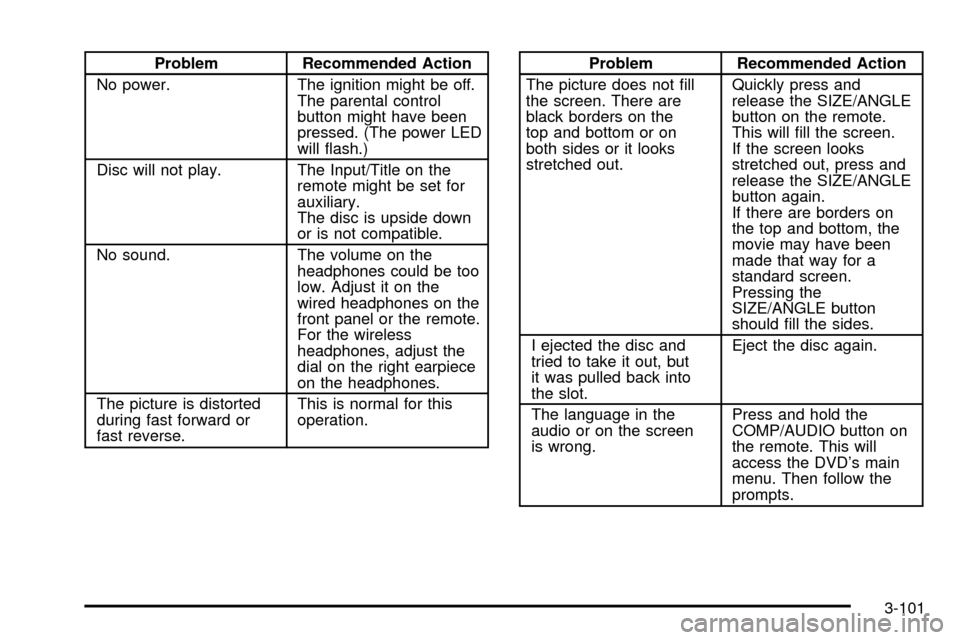
Problem Recommended Action
No power. The ignition might be off.
The parental control
button might have been
pressed. (The power LED
will ¯ash.)
Disc will not play. The Input/Title on the
remote might be set for
auxiliary.
The disc is upside down
or is not compatible.
No sound. The volume on the
headphones could be too
low. Adjust it on the
wired headphones on the
front panel or the remote.
For the wireless
headphones, adjust the
dial on the right earpiece
on the headphones.
The picture is distorted
during fast forward or
fast reverse.This is normal for this
operation.Problem Recommended Action
The picture does not ®ll
the screen. There are
black borders on the
top and bottom or on
both sides or it looks
stretched out.Quickly press and
release the SIZE/ANGLE
button on the remote.
This will ®ll the screen.
If the screen looks
stretched out, press and
release the SIZE/ANGLE
button again.
If there are borders on
the top and bottom, the
movie may have been
made that way for a
standard screen.
Pressing the
SIZE/ANGLE button
should ®ll the sides.
I ejected the disc and
tried to take it out, but
it was pulled back into
the slot.Eject the disc again.
The language in the
audio or on the screen
is wrong.Press and hold the
COMP/AUDIO button on
the remote. This will
access the DVD's main
menu. Then follow the
prompts.
3-101
Page 220 of 436
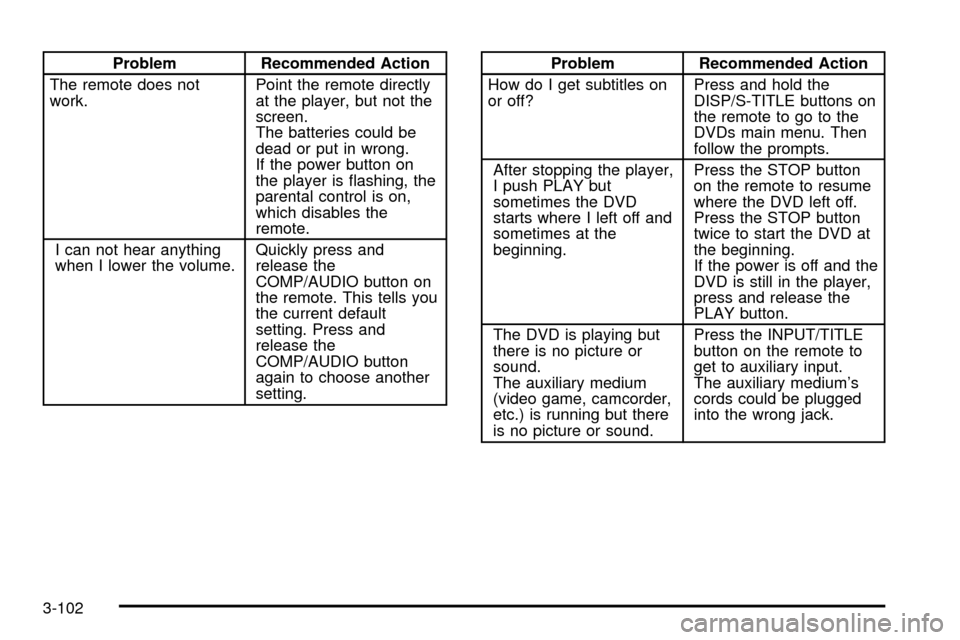
Problem Recommended Action
The remote does not
work.Point the remote directly
at the player, but not the
screen.
The batteries could be
dead or put in wrong.
If the power button on
the player is ¯ashing, the
parental control is on,
which disables the
remote.
I can not hear anything
when I lower the volume.Quickly press and
release the
COMP/AUDIO button on
the remote. This tells you
the current default
setting. Press and
release the
COMP/AUDIO button
again to choose another
setting.Problem Recommended Action
How do I get subtitles on
or off?Press and hold the
DISP/S-TITLE buttons on
the remote to go to the
DVDs main menu. Then
follow the prompts.
After stopping the player,
I push PLAY but
sometimes the DVD
starts where I left off and
sometimes at the
beginning.Press the STOP button
on the remote to resume
where the DVD left off.
Press the STOP button
twice to start the DVD at
the beginning.
If the power is off and the
DVD is still in the player,
press and release the
PLAY button.
The DVD is playing but
there is no picture or
sound.
The auxiliary medium
(video game, camcorder,
etc.) is running but there
is no picture or sound.Press the INPUT/TITLE
button on the remote to
get to auxiliary input.
The auxiliary medium's
cords could be plugged
into the wrong jack.
3-102