2003 CHEVROLET CAVALIER turn signal
[x] Cancel search: turn signalPage 147 of 364

XMŸ Radio Messages
Radio Display
MessageCondition Action Required
XL (Explicit Language
Channels)XL on the radio display,
after the channel name,
indicates content with
explicit language.These channels, or any others, can be blocked at a
customer's request, by calling 1-800-852-XMXM (9696).
Updating Updating encryption
codeThe encryption code in your receiver is being updated, and
no action is required. This process should take no longer
than 30 seconds.
No Signl Loss of signal Your system is functioning correctly, but you are in a
location that is blocking the XM signal. When you move
into an open area, the signal should return.
Loading Acquiring channel audio
(after 4 second delay)Your radio system is acquiring and processing audio and
text data. No action is needed. This message should
disappear shortly.
Off Air Channel not in service This channel is not currently in service. Tune to another
channel.
CH Unavl Channel no longer
availableThis previously assigned channel is no longer assigned.
Tune to another station. If this station was one of your
presets, you may need to choose another station for that
preset button.
No Info Artist Name/Feature not
availableNo artist information is available at this time on this
channel. Your system is working properly.
No Info Song/Program Title not
availableNo song title information is available at this time on this
channel. Your system is working properly.
3-45
Page 153 of 364

Finding a Station
BAND:Press this button to switch between FM1, FM2,
AM or XM1, XM2 (USA only, if equipped). The display
will show your selection.
TUNE:Turn this knob to choose radio stations.
qSEEKr:Press the right or the left arrow to seek
to the next or to the previous station and stay there.
The radio will seek only to stations that are in the
selected band and only to those with a strong signal.
qPSCAN (Preset Scan)r:Press and hold one of
the arrows for more than two seconds and the radio
will produce one beep. The radio will scan to the
®rst preset station stored on the pushbuttons, play for a
few seconds and ¯ash the station frequency, then go
on to the next preset station. SCAN will be displayed.
Press one of the arrows again or one of the pushbuttons
to stop scanning presets.
The radio will scan only to the preset stations that are in
the selected band and only to those with a strong
signal.
Setting Preset Stations
The six numbered pushbuttons let you return to your
favorite stations. You can set up to 30 stations (six FM1,
six FM2, and six AM, six XM1 and six XM2 (USA
only, if equipped), by performing the following steps:
1. Turn the radio on.
2. Press BAND to select FM1, FM2, AM or XM1,
or XM2.
3. Tune in the desired station.
4. Press AUTO TONE to choose the bass and treble
equalization that best suits the type of station you
are listening to.
5. Press and hold one of the six numbered
pushbuttons. The radio will produce one beep.
Whenever you press that numbered pushbutton, the
station you set will return and the bass and treble
equalization that you selected will also be
automatically selected for that pushbutton.
6. Repeat the steps for each pushbutton.
3-51
Page 157 of 364

XMŸ Radio Messages
Radio Display
MessageCondition Action Required
XL (Explicit Language
Channels)XL on the radio display,
after the channel name,
indicates content with
explicit language.These channels, or any others, can be blocked at a
customer's request, by calling 1-800-852-XMXM (9696).
Updating Updating encryption
codeThe encryption code in your receiver is being updated, and
no action is required. This process should take no longer
than 30 seconds.
No Signl Loss of signal Your system is functioning correctly, but you are in a
location that is blocking the XM signal. When you move
into an open area, the signal should return.
Loading Acquiring channel audio
(after 4 second delay)Your radio system is acquiring and processing audio and
text data. No action is needed. This message should
disappear shortly.
Off Air Channel not in service This channel is not currently in service. Tune to another
channel.
CH Unavl Channel no longer
availableThis previously assigned channel is no longer assigned.
Tune to another station. If this station was one of your
presets, you may need to choose another station for that
preset button.
No Info Artist Name/Feature not
availableNo artist information is available at this time on this
channel. Your system is working properly.
No Info Song/Program Title not
availableNo song title information is available at this time on this
channel. Your system is working properly.
3-55
Page 167 of 364

For XMŸ (USA only, if equipped), press this knob while
in XM mode to retrieve various pieces of information
related to the current song or channel. By pressing and
releasing this knob, you may retrieve four different
categories of information: Artist, Song Title, Category or
PTY, Channel Number/Channel Name.
To change the default on the display, push the knob
until you see the display you want, then hold the knob
for two seconds. The radio will produce one beep
and selected display will now be the default.
Finding a Station
BAND:Press this button to switch between AM, FM1,
FM2, or XM1, XM2 (USA only, if equipped). The
display will show your selection.
TUNE:Turn this knob to choose radio stations.
qSEEKr:Press the right or the left arrow to seek
to the next or to the previous station and stay there.
The radio will seek only to stations that are in the
selected band and only to those with a strong signal.
qPSCAN (Preset Scan)r:Press and hold one of
the arrows for more than two seconds. The radio will
produce one beep. The radio will scan through each of
the preset stations stored on the pushbuttons, play
for a few seconds, then go on to the next preset station.SCAN will be displayed. Press one of the arrows again
or one of the pushbuttons to stop scanning presets.
The radio will scan only to the preset stations that are in
the selected band and only to those with a strong
signal.
Setting Preset Stations
The six numbered pushbuttons let you return to your
favorite stations. You can set up to 30 stations (six AM,
six FM1 and six FM2, six XM1 and six XM2 (USA
only, if equipped), by performing the following steps:
1. Turn the radio on.
2. Press BAND to select AM, FM1, FM2, or XM1,
or XM2.
3. Tune in the desired station.
4. Press AUTO TONE to choose the bass and treble
equalization that best suits the type of station you
are listening to.
5. Press and hold one of the six numbered
pushbuttons. The radio will produce one beep.
Whenever you press that numbered pushbutton, the
station you set will return and the bass and treble
equalization that you selected will also be
automatically selected for that pushbutton.
6. Repeat the steps for each pushbutton.
3-65
Page 171 of 364

XMŸ Radio Messages
Radio Display
MessageCondition Action Required
XL (Explicit Language
Channels)XL on the radio display,
after the channel name,
indicates content with
explicit language.These channels, or any others, can be blocked at a
customer's request, by calling 1-800-852-XMXM (9696).
Updating Updating encryption
codeThe encryption code in your receiver is being updated, and
no action is required. This process should take no longer
than 30 seconds.
No Signl Loss of signal Your system is functioning correctly, but you are in a
location that is blocking the XM signal. When you move
into an open area, the signal should return.
Loading Acquiring channel audio
(after 4 second delay)Your radio system is acquiring and processing audio and
text data. No action is needed. This message should
disappear shortly.
Off Air Channel not in service This channel is not currently in service. Tune to another
channel.
CH Unavl Channel no longer
availableThis previously assigned channel is no longer assigned.
Tune to another station. If this station was one of your
presets, you may need to choose another station for that
preset button.
No Info Artist Name/Feature not
availableNo artist information is available at this time on this
channel. Your system is working properly.
No Info Song/Program Title not
availableNo song title information is available at this time on this
channel. Your system is working properly.
3-69
Page 178 of 364

Theft-Deterrent Feature
(Non RDS Radios)
THEFTLOCKžis designed to discourage theft of your
radio. The feature works automatically by learning
a portion of the Vehicle Identi®cation Number (VIN). If
the radio is moved to a different vehicle, it will not
operate and LOC will be displayed.
When the radio and vehicle are turned off, the blinking
red light indicates that THEFTLOCK is armed.
With THEFTLOCK activated, your radio will not operate
if stolen.
Theft-Deterrent Feature
(RDS Radios)
THEFTLOCKžis designed to discourage theft of your
radio. The feature works automatically by learning
a portion of the Vehicle Identi®cation Number (VIN). If
the radio is moved to a different vehicle, it will not
operate and LOCKED will be displayed.
When the ignition is off and RAP is not active, the
blinking red light indicates that THEFTLOCK is armed.
With THEFTLOCK activated, your radio will not
operate if stolen.
Understanding Radio Reception
AM
The range for most AM stations is greater than for FM,
especially at night. The longer range, however, can
cause stations to interfere with each other. AM can pick
up noise from things like storms and power lines. Try
reducing the treble to reduce this noise if you ever get it.
FM Stereo
FM stereo will give you the best sound, but FM signals
will reach only about 10 to 40 miles (16 to 65 km).
Tall buildings or hills can interfere with FM signals,
causing the sound to come and go.
XMŸ Satellite Radio Service
(USA Only)
XMŸ Satellite Radio gives you digital radio reception
from coast to coast. Just as with FM, tall buildings
or hills can interfere with satellite radio signals, causing
the sound to come and go. Your radio may display
NO SIGNAL to indicate interference.
3-76
Page 195 of 364

·Do not get too close to the vehicle you want to
pass while you're awaiting an opportunity. For
one thing, following too closely reduces your area
of vision, especially if you're following a larger
vehicle. Also, you won't have adequate space if the
vehicle ahead suddenly slows or stops. Keep
back a reasonable distance.
·When it looks like a chance to pass is coming up,
start to accelerate but stay in the right lane and
don't get too close. Time your move so you will be
increasing speed as the time comes to move
into the other lane. If the way is clear to pass, you
will have a ªrunning startº that more than makes
up for the distance you would lose by dropping
back. And if something happens to cause you to
cancel your pass, you need only slow down
and drop back again and wait fo another
opportunity.
·If other vehicles are lined up to pass a slow vehicle,
wait your turn. But take care that someone isn't
trying to pass you as you pull out to pass the slow
vehicle. Remember to glance over your shoulder
and check the blind spot.
·Check your mirrors, glance over your shoulder, and
start your left lane change signal before moving out
of the right lane to pass. When you are far
enough ahead of the passed vehicle to see its front
in your inside mirror, activate your right lane
change signal and move back into the right lane.
(Remember that your right outside mirror is convex.
The vehicle you just passed may seem to be
farther away from you than it really is.)
·Try not to pass more than one vehicle at a time on
two-lane roads. Reconsider before passing the
next vehicle.
·Don't overtake a slowly moving vehicle too rapidly.
Even though the brake lamps are not ¯ashing, it
may be slowing down or starting to turn.
·If you're being passed, make it easy for the
following driver to get ahead of you. Perhaps you
can ease a little to the right.
4-13
Page 201 of 364
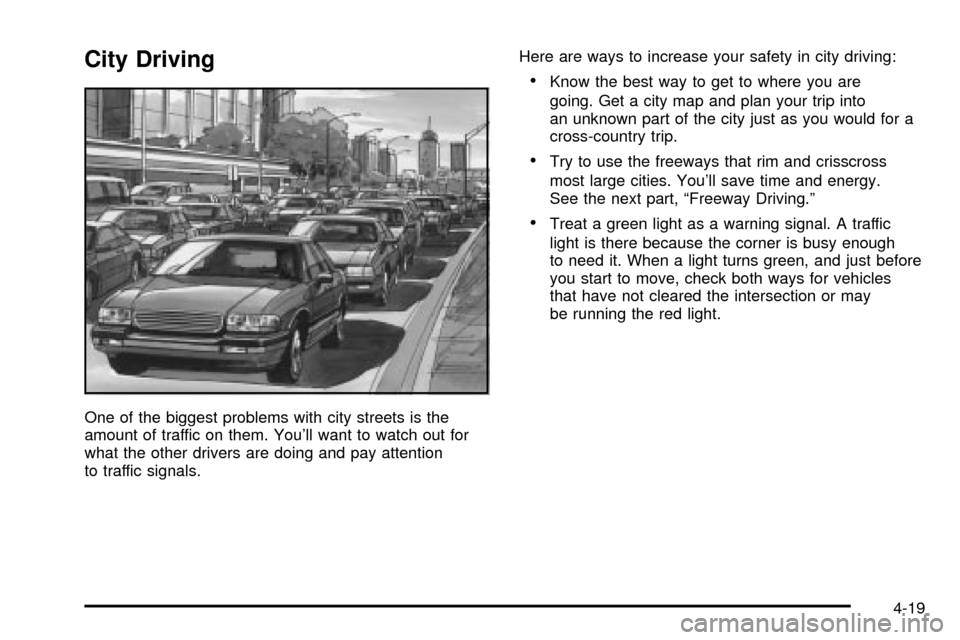
City Driving
One of the biggest problems with city streets is the
amount of traffic on them. You'll want to watch out for
what the other drivers are doing and pay attention
to traffic signals.Here are ways to increase your safety in city driving:
·Know the best way to get to where you are
going. Get a city map and plan your trip into
an unknown part of the city just as you would for a
cross-country trip.
·Try to use the freeways that rim and crisscross
most large cities. You'll save time and energy.
See the next part, ªFreeway Driving.º
·Treat a green light as a warning signal. A traffic
light is there because the corner is busy enough
to need it. When a light turns green, and just before
you start to move, check both ways for vehicles
that have not cleared the intersection or may
be running the red light.
4-19