2003 CHEVROLET AVALANCHE CD player
[x] Cancel search: CD playerPage 255 of 492

Press the button, located on the bottom left of the
numeric key pad, to select chapter, title, and track
numbers greater than 9.
P(Illumination):Press this button to turn the remote
control backlight on.
y(Menu):Press this button to access the DVD menu
(this button only operates with a DVD).
r(Enter):Press this button to select items within a
menu.
q(Return):Press this button to exit the current
active menu and return to the previous menu. This
button will operate only when a DVD is being played
and a menu is active.
|(Angle):Press this button to call-up a menu that
will operate only when a DVD is being played. The
format and content of this function is de®ned by the disc
and is dependent of the disc.
{(Subtitle):Press this button to call-up a menu that
will operate only when a DVD is being played. The
format and content of this function is de®ned by the disc
and is dependent of the disc.
[(Fast Forward):Press this button to fast forward
the DVD or CD. To stop fast forwarding, press this
button again. This button may not work when the DVD
is playing the copyright or the previews.
s(Play/Pause):Press this button to turn the DVD
player on, to start play of a DVD or CD and to toggle
between play and pause of a DVD or CD.
Slow Play:When the DVD is playing, press the pause
button then press the fast forward button. The DVD
will continue playing in a slow play mode. To cancel slow
play mode, press the play/pause button.
u(Next Track/Chapter):Press this button to advance
to the beginning of the next track or chapter. This
button may not work when the DVD is playing the
copyright or the previews.
Battery Replacement
To change the batteries, do the following:
1. Remove the battery compartment door located on
the bottom of the remote control.
2. Replace the two AA batteries in the compartment.
Make sure that they are installed correctly.
3. Close the battery door securely.
3-95
Page 257 of 492

To use the auxiliary inputs on the RSE system, connect
an external auxiliary device to the color-coded RCA
jacks and turn both the auxiliary device and the
RSE system power on. If the RSE system had been
previously in the DVD player mode, you will need
to press the SRCE button on the faceplate or the remote
control to change to the auxiliary mode. Pressing the
SRCE button will toggle the RSE system between
the auxiliary device and the DVD player.
How to Change the Video Format when in
the Auxiliary Mode
The auxiliary input video format is preset to NTSC. In
some countries, the video format may be in PAL system.
To change the video format, perform the following:
1. Press the display menu button.
2. Press the navigation down arrow key to scroll down
to Video Format.
3. Press the enter button to select Video Format.
4. Press the navigation key to select the PAL video
format.
5. Press the enter button to accept the change.
Audio Output
Audio from the DVD player or auxiliary inputs may be
heard through the following possible sources:
·Wireless Headphones
·Vehicle Speakers
·Vehicle wired headphone jacks on the Rear Seat
Audio system (if equipped)
The RSE system will always transmit the audio signal
by infrared to the wireless headphones, if there is audio
available. See ªHeadphonesº previously for more
information.
The RSE system is capable of outputting audio to the
vehicle speakers by using the radio. The RSE
system may be selected as an audio source on the
radio if the RSE system power is on. Once the
RSE system is selected as an audio source on the radio
you may adjust the speaker volume on the radio. If
the RSE system power is not on, the RSE system will
not be an available source on the radio. Refer to
the radio information for the radio that your vehicle has
for more information.
The RSE system is capable of outputting audio to the
wired headphone jacks on the Rear Seat Audio system
(if equipped). The RSE system may be selected as
an audio source on the Rear Seat Audio system if the
RSE system power is on. Refer to
Rear Seat Audio
(RSA) on page 3-99for more information.
3-97
Page 258 of 492
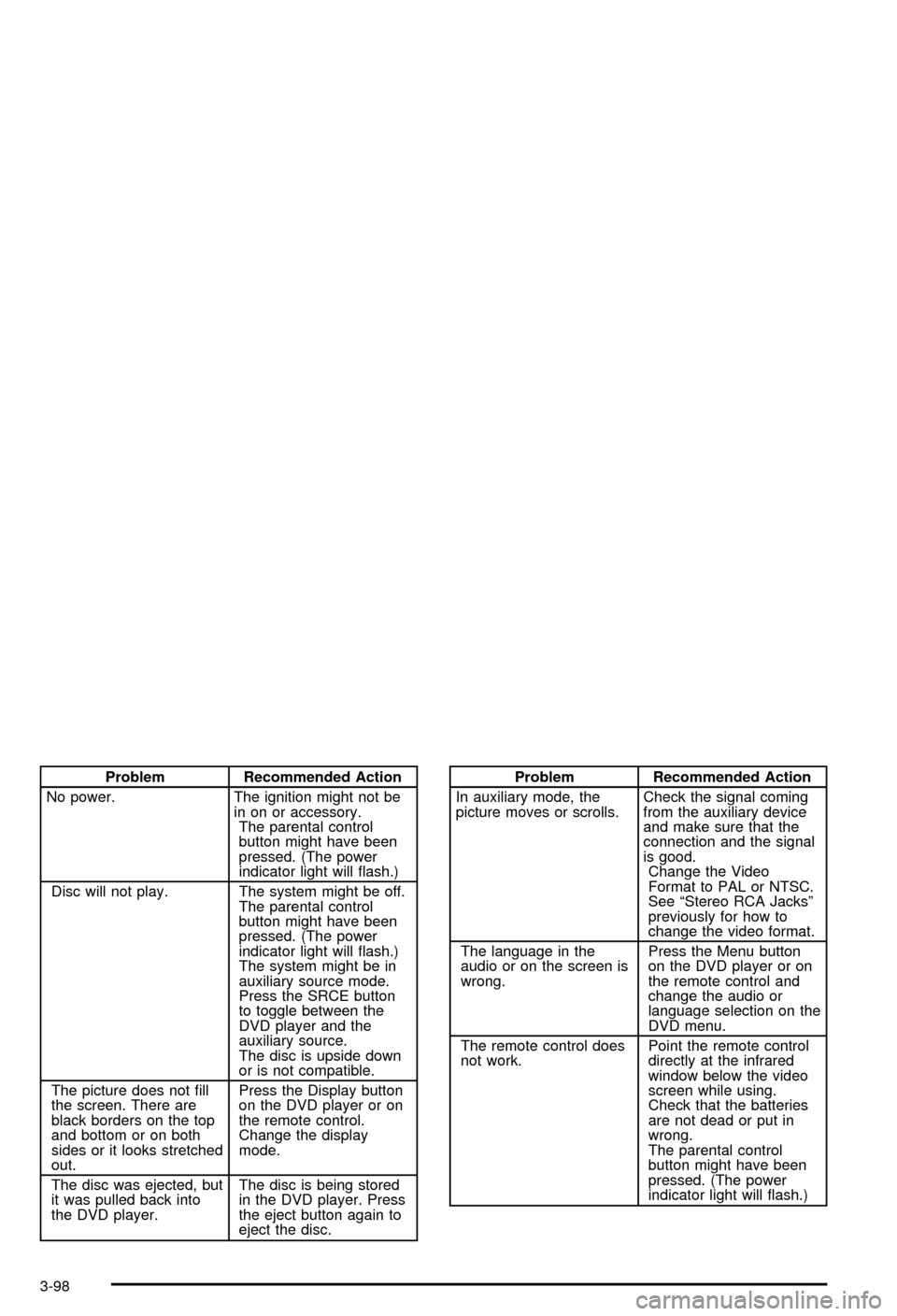
Problem Recommended Action
No power. The ignition might not be
in on or accessory.
The parental control
button might have been
pressed. (The power
indicator light will ¯ash.)
Disc will not play. The system might be off.
The parental control
button might have been
pressed. (The power
indicator light will ¯ash.)
The system might be in
auxiliary source mode.
Press the SRCE button
to toggle between the
DVD player and the
auxiliary source.
The disc is upside down
or is not compatible.
The picture does not ®ll
the screen. There are
black borders on the top
and bottom or on both
sides or it looks stretched
out.Press the Display button
on the DVD player or on
the remote control.
Change the display
mode.
The disc was ejected, but
it was pulled back into
the DVD player.The disc is being stored
in the DVD player. Press
the eject button again to
eject the disc.Problem Recommended Action
In auxiliary mode, the
picture moves or scrolls.Check the signal coming
from the auxiliary device
and make sure that the
connection and the signal
is good.
Change the Video
Format to PAL or NTSC.
See ªStereo RCA Jacksº
previously for how to
change the video format.
The language in the
audio or on the screen is
wrong.Press the Menu button
on the DVD player or on
the remote control and
change the audio or
language selection on the
DVD menu.
The remote control does
not work.Point the remote control
directly at the infrared
window below the video
screen while using.
Check that the batteries
are not dead or put in
wrong.
The parental control
button might have been
pressed. (The power
indicator light will ¯ash.)
3-98
Page 259 of 492

Problem Recommended Action
After stopping the player, I
push Play but sometimes
the DVD starts where I
left off and sometimes at
the beginning.If the stop button was
pressed one time, the
DVD player will resume
playing where the DVD
was stopped. If the stop
button was pressed two
times the DVD player will
begin to play from the
beginning of the DVD.
The auxiliary source is
running but there is no
picture or sound.Press the SRCE button to
change from the DVD
player mode to the
auxiliary source mode.
Check to make sure that
the auxiliary source is
connected to the inputs
properly.
My disc is stuck in the
player. The Load/Eject
button does not work.Press the Load/Eject
button on the DVD
player.
Turn the power off, then
on again, then press the
Load/Eject button on the
DVD player.
Do not attempt to forcibly
remove the disc from the
DVD player. This could
permanently damage the
DVD player.Problem Recommended Action
Sometimes the wireless
headphone audio cuts out
or buzzes.This could be caused by
interference from cellular
telephone towers or by
using your cellular
telephone in the vehicle.
I lost the remote and/or
the headphones.See your dealer for
assistance.
What is the best way to
clean the video screen?Wipe the video screen
with a soft cloth that is
damp with water.
Rear Seat Audio (RSA)
This feature allows rear seat passengers to listen to any
of the audio sources: radio, cassette tapes, CDs,
DVDs, XMŸ (USA only, if equipped) depending on your
vehicles options. However, the rear seat passengers
can only control the music sources that the front
seat passengers are not listening to. For example, rear
seat passengers may listen to a cassette tape through
headphones while the driver listens to the radio through
the front speakers. The rear seat passengers have
control of the volume for each set of headphones. The
front seat audio controls always override the RSA
controls.
3-99
Page 260 of 492
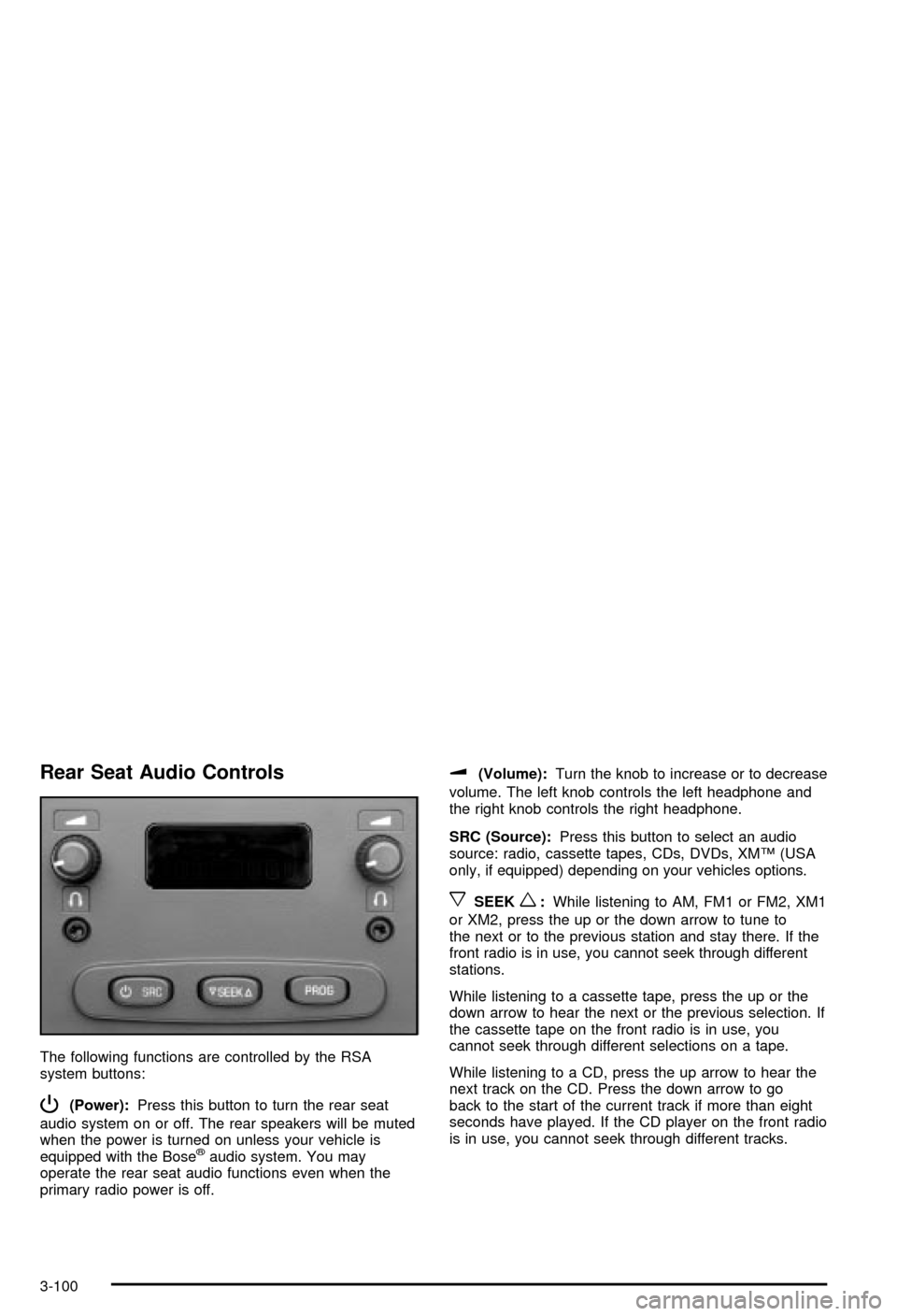
Rear Seat Audio Controls
The following functions are controlled by the RSA
system buttons:
P(Power):Press this button to turn the rear seat
audio system on or off. The rear speakers will be muted
when the power is turned on unless your vehicle is
equipped with the Bose
žaudio system. You may
operate the rear seat audio functions even when the
primary radio power is off.
u(Volume):Turn the knob to increase or to decrease
volume. The left knob controls the left headphone and
the right knob controls the right headphone.
SRC (Source):Press this button to select an audio
source: radio, cassette tapes, CDs, DVDs, XMŸ (USA
only, if equipped) depending on your vehicles options.
xSEEKw:While listening to AM, FM1 or FM2, XM1
or XM2, press the up or the down arrow to tune to
the next or to the previous station and stay there. If the
front radio is in use, you cannot seek through different
stations.
While listening to a cassette tape, press the up or the
down arrow to hear the next or the previous selection. If
the cassette tape on the front radio is in use, you
cannot seek through different selections on a tape.
While listening to a CD, press the up arrow to hear the
next track on the CD. Press the down arrow to go
back to the start of the current track if more than eight
seconds have played. If the CD player on the front radio
is in use, you cannot seek through different tracks.
3-100
Page 262 of 492

QSOURCER:Press this button to select AM, FM1
or FM2, XM1 or XM2 (USA only, if equipped), or a
cassette tape or CD. The cassette or CD must be loaded
to play. Available loaded sources are shown on the
display as a tape or a CD symbol.
QSEEKR:Press the up or the down arrow to seek
to the next or to the previous radio station and stay
there.
If a cassette tape or compact disc is playing, the player
will advance with the up arrow and reverse with the
down arrow.
QVOLR:Press the up or the down arrow to increase
or to decrease volume.
DVD Distortion
You may experience audio distortion in the
IR headphones when operating cellular phones,
scanners, CB radios, Global Positioning Systems
(GPS)*, two-way radios, mobile fax, or walkie talkies.
It may be necessary to turn off the DVD player
when operating one of these devices in or near the
vehicle.
* Excludes the OnStar
žSystem.
Understanding Radio Reception
AM
The range for most AM stations is greater than for FM,
especially at night. The longer range, however, can
cause stations to interfere with each other. AM can pick
up noise from things like storms and power lines. Try
reducing the treble to reduce this noise if you ever get it.
FM Stereo
FM stereo will give you the best sound, but FM signals
will reach only about 10 to 40 miles (16 to 65 km).
Tall buildings or hills can interfere with FM signals,
causing the sound to come and go.
XMŸ Satellite Radio Service (USA
Only)
XMŸ Satellite Radio gives you digital radio reception
from coast to coast. Just as with FM, tall buildings
or hills can interfere with satellite radio signals, causing
the sound to come and go. Your radio may display
NO SIGNAL to indicate interference.
3-102
Page 263 of 492

Care of Your CDs and DVDs
Handle discs carefully. Store them in their original cases
or other protective cases and away from direct sunlight
and dust. If the surface of a disc is soiled, dampen
a clean, soft cloth in a mild, neutral detergent solution
and clean it, wiping from the center to the edge.
Be sure never to touch the side without writing when
handling discs. Pick up discs by grasping the outer
edges or the edge of the hole and the outer edge.
Care of Your CD and DVD Player
The use of CD lens cleaner discs is not advised, due to
the risk of contaminating the lens of the CD optics
with lubricants internal to the CD mechanism.
Cleaning the Video Screen
Pour some isopropyl or rubbing alcohol on a clean cloth
and gently wipe the video screen. Do not spray
directly onto the screen and do not press too hard or
too long on the video screen.
Fixed Mast Antenna
The ®xed mast antenna can withstand most car washes
without being damaged. If the mast should ever
become slightly bent, you can straighten it out by hand.
If the mast is badly bent, as it might be by vandals,
you should replace it.
Check occasionally to be sure the mast is still tightened
to the cowl. If tightening is required, tighten by hand,
then with a wrench one quarter turn.
XMŸ Satellite Radio Antenna
System (United States Only)
Your XMŸ Satellite Radio antenna is located on the
roof of your vehicle. Keep this antenna clear of
snow and ice build up for clear radio reception.
The performance of your XMŸ system may be affected
if your sunroof is open.
Loading items onto the roof of your vehicle can interfere
with the performance of your XMŸ system. Make
sure that the XMŸ satellite antenna is not obstructed.
3-103
Page 452 of 492

Windshield Washer Fluid Level Check
Check the windshield washer ¯uid level in the windshield
washer tank and add the proper ¯uid if necessary.
See
Windshield Washer Fluid on page 5-38for further
details.
At Least Once a Month
Tire In¯ation Check
Make sure tires are in¯ated to the correct pressures.
Don't forget to check your spare tire. SeeTires on
page 5-61for further details.
Cassette Tape Player Service
Clean cassette tape player. Cleaning should be done
every 50 hours of tape play. SeeAudio System(s)
on page 3-64for further details.
At Least Twice a Year
Restraint System Check
Make sure the safety belt reminder light and all your
belts, buckles, latch plates, retractors and anchorages
are working properly. Look for any other loose or
damaged safety belt system parts. If you see anythingthat might keep a safety belt system from doing its job,
have it repaired. Have any torn or frayed safety belts
replaced.
Also look for any opened or broken air bag coverings,
and have them repaired or replaced. (The air bag
system does not need regular maintenance.)
Wiper Blade Check
Inspect wiper blades for wear or cracking. Replace
blade inserts that appear worn or damaged or that
streak or miss areas of the windshield. Also see
Cleaning the Outside of Your Vehicle on page 5-91.
Spare Tire Check
At least twice a year, after the monthly in¯ation check of
the spare tire determines that the spare is in¯ated to
the correct tire in¯ation pressure, make sure that
the spare tire is stored securely. Push, pull, and then try
to rotate or turn the tire. If it moves, use the wheel
wrench/ratchet to tighten the cable. See
Changing a Flat
Tire on page 5-70.
6-11