2003 CHEVROLET AVALANCHE remote control
[x] Cancel search: remote controlPage 253 of 492

Video Screen
The video screen is located in the overhead console. To
use the video screen, push forward on the release
latch and the screen will fold down. Adjust the screen's
position as desired. When the video screen is not in
use, push it up into its latched position.
The DVD player and display will continue to operate
when the screen is in either the up or the down position.
The video screen contains the infrared transmitters for
the wireless headphones and the infrared receiver
for the remote control. If the screen is in the closed
position, the infrared signals will not be available for the
operation of the headphones and the remote control.
Notice:Avoid directly touching the video screen, as
damage may occur. SeeCleaning the Video Screen
on page 3-103for more information.
Remote Control
To use the remote control, aim it at the infrared window
below the video screen and press the desired button.
Direct sunlight or very bright light may affect the ability of
the entertainment system to receive signals from the
remote control. If the remote control does not seem to
be working, the batteries may need to be replaced.
See ªBattery Replacementº later in this section.
Objects blocking the line of sight may also affect the
function of the remote control.
3-93
Page 254 of 492

Remote Control Buttons
O(Power):Press this button to turn the DVD player
on or off.
v(Title):Press this button to return the DVD to the
main menu of the DVD.
n,q,p,o(Menu Navigation):Use the arrow
keys to navigate through a menu. The up arrow will skip
to the next chapter or track, the down arrow will take you
to the beginning of the current chapter or track. Press the
down arrow twice to take you to the previous chapter or
track. The right arrow will fast forward and the left arrow
will fast reverse through a chapter or track.
z(Display Menu):Press this button to modify the
video screen display characteristics.
e(Audio):Press this button to call-up a menu that
will operate only when a DVD is being played. The
format and content of this function is de®ned by the disc
and is dependent of the disc.
r(Fast Reverse):Press this button to fast reverse
the DVD or CD. To stop fast reversing, press this button
again. This button may not work when the DVD is
playing the copyright or the previews.
SRCE (Source):Press this button to toggle between
the DVD player and an auxiliary source.
c(Stop):Press this button to stop the play of a DVD
or CD. Press this button twice to return to the beginning
of the DVD.
t(Previous Track/Chapter):Press this button to
return to the start of the current track or chapter. Press
this button again to return to the previous track or
chapter. This button may not work when the DVD is
playing the copyright or the previews.
1 through 0 (Numeric Keypad):The remote control
numeric keypad provides you with the capability of direct
chapter, title and track number selection.
Press the button, located on the bottom left of the
numeric key pad, within 3 seconds of inputting a numeric
selection to clear all numeric inputs.
3-94
Page 255 of 492

Press the button, located on the bottom left of the
numeric key pad, to select chapter, title, and track
numbers greater than 9.
P(Illumination):Press this button to turn the remote
control backlight on.
y(Menu):Press this button to access the DVD menu
(this button only operates with a DVD).
r(Enter):Press this button to select items within a
menu.
q(Return):Press this button to exit the current
active menu and return to the previous menu. This
button will operate only when a DVD is being played
and a menu is active.
|(Angle):Press this button to call-up a menu that
will operate only when a DVD is being played. The
format and content of this function is de®ned by the disc
and is dependent of the disc.
{(Subtitle):Press this button to call-up a menu that
will operate only when a DVD is being played. The
format and content of this function is de®ned by the disc
and is dependent of the disc.
[(Fast Forward):Press this button to fast forward
the DVD or CD. To stop fast forwarding, press this
button again. This button may not work when the DVD
is playing the copyright or the previews.
s(Play/Pause):Press this button to turn the DVD
player on, to start play of a DVD or CD and to toggle
between play and pause of a DVD or CD.
Slow Play:When the DVD is playing, press the pause
button then press the fast forward button. The DVD
will continue playing in a slow play mode. To cancel slow
play mode, press the play/pause button.
u(Next Track/Chapter):Press this button to advance
to the beginning of the next track or chapter. This
button may not work when the DVD is playing the
copyright or the previews.
Battery Replacement
To change the batteries, do the following:
1. Remove the battery compartment door located on
the bottom of the remote control.
2. Replace the two AA batteries in the compartment.
Make sure that they are installed correctly.
3. Close the battery door securely.
3-95
Page 256 of 492

Notice:Do not store the remote control in heat or
direct sunlight. This could damage the remote
control and it would not be covered by your vehicles
warranty. Keep the remote control stored in a
cool, dry place.
If the remote control is to be stored for a long period of
time, remove the batteries and keep them in a cool,
dry place.
Headphones
The RSE system includes two sets of wireless infrared
headphones.
Each set of headphones has an ON/OFF control. An
indicator light will illuminate on the headphones
when they are on. If the light does not illuminate, the
batteries may need to be replaced. See ªBattery
Replacementº later in this section for more information.
To turn the headphones OFF activate the ON/OFF
control.
Each set of headphones has a volume knob. To adjust
the volume, adjust this knob.
The headphones will automatically turn off if they lose
the infrared signal from the system after approximately
four minutes in order to preserve their battery power.
The signal may be lost if the system is turned off or if the
headphones are out of range of the infrared signal
transmitters that are located below the video display
screen.
Battery Replacement
To change the batteries, do the following:
1. Loosen the screw on the battery compartment door
located on the left side of the headphone earpiece.
2. Replace the two AAA batteries in the compartment.
Make sure that they are installed correctly.
3. Tighten the screw to close the compartment door.
Notice:Do not store the headphones in heat or
direct sunlight. This could damage the headphones
and repairs would not be covered by your warranty.
Keep the headphones stored in a cool, dry place.
If the headphones are to be stored for a long period of
time, remove the batteries and keep them in a cool,
dry place.
Stereo RCA Jacks
The RCA jacks are located behind the video screen on
the front of the DVD console. The RCA jacks allow
you to connect audio and video from an auxiliary device
such as a camcorder or a video game unit to your
RSE system just as you would to a standard television.
Standard RCA cables are needed to connect the
auxiliary device to the RCA jacks. The yellow connector
inputs video and the red and white connectors input
right and left stereo audio. Refer to the manufacturer's
instructions for proper connection of your auxiliary
device.
3-96
Page 257 of 492

To use the auxiliary inputs on the RSE system, connect
an external auxiliary device to the color-coded RCA
jacks and turn both the auxiliary device and the
RSE system power on. If the RSE system had been
previously in the DVD player mode, you will need
to press the SRCE button on the faceplate or the remote
control to change to the auxiliary mode. Pressing the
SRCE button will toggle the RSE system between
the auxiliary device and the DVD player.
How to Change the Video Format when in
the Auxiliary Mode
The auxiliary input video format is preset to NTSC. In
some countries, the video format may be in PAL system.
To change the video format, perform the following:
1. Press the display menu button.
2. Press the navigation down arrow key to scroll down
to Video Format.
3. Press the enter button to select Video Format.
4. Press the navigation key to select the PAL video
format.
5. Press the enter button to accept the change.
Audio Output
Audio from the DVD player or auxiliary inputs may be
heard through the following possible sources:
·Wireless Headphones
·Vehicle Speakers
·Vehicle wired headphone jacks on the Rear Seat
Audio system (if equipped)
The RSE system will always transmit the audio signal
by infrared to the wireless headphones, if there is audio
available. See ªHeadphonesº previously for more
information.
The RSE system is capable of outputting audio to the
vehicle speakers by using the radio. The RSE
system may be selected as an audio source on the
radio if the RSE system power is on. Once the
RSE system is selected as an audio source on the radio
you may adjust the speaker volume on the radio. If
the RSE system power is not on, the RSE system will
not be an available source on the radio. Refer to
the radio information for the radio that your vehicle has
for more information.
The RSE system is capable of outputting audio to the
wired headphone jacks on the Rear Seat Audio system
(if equipped). The RSE system may be selected as
an audio source on the Rear Seat Audio system if the
RSE system power is on. Refer to
Rear Seat Audio
(RSA) on page 3-99for more information.
3-97
Page 258 of 492
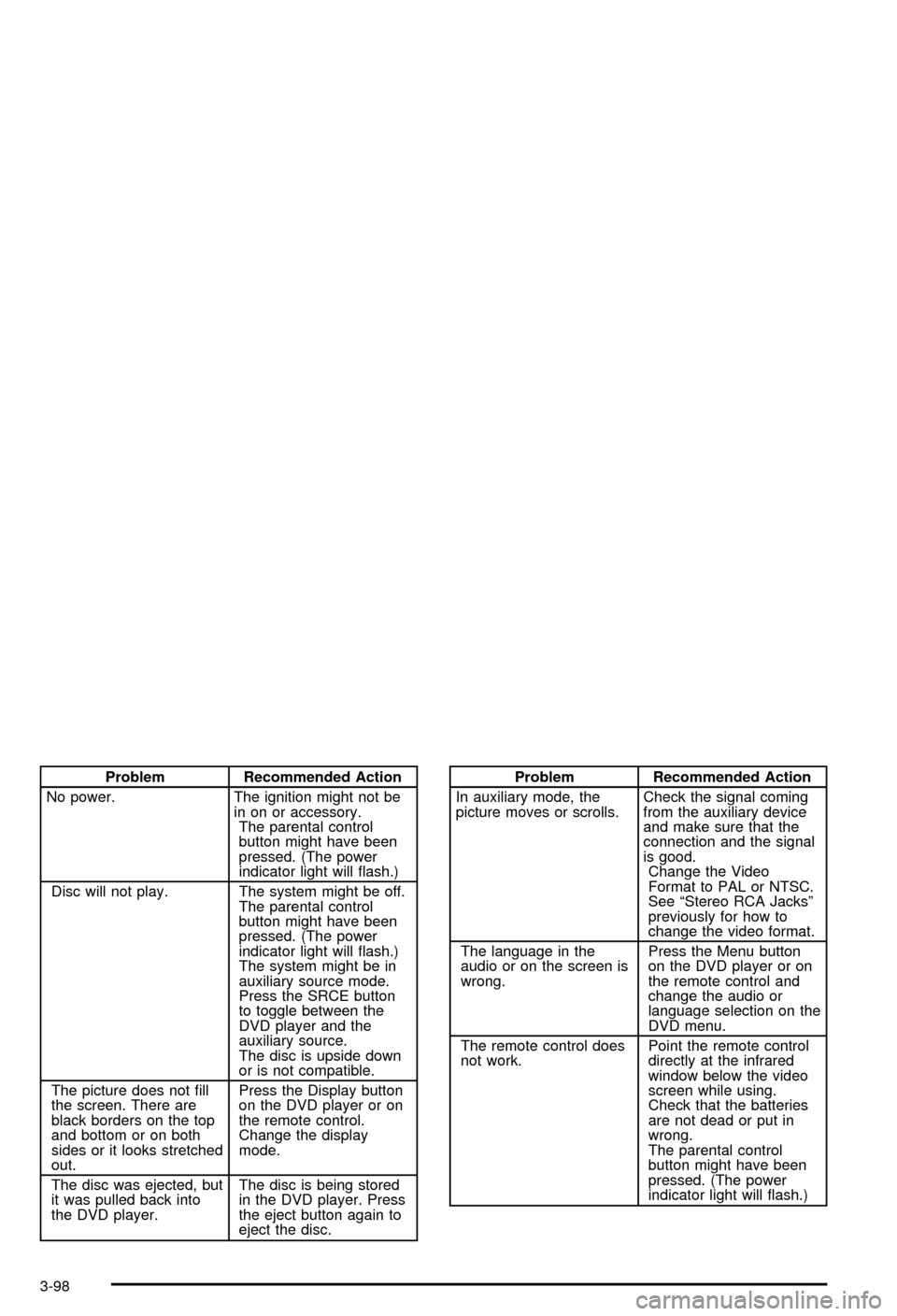
Problem Recommended Action
No power. The ignition might not be
in on or accessory.
The parental control
button might have been
pressed. (The power
indicator light will ¯ash.)
Disc will not play. The system might be off.
The parental control
button might have been
pressed. (The power
indicator light will ¯ash.)
The system might be in
auxiliary source mode.
Press the SRCE button
to toggle between the
DVD player and the
auxiliary source.
The disc is upside down
or is not compatible.
The picture does not ®ll
the screen. There are
black borders on the top
and bottom or on both
sides or it looks stretched
out.Press the Display button
on the DVD player or on
the remote control.
Change the display
mode.
The disc was ejected, but
it was pulled back into
the DVD player.The disc is being stored
in the DVD player. Press
the eject button again to
eject the disc.Problem Recommended Action
In auxiliary mode, the
picture moves or scrolls.Check the signal coming
from the auxiliary device
and make sure that the
connection and the signal
is good.
Change the Video
Format to PAL or NTSC.
See ªStereo RCA Jacksº
previously for how to
change the video format.
The language in the
audio or on the screen is
wrong.Press the Menu button
on the DVD player or on
the remote control and
change the audio or
language selection on the
DVD menu.
The remote control does
not work.Point the remote control
directly at the infrared
window below the video
screen while using.
Check that the batteries
are not dead or put in
wrong.
The parental control
button might have been
pressed. (The power
indicator light will ¯ash.)
3-98
Page 259 of 492

Problem Recommended Action
After stopping the player, I
push Play but sometimes
the DVD starts where I
left off and sometimes at
the beginning.If the stop button was
pressed one time, the
DVD player will resume
playing where the DVD
was stopped. If the stop
button was pressed two
times the DVD player will
begin to play from the
beginning of the DVD.
The auxiliary source is
running but there is no
picture or sound.Press the SRCE button to
change from the DVD
player mode to the
auxiliary source mode.
Check to make sure that
the auxiliary source is
connected to the inputs
properly.
My disc is stuck in the
player. The Load/Eject
button does not work.Press the Load/Eject
button on the DVD
player.
Turn the power off, then
on again, then press the
Load/Eject button on the
DVD player.
Do not attempt to forcibly
remove the disc from the
DVD player. This could
permanently damage the
DVD player.Problem Recommended Action
Sometimes the wireless
headphone audio cuts out
or buzzes.This could be caused by
interference from cellular
telephone towers or by
using your cellular
telephone in the vehicle.
I lost the remote and/or
the headphones.See your dealer for
assistance.
What is the best way to
clean the video screen?Wipe the video screen
with a soft cloth that is
damp with water.
Rear Seat Audio (RSA)
This feature allows rear seat passengers to listen to any
of the audio sources: radio, cassette tapes, CDs,
DVDs, XMŸ (USA only, if equipped) depending on your
vehicles options. However, the rear seat passengers
can only control the music sources that the front
seat passengers are not listening to. For example, rear
seat passengers may listen to a cassette tape through
headphones while the driver listens to the radio through
the front speakers. The rear seat passengers have
control of the volume for each set of headphones. The
front seat audio controls always override the RSA
controls.
3-99
Page 487 of 492

Reading Lamps..............................................3-18
Rear Axle......................................................5-49
Locking......................................................4-11
Rear Door Security Locks................................2-11
Rear Safety Belt Comfort Guides......................1-29
Rear Seat Audio Controls...............................3-100
Rear Seat Audio (RSA)....................................3-99
Rear Seat Entertainment System.......................3-90
Rear Seat Operation......................................... 1-8
Rear Seat Passengers, Safety Belts..................1-26
Rear Storage Area..........................................2-61
Rear Window Defogger............................3-25, 3-28
Rearview Mirror, Automatic Dimming with
Compass and Temperature Display................2-48
Rearview Mirror, Automatic Dimming with
OnStar
ž, Compass and Temperature Display . . . 2-46
Rearview Mirrors.............................................2-46
Reclining Seatbacks.......................................... 1-5
Recreational Vehicle Towing.............................4-48
REDUCED ENGINE POWER...........................3-58
Reinstalling the Cargo Cover Panels..................2-68
Remote Control..............................................3-93
Remote Keyless Entry System, Operation............ 2-5
Remote Keyless Entry System............................ 2-4
Removing the Flat Tire and Installing the
Spare Tire..................................................5-74
Removing the Front/Rear Rails and Bows..........2-81Removing the Spare Tire and Tools...................5-70
Removing the Tonneau Cover...........................2-78
Replacement Bulbs.........................................5-59
Replacing Brake System Parts..........................5-42
Replacing Restraint System Parts After a Crash.....1-67
Reporting Safety Defects.................................7-10
Canadian Government..................................7-10
General Motors...........................................7-11
United States Government............................7-10
Reprogramming a Single HomeLink
žButton.......2-58
Resetting Defaults...........................................2-58
Restraint System Check...................................6-11
Checking Your Restraint Systems...................1-67
Replacing Restraint System Parts After
a Crash..................................................1-67
Restraint Systems...........................................1-67
Checking....................................................1-67
Replacing Parts...........................................1-67
Retained Accessory Power (RAP)......................2-28
RFA # BATTERY LOW....................................3-62
Right Front Passenger Position, Safety Belts......1-24
RIGHT REAR DOOR AJAR..............................3-62
Roadside......................................................... 7-6
Assistance Program....................................... 7-6
Rocking Your Vehicle To Get It Out...................4-46
Running Your Engine While You Are Parked.......2-44
12