2003 CADILLAC ESCALADE CD player
[x] Cancel search: CD playerPage 243 of 486

The RSE system is capable of outputting audio to the
vehicle speakers by using the radio. The RSE
system may be selected as an audio source on the
radio if the RSE system power is on. Once the
RSE system is selected as an audio source on the radio
you may adjust the speaker volume on the radio. If
the RSE system power is not on, the RSE system will
not be an available source on the radio. Refer to
the radio information for the radio that your vehicle has
for more information.
The RSE system is capable of outputting audio to the
wired headphone jacks on the Rear Seat Audio system (if
equipped). The RSE system may be selected as an audio
source on the Rear Seat Audio system if the RSE system
power is on. Refer to
Rear Seat Audio (RSA) on
page 3-97for more information.
Problem Recommended Action
No power. The ignition might not be
in on or accessory.
The parental control
button might have been
pressed. (The power
indicator light will ¯ash.)
Disc will not play. The system might be off.
The parental control
button might have been
pressed. (The power
indicator light will ¯ash.)
The system might be in
auxiliary source mode.
Press the SRCE button
to toggle between the
DVD player and the
auxiliary source.
The disc is upside down
or is not compatible.
The picture does not ®ll
the screen. There are
black borders on the top
and bottom or on both
sides or it looks
stretched out.Press the Display button
on the DVD player or on
the remote control.
Change the display mode.
3-93
Page 244 of 486

Problem Recommended Action
The disc was ejected, but
it was pulled back into the
DVD player.The disc is being stored in
the DVD player. Press the
eject button again to eject
the disc.
In auxiliary mode, the
picture moves or scrolls.Check the signal coming
from the auxiliary device
and make sure that the
connection and the signal
is good.
Change the Video
Format to PAL or NTSC.
See ªStereo RCA Jacksº
previously for how to
change the video format.
The language in the
audio or on the screen is
wrong.Press the Menu button
on the DVD player or on
the remote control and
change the audio or
language selection on the
DVD menu.Problem Recommended Action
The remote control does
not work.Point the remote control
directly at the infrared
window below the video
screen while using.
Check that the batteries
are not dead or put in
wrong.
The parental control
button might have been
pressed. (The power
indicator light will ¯ash.)
After stopping the player,
I push Play but
sometimes the DVD
starts where I left off and
sometimes at the
beginning.If the stop button was
pressed one time, the
DVD player will resume
playing where the DVD
was stopped. If the stop
button was pressed two
times the DVD player will
begin to play from the
beginning of the DVD.
3-94
Page 245 of 486
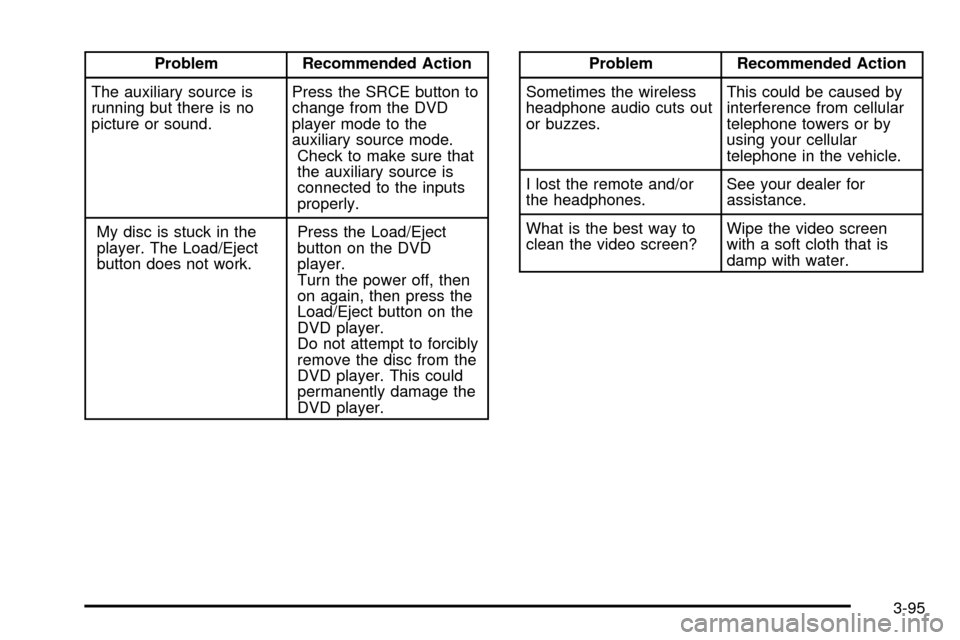
Problem Recommended Action
The auxiliary source is
running but there is no
picture or sound.Press the SRCE button to
change from the DVD
player mode to the
auxiliary source mode.
Check to make sure that
the auxiliary source is
connected to the inputs
properly.
My disc is stuck in the
player. The Load/Eject
button does not work.Press the Load/Eject
button on the DVD
player.
Turn the power off, then
on again, then press the
Load/Eject button on the
DVD player.
Do not attempt to forcibly
remove the disc from the
DVD player. This could
permanently damage the
DVD player.Problem Recommended Action
Sometimes the wireless
headphone audio cuts out
or buzzes.This could be caused by
interference from cellular
telephone towers or by
using your cellular
telephone in the vehicle.
I lost the remote and/or
the headphones.See your dealer for
assistance.
What is the best way to
clean the video screen?Wipe the video screen
with a soft cloth that is
damp with water.
3-95
Page 248 of 486

u(Volume):Turn the knob to increase or to decrease
volume. The left knob controls the left headphone and
the right knob controls the right headphone.
SRC (Source):Press this button to select an audio
source: radio, cassette tapes, CDs, DVDs, or XMŸ (48
contiguous US states, if equipped), depending on
your vehicles options.
xSEEKw:While listening to FM1, FM2, or AM, or
XM1 or XM2, press the up or the down arrow to
tune to the next or to the previous station and stay
there. If the front radio is in use, you cannot seek
through different stations.
While listening to a cassette tape, press the up or the
down arrow to hear the next or the previous selection. If
the cassette tape on the front radio is in use, you
cannot seek through different selections on a tape.
While listening to a CD, press the up arrow to hear the
next track on the CD. Press the down arrow to go
back to the start of the current track if more than eight
seconds have played. If the CD player on the front radio
is in use, you cannot seek through different tracks.PROG (Program):The front passengers must be
listening to something different for each of these
functions to work:
·Press this button to go to the preset radio stations
set on the pushbuttons on the main radio.
·When a cassette tape is playing, press this button
to go to the other side of the tape.
·When a CD is playing in the radio, press this button
to go back to the beginning of the CD.
·When a CD is playing in the CD changer, press this
button to select a disc.
3-98
Page 249 of 486
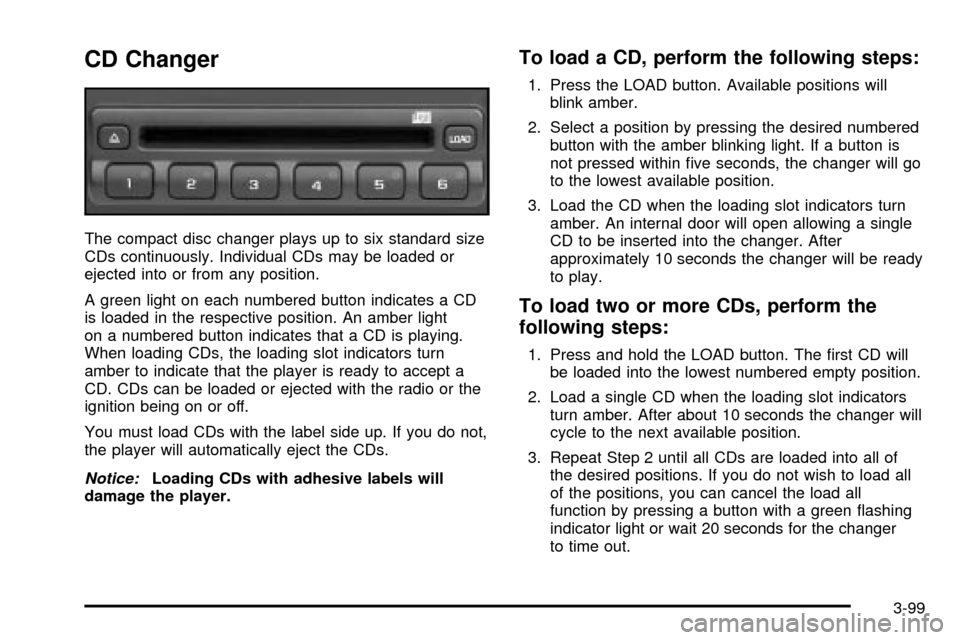
CD Changer
The compact disc changer plays up to six standard size
CDs continuously. Individual CDs may be loaded or
ejected into or from any position.
A green light on each numbered button indicates a CD
is loaded in the respective position. An amber light
on a numbered button indicates that a CD is playing.
When loading CDs, the loading slot indicators turn
amber to indicate that the player is ready to accept a
CD. CDs can be loaded or ejected with the radio or the
ignition being on or off.
You must load CDs with the label side up. If you do not,
the player will automatically eject the CDs.
Notice:Loading CDs with adhesive labels will
damage the player.
To load a CD, perform the following steps:
1. Press the LOAD button. Available positions will
blink amber.
2. Select a position by pressing the desired numbered
button with the amber blinking light. If a button is
not pressed within ®ve seconds, the changer will go
to the lowest available position.
3. Load the CD when the loading slot indicators turn
amber. An internal door will open allowing a single
CD to be inserted into the changer. After
approximately 10 seconds the changer will be ready
to play.
To load two or more CDs, perform the
following steps:
1. Press and hold the LOAD button. The ®rst CD will
be loaded into the lowest numbered empty position.
2. Load a single CD when the loading slot indicators
turn amber. After about 10 seconds the changer will
cycle to the next available position.
3. Repeat Step 2 until all CDs are loaded into all of
the desired positions. If you do not wish to load all
of the positions, you can cancel the load all
function by pressing a button with a green ¯ashing
indicator light or wait 20 seconds for the changer
to time out.
3-99
Page 250 of 486

To eject a single CD, perform the following
steps:
1. Press the eject button (upward pointing arrow). The
buttons with loaded CDs will blink amber.
2. Press one of the amber blinking buttons to select
the location of the CD you want to eject. The
changer will move to that location and eject the CD.
If you do not remove the CD from the player
within 10 seconds, it will be reloaded. If the eject
button is pressed and a numbered location button is
not pressed within ®ve seconds, the current or
last played CD will be ejected.
To eject all CDs, press and hold the eject button.
There are two ways to play a CD. Perform
one of the following:
·
With the radio on, press the desired numbered
button with a green indicator light on the CD
changer.
·Press the TAPE DISC button on the radio. The CD
changer will go to its last played position.
CD Functions
1 PREV (Previous):Press this pushbutton to go to the
previous track if the current track has been playing
for less than eight seconds. If pressed when the current
track has been playing for more than eight seconds,
it will go to the beginning of the current track. If you hold
or press this pushbutton more than once, the player
will continue moving back through the CD.
2 NEXT:Press this pushbutton to go to the next track.
If you hold this pushbutton or press it more than
once, the player will continue moving forward through
the CD.
3 REV (Reverse):Press and hold this pushbutton to
reverse quickly through a track. Release it to resume
playing.
4 FWD (Forward):Press and hold this pushbutton to
advance quickly through a track. Release it to resume
playing.
5
X:Press this pushbutton to select a CD. The CD
number and track number will be displayed.
3-100
Page 251 of 486

6 RDM (Random):Press this button to hear the tracks
in random, rather than sequential, order. RDM ALL
will appear on the radio display, which will randomly play
all of the loaded CDs. Press and hold this button until
you hear a beep and the radio will display RDM
ONE, which will randomly play the tracks on the current
CD. Press this button again to turn off random play,
RDM OFF will appear on the radio display.
qSEEKr:Press the right or the left SEEK arrow to
go to the next or to the previous track on the CD.
BAND:Press BAND to listen to the radio when a CD is
playing.
TAPE DISC:Press this button if you have a CD loaded
in the changer and the radio is turned on, to play a
CD. Press this button to switch between playing a tape
and the CD changer if all are loaded.
Compact Disc Changer Errors
CHK CD (Check):If this message appears on the
display, it could be for one of the following reasons:
·You are driving on a very rough road. The CD
should play when the road gets smoother.
·A CD is upside down.
·It is dirty, scratched or wet.
·It is very humid. If so, wait about an hour and try
again.
·The CD player is very hot.
If any error occurs repeatedly or if an error cannot be
corrected, contact your dealership.
Theft-Deterrent Feature
THEFTLOCKžis designed to discourage theft of your
radio. The feature works automatically by learning
a portion of the Vehicle Identi®cation Number (VIN). If
the radio is moved to a different vehicle, it will not
operate and LOCKED will be displayed.
When the radio and vehicle are turned off, the blinking
red light indicates that THEFTLOCK
žis armed.
With THEFTLOCK
žactivated, your radio will not operate
if stolen.
3-101
Page 252 of 486

Audio Steering Wheel Controls
You can control certain radio functions using the buttons
on your steering wheel.
g(OnStar/Voice Recognition):You can press this
button to interact with the OnStaržsystem. See the
OnStaržmanual provided with your vehicle for more
information.
PROG (Program):Press this button to play a station
you have programmed on the radio preset buttons
on the selected band. If a cassette tape is playing, press
this button to play the other side of the tape. If a
compact disc is playing in the CD changer, press this
button to go to the next available CD.
QSOURCER:Press this button to select AM, FM1
or FM2, XM1 or XM2 (USA only, if equipped), or a
cassette tape or CD. The cassette or CD must be loaded
to play. Available loaded sources are shown on the
display as a tape or a CD symbol.
QSEEKR:Press the up or the down arrow to seek
to the next or to the previous radio station and stay
there.
If a cassette tape or compact disc is playing, the player
will advance with the up arrow and reverse with the
down arrow.
QVOLR:Press the up or the down arrow to increase
or to decrease volume.
DVD Distortion
You may experience audio distortion in the
IR headphones when operating cellular phones,
scanners, CB radios, Global Positioning Systems
(GPS)*, two-way radios, mobile fax, or walkie talkies.
It may be necessary to turn off the DVD player
when operating one of these devices in or near the
vehicle.
* Excludes the OnStar
žSystem.
3-102