2003 CADILLAC ESCALADE phone
[x] Cancel search: phonePage 242 of 486

Stereo RCA Jacks
The RCA jacks are located behind the video screen on
the front of the DVD console. The RCA jacks allow you to
connect audio and video from an auxiliary device such as
a camcorder or a video game unit to your RSE system
just as you would to a standard television. Standard RCA
cables are needed to connect the auxiliary device to the
RCA jacks. The yellow connector inputs video and the
red and white connectors input right and left stereo audio.
Refer to the manufacturer's instructions for proper
connection of your auxiliary device.
To use the auxiliary inputs on the RSE system, connect
an external auxiliary device to the color-coded RCA
jacks and turn both the auxiliary device and the
RSE system power on. If the RSE system had been
previously in the DVD player mode, you will need
to press the SRCE button on the faceplate or the remote
control to change to the auxiliary mode. Pressing the
SRCE button will toggle the RSE system between
the auxiliary device and the DVD player.
How to Change the Video Format when in
the Auxiliary Mode
The auxiliary input video format is preset to NTSC. In
some countries, the video format may be in PAL system.
To change the video format, perform the following:
1. Press the display menu button.
2. Press the navigation down arrow key to scroll down
to Video Format.
3. Press the enter button to select Video Format.
4. Press the navigation key to select the PAL video
format.
5. Press the enter button to accept the change.
Audio Output
Audio from the DVD player or auxiliary inputs may be
heard through the following possible sources:
·Wireless Headphones
·Vehicle Speakers
·Vehicle wired headphone jacks on the Rear Seat
Audio system (if equipped)
The RSE system will always transmit the audio signal
by infrared to the wireless headphones, if there is audio
available. See ªHeadphonesº previously for more
information.
3-92
Page 243 of 486

The RSE system is capable of outputting audio to the
vehicle speakers by using the radio. The RSE
system may be selected as an audio source on the
radio if the RSE system power is on. Once the
RSE system is selected as an audio source on the radio
you may adjust the speaker volume on the radio. If
the RSE system power is not on, the RSE system will
not be an available source on the radio. Refer to
the radio information for the radio that your vehicle has
for more information.
The RSE system is capable of outputting audio to the
wired headphone jacks on the Rear Seat Audio system (if
equipped). The RSE system may be selected as an audio
source on the Rear Seat Audio system if the RSE system
power is on. Refer to
Rear Seat Audio (RSA) on
page 3-97for more information.
Problem Recommended Action
No power. The ignition might not be
in on or accessory.
The parental control
button might have been
pressed. (The power
indicator light will ¯ash.)
Disc will not play. The system might be off.
The parental control
button might have been
pressed. (The power
indicator light will ¯ash.)
The system might be in
auxiliary source mode.
Press the SRCE button
to toggle between the
DVD player and the
auxiliary source.
The disc is upside down
or is not compatible.
The picture does not ®ll
the screen. There are
black borders on the top
and bottom or on both
sides or it looks
stretched out.Press the Display button
on the DVD player or on
the remote control.
Change the display mode.
3-93
Page 245 of 486
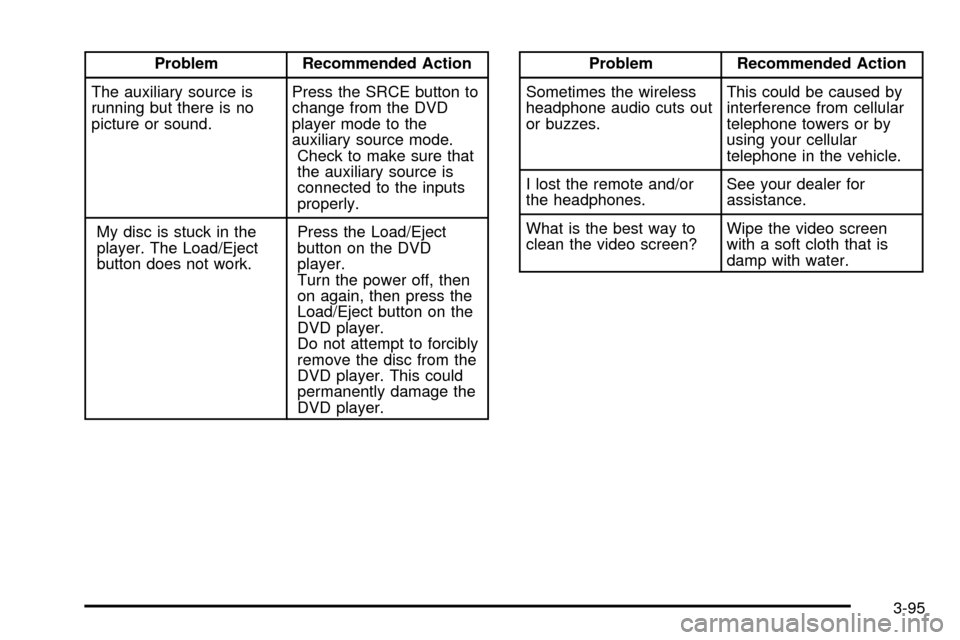
Problem Recommended Action
The auxiliary source is
running but there is no
picture or sound.Press the SRCE button to
change from the DVD
player mode to the
auxiliary source mode.
Check to make sure that
the auxiliary source is
connected to the inputs
properly.
My disc is stuck in the
player. The Load/Eject
button does not work.Press the Load/Eject
button on the DVD
player.
Turn the power off, then
on again, then press the
Load/Eject button on the
DVD player.
Do not attempt to forcibly
remove the disc from the
DVD player. This could
permanently damage the
DVD player.Problem Recommended Action
Sometimes the wireless
headphone audio cuts out
or buzzes.This could be caused by
interference from cellular
telephone towers or by
using your cellular
telephone in the vehicle.
I lost the remote and/or
the headphones.See your dealer for
assistance.
What is the best way to
clean the video screen?Wipe the video screen
with a soft cloth that is
damp with water.
3-95
Page 247 of 486
Rear Seat Audio (RSA)
This feature allows rear seat passengers to listen to any
of the audio sources: radio, cassette tapes, CDs, DVDs,
or XMŸ (48 contiguous US states, if equipped)
depending on your vehicles options. In the event that the
front seat passengers are listening to any of these remote
sources the rear seat passengers can only listen to the
remote source being used by the front seat passengers
or FM, AM, or the radios internal CD. For example, rear
seat passengers may listen to cassette tape, CDs, or
DVDs through the headphones while the driver listens to
the radio through the front speakers. The rear seat
passengers have control of the volume for each set of
headphones. The front seat audio controls always
override the RSA controls.
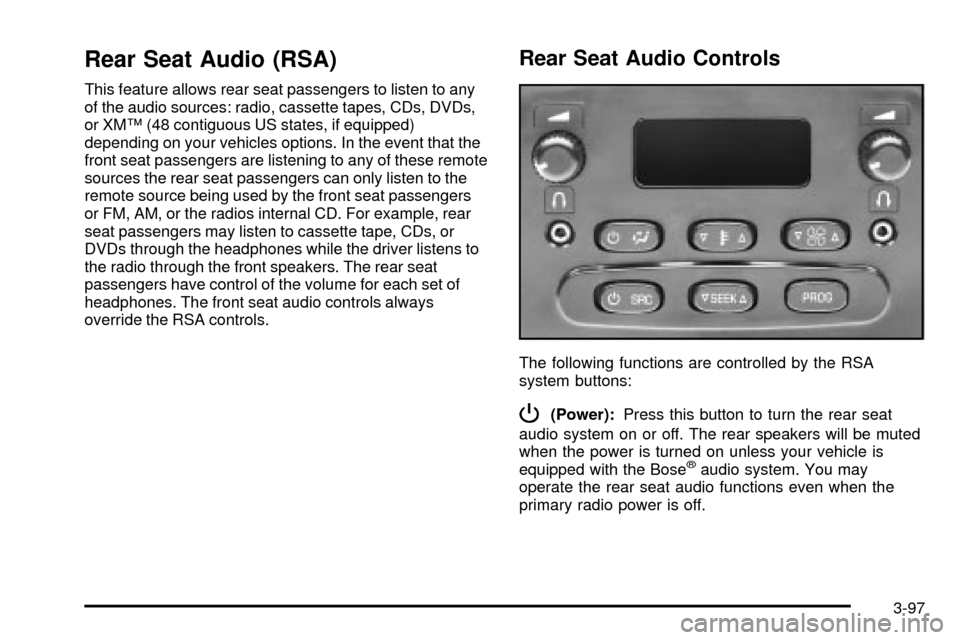
Rear Seat Audio Controls
The following functions are controlled by the RSA
system buttons:
P(Power):Press this button to turn the rear seat
audio system on or off. The rear speakers will be muted
when the power is turned on unless your vehicle is
equipped with the Bose
žaudio system. You may
operate the rear seat audio functions even when the
primary radio power is off.
3-97
Page 248 of 486

u(Volume):Turn the knob to increase or to decrease
volume. The left knob controls the left headphone and
the right knob controls the right headphone.
SRC (Source):Press this button to select an audio
source: radio, cassette tapes, CDs, DVDs, or XMŸ (48
contiguous US states, if equipped), depending on
your vehicles options.
xSEEKw:While listening to FM1, FM2, or AM, or
XM1 or XM2, press the up or the down arrow to
tune to the next or to the previous station and stay
there. If the front radio is in use, you cannot seek
through different stations.
While listening to a cassette tape, press the up or the
down arrow to hear the next or the previous selection. If
the cassette tape on the front radio is in use, you
cannot seek through different selections on a tape.
While listening to a CD, press the up arrow to hear the
next track on the CD. Press the down arrow to go
back to the start of the current track if more than eight
seconds have played. If the CD player on the front radio
is in use, you cannot seek through different tracks.PROG (Program):The front passengers must be
listening to something different for each of these
functions to work:
·Press this button to go to the preset radio stations
set on the pushbuttons on the main radio.
·When a cassette tape is playing, press this button
to go to the other side of the tape.
·When a CD is playing in the radio, press this button
to go back to the beginning of the CD.
·When a CD is playing in the CD changer, press this
button to select a disc.
3-98
Page 252 of 486

Audio Steering Wheel Controls
You can control certain radio functions using the buttons
on your steering wheel.
g(OnStar/Voice Recognition):You can press this
button to interact with the OnStaržsystem. See the
OnStaržmanual provided with your vehicle for more
information.
PROG (Program):Press this button to play a station
you have programmed on the radio preset buttons
on the selected band. If a cassette tape is playing, press
this button to play the other side of the tape. If a
compact disc is playing in the CD changer, press this
button to go to the next available CD.
QSOURCER:Press this button to select AM, FM1
or FM2, XM1 or XM2 (USA only, if equipped), or a
cassette tape or CD. The cassette or CD must be loaded
to play. Available loaded sources are shown on the
display as a tape or a CD symbol.
QSEEKR:Press the up or the down arrow to seek
to the next or to the previous radio station and stay
there.
If a cassette tape or compact disc is playing, the player
will advance with the up arrow and reverse with the
down arrow.
QVOLR:Press the up or the down arrow to increase
or to decrease volume.
DVD Distortion
You may experience audio distortion in the
IR headphones when operating cellular phones,
scanners, CB radios, Global Positioning Systems
(GPS)*, two-way radios, mobile fax, or walkie talkies.
It may be necessary to turn off the DVD player
when operating one of these devices in or near the
vehicle.
* Excludes the OnStar
žSystem.
3-102
Page 255 of 486

Cleaning the Video Screen
Pour some isopropyl or rubbing alcohol on a clean cloth
and gently wipe the video screen. Do not spray
directly onto the screen and do not press too hard or
too long on the video screen.
Diversity Antenna System
Your AM-FM antennas are located in the rear side
windows. Be sure that the inside surfaces of the rear
side windows are not scratched and that the lines on the
glass are not damaged. If the inside surfaces are
damaged, they could interfere with radio reception.
Notice:Do not try to clear frost or other material
from the inside of the front windshield or rear
window with a razor blade or anything else that is
sharp. This may damage the rear defogger grid and
affect your radio's ability to pick up stations
clearly. The repairs wouldn't be covered by your
warranty.
Notice:Do not apply aftermarket glass tinting with
metallic ®lm. The metallic ®lm in some tinting
materials will interfere with or distort the incoming
radio reception. Any damage caused to your
backglass antenna due to metallic tinting materials
will not be covered by your warranty.If you choose to add an aftermarket cellular telephone
to your vehicle, and the antenna needs to be attached to
the glass, be sure that you do not damage the grid
lines for the AM-FM antennas or place the cellular
telephone antenna over the grid lines.
XMŸ Satellite Radio Antenna
System (United States Only)
Your XMŸ Satellite Radio antenna is located on the
roof of your vehicle. Keep this antenna clear of
snow and ice build up for clear radio reception.
The performance of your XMŸ system may be affected
if your sunroof is open.
Loading items onto the roof of your vehicle can interfere
with the performance of your XMŸ system. Make
sure that the XMŸ satellite antenna is not obstructed.
3-105
Page 258 of 486

Your Driving, the Road, and
Your Vehicle
Defensive Driving
The best advice anyone can give about driving is: Drive
defensively.
Please start with a very important safety device in your
vehicle: Buckle up. See
Safety Belts: They Are for
Everyone on page 1-28.
Defensive driving really means ªbe ready for anything.º
On city streets, rural roads or freeways, it means
ªalways expect the unexpected.º
Assume that pedestrians or other drivers are going to
be careless and make mistakes. Anticipate what
they might do. Be ready for their mistakes.
Rear-end collisions are about the most preventable of
accidents. Yet they are common. Allow enough following
distance. It's the best defensive driving maneuver, in
both city and rural driving. You never know when
the vehicle in front of you is going to brake or turn
suddenly.Defensive driving requires that a driver concentrate on
the driving task. Anything that distracts from the driving
task Ð such as concentrating on a cellular telephone call,
reading, or reaching for something on the ¯oor Ð makes
proper defensive driving more difficult and can even
cause a collision, with resulting injury. Ask a passenger to
help do things like this, or pull off the road in a safe place
to do them yourself. These simple defensive driving
techniques could save your life.Drunken Driving
Death and injury associated with drinking and driving is
a national tragedy. It's the number one contributor to
the highway death toll, claiming thousands of victims
every year.
Alcohol affects four things that anyone needs to drive a
vehicle:
·Judgment
·Muscular Coordination
·Vision
·Attentiveness.
4-2