2003 BUICK LESABRE lock
[x] Cancel search: lockPage 158 of 380

DIC Vehicle Personalization
The DIC can be used to program the following personal
choice features available with your vehicle:
·Automatic Door Locks
·Window Lock Out
·Security Feedback
·Delayed Locking
·Perimeter Lighting
·Memory Seats
·Outside Curb View Assist Mirror
·Driver ID
·Language Selection
The personal choice settings displayed on the DIC are
determined by the transmitter used to enter the
vehicle. Each remote keyless entry transmitter was
pre-programmed to belong to DRIVER 1 or DRIVER 2
and is numbered on the back. After the unlock button on
a remote keyless entry transmitter is pressed and the
ignition is in RUN, the DIC will display the identi®ed
driver and recall the settings previously programmed for
that driver. The settings can also be recalled by
brie¯y pressing one of the MEMORY buttons located on
the driver's door.If you unlock the vehicle using your door key instead of
your transmitter, the DIC will not change drivers and
will recall the information from the last transmitter used
or the last driver using the memory seat controls. If
this happens and you were not the last driver of
the vehicle, simply press your correct driver number on
the memory seat controls or press the unlock button
on your remote keyless entry transmitter.
Use the following steps for personalization programming
instructions.
1. Turn the ignition on and keep the transaxle in
PARK (P).
2. Inform the DIC which driver you are by pressing the
unlock button on your remote keyless entry
transmitter or the appropriate memory seat control.
3. Press and hold the ENG/MET button for ®ve
seconds. WELCOME TO BUICK OPTION
FEATURE will appear in the display.
4. The ®rst choice to be made will be DRIVER
ID 1 or 2. Press the ENG/MET button to toggle
between your selections within a display and
RESET to choose the current selection and move
on to the next personal choice feature.
3-50
Page 159 of 380

If you would like to exit the selection mode without
moving through each of the personal choice features,
simply press a different button on the DIC or turn off the
ignition. Whatever personal choices you made will
still be retained, even without passing through each of
the features. In order for your personal choices to save,
you must press RESET after making your selections.
If you happen to move past a selection you would like to
make a personal choice for, press the unlock button
on your remote keyless entry transmitter or press
the appropriate driver number on the seat control. This
will return you to the beginning of the option feature
programming mode.
Automatic Door Locks
The door lock modes when shifting in and out of
PARK (P), can be changed through the DIC. You can
change these modes by different selections of the
following DIC displays:
·AUTO DOOR LOCKS ± OFF/ON
·UNLOCK ± OFF/ON
·UNLOCK ± KEY OFF/PARK
·DOOR TO UNLOCK ± DRIVER/ALL
If you choose OFF for AUTO DOOR LOCKS, your door
locks will operate normally with no automatic feature.If you choose ON for AUTO DOOR LOCKS, ON for
UNLOCK and KEY OFF, your doors will lock every time
you shift out of PARK (P), and the doors will unlock
every time you stop and turn the ignition to OFF.
If you choose ON for AUTO DOOR LOCKS, ON for
UNLOCK and PARK, your doors will lock every time you
shift out of PARK (P), and the doors will unlock every
time you stop and shift into PARK (P).
If you choose ON for AUTO DOOR LOCKS, and OFF
for UNLOCK, your doors will lock every time you
shift out of PARK (P), and there will be no automatic
door unlock when shifting back into PARK (P).
If you choose ON for UNLOCK and DRIVER for DOOR
TO UNLOCK, only the driver's door will automatically
unlock when shifting into PARK or turning the key
to OFF.
If you choose ON for UNLOCK and ALL for DOOR TO
UNLOCK, all doors will automatically unlock when
shifting into PARK or turning the key to OFF.
To change modes, do the following:
1. Move the arrow on the display between the
selections by pressing the ENG/MET button.
2. Once you have made your selection, press the
RESET button and your choice will be retained
in memory.
See
Programmable Automatic Door Locks on page 2-11for more information about this feature.
3-51
Page 160 of 380

Window Lock Out
The number of passenger windows locked out by the
window LOCK switch can be programmed through
the DIC.
If you choose R + PASS, all three passenger window
switches will be inactive when the window LOCK switch
is enabled.
If you choose REAR, only the two rear passenger
window switches will be locked out when the window
LOCK switch is enabled.
To change modes, do the following:
1. Move the arrow on the display between R + PASS
and REAR by pressing the ENG/MET button.
2. Once you have made your selection, press the
RESET button. Your choice will be retained in
memory.
For more information on this feature, see ªWindow Lock
Outº under
Power Windows on page 2-17.
Security Feedback
By choosing different combinations of these selections,
you can choose the type of transmitter activated
feedback when locking and unlocking your vehicle with
your transmitter. Each time you make a selection by
pressing the ENG/MET button, press the RESET button
to record your choice.
·KEYLESS FEEDBACK ± OFF/ON
·LIGHTS FEEDBACK ± OFF/ON
·HORN FEEDBACK ± OFF/ON
If you choose ON for KEYLESS FEEDBACK you will
also need to choose LIGHTS and/or HORN FEEDBACK.
You can select the following modes:
·If you choose OFF for KEYLESS FEEDBACK, you
will receive no security feedback when locking or
unlocking your vehicle.
·If you choose ON for KEYLESS FEEDBACK and
ON for LIGHTS FEEDBACK, the exterior lamps
will ¯ash twice when unlocking your vehicle
and once when locking your vehicle.
3-52
Page 161 of 380

·If you choose ON for KEYLESS FEEDBACK and
ON for HORN FEEDBACK, your horn will chirp
when all doors are unlocked and when locking your
vehicle.
·If you choose ON for KEYLESS, LIGHTS and
HORN FEEDBACK, your exterior lamps will
¯ash twice at the ®rst unlock button press, your
exterior lamps will ¯ash twice and the horn will chirp
once at the second unlock button press, and the
exterior lamps will ¯ash and the horn will chirp once
when locking your vehicle.
For more information on this feature, see ªSecurity
Feedbackº under
Remote Keyless Entry System
Operation on page 2-5.
Delayed Locking
This feature, which delays the actual locking of the
vehicle, can be made active or inactive through the DIC.
When DELAYED LOCKING ± OFF/ON appears on
the display, use the ENG/MET button to toggle the arrow
between OFF and ON. When you have made your
choice, press the RESET button to record your
selection.
For more information on this feature, see
Delayed
Locking on page 2-11.
Perimeter Lighting
Press the unlock button on the remote keyless entry
transmitter to turn on the DRL (high-beams at reduced
intensity), parking lamps and back-up lamps if it is
dark enough according to the Twilight Sentinel
ž.
You can control activation of this feature by choosing
OFF or ON when the PERIMETER LIGHTS choice
is displayed on the DIC. Make your choice by pressing
the ENG/MET button and record your choice by
pressing the RESET button. You will then be prompted
to choose a TIMEOUT period. See ªExterior Lightsº
following for more information.
For more information on this feature, see ªPerimeter
Lightingº under
Interior Lamps on page 3-17.
Exterior Lights
The EXTERIOR LIGHTS/TIMEOUT feature can be
changed to a desired setting by using the ENG/MET to
toggle from 5 to 30 seconds. Each toggle will increase
the time by ®ve seconds. Once the desired timeout
is displayed, press RESET to record your choice and
move on to the next personal choice feature.
Memory Seats
If your vehicle has this feature, the memory seat and
mirror positions will be recalled for the identi®ed
driver when the remote keyless entry transmitter is used
to enter the vehicle.
3-53
Page 162 of 380

You can program this feature to be active by choosing
ON when the SEAT RECALL choice appears, or
inactive by choosing OFF when the SEAT RECALL
choice appears on the DIC. Make your choices
by pressing the ENG/MET button and store them to
memory by pressing the RESET button.
You can also program this feature to recall your
memory seat position or the exit seat position.
MEMORY:Choose ON when the SEAT RECALL
choice appears, and then choose MEMORY when the
RECALL POSITION choice appears.
EXIT:Choose ON when the SEAT RECALL choice
appears, and then choose EXIT when the RECALL
POSITION choice appears. The seat will move when
you enter the vehicle after unlocking it with a remote
keyless entry transmitter. This will allow for easy entry.
For more information on this feature, see
Memory
Seat and Mirrors on page 2-44.
Outside Curb View Assist Mirror
If your vehicle has the outside curb view assist mirror,
which tips the passenger mirror down while the
vehicle is in REVERSE (R), it can be made active
or inactive through the DIC. When TILTMIRRORS ± OFF/ON appears on the display, use the
ENG/MET button to toggle the arrow between OFF
and ON. When you have made your choice, press the
RESET button to record your selection. For more
information on this feature, see
Outside Curb View
Assist Mirror on page 2-36.
Driver ID
This feature displays the DRIVER ID, as identi®ed by
the DIC. If this feature is ON, the DRIVER ID will
be displayed every time the ignition is turned on. If the
DRIVER ID is OFF, the DRIVER ID can be displayed
by pressing either a button on the remote keyless entry
transmitter or a memory seat button.
Language Selection
After DRIVER ID has been selected, ªLanguage
Englishº will be displayed. Pressing the RESET button
selects English as the DIC language and ends
programming. If you prefer the language to be French
or Spanish, press the ENG/MET button when ªLanguage
Englishº appears on the display. Hold the ENG/MET
button until the desired language is displayed, then
press the RESET button to select that language.
3-54
Page 176 of 380
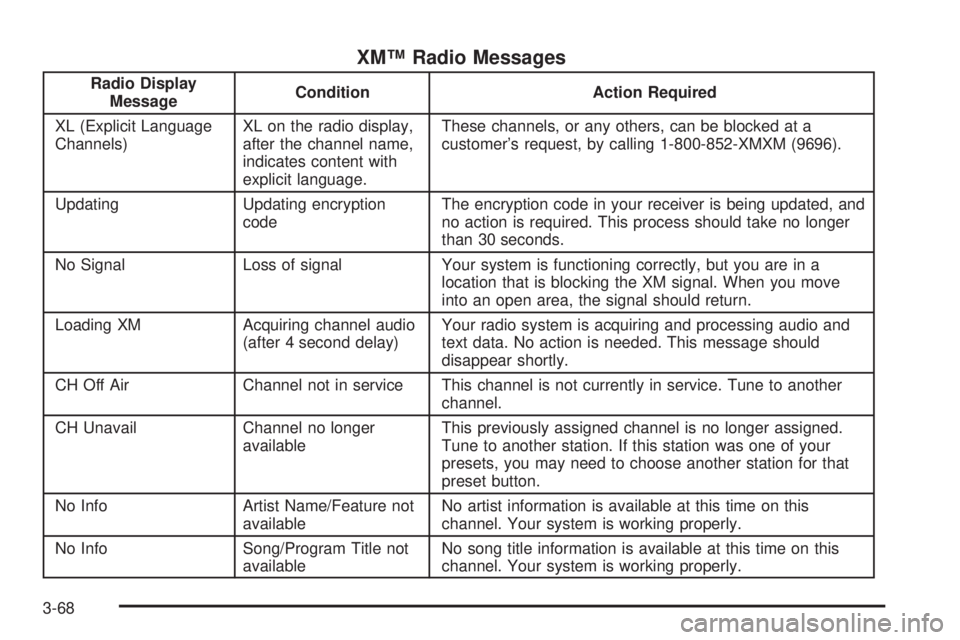
XMŸ Radio Messages
Radio Display
MessageCondition Action Required
XL (Explicit Language
Channels)XL on the radio display,
after the channel name,
indicates content with
explicit language.These channels, or any others, can be blocked at a
customer's request, by calling 1-800-852-XMXM (9696).
Updating Updating encryption
codeThe encryption code in your receiver is being updated, and
no action is required. This process should take no longer
than 30 seconds.
No Signal Loss of signal Your system is functioning correctly, but you are in a
location that is blocking the XM signal. When you move
into an open area, the signal should return.
Loading XM Acquiring channel audio
(after 4 second delay)Your radio system is acquiring and processing audio and
text data. No action is needed. This message should
disappear shortly.
CH Off Air Channel not in service This channel is not currently in service. Tune to another
channel.
CH Unavail Channel no longer
availableThis previously assigned channel is no longer assigned.
Tune to another station. If this station was one of your
presets, you may need to choose another station for that
preset button.
No Info Artist Name/Feature not
availableNo artist information is available at this time on this
channel. Your system is working properly.
No Info Song/Program Title not
availableNo song title information is available at this time on this
channel. Your system is working properly.
3-68
Page 177 of 380

XMŸ Radio Messages (cont'd)
Radio Display
MessageCondition Action Required
No Info Category Name not
availableNo category information is available at this time on this
channel. Your system is working properly.
No Info No Text/Informational
message availableNo text or informational messages are available at this
time on this channel. Your system is working properly.
Not Found No channel available for
the chosen categoryThere are no channels available for the category you
selected. Your system is working properly.
XM Locked Theft lock active The XM receiver in your vehicle may have previously been
in another vehicle. For security purposes, XM receivers
cannot be swapped between vehicles. If you receive this
message after having your vehicle serviced, check with the
servicing facility.
Radio ID Radio ID label
(channel 0)If you tune to channel 0, you will see this message
alternating with your XM Radio 8 digit radio ID label. This
label is needed to activate your service.
Unknown Radio ID not known
(should only be if
hardware failure)If you receive this message when you tune to channel 0,
you may have a receiver fault. Consult with your dealer.
Chk XMRcvr Hardware failure If this message does not clear within a short period of time,
your receiver may have a fault. Consult with your retail
location.
3-69
Page 179 of 380

Cassette Tape Messages
If an error message appears while trying to play a
cassette tape, it could be for one of the following
reasons:
·TIGHT TAPE:The tape is tight and the player can't
turn the tape hubs. Remove the tape. Hold the tape
with the open end down and try to turn the right
hub counterclockwise with a pencil. Turn the tape
over and repeat. If the hubs do not turn easily, your
tape may be damaged and should not be used in
the player. Try a new tape to make sure your player
is working properly.
·BROKEN TAPE:The tape is broken. Try a
new tape.
CLEAN PLAYER:If this message appears on the
display, the cassette tape player needs to be cleaned. It
will still play tapes, but you should clean it as soon as
possible to prevent damage to the tapes and player. See
Care of Your Cassette Tape Player on page 3-79.
If any error occurs repeatedly or if an error can not be
corrected, contact your dealership. If your radio displays
an error number, write it down and provide it to your
dealership when reporting the problem.
CD Adapter Kits
It is possible to use a portable CD player adapter kit
with your cassette tape player after activating the bypass
feature on your tape player.
To activate the bypass feature, use the following steps:
1. Turn the ignition on.
2. Turn the radio off.
3. Insert the adapter into the cassette slot.
4. Press and hold the CD TAPE button until READY is
displayed.
The override feature will remain active until the eject
button is pressed.
Playing a Compact Disc
Insert a disc partway into the slot, label side up. The
player will pull it in. The disc should begin playing. If you
want to insert a CD while the ignition or the radio is
off, ®rst press the eject button or DISP.
If you turn off the ignition or radio with a disc in the
player, it will stay in the player. When you turn on the
ignition or system, the disc will start playing where
it stopped, if it was the last selected audio source.
3-71