2003 BUICK LESABRE reset
[x] Cancel search: resetPage 165 of 380

To scan preset stations, press and hold one of the
SEEK arrows for more than four seconds until PSCAN
and the preset number appear on the display. You
will hear a double beep. The radio will go to the ®rst
preset station stored on your pushbuttons, play for a few
seconds, then go on to the next preset station. Press
one of the SEEK arrows again to stop scanning presets.
The radio will seek and scan only to stations that are
in the selected band and only to those with a strong
signal.
Setting Preset Stations
The six numbered pushbuttons let you return to your
favorite stations. You can set up to 18 stations (six FM1,
six FM2 and six AM) by performing the following
steps:
1. Turn the radio on.
2. Press BAND to select FM1, FM2, or AM.
3. Tune in the desired station.
4. Press EQ to select the EQ setting. It will be stored
with the preset station.
5. Press and hold one of the six numbered
pushbuttons. When you hear the radio produce one
beep, release the pushbutton. Whenever you
press that numbered pushbutton, the station you
set will return.
6. Repeat the steps for each pushbutton.
Setting the Tone (Bass/Treble)
AUDIO:Push and release AUDIO until BASS, MID, or
TREBLE appears on the display. Then turn the
AUDIO knob to increase or to decrease. If a station is
weak or noisy, you may want to decrease the treble.
To adjust bass, midrange or treble to the middle
position, select BASS, MID, or TREBLE. Then push and
hold AUDIO for more than two seconds until you hear
a beep. BASS and a zero, MID and a zero or TREBLE
and a zero will appear on the display.
To adjust both tone controls and both speaker controls
to the middle position, end out of audio mode by
waiting ®ve seconds without making any changes. Then
push and hold AUDIO for more than two seconds
until you hear a beep. ALL CENTERED will appear on
the display.
Adjusting the Speakers (Balance/Fade)
AUDIO:To adjust the balance between the right
and the left speakers, push and release AUDIO until
BAL appears on the display. Then turn the AUDIO knob
to move the sound toward the right or the left speakers.
A bar graph with indicators will show how the sound
is balanced between the right and the left speakers.
3-57
Page 172 of 380

Finding a Station
BAND:Press this button to switch between FM1, FM2,
or AM, XM1 or XM2 (USA only, if equipped). The
display will show your selection.
TUNE:Turn this knob to choose a radio station.
©SEEK¨:Press the right or the left arrow to go to
the next or to the previous station and stay there.
To scan stations, press and hold one of the SEEK
arrows for two seconds until SCAN appears on
the display. The radio will go to a station, play for a few
seconds, then go on to the next station. Press one of
the SEEK arrows again to stop scanning.
To scan preset stations, press and hold one of the
SEEK arrows for more than four seconds until SCAN
and the preset number appear on the display. You
will hear a double beep. The radio will go to the ®rst
preset station stored on your pushbuttons, play for a few
seconds, then go on to the next preset station. Press
one of the SEEK arrows again to stop scanning presets.
The radio will seek and scan only to the stations that
are in the selected band and only to those with a strong
signal.
Setting Preset Stations
The six numbered pushbuttons let you return to your
favorite stations. You can set up to 30 stations (six FM1,
six FM2, and six AM, six XM1 and six XM2 (USA
only, if equipped), by performing the following steps:
1. Turn the radio on.
2. Press BAND to select FM1, FM2, or AM, XM1
or XM2.
3. Tune in the desired station.
4. Press EQ to select the EQ setting. It will be stored
with the preset station.
5. Press and hold one of the six numbered
pushbuttons. When you hear the radio produce one
beep, release the pushbutton. Whenever you
press that numbered pushbutton, the station you
set will return.
6. Repeat the steps for each pushbutton.
3-64
Page 176 of 380
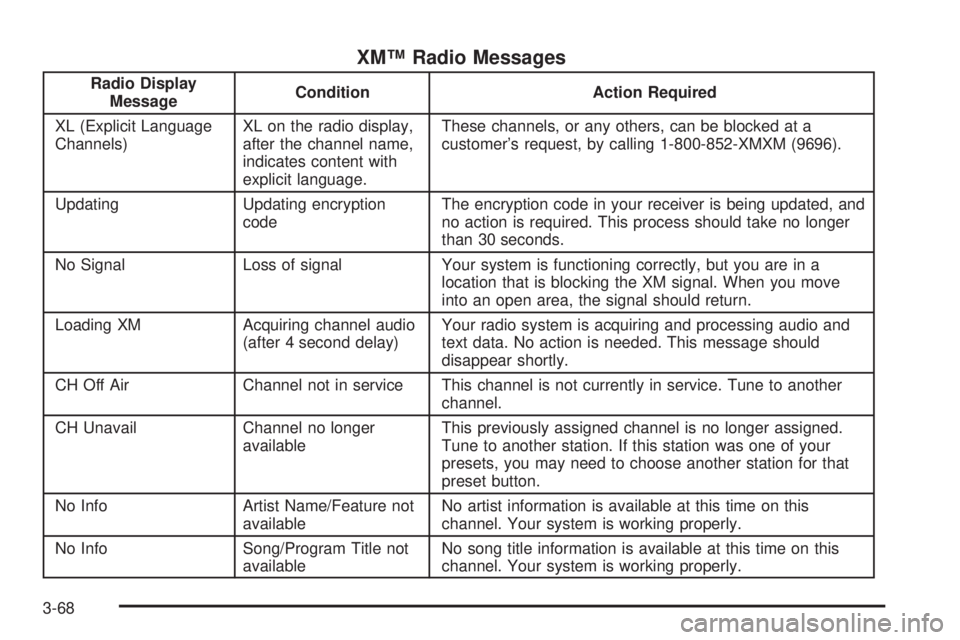
XMŸ Radio Messages
Radio Display
MessageCondition Action Required
XL (Explicit Language
Channels)XL on the radio display,
after the channel name,
indicates content with
explicit language.These channels, or any others, can be blocked at a
customer's request, by calling 1-800-852-XMXM (9696).
Updating Updating encryption
codeThe encryption code in your receiver is being updated, and
no action is required. This process should take no longer
than 30 seconds.
No Signal Loss of signal Your system is functioning correctly, but you are in a
location that is blocking the XM signal. When you move
into an open area, the signal should return.
Loading XM Acquiring channel audio
(after 4 second delay)Your radio system is acquiring and processing audio and
text data. No action is needed. This message should
disappear shortly.
CH Off Air Channel not in service This channel is not currently in service. Tune to another
channel.
CH Unavail Channel no longer
availableThis previously assigned channel is no longer assigned.
Tune to another station. If this station was one of your
presets, you may need to choose another station for that
preset button.
No Info Artist Name/Feature not
availableNo artist information is available at this time on this
channel. Your system is working properly.
No Info Song/Program Title not
availableNo song title information is available at this time on this
channel. Your system is working properly.
3-68
Page 185 of 380

·E34:The CD changer door is open. Completely
close the door to restore normal operation.
·E35:An empty magazine is inserted in the CD
changer. Try the magazine again with a disc loaded
on one of the trays.
If any error occurs repeatedly or if an error cannot be
corrected, contact your dealership. If your radio displays
an error number other than the error codes listed
previously, write it down and provide it to your dealership
when reporting the problem.
Personal Choice Radio Controls
If your vehicle has this feature it will enable two drivers
to store and recall personal settings for radio presets,
last tuned station, volume, tone, and audio source
(radio, cassette, or CD).
The memory buttons 1 and 2 for this feature are located
on the driver's door panel and correspond to the
numbers 1 and 2 found on the back of each remote
keyless entry transmitter.
To recall audio sources, press the unlock button on the
remote keyless entry transmitter and turn the ignition
on. The source last listened to will be recalled for
the identi®ed driver 1 or 2.To program this feature, do the following:
1. Set all radio preferences. For more information see
ªSetting Preset Stationsº and ªSetting the Toneº
listed for your particular radio.
2. Locate the memory buttons on the driver's
door panel.
3. Press one of the memory buttons 1 or 2 until you
hear two beeps. The beeps con®rm that your
selection has been saved and can now be recalled.
Follow these steps each time you want to change the
stored settings.Theft-Deterrent Feature
THEFTLOCKžis designed to discourage theft of your
radio. It works by using a secret code to disable all radio
functions whenever battery power is removed and the
radio is placed in a different vehicle. This feature
requires no user input to be activated. It is automatically
armed when it is put into the vehicle for the ®rst time.
When the ignition is turned off, the blinking red light
indicates that THEFTLOCK
žis armed.
If THEFTLOCK
žis activated, your radio will not operate
if stolen. The radio will display LOCKED and a red
LED indicator light will come on above the key symbol
to indicate a locked condition. If this occurs, the radio will
need to be returned to the dealer.
3-77
Page 186 of 380

Audio Steering Wheel Controls
If your vehicle has this feature, you can control certain
radio functions using the buttons on your steering
wheel.
QSEEKR:Press the up arrow to seek to the next
station and the down arrow to seek to the previous
station. The sound will mute while seeking. When
playing a cassette tape or a compact disc, press the up
arrow to hear the next selection.
BAND:Press this button to choose FM1, FM2, or AM,
XM1 or XM2 (USA only, if your radio is equipped
with XMŸ Satellite Radio Service).SCAN:Press this button to scan your radio preset
stations. The radio will scan to the ®rst preset station
stored on your pushbuttons, play for a few seconds, then
go on to the next preset station. The radio will scan
preset stations with a strong signal only. Press
this button again to stop scanning.
SOURCE:Press this button to play a cassette tape or
compact disc when listening to the radio. If a cassette
tape and a compact disc are both loaded, the system will
go to the tape play ®rst.
MUTE:Press this button to silence the system. Press it
again to turn on the sound.
QVOL (Volume)R:Press the up or down arrow to
increase or decrease volume.
Understanding Radio Reception
AM
The range for most AM stations is greater than for FM,
especially at night. The longer range, however, can
cause stations to interfere with each other. AM can pick
up noise from things like storms and power lines. Try
reducing the treble to reduce this noise if you ever get it.
3-78
Page 187 of 380
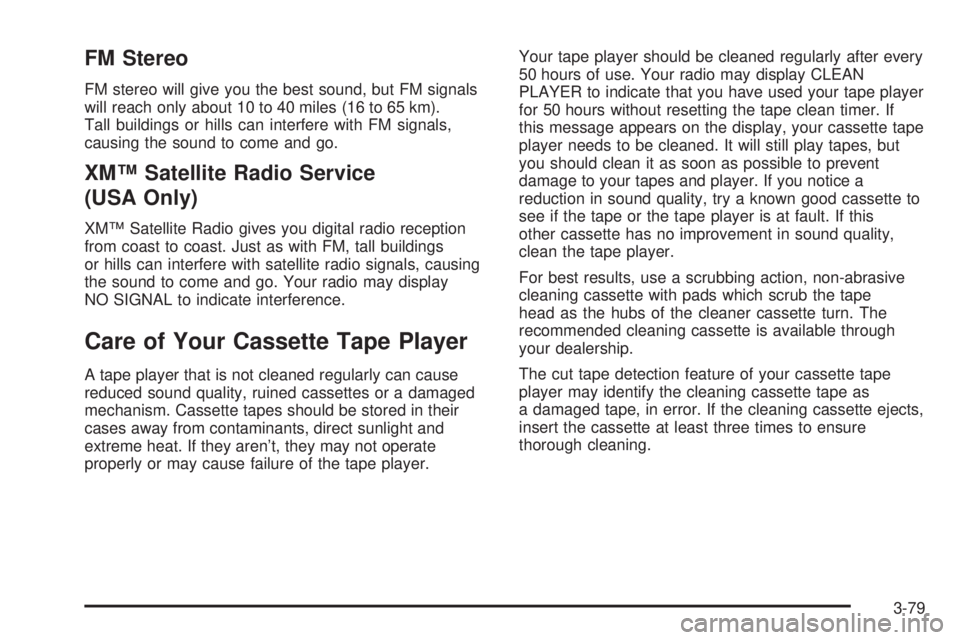
FM Stereo
FM stereo will give you the best sound, but FM signals
will reach only about 10 to 40 miles (16 to 65 km).
Tall buildings or hills can interfere with FM signals,
causing the sound to come and go.
XMŸ Satellite Radio Service
(USA Only)
XMŸ Satellite Radio gives you digital radio reception
from coast to coast. Just as with FM, tall buildings
or hills can interfere with satellite radio signals, causing
the sound to come and go. Your radio may display
NO SIGNAL to indicate interference.
Care of Your Cassette Tape Player
A tape player that is not cleaned regularly can cause
reduced sound quality, ruined cassettes or a damaged
mechanism. Cassette tapes should be stored in their
cases away from contaminants, direct sunlight and
extreme heat. If they aren't, they may not operate
properly or may cause failure of the tape player.Your tape player should be cleaned regularly after every
50 hours of use. Your radio may display CLEAN
PLAYER to indicate that you have used your tape player
for 50 hours without resetting the tape clean timer. If
this message appears on the display, your cassette tape
player needs to be cleaned. It will still play tapes, but
you should clean it as soon as possible to prevent
damage to your tapes and player. If you notice a
reduction in sound quality, try a known good cassette to
see if the tape or the tape player is at fault. If this
other cassette has no improvement in sound quality,
clean the tape player.
For best results, use a scrubbing action, non-abrasive
cleaning cassette with pads which scrub the tape
head as the hubs of the cleaner cassette turn. The
recommended cleaning cassette is available through
your dealership.
The cut tape detection feature of your cassette tape
player may identify the cleaning cassette tape as
a damaged tape, in error. If the cleaning cassette ejects,
insert the cassette at least three times to ensure
thorough cleaning.
3-79
Page 188 of 380

You may also choose a non-scrubbing action, wet-type
cleaner which uses a cassette with a fabric belt to
clean the tape head. This type of cleaning cassette will
not eject on its own. A non-scrubbing action cleaner
may not clean as thoroughly as the scrubbing type
cleaner. The use of a non-scrubbing action, dry-type
cleaning cassette is not recommended.
After you clean the player, press and hold the eject
button for ®ve seconds to reset the CLEAN PLAYER
indicator. The radio will display --- to show the indicator
was reset.
Cassettes are subject to wear and the sound quality
may degrade over time. Always make sure the cassette
tape is in good condition before you have your tape
player serviced.Care of Your CDs
Handle discs carefully. Store them in their original cases
or other protective cases and away from direct sunlight
and dust. If the surface of a disc is soiled, dampen
a clean, soft cloth in a mild, neutral detergent solution
and clean it, wiping from the center to the edge.
Be sure never to touch the side without writing when
handling discs. Pick up discs by grasping the outer
edges or the edge of the hole and the outer edge.
Care of Your CD Player
The use of CD lens cleaner discs is not advised, due to
the risk of contaminating the lens of the CD optics
with lubricants internal to the CD mechanism.
3-80
Page 248 of 380

Notice:Use only engine oil with the American
Petroleum Institute Certi®ed For Gasoline Engines
starburst symbol. Failure to use the recommended
oil can result in engine damage not covered by
your warranty.
GM Goodwrench
žoil meets all the requirements for
your vehicle.
If you are in an area of extreme cold, where the
temperature falls below-20ÉF (-29ÉC), it is
recommended that you use either an SAE 5W-30
synthetic oil or an SAE 0W-30 oil. Both will provide
easier cold starting and better protection for your engine
at extremely low temperatures.
Engine Oil Additives
Don't add anything to your oil. The recommended oils
with the starburst symbol are all you will need for
good performance and engine protection.
When to Change Engine Oil (Vehicles
Without the GM Oil Life System)
If any one of these is true for you, use the short trip/city
maintenance schedule:
·Most trips are less than 5 miles (8 km). This is
particularly important when outside temperatures
are below freezing.
·Most trips include extensive idling (such as frequent
driving in stop-and-go traffic).
·You frequently tow a trailer or use a carrier on top
of your vehicle.
·The vehicle is used for delivery service, police, taxi
or other commercial application.
Driving under these conditions causes engine oil to
break down sooner. If any one of these is true for your
vehicle, then you need to change your oil and ®lter
every 3,000 miles (5 000 km) or 3 months Ð whichever
occurs ®rst.
If none of them is true, use the long trip/highway
maintenance schedule. Change the oil and ®lter every
7,500 miles (12 500 km) or 12 months Ð whichever
occurs ®rst. Driving a vehicle with a fully warmed engine
under highway conditions will cause engine oil to
break down slower.
When to Change Engine Oil (Vehicles
with the GM Oil Life System)
If so equipped, your vehicle has a computer system that
lets you know when to change the engine oil and
®lter. This is based on engine revolutions and engine
temperature, and not on mileage. Based on driving
conditions, the mileage at which an oil change will be
indicated can vary considerably. For the oil life system to
work properly, you must reset the system every time
the oil is changed.
5-16