2003 BUICK LESABRE change time
[x] Cancel search: change timePage 160 of 380

Window Lock Out
The number of passenger windows locked out by the
window LOCK switch can be programmed through
the DIC.
If you choose R + PASS, all three passenger window
switches will be inactive when the window LOCK switch
is enabled.
If you choose REAR, only the two rear passenger
window switches will be locked out when the window
LOCK switch is enabled.
To change modes, do the following:
1. Move the arrow on the display between R + PASS
and REAR by pressing the ENG/MET button.
2. Once you have made your selection, press the
RESET button. Your choice will be retained in
memory.
For more information on this feature, see ªWindow Lock
Outº under
Power Windows on page 2-17.
Security Feedback
By choosing different combinations of these selections,
you can choose the type of transmitter activated
feedback when locking and unlocking your vehicle with
your transmitter. Each time you make a selection by
pressing the ENG/MET button, press the RESET button
to record your choice.
·KEYLESS FEEDBACK ± OFF/ON
·LIGHTS FEEDBACK ± OFF/ON
·HORN FEEDBACK ± OFF/ON
If you choose ON for KEYLESS FEEDBACK you will
also need to choose LIGHTS and/or HORN FEEDBACK.
You can select the following modes:
·If you choose OFF for KEYLESS FEEDBACK, you
will receive no security feedback when locking or
unlocking your vehicle.
·If you choose ON for KEYLESS FEEDBACK and
ON for LIGHTS FEEDBACK, the exterior lamps
will ¯ash twice when unlocking your vehicle
and once when locking your vehicle.
3-52
Page 161 of 380

·If you choose ON for KEYLESS FEEDBACK and
ON for HORN FEEDBACK, your horn will chirp
when all doors are unlocked and when locking your
vehicle.
·If you choose ON for KEYLESS, LIGHTS and
HORN FEEDBACK, your exterior lamps will
¯ash twice at the ®rst unlock button press, your
exterior lamps will ¯ash twice and the horn will chirp
once at the second unlock button press, and the
exterior lamps will ¯ash and the horn will chirp once
when locking your vehicle.
For more information on this feature, see ªSecurity
Feedbackº under
Remote Keyless Entry System
Operation on page 2-5.
Delayed Locking
This feature, which delays the actual locking of the
vehicle, can be made active or inactive through the DIC.
When DELAYED LOCKING ± OFF/ON appears on
the display, use the ENG/MET button to toggle the arrow
between OFF and ON. When you have made your
choice, press the RESET button to record your
selection.
For more information on this feature, see
Delayed
Locking on page 2-11.
Perimeter Lighting
Press the unlock button on the remote keyless entry
transmitter to turn on the DRL (high-beams at reduced
intensity), parking lamps and back-up lamps if it is
dark enough according to the Twilight Sentinel
ž.
You can control activation of this feature by choosing
OFF or ON when the PERIMETER LIGHTS choice
is displayed on the DIC. Make your choice by pressing
the ENG/MET button and record your choice by
pressing the RESET button. You will then be prompted
to choose a TIMEOUT period. See ªExterior Lightsº
following for more information.
For more information on this feature, see ªPerimeter
Lightingº under
Interior Lamps on page 3-17.
Exterior Lights
The EXTERIOR LIGHTS/TIMEOUT feature can be
changed to a desired setting by using the ENG/MET to
toggle from 5 to 30 seconds. Each toggle will increase
the time by ®ve seconds. Once the desired timeout
is displayed, press RESET to record your choice and
move on to the next personal choice feature.
Memory Seats
If your vehicle has this feature, the memory seat and
mirror positions will be recalled for the identi®ed
driver when the remote keyless entry transmitter is used
to enter the vehicle.
3-53
Page 166 of 380

To adjust the fade between the front and the rear
speakers, push and release AUDIO until FADE appears
on the display. Then turn the AUDIO knob to move
the sound toward the front or the rear speakers. A bar
graph with indicators will show how the sound is
balanced between the front and rear speakers.
To adjust balance or fade to the middle position, select
BAL or FADE. Then push and hold AUDIO for more
than two seconds until you hear a beep. The indicator
will be centered on the display.
To adjust both tone controls and both speaker controls
to the middle position, end out of audio mode by
waiting ®ve seconds without making any changes. Then
press and hold AUDIO for more than two seconds
until you hear a beep. ALL CENTERED will appear on
the display.
EQ (Equalizer):Press this button to choose bass, mid
and treble equalization settings designed for different
program types.Using RDS
Your audio system is equipped with a Radio Data
System (RDS). RDS features are available for use only
on FM stations that broadcast RDS information.
Using this system, the radio can do the following:
With RDS, your radio can do the following:
·Seek to stations broadcasting the selected type of
programming
·Receive announcements concerning local and
national emergencies
·Display messages from radio stations
·Seek to stations with traffic announcements
This system relies upon receiving speci®c information
from these stations and will only work when the
information is available. In rare cases, a radio station
may broadcast incorrect information that will cause
the radio features to work improperly. If this happens,
contact the radio station.
While you are tuned to an RDS station, the station
name or the call letters will appear on the display,
instead of the frequency. RDS stations may also provide
the time of day, a program type (PTY) for current
programming, and the name of the program being
broadcast.
3-58
Page 169 of 380

Do not add paper labels to discs, they could get caught
in the CD player.
Do not play 3 inch discs without a standard
adapter disc.
If an error appears on the display, see ªCompact Disc
Errorsº later in this section.
1
s(Reverse):Press and hold this pushbutton to
quickly reverse within a track. Release is it to play the
passage. You will hear sound at a reduced level.
2
\(Forward):Press and hold this pushbutton to
quickly advance within a track. Release it to play
the passage. You will hear sound at a reduced level.
4 RDM (Random):Press this pushbutton to hear
the tracks in random, rather than sequential, order.
Press RDM again to turn off random play.
DISP (Display):Press this button to see which track is
playing. Press it again within ®ve seconds to see
how long it has been playing. To change what is
normally shown on the display (track or elapsed time),
press this button until you see the display you want, then
hold the button until the display ¯ashes.
©SEEK¨:Press the left arrow to go to the start of
the current track if more than eight seconds have
played. If you hold the button or press it more than once,
the player will continue moving back through the disc.
Press the right arrow to go to the next track. If you hold
the button or press it more than once, the player will
continue moving forward through the disc.
To scan CD tracks, press and hold one of the SEEK
arrows for two seconds until SCAN appears on the
display. You will hear a beep. The disc will go to the next
track, play for a few seconds, then go on to the next
track. The sound will mute and SCAN and the track
number will appear on the display while scanning. The
disc will only scan forward. Press one of the SEEK
arrows again to stop scanning.
BAND:Press this button to listen to the radio when a
CD is playing.
CD:Press this button to change to playing a CD when
listening to the radio.
Z(Eject):Press this button to eject a CD.
3-61
Page 171 of 380

This system relies upon receiving speci®c information
from these stations and will only work when the
information is available. In rare cases, a radio station
may broadcast incorrect information that will cause
the radio features to work improperly. If this happens,
contact the radio station.
While you are tuned to an RDS station, the station
name or the call letters will appear on the display instead
of the frequency. RDS stations may also provide the
time of day, a program type (PTY) for current
programming, and the name of the program being
broadcast.
XMŸ Radio Satellite Service
(USA Only)
XMŸ is a continental U.S. based satellite radio service
that offers 100 coast to coast channels including
music, news, sports, talk, and children's programming.
XMŸ provides digital quality audio and text information,
including song title and artist name. A service fee is
required in order to receive the XMŸ service. For more
information, contact XMŸ at www.xmradio.com or
call 1-800-852-XMXM (9696).
Playing the Radio
PWR (Power):Push this knob to turn the system on
and off.
VOL (Volume):Turn this knob to increase or to
decrease the volume.
SCV (Speed-Compensated Volume):With SCV, your
audio system adjusts automatically to make up for road
and wind noise as you drive. To get to SCV, press the
TUNE/AUDIO knob repeatedly until SPEED VOL is
displayed. Turn the TUNE/AUDIO knob to select OFF,
MIN, MED or MAX. Each higher choice allows for more
volume compensation at faster vehicle speeds. Then, as
you drive, SCV automatically increases the volume, as
necessary, to overcome noise at any speed. The volume
level should always sound the same to you as you drive.
If you don't want to use SCV, select OFF.
DISP (Display):Press this button to display the time
when the ignition is turned off.
For XMŸ (USA only, if equipped), press this button
while in XMŸ mode to retrieve four different categories
of information related to the current song or channel:
Artist, Song Title, Category or PTY, Channel
Number/Channel Name.
To change the default on the display, press this button
until you see the display you want, then hold the
button until the display ¯ashes. The selected display will
now be the default.
3-63
Page 180 of 380

The integral CD player can play the smaller 8 cm single
discs with an adapter ring. Full-size compact discs
and the smaller discs are loaded in the same manner.
If playing a CD-R the sound quality may be reduced due
to CD-R quality, the method of recording, the quality
of the music that has been recorded, and the way the
CD-R has been handled. You may experience an
increase in skipping, difficulty in ®nding tracks, and/or
difficulty in loading and ejecting. If these problems occur
try a known good CD.
Do not add paper labels to discs, they could get caught
in the CD player.
Do not play 3 inch discs without a standard adapter disc.
If an error appears on the display, see ªCompact
Disc Errorsº later in this section.
1
s(Reverse):Press and hold this pushbutton to
quickly reverse within a track. You will hear sound.
2
\(Forward):Press and hold this pushbutton
to quickly advance within a track. You will hear sound.
4 RDM (Random):Press this pushbutton to hear
the tracks in random, rather than sequential, order.
Press RDM again to turn off random play.
DISP (Display):Press this button to see which track is
playing. Press it again within ®ve seconds to see
how long it has been playing. To change the default onthe display (track or elapsed time), press this button
until you see the display you want, then hold the button
until the display ¯ashes. The selected display will
now be the default.
©SEEK¨:Press the left SEEK arrow to go to the
start of the current track if more than eight seconds have
played. If you hold the button or press it more than
once, the player will continue moving back through the
disc.
Press the right SEEK arrow to go to the next track. If
you hold the button or press it more than once, the
player will continue moving forward through the disc.
To scan CD tracks, press and hold one of the
SEEK arrows for two seconds until SCAN appears on
the display. You will hear a beep. The disc will go to the
next track, play for a few seconds, then go on to the
next track. The disc will only scan forward. Press one of
the SEEK arrows again to stop scanning.
BAND:Press this button to listen to the radio when a
cassette tape or CD is playing.
CD TAPE:Press this button to change to playing a
cassette tape or a CD when listening to the radio.
Z(Eject):Press this button to eject a CD.
3-72
Page 183 of 380
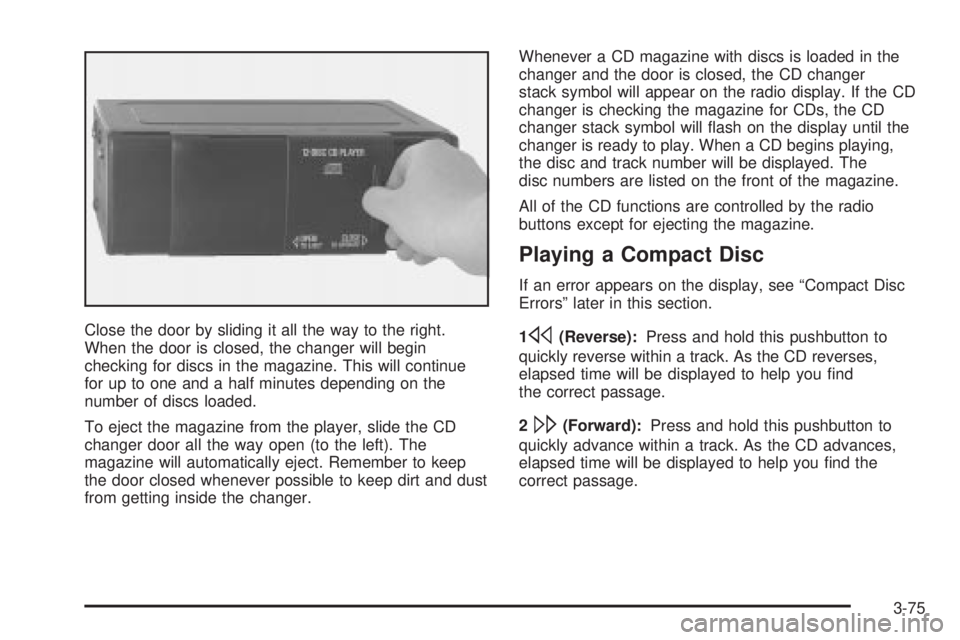
Close the door by sliding it all the way to the right.
When the door is closed, the changer will begin
checking for discs in the magazine. This will continue
for up to one and a half minutes depending on the
number of discs loaded.
To eject the magazine from the player, slide the CD
changer door all the way open (to the left). The
magazine will automatically eject. Remember to keep
the door closed whenever possible to keep dirt and dust
from getting inside the changer.Whenever a CD magazine with discs is loaded in the
changer and the door is closed, the CD changer
stack symbol will appear on the radio display. If the CD
changer is checking the magazine for CDs, the CD
changer stack symbol will ¯ash on the display until the
changer is ready to play. When a CD begins playing,
the disc and track number will be displayed. The
disc numbers are listed on the front of the magazine.
All of the CD functions are controlled by the radio
buttons except for ejecting the magazine.
Playing a Compact Disc
If an error appears on the display, see ªCompact Disc
Errorsº later in this section.
1
s(Reverse):Press and hold this pushbutton to
quickly reverse within a track. As the CD reverses,
elapsed time will be displayed to help you ®nd
the correct passage.
2
\(Forward):Press and hold this pushbutton to
quickly advance within a track. As the CD advances,
elapsed time will be displayed to help you ®nd the
correct passage.
3-75
Page 184 of 380

4 RDM (Random):Press this pushbutton to enter the
random play mode. RAND will appear on the display.
While in this mode, tracks and discs will be played
in random, rather than sequential, order. Press
this pushbutton again to turn off the random feature and
return to normal operation.
6 SIDE:Press this pushbutton to select the next disc in
the magazine. Each time you press SIDE, the disc
number on the radio display will go to that of the next
available CD.
DISP (Display):Press this button to see how long the
current track has been playing. Press this button
again to display the disc and track number. To change
what is normally shown on the display (track or
elapsed time), press this button until you see the display
you want, then hold this button until the display
¯ashes and a chime is heard. While elapsed time is
showing, CD TIME will appear on the display.
©SEEK¨:Press the left arrow while playing a CD
to go back to the start of the current track if more
than eight seconds have played. If you press it more
than once, the player will continue moving backward
through the disc.
Press the right arrow and it will go to the next track on
the disc. If you press it more than once, the player
will continue moving forward through the disc.When you press the left SEEK arrow for two seconds
you will hear a beep. The disc will play the ®rst few
seconds of each track on each disc. DISC SCAN will
appear on the display. Press the left SEEK arrow again
to stop scanning.
BAND:Press this button to return to listening to the
radio while a CD is playing.
CD or CD TAPE:Press this button to play a CD if you
have a magazine loaded in the changer when listening
to the radio. You can also press this button to switch
between a cassette tape, CD or the CD changer
if all three are loaded.
Compact Disc Errors
E (Error):If this message and a number appear on the
display, an error has occurred.
If the error occurred while trying to play a CD in the
compact disc player or changer, the following conditions
may have caused the error:
·E30:You're driving on a very rough road. When the
road becomes smoother, the disc should play.
·E30:The disc is dirty, scratched, wet or upside
down.
·E30:The air is very humid. If so, wait about an
hour and try again.
3-76