2003 BUICK LESABRE audio
[x] Cancel search: audioPage 175 of 380

ALERT! will not be affected by tests of the emergency
broadcast system. This feature is not supported by
all RDS stations.
INFO (Information):If the current station has a
message, INFO will appear on the display. Press this
button to see the message. The message may display
the artist and song title, call in phone numbers, etc.
If the whole message is not displayed, parts of it
will appear every three seconds. To scroll through the
message at your own speed, press the INFO button
repeatedly. A new group of words will appear on
the display with each press. Once the complete
message has been displayed, INFO will disappear from
the display until another new message is received.
The old message can be displayed by pressing
the INFO button until a new message is received or a
different station is tuned to.
TRAF (Traffic):If TRAF appears on the display, the
tuned station broadcasts traffic announcements.
To receive the traffic announcement from the tuned
station, press this button. Brackets will be displayed
around TRAF and when a traffic announcement comes
on the tuned radio station you will hear it.
If the current tuned station does not broadcast traffic
announcements, press this button and the radio
will seek to a station that does. When the radio ®nds astation that broadcasts traffic announcements, it will
stop and brackets will be displayed around TRAF. When
a traffic announcement comes on the tuned radio
station you will hear it. If no station is found, NO
TRAFFIC will appear on the display.
If the brackets are on the display and TRAF is not, you
can then press the TRAF button to remove the brackets
or use the TUNE knob or the SEEK arrows to go to a
station that supports traffic announcements. If no station
is found, NO TRAFFIC will appear on the display.
Your radio will play the traffic announcements even if the
volume is muted or interrupt the play of a cassette tape or
CD if the last tuned station broadcasts traffic
announcements.
This function does not apply to XMŸ Satellite Radio
Service.
Radio Messages
CAL (CALIBRATE):Your audio system has been
calibrated for your vehicle from the factory. If this
message appears on the display it means that your
radio has not been con®gured properly for your vehicle
and must be returned to the dealership for service.
3-67
Page 176 of 380
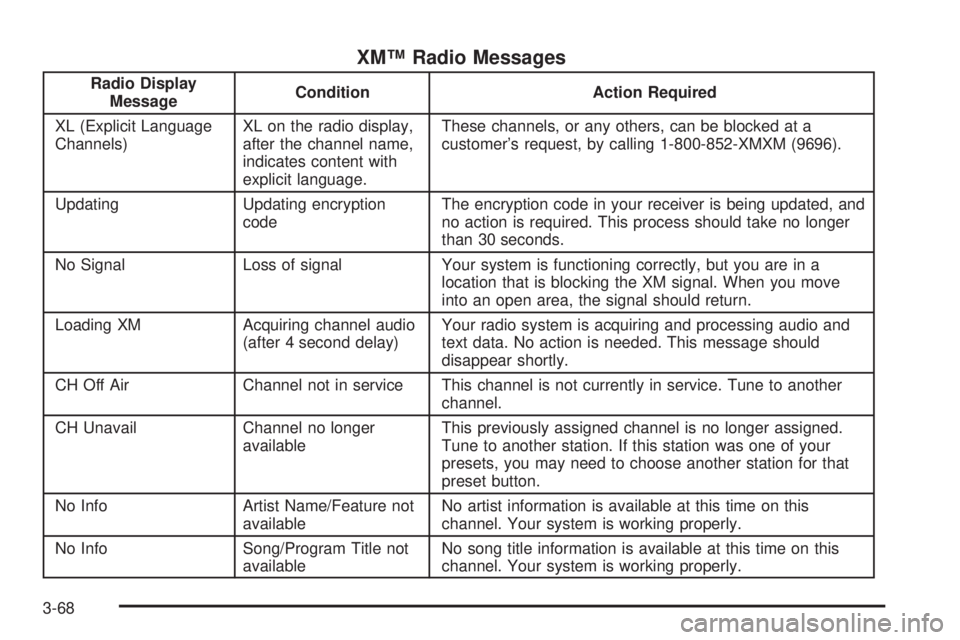
XMŸ Radio Messages
Radio Display
MessageCondition Action Required
XL (Explicit Language
Channels)XL on the radio display,
after the channel name,
indicates content with
explicit language.These channels, or any others, can be blocked at a
customer's request, by calling 1-800-852-XMXM (9696).
Updating Updating encryption
codeThe encryption code in your receiver is being updated, and
no action is required. This process should take no longer
than 30 seconds.
No Signal Loss of signal Your system is functioning correctly, but you are in a
location that is blocking the XM signal. When you move
into an open area, the signal should return.
Loading XM Acquiring channel audio
(after 4 second delay)Your radio system is acquiring and processing audio and
text data. No action is needed. This message should
disappear shortly.
CH Off Air Channel not in service This channel is not currently in service. Tune to another
channel.
CH Unavail Channel no longer
availableThis previously assigned channel is no longer assigned.
Tune to another station. If this station was one of your
presets, you may need to choose another station for that
preset button.
No Info Artist Name/Feature not
availableNo artist information is available at this time on this
channel. Your system is working properly.
No Info Song/Program Title not
availableNo song title information is available at this time on this
channel. Your system is working properly.
3-68
Page 178 of 380

Playing a Cassette Tape
The longer side with the tape visible should face to the
right. If the ignition and the radio are on, the tape
can be inserted and will begin playing. If you hear
nothing or hear a garbled sound, the tape may not be in
squarely. Press the eject button to remove the tape
and start over.
While the tape is playing, use the VOLUME and AUDIO
controls just as you do for the radio. The display will
show an arrow to show which side of the tape is playing.
If you want to insert a tape while the ignition or radio
is off, ®rst press the eject button or DISP. Cassette tape
adapter kits for portable compact disc players will
work in your cassette tape player.
Your tape bias is set automatically.
If an error appears on the display, see ªCassette Tape
Messagesº later in this section.
1
s(Reverse):Press this pushbutton to reverse the
tape rapidly. The radio will play while the tape reverses.
Press it again to return to playing speed.
2
\(Forward):Press this pushbutton to advance
quickly to another part of the tape. The radio will play
while the tape advances. Press this pushbutton again to
return to playing speed.6 SIDE:Press this pushbutton to play the other side of
the tape.
©SEEK¨:Your tape must have at least three
seconds of silence between each selection for seek to
work. Press the left or the right arrow to go to the
previous or to the next selection on the tape. SEEK and
a negative or positive number will be displayed.
Pressing the left or right arrow multiple times will
increase the number of selections to be searched up to
-5 or +5. If -5 or +5 is shown on the display the
cassette tape player will fast forward or rewind through
the four selections and stop at the ®fth selection.
To scan cassette tape selections, press and hold one of
the SEEK arrows for two seconds until SCN appears
on the display. You will hear a beep. The tape will go to
the next selection, play for a few seconds, then go on
to the next selection. The cassette tape will only
scan forward. Press one of the SEEK arrows again to
stop scanning.
BAND:Press this button to listen to the radio when a
cassette tape or CD is playing.
CD TAPE:Press this button to play a cassette tape or
a CD when listening to the radio.
Z(Eject):Press this button to eject a tape.
3-70
Page 179 of 380

Cassette Tape Messages
If an error message appears while trying to play a
cassette tape, it could be for one of the following
reasons:
·TIGHT TAPE:The tape is tight and the player can't
turn the tape hubs. Remove the tape. Hold the tape
with the open end down and try to turn the right
hub counterclockwise with a pencil. Turn the tape
over and repeat. If the hubs do not turn easily, your
tape may be damaged and should not be used in
the player. Try a new tape to make sure your player
is working properly.
·BROKEN TAPE:The tape is broken. Try a
new tape.
CLEAN PLAYER:If this message appears on the
display, the cassette tape player needs to be cleaned. It
will still play tapes, but you should clean it as soon as
possible to prevent damage to the tapes and player. See
Care of Your Cassette Tape Player on page 3-79.
If any error occurs repeatedly or if an error can not be
corrected, contact your dealership. If your radio displays
an error number, write it down and provide it to your
dealership when reporting the problem.
CD Adapter Kits
It is possible to use a portable CD player adapter kit
with your cassette tape player after activating the bypass
feature on your tape player.
To activate the bypass feature, use the following steps:
1. Turn the ignition on.
2. Turn the radio off.
3. Insert the adapter into the cassette slot.
4. Press and hold the CD TAPE button until READY is
displayed.
The override feature will remain active until the eject
button is pressed.
Playing a Compact Disc
Insert a disc partway into the slot, label side up. The
player will pull it in. The disc should begin playing. If you
want to insert a CD while the ignition or the radio is
off, ®rst press the eject button or DISP.
If you turn off the ignition or radio with a disc in the
player, it will stay in the player. When you turn on the
ignition or system, the disc will start playing where
it stopped, if it was the last selected audio source.
3-71
Page 185 of 380

·E34:The CD changer door is open. Completely
close the door to restore normal operation.
·E35:An empty magazine is inserted in the CD
changer. Try the magazine again with a disc loaded
on one of the trays.
If any error occurs repeatedly or if an error cannot be
corrected, contact your dealership. If your radio displays
an error number other than the error codes listed
previously, write it down and provide it to your dealership
when reporting the problem.
Personal Choice Radio Controls
If your vehicle has this feature it will enable two drivers
to store and recall personal settings for radio presets,
last tuned station, volume, tone, and audio source
(radio, cassette, or CD).
The memory buttons 1 and 2 for this feature are located
on the driver's door panel and correspond to the
numbers 1 and 2 found on the back of each remote
keyless entry transmitter.
To recall audio sources, press the unlock button on the
remote keyless entry transmitter and turn the ignition
on. The source last listened to will be recalled for
the identi®ed driver 1 or 2.To program this feature, do the following:
1. Set all radio preferences. For more information see
ªSetting Preset Stationsº and ªSetting the Toneº
listed for your particular radio.
2. Locate the memory buttons on the driver's
door panel.
3. Press one of the memory buttons 1 or 2 until you
hear two beeps. The beeps con®rm that your
selection has been saved and can now be recalled.
Follow these steps each time you want to change the
stored settings.Theft-Deterrent Feature
THEFTLOCKžis designed to discourage theft of your
radio. It works by using a secret code to disable all radio
functions whenever battery power is removed and the
radio is placed in a different vehicle. This feature
requires no user input to be activated. It is automatically
armed when it is put into the vehicle for the ®rst time.
When the ignition is turned off, the blinking red light
indicates that THEFTLOCK
žis armed.
If THEFTLOCK
žis activated, your radio will not operate
if stolen. The radio will display LOCKED and a red
LED indicator light will come on above the key symbol
to indicate a locked condition. If this occurs, the radio will
need to be returned to the dealer.
3-77
Page 186 of 380

Audio Steering Wheel Controls
If your vehicle has this feature, you can control certain
radio functions using the buttons on your steering
wheel.
QSEEKR:Press the up arrow to seek to the next
station and the down arrow to seek to the previous
station. The sound will mute while seeking. When
playing a cassette tape or a compact disc, press the up
arrow to hear the next selection.
BAND:Press this button to choose FM1, FM2, or AM,
XM1 or XM2 (USA only, if your radio is equipped
with XMŸ Satellite Radio Service).SCAN:Press this button to scan your radio preset
stations. The radio will scan to the ®rst preset station
stored on your pushbuttons, play for a few seconds, then
go on to the next preset station. The radio will scan
preset stations with a strong signal only. Press
this button again to stop scanning.
SOURCE:Press this button to play a cassette tape or
compact disc when listening to the radio. If a cassette
tape and a compact disc are both loaded, the system will
go to the tape play ®rst.
MUTE:Press this button to silence the system. Press it
again to turn on the sound.
QVOL (Volume)R:Press the up or down arrow to
increase or decrease volume.
Understanding Radio Reception
AM
The range for most AM stations is greater than for FM,
especially at night. The longer range, however, can
cause stations to interfere with each other. AM can pick
up noise from things like storms and power lines. Try
reducing the treble to reduce this noise if you ever get it.
3-78
Page 273 of 380

To be sure the vent hose (A) is properly attached, the
vent hose connectors (B) must be securely reattached to
the vent outlets (C) on each side of the battery, and
the vent assembly grommet (D) must be secured to the
¯oor pan (E).
Vehicle Storage
If you're not going to drive you vehicle for 25 days or
more, remove the black, negative (-) cable from
the battery. This will help keep your battery from running
down.
{CAUTION:
Batteries have acid that can burn you and gas
that can explode. You can be badly hurt if you
aren't careful. See ªJump Startingº next for
tips on working around a battery without
getting hurt.
Contact your dealer to learn how to prepare your
vehicle for longer storage periods.
Also, for your audio system, see
Theft-Deterrent
Feature on page 3-77.
5-41
Page 323 of 380

Fuses Usage
1 Fuel Pump
2 HVAC Blower
3 Memory
4 Assembly Line Diagnostic Link
5 Not Used
6 Compact Disc (CD)
7 Driver's Door Module
8 Air Bag System (SIR)
9 Not Used
10 Right Parking Lamp
11 Vent Solenoid
12 Ignition 1
13 Left Parking LampFuses Usage
14 Dimmer
15 Satellite Digital Radio
16 Left Front Heated Seat
17 Not Used
18 Rear Door Module
19 Stoplamp
20 Park/Reverse
21 Audio
22 Retained Accessory Power (RAP)
23 Not Used
24 Not Used
25 Passenger Door Module
26 Body
27 Interior Lamps
28 Not Used
29 Ignition Switch
30 Instrument Panel
31 Right Front Heated Seat
32 Not Used
33 HVAC
34 Ignition 3 Rear
35 Anti-Lock Brake System (ABS)
36 Turn Signal/Hazard
37 HVAC Battery
38 Dimmer
5-91