Page 135 of 258

122
26p003a
(c) Selecting a station
Tune in the desired station using one of
the following methods.
26p053
Preset tuning: Touch the switch (1 −6) for
the station you want. The switch is high-
lighted in green. The station frequency ap-
pears on the display.
Manual tuning: Push the “
TUNE” but-
ton on either side briefly. Each time you
push the same side, the radio will step up
or down to another frequency.
Seek tuning: Push the “
TUNE” button
on either side and hold it until you hear
a beep. The radio will begin seeking up
or down for a station of the nearest fre-
quency and will stop on reception. Each
time you push the same side, the stations
will be searched out one after another.
26p018
Scan tuning: Push the “SCAN” button
or touch the “SCAN” switch briefly.
“SCAN” appears on the display. The radio
will find the next station up or down the
band, stay there for a few seconds, and
then scan again. To select a station, push
the “SCAN” button or touch the “SCAN”
switch a second time.
Page 136 of 258
123
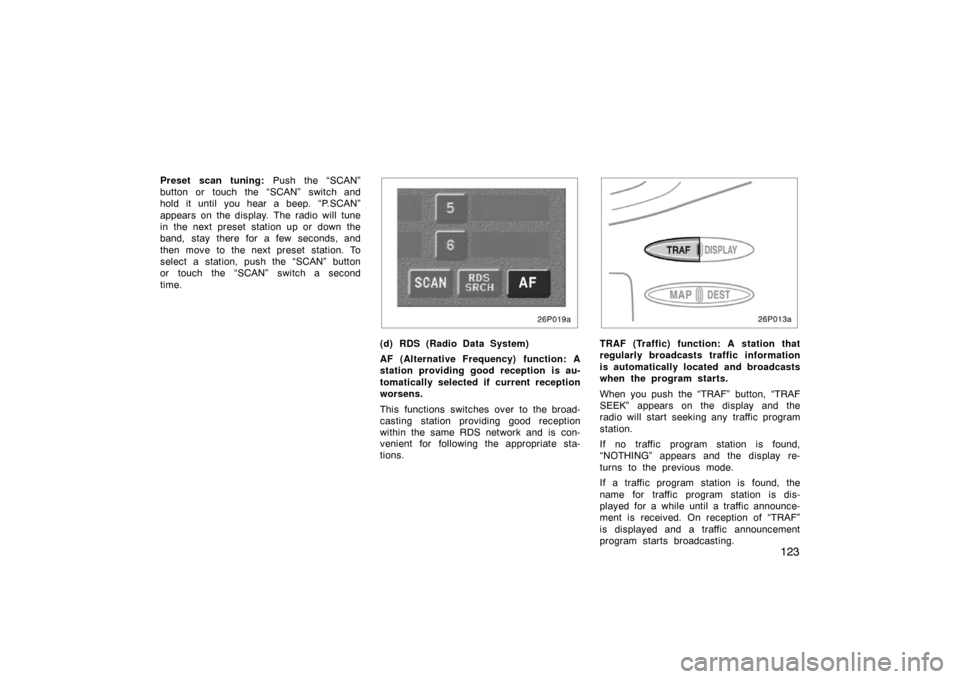
Preset scan tuning: Push the “SCAN”
button or touch the “SCAN” switch and
hold it until you hear a beep. “P.SCAN”
appears on the display. The radio will tune
in the next preset station up or down the
band, stay there for a few seconds, and
then move to the next preset station. To
select a station, push the “SCAN” button
or touch the “SCAN” switch a second
time.
26p019a
(d) RDS (Radio Data System)
AF (Alternative Frequency) function: A
station providing good reception is au-
tomatically selected if current reception
worsens.
This functions switches over to the broad-
casting station providing good reception
within the same RDS network and is con-
venient for following the appropriate sta-
tions.
26p013a
TRAF (Traffic) function: A station that
regularly broadcasts traffic information
is automatically located and broadcasts
when the program starts.
When you push the “TRAF” button, “TRAF
SEEK” appears on the display and the
radio will start seeking any traffic program
station.
If no traffic program station is found,
“NOTHING” appears and the display re-
turns to the previous mode.
If a traffic program station is found, the
name for traffic program station is dis-
played for a while until a traffic announce-
ment is received. On reception of “TRAF”
is displayed and a traffic announcement
program starts broadcasting.
Page 137 of 258
124
After the traffic announcement program is
over, “TRAF” display turns off and the
display returns to the previous mode.
26p020a
(e) PTY (Program type)
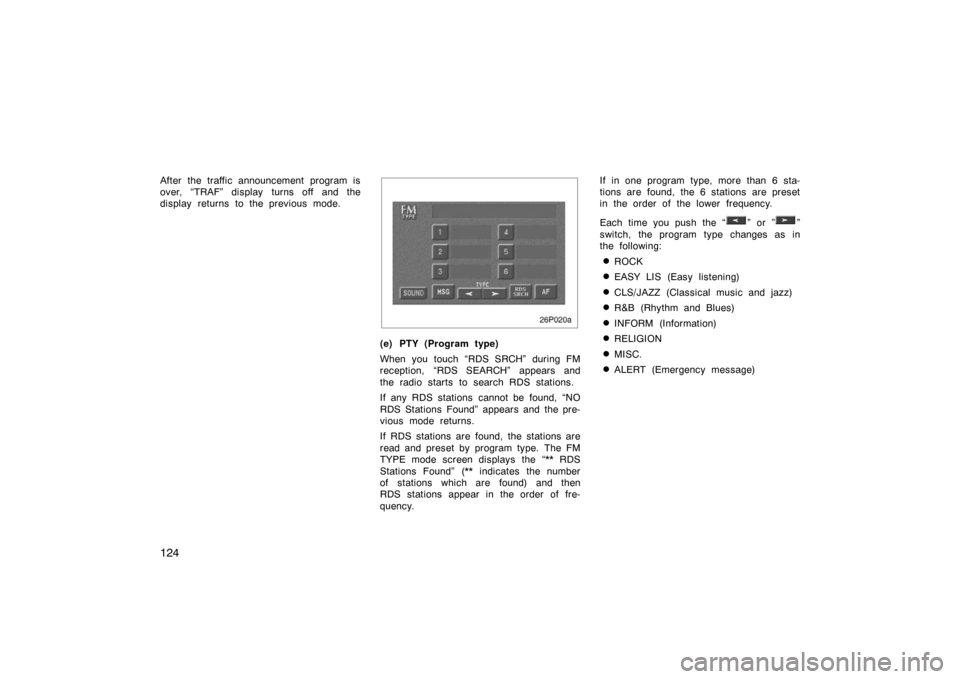
When you touch “RDS SRCH” during FM
reception, “RDS SEARCH” appears and
the radio starts to search RDS stations.
If any RDS stations cannot be found, “NO
RDS Stations Found” appears and the pre-
vious mode returns.
If RDS stations are found, the stations are
read and preset by program type. The FM
TYPE mode screen displays the “** RDS
Stations Found” (** indicates the number
of stations which are found) and then
RDS stations appear in the order of fre-
quency.If in one program type, more than 6 sta-
tions are found, the 6 stations are preset
in the order of the lower frequency.
Each time you push the “
” or ””
switch, the program type changes as in
the following:
�ROCK
�EASY LIS (Easy listening)
�CLS/JAZZ (Classical music and jazz)
�R&B (Rhythm and Blues)
�INFORM (Information)
�RELIGION
�MISC.
�ALERT (Emergency message)
Page 138 of 258
125
26p041a
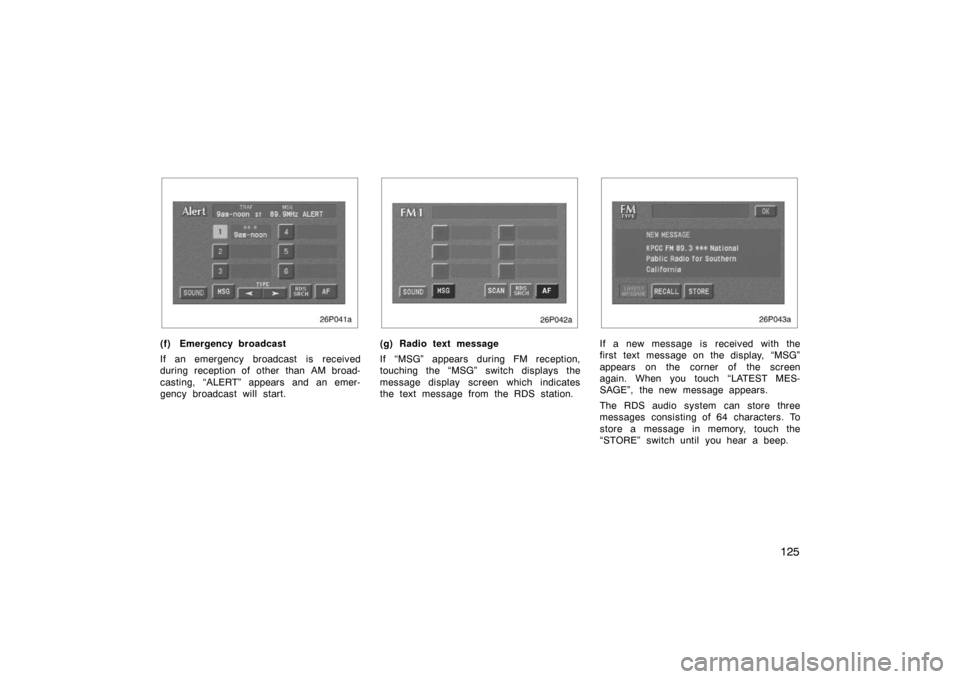
(f) Emergency broadcast
If an emergency broadcast is received
during reception of other than AM broad-
casting, “ALERT” appears and an emer-
gency broadcast will start.
26p042a
(g) Radio text message
If “MSG” appears during FM reception,
touching the “MSG” switch displays the
message display screen which indicates
the text message from the RDS station.
26p043a
If a new message is received with the
first text message on the display, “MSG”
appears on the corner of the screen
again. When you touch “LATEST MES-
SAGE”, the new message appears.
The RDS audio system can store three
messages consisting of 64 characters. To
store a message in memory, touch the
“STORE” switch until you hear a beep.
Page 139 of 258

126
If 3 messages are already stored in
memory, the oldest message will be over-
written by the new message.
To recall a radio text message, touch the
“RECALL” switch. Each time you touch the
switch, the display returns to the previous
mode.
When you touch “OK”, the available mes-
sage will be displayed beginning with the
newest one.
26p021
(a) Playing a cassette tape
The player will automatically start when
you insert a cassette tape. At this time,
“Tape” appears on the display.
If a metal or chrome equivalent cassette
tape is put in the cassette player, the
player will automatically recognize it and
“MTL” appears on the display.
To eject the cassette tape, push the “
”
button.
Autoreverse feature: After the cassette
player reaches the end of a tape, it auto-
matically reverses and begins to play the
other side, regardless of whether the cas-
sette was playing or fast forwarding.
26p032
If a cassette is already in the slot, push
the “DISC/TAPE” button on the “TAPE”
side.
Cassette tape player
operation
Page 140 of 258
127
26p022a
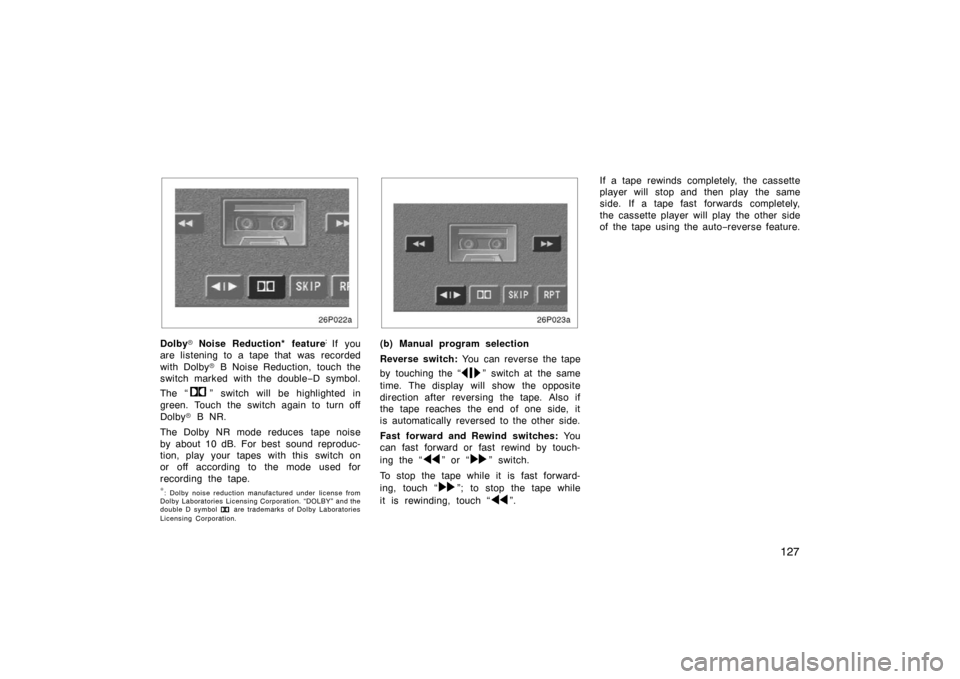
Dolby�Noise Reduction* feature:
If you
are listening to a tape that was recorded
with Dolby � B Noise Reduction, touch the
switch marked with the double −D symbol.
The “
” switch will be highlighted in
green. Touch the switch again to turn off
Dolby � B NR.
The Dolby NR mode reduces tape noise
by about 10 dB. For best sound reproduc-
tion, play your tapes with this switch on
or off according to the mode used for
recording the tape.
∗: Dolby noise reduction manufactured under license from
Dolby Laboratories Licensing Corporation. “DOLBY” and the
double D symbol
are trademarks of Dolby Laboratories
Licensing Corporation.
26p023a
(b) Manual program selection
Reverse switch: You can reverse the tape
by touching the “
” switch at the same
time. The display will show the opposite
direction after reversing the tape. Also if
the tape reaches the end of one side, it
is automatically reversed to the other side.
Fast forward and Rewind switches: Yo u
can fast forward or fast rewind by touch-
ing the “
” or “” switch.
To stop the tape while it is fast forward-
ing, touch “
”; to stop the tape while
it is rewinding, touch “
”. If a tape rewinds completely, the cassette
player will stop and then play the same
side. If a tape fast forwards completely,
the cassette player will play the other side
of the tape using the auto
−reverse feature.
Page 181 of 258

168
Before making these checks, make sure
you have followed the correct starting
procedure given in ”How to start the
hybrid system” on page 162 in Section 4
and that you have sufficient fuel. Also
check whether the other keys will start the
hybrid system. If they work, your key may
be broken. Have the key checked at your
Toyota dealer. If none of your keys work,
the hybrid vehicle immobiliser system is
possibly broken. Call your Toyota dealer.
(See ”Keys” on page 18 in Section 2−1.)
If the instrument cluster dims or the
instrument cluster display turns off
with the ignition switch on— 1. Check that the auxiliary battery termi- nals are tight and clean.
2. If the auxiliary battery terminals are O.K., the auxiliary battery is dis-
charged. You may try jump starting.
See “(b) Jump starting” for further in-
structions.
NOTICE
Hybrid vehicles cannot be push
started.
If the instrument cluster is shown in
appropriate brightness with the ignition
switch turned to on—
The hybrid vehicle system is suspected to
be faulty. Contact your Toyota dealer. If the auxiliary battery is discharged,
the hybrid system can be started by
jump starting. Depending on the the ve-
hicle condition, the engine may not
start.
To avoid serious personal injury and
damage to your vehicle which might re-
sult from battery explosion, acid burns,
electrical burns, or damaged electronic
components, these instructions must be
followed precisely.
If you are unsure about how to follow this
procedure, we strongly recommend that
you seek the help of a competent qualified
technician or towing service.
If your vehicle will not start—
(a) Simple checks
(b) Jump starting
Page 184 of 258

171
50p045a
Booster
battery
Negative
terminal
(“−
” mark) Jumper
cable
Discharged battery
Positive
terminal
(“+” mark)
c. Connect the clamp of the negative (black) jumper cable to the negative
(–) terminal on the booster battery.
d. Connect the clamp at the other end of the negative (black) jumper cable
to a solid, stationary, unpainted, me-
tallic point of the vehicle with the
discharged battery.
The recommended connecting point is
shown in the following illustrations:
50p043a
Connecting point
CAUTION
When making the connections, to
avoid serious injury, do not lean over
the battery or accidentally let the
jumper cables or clamps touch any-
thing except the correct battery termi-
nals or the ground.
10. Start the hybrid system. Make sure the “READY” light is on. If the hybrid ve-
hicle battery warning light comes on in
the multi −information display, the hybrid
vehicle battery is also discharged. Con-
tact your Toyota dealer.
11. Carefully disconnect the cables in the exact reverse order: the negative cable
and then the positive cable.
12. Carefully dispose of the battery cover cloths—they may now contain sulfuric
acid.
13. If removed, replace all the battery vent plugs.
If the cause of your auxiliary battery dis-
charging is not apparent (for example,
lights left on), you should have it checked.