Page 59 of 164
57
IntroductionAudioTelephone Navigation Index
S y s te m s e ttin g s
To start the function:
Press the softkey “RPT”. The activated repeat
function is shown by a highlighted “RPT” on the display.
To stop the function:
Press the highlighted softkey “RPT”.
Note:
You can not activate the repeat function and the random
function at the same time. You can only select one func-
tion at a time.Play CD tracks in random order
Select the random function to play back the tracks on
the CD currently selected in random order.
To select the next track in the random list push the joy-
stick to or .
P82.85-5008-26
CD operation
Page 60 of 164
58
IntroductionAudioTelephone Navigation Index
S y s te m s e ttin g s
To start the function:
Press the softkey “RDM”. The activated random
function is shown as a highlighted “RDM“ on the dis-
play.
To stop the function:
Press the highlighted softkey “RDM”.
Note:
You can not activate the repeat function and the random
function at the same time. You can only select one func-
tion at a time.Pause
Press the softkey “II”. The CD will stop playing.
On the display “PAUSE” will appear. The CD will also
stop playing if you send or receive a phone call.
To c a n c e l PAU S E :
Press the softkey “PLAY”.
P82.85-5009-26
CD operation
Page 67 of 164
65
Introduction AudioTe l e p h o n eNavigation Index
S y s te m s e ttin g s
1Unlock code menu, page 66
2Main telephone menu
3S: Signal, page 67
R: Roaming, page 67
R (highlighted): Roaming on non-home type system
4Reception indicator, page 695Incoming call, page 68
6Alphanumeric phone book, page 70
7Numeric phone book, page 72
8Info Service, page 79
Telephone
Page 75 of 164
73
Introduction AudioTe l e p h o n eNavigation Index
S y s te m s e ttin g s
By pushing the joystick up or down you can select the
desired name. The selected name will be highlighted.
By pushing the joystick to the left or the right you can
jump to the next or previous page of the list.
You also can jump to the numeric scroll menu by press-
ing softkey “NUM”.
Begin dialing:
If you have found the right name press . When the
call is initiated, the call time will appear in the display.
End the call:
Press .Dialing a number from the numeric scrolling mode
When the main telephone menu is on display press the
softkey “NUM”.
You also can enter the desired memory location number
with the number keys ... (e.g.: ). You
can enter up to 2 digits. To correct the last digit press
. If you have got the right number press the soft-
key “NUM”.
The numeric scroll menu will appear on the display.
P82.85-5017-26
Telephone
Page 76 of 164
74
Introduction AudioTe l e p h o n eNavigation Index
S y s te m s e ttin g s
By pushing the joystick up or down you can select the
desired number. The selected number will be high-
lighted.
By pushing the joystick to the left or the right you can
jump to the next or previous page of the list.
You also can jump to the alphanumeric scroll menu by
pressing the softkey “NAME”.
Begin dialing:
If you have found the right number press . When
the call is initiated, the call time will appear in the dis-
play.
End the call:
Press .Redial
You can redial the last 10 numbers which have been
dialed.
P82.85-5083-26
Telephone
Page 77 of 164
75
Introduction AudioTe l e p h o n eNavigation Index
S y s te m s e ttin g s
Select number:
Press . The number list will appear on the display.
By pushing the joystick up or down you can select the
desired number. The selected number will be high-
lighted.
By pushing the joystick to the left or the right you can
jump to the next or previous 5 numbers in the list.
If there are no numbers stored “LAST NUMBERS MEM-
ORY EMPTY” will appear on the screen.
Begin dialing:
If you have found the right number press . When
the call is initiated, the call time will appear in the dis-
play.
End the call:
Press .Speed-dialing
When the main telephone menu is displayed enter the
memory location desired with the number keys ...
. You can enter up to 2 digits.
To correct the last digit press .
Press . The phone number stored at this memory
location will appear on the screen.
When the call is initiated, the call time will appear in
the display.
End the call:
Press .
Telephone
Page 84 of 164
82
Introduction Audio TelephoneNavigationIndex
S y s te m s e ttin g s
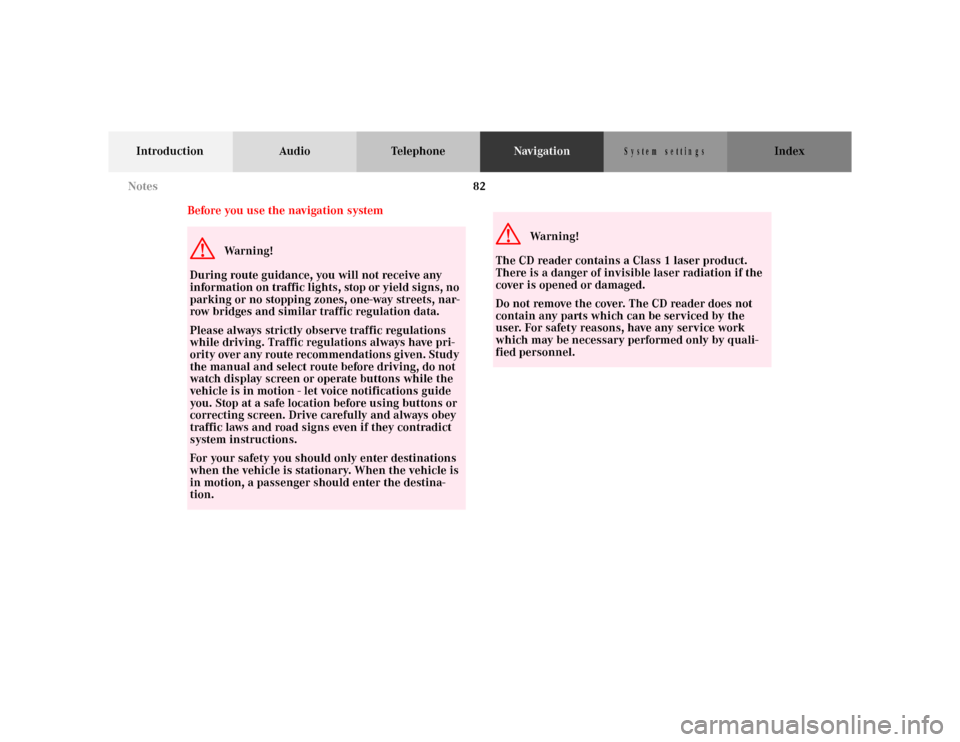
Before you use the navigation systemG
Wa r n i n g !
During route guidance, you will not receive any
information on traffic lights, stop or yield signs, no
parking or no stopping zones, one-way streets, nar-
row bridges and similar traffic regulation data.
Please always strictly observe traffic regulations
while driving. Traffic regulations always have pri-
ority over any route recommendations given. Study
the manual and select route before driving, do not
watch display screen or operate buttons while the
vehicle is in motion - let voice notifications guide
you. Stop at a safe location before using buttons or
correcting screen. Drive carefully and always obey
traffic laws and road signs even if they contradict
system instructions.
For your safety you should only enter destinations
when the vehicle is stationary. When the vehicle is
in motion, a passenger should enter the destina-
tion.
G
Wa r n i n g !
The CD reader contains a Class 1 laser product.
There is a danger of invisible laser radiation if the
cover is opened or damaged.
Do not remove the cover. The CD reader does not
contain any parts which can be serviced by the
user. For safety reasons, have any service work
which may be necessary performed only by quali-
fied personnel. Notes
Page 108 of 164
106
Introduction Audio TelephoneNavigationIndex
S y s te m s e ttin g s
If you have selected the map in a large scale, the “Select
an Area” menu appears with a five mile scale map of the
vehicle’s position. The vehicle’s current position icon
and the map cursor are shown on the map.
Move the map cursor to the desired destination with the
joystick and press to select the destination.
To return to the previous screen press .The “Select a Destination” menu appears with a detail
map (0.5 miles square) of the select destination. Select
“Directly on Map” with the joystick and press .
For a detailed view, press .
Move the map cursor to the desired location with the
joystick and press . The closest street segment to the
selected destination will be highlighted. If this street
segment is acceptable, press once again. If not, move
the joystick to choose another destination and press
again.P82.85-5030-26
P82.85-5031-26
Destination input


