Page 19 of 24
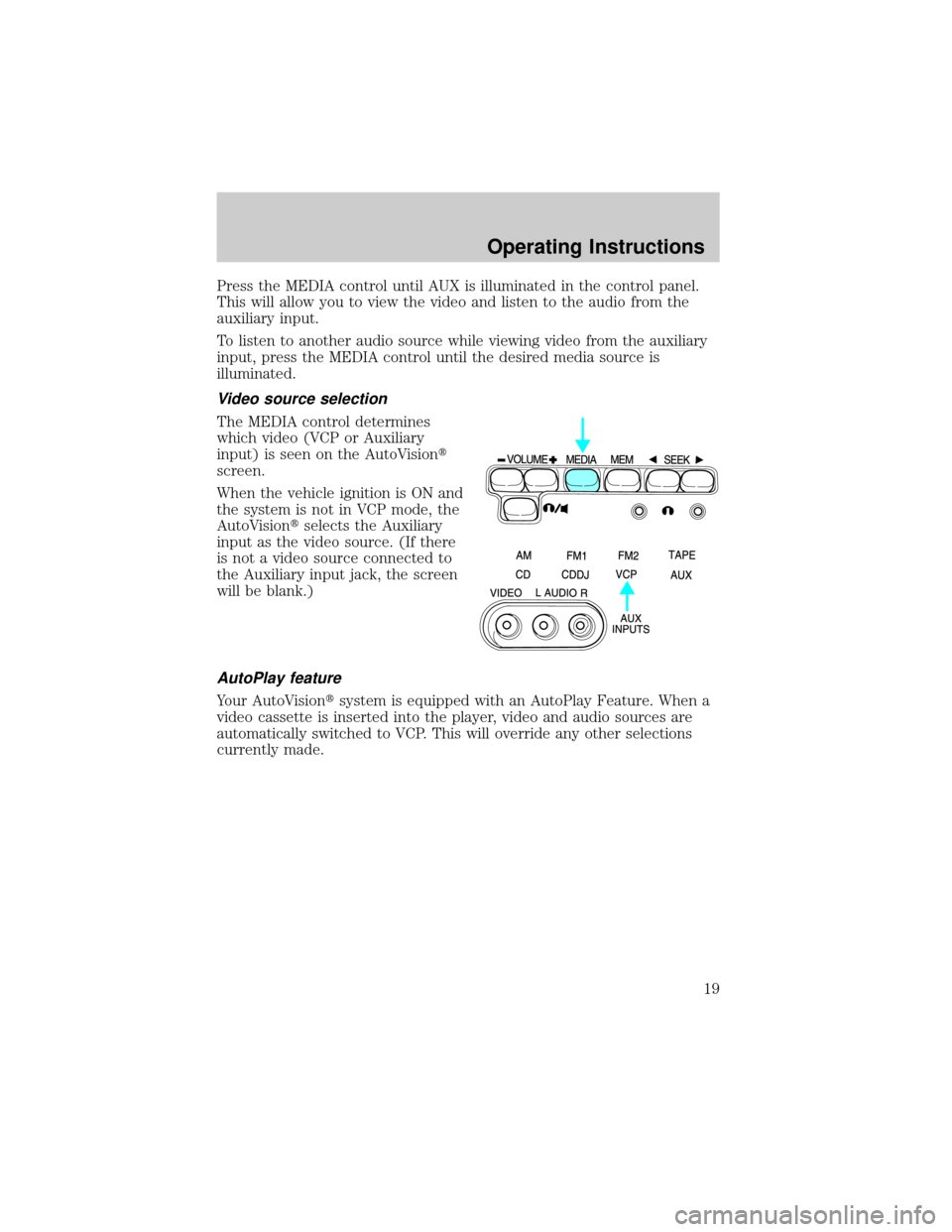
Press the MEDIA control until AUX is illuminated in the control panel.
This will allow you to view the video and listen to the audio from the
auxiliary input.
To listen to another audio source while viewing video from the auxiliary
input, press the MEDIA control until the desired media source is
illuminated.
Video source selection
The MEDIA control determines
which video (VCP or Auxiliary
input) is seen on the AutoVisiont
screen.
When the vehicle ignition is ON and
the system is not in VCP mode, the
AutoVisiontselects the Auxiliary
input as the video source. (If there
is not a video source connected to
the Auxiliary input jack, the screen
will be blank.)
AutoPlay feature
Your AutoVisiontsystem is equipped with an AutoPlay Feature. When a
video cassette is inserted into the player, video and audio sources are
automatically switched to VCP. This will override any other selections
currently made.
Operating Instructions
19
Page 23 of 24
IN-HOME USE
Your AutoVisiontsystem is UL registered for in-home use. This system
has the unique feature of also being a completely portable and able to be
used in your home.
To remove your AutoVisiontsystem from your vehicle, depress the lever
on the center console labeled VCP RELEASE. This will release the VCP
and enable you to remove the system from the vehicle. If pressing the
lever does not release your system, please contact your dealer.
To re-install the VCP in your vehicle, insert the VCP into the console and
push lightly until the VCP clicks into place.
To use the AutoVisiontsystem in your home, you will need:
²12 V DC power converter rated for 1.5 amps/min
²Patch cords with RCA style connectors
These parts are available in your local electronics store or call toll free
1 (877) 848±6434 for assistance.
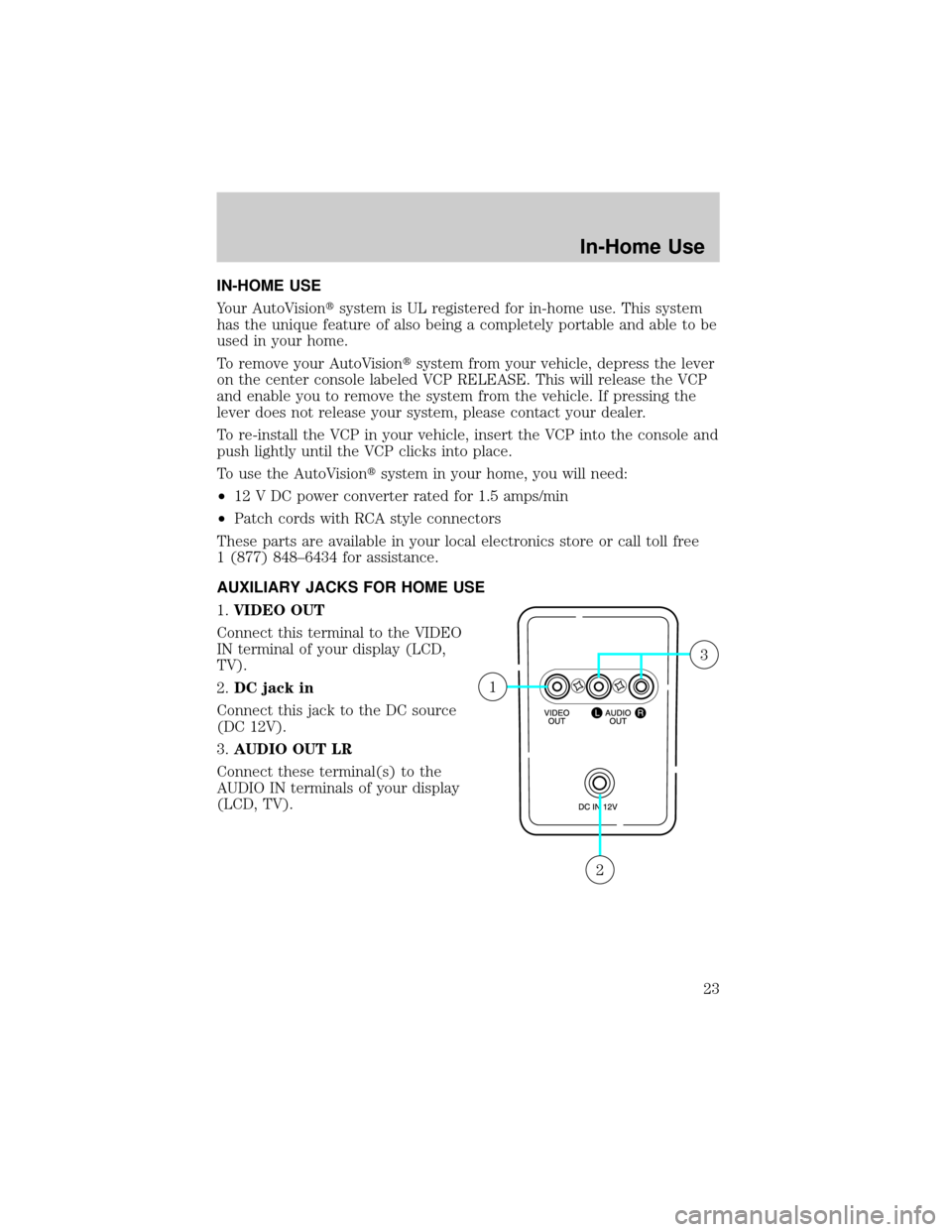
AUXILIARY JACKS FOR HOME USE
1.VIDEO OUT
Connect this terminal to the VIDEO
IN terminal of your display (LCD,
TV).
2.DC jack in
Connect this jack to the DC source
(DC 12V).
3.AUDIO OUT LR
Connect these terminal(s) to the
AUDIO IN terminals of your display
(LCD, TV).
2
1
3
In-Home Use
23
Page 24 of 24
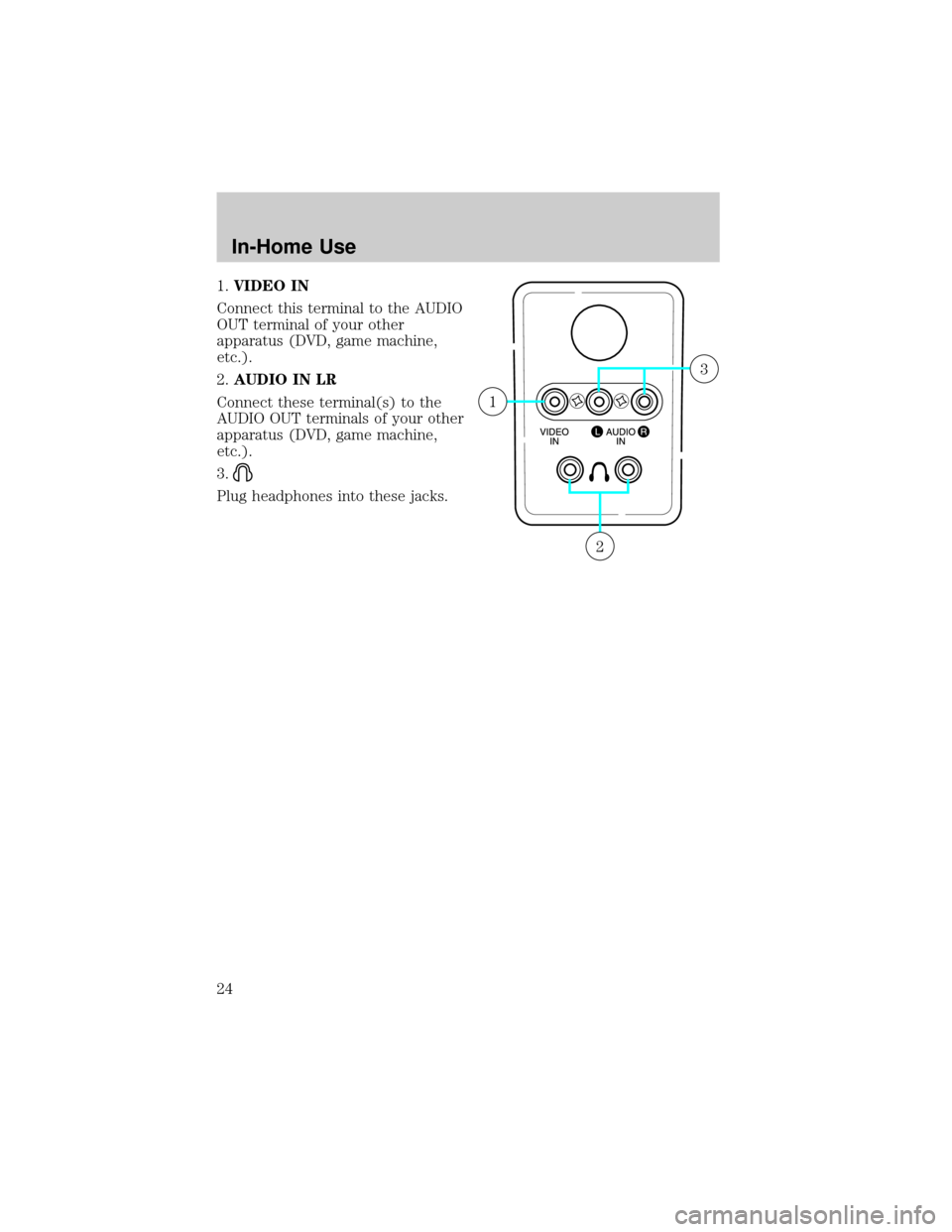
1.VIDEO IN
Connect this terminal to the AUDIO
OUT terminal of your other
apparatus (DVD, game machine,
etc.).
2.AUDIO IN LR
Connect these terminal(s) to the
AUDIO OUT terminals of your other
apparatus (DVD, game machine,
etc.).
3.
Plug headphones into these jacks.
2
1
3
In-Home Use
24