Page 28 of 210
Temperature conversion
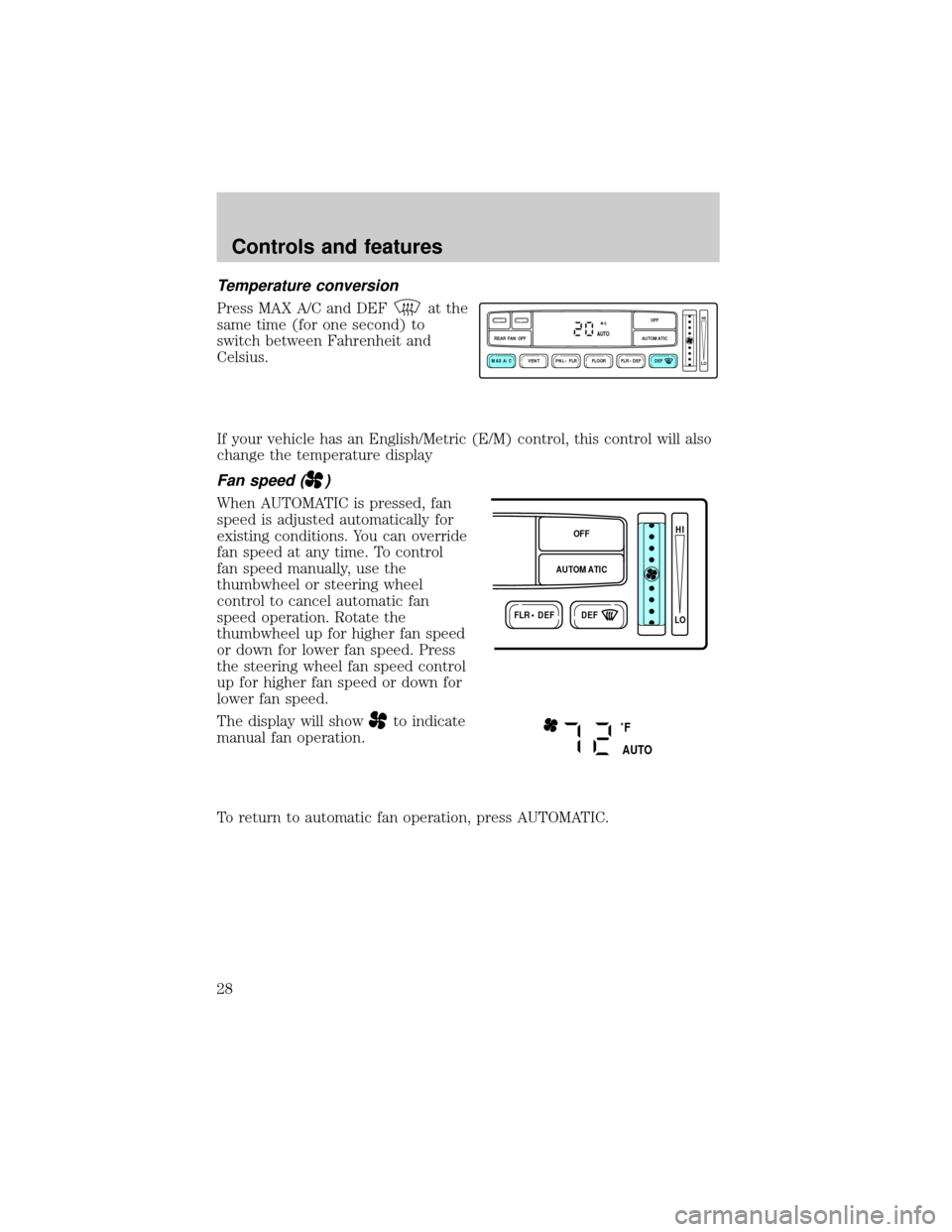
Press MAX A/C and DEFat the
same time (for one second) to
switch between Fahrenheit and
Celsius.
If your vehicle has an English/Metric (E/M) control, this control will also
change the temperature display
Fan speed ()
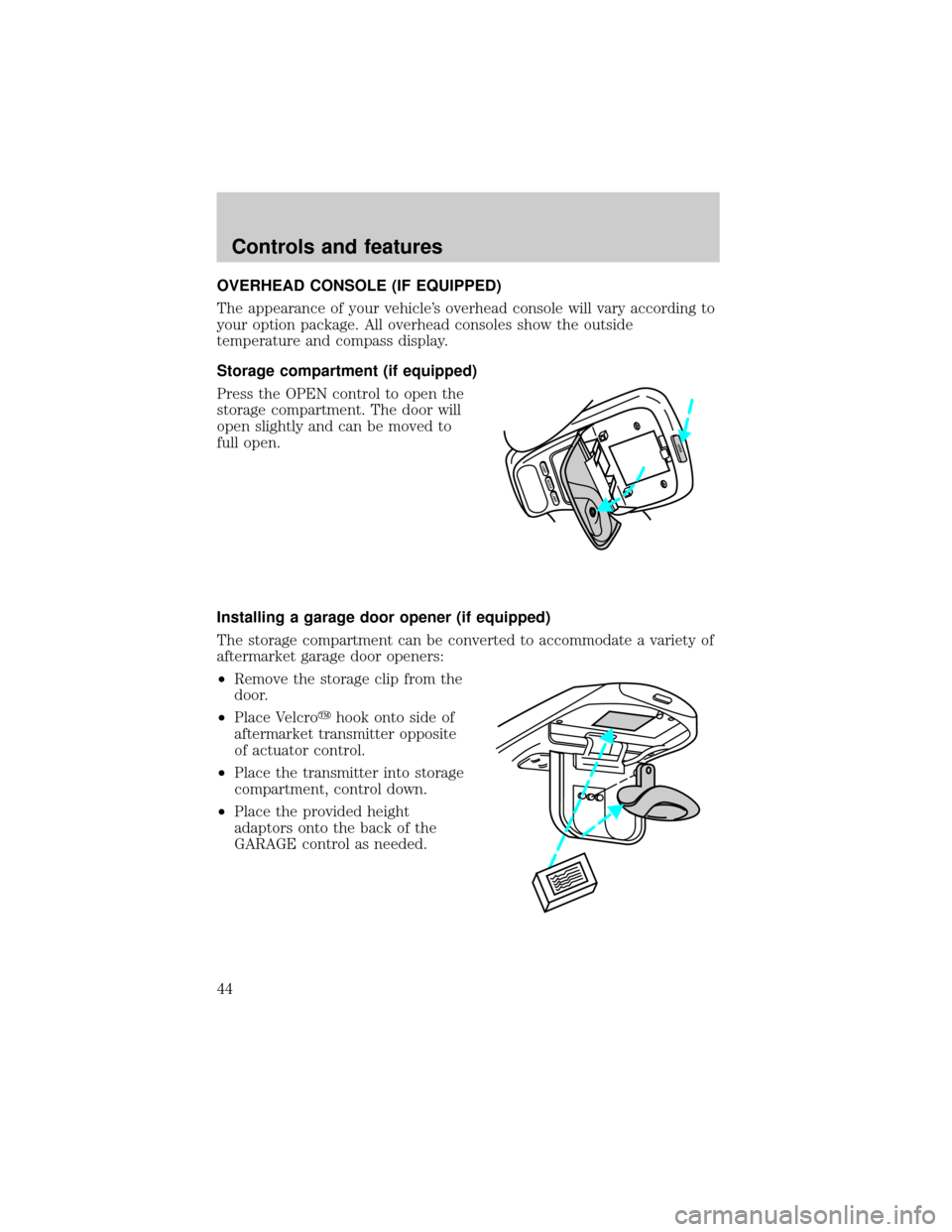
When AUTOMATIC is pressed, fan
speed is adjusted automatically for
existing conditions. You can override
fan speed at any time. To control
fan speed manually, use the
thumbwheel or steering wheel
control to cancel automatic fan
speed operation. Rotate the
thumbwheel up for higher fan speed
or down for lower fan speed. Press
the steering wheel fan speed control
up for higher fan speed or down for
lower fan speed.
The display will show
to indicate
manual fan operation.
To return to automatic fan operation, press AUTOMATIC.
VENT PNL • FLR FLOOR FLR • DEF DEF
HI
LO
MAX A/C
REAR FAN OFF AUTOMATICOFFAUTO
FLR • DEFDEF
HI
LO
AUTOMATICOFF
˚F
AUTO
Controls and features
28
Page 29 of 210
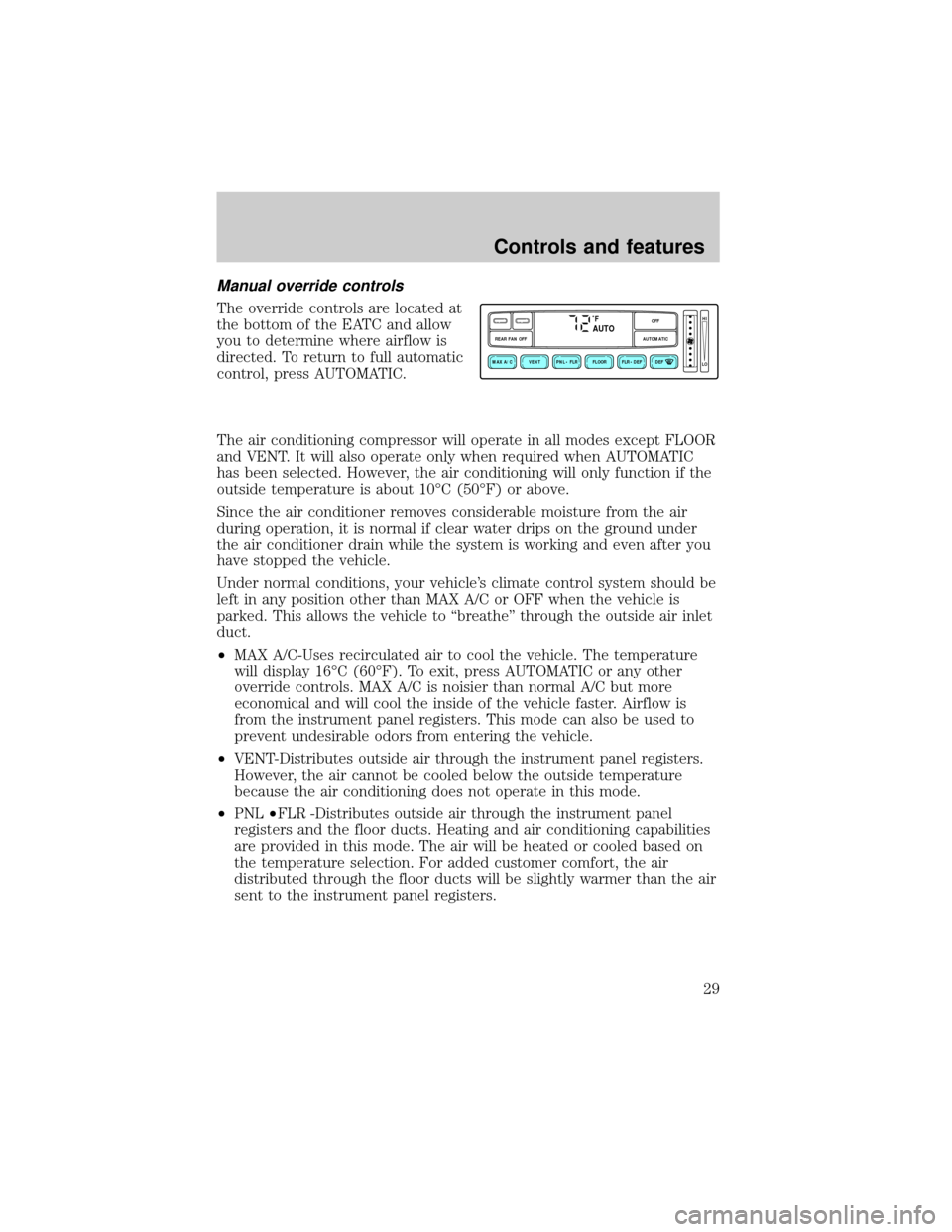
Manual override controls
The override controls are located at
the bottom of the EATC and allow
you to determine where airflow is
directed. To return to full automatic
control, press AUTOMATIC.
The air conditioning compressor will operate in all modes except FLOOR
and VENT. It will also operate only when required when AUTOMATIC
has been selected. However, the air conditioning will only function if the
outside temperature is about 10ÉC (50ÉF) or above.
Since the air conditioner removes considerable moisture from the air
during operation, it is normal if clear water drips on the ground under
the air conditioner drain while the system is working and even after you
have stopped the vehicle.
Under normal conditions, your vehicle's climate control system should be
left in any position other than MAX A/C or OFF when the vehicle is
parked. This allows the vehicle to ``breathe'' through the outside air inlet
duct.
²MAX A/C-Uses recirculated air to cool the vehicle. The temperature
will display 16ÉC (60ÉF). To exit, press AUTOMATIC or any other
override controls. MAX A/C is noisier than normal A/C but more
economical and will cool the inside of the vehicle faster. Airflow is
from the instrument panel registers. This mode can also be used to
prevent undesirable odors from entering the vehicle.
²VENT-Distributes outside air through the instrument panel registers.
However, the air cannot be cooled below the outside temperature
because the air conditioning does not operate in this mode.
²PNL²FLR -Distributes outside air through the instrument panel
registers and the floor ducts. Heating and air conditioning capabilities
are provided in this mode. The air will be heated or cooled based on
the temperature selection. For added customer comfort, the air
distributed through the floor ducts will be slightly warmer than the air
sent to the instrument panel registers.
VENT PNL • FLR FLOOR FLR • DEF DEF
HI
LO
MAX A/C
REAR FAN OFF AUTOMATICOFF
˚FAUTO
Controls and features
29
Page 30 of 210
²FLOOR-Allows for maximum heating by distributing outside air
through the floor ducts. However, the air cannot be cooled below the
outside temperature because the air conditioning does not operate in
this mode.
²FLR²DEF-Distributes outside air through the windshield defroster
ducts and the floor ducts. Heating and air conditioning capabilities are
provided in this mode. The air will be heated or cooled based on the
temperature selection. For added customer comfort, the air
distributed through the floor ducts will be slightly warmer than the air
sent to the windshield defroster ducts. If the temperature is about
10ÉC (50ÉF) or higher, the air conditioner will automatically
dehumidify the air to prevent fogging.
²DEF
-Distributes outside air through the windshield defroster
ducts. It can be used to clear ice or fog from the windshield. If the
outside air temperature is about 10ÉC (50ÉF) or higher, the air
conditioner will automatically dehumidify the air to prevent fogging.
²OFF-Outside air is shut out and the fan will not operate. For short
periods of time only, use this mode to prevent undesirable odors from
entering the vehicle.
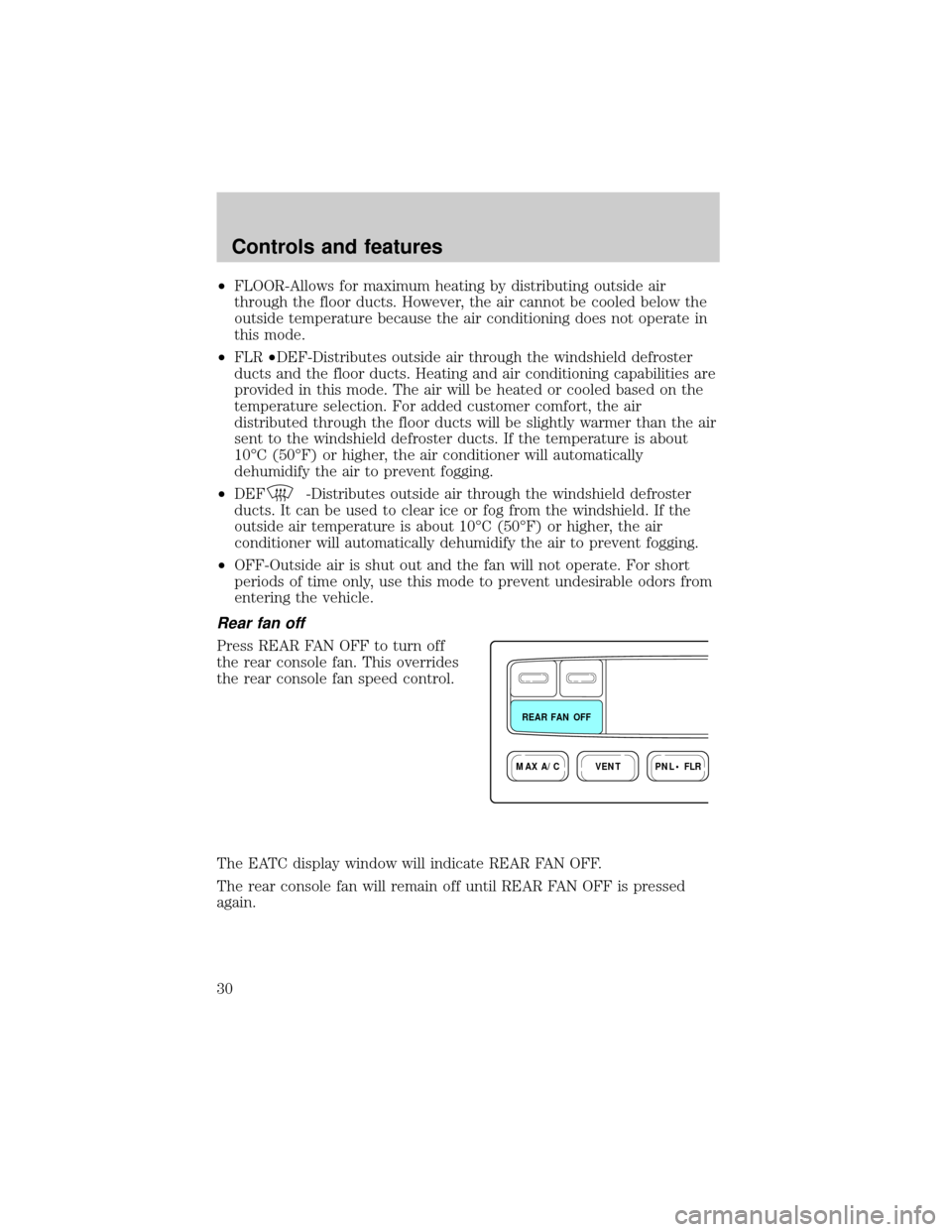
Rear fan off
Press REAR FAN OFF to turn off
the rear console fan. This overrides
the rear console fan speed control.
The EATC display window will indicate REAR FAN OFF.
The rear console fan will remain off until REAR FAN OFF is pressed
again.
VENTPNL • FLRMAX A/C
REAR FAN OFF
Controls and features
30
Page 44 of 210
OVERHEAD CONSOLE (IF EQUIPPED)
The appearance of your vehicle's overhead console will vary according to
your option package. All overhead consoles show the outside
temperature and compass display.
Storage compartment (if equipped)
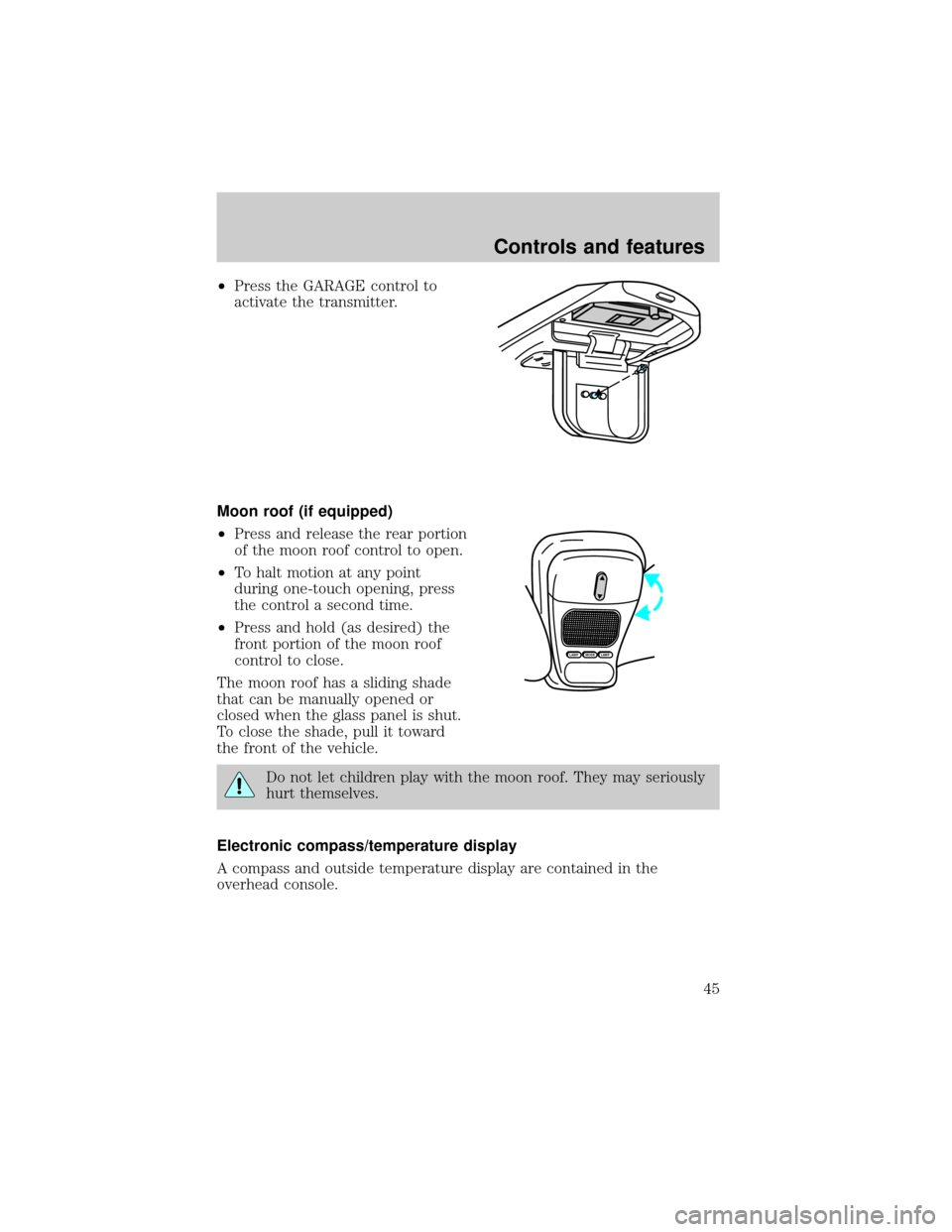
Press the OPEN control to open the
storage compartment. The door will
open slightly and can be moved to
full open.
Installing a garage door opener (if equipped)
The storage compartment can be converted to accommodate a variety of
aftermarket garage door openers:
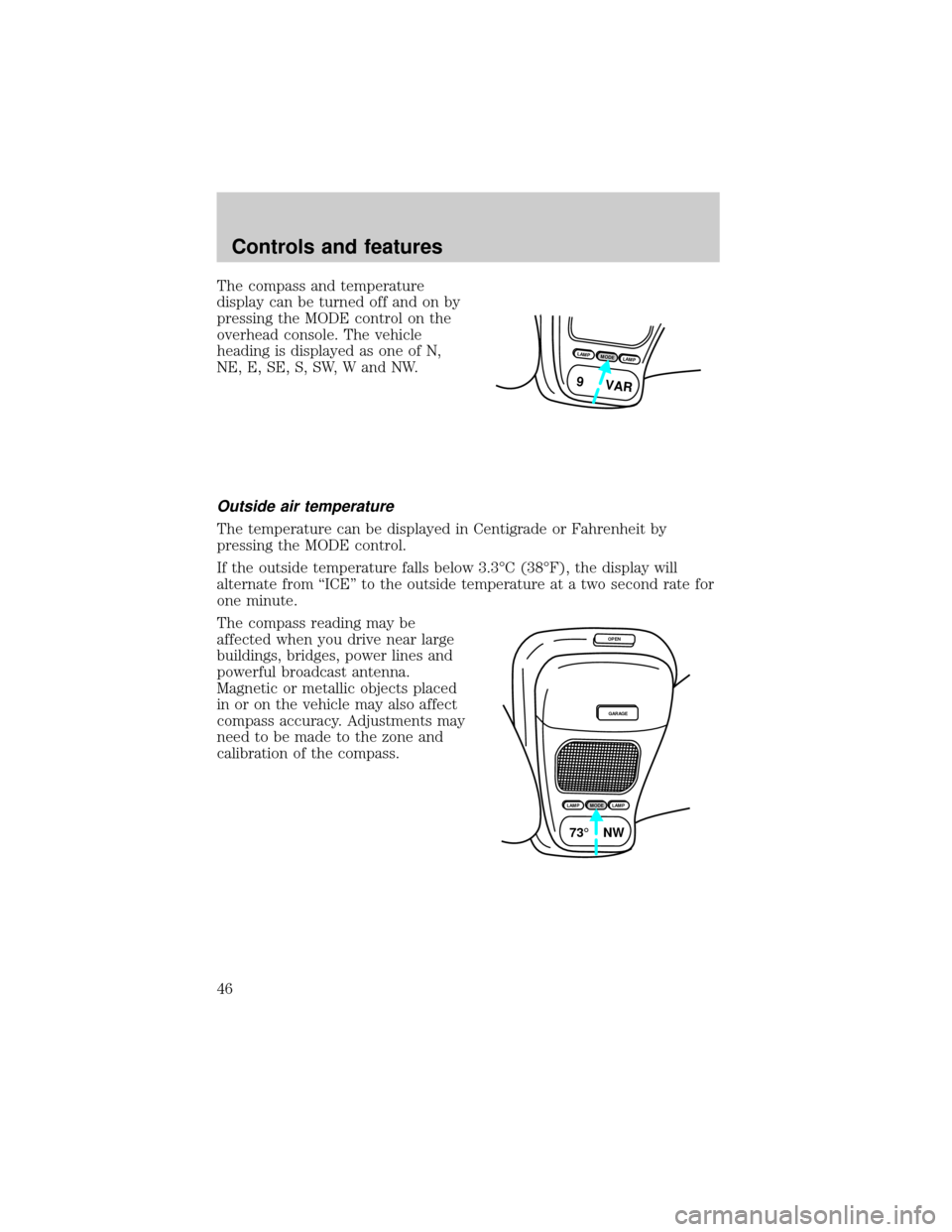
²Remove the storage clip from the
door.
²Place Velcroyhook onto side of
aftermarket transmitter opposite
of actuator control.
²Place the transmitter into storage
compartment, control down.
²Place the provided height
adaptors onto the back of the
GARAGE control as needed.
MODELAMP
LAMP
OPEN
Controls and features
44
Page 45 of 210
²Press the GARAGE control to
activate the transmitter.
Moon roof (if equipped)
²Press and release the rear portion
of the moon roof control to open.
²To halt motion at any point
during one-touch opening, press
the control a second time.
²Press and hold (as desired) the
front portion of the moon roof
control to close.
The moon roof has a sliding shade
that can be manually opened or
closed when the glass panel is shut.
To close the shade, pull it toward
the front of the vehicle.
Do not let children play with the moon roof. They may seriously
hurt themselves.
Electronic compass/temperature display
A compass and outside temperature display are contained in the
overhead console.
MODELAMPLAMP
Controls and features
45
Page 46 of 210
The compass and temperature
display can be turned off and on by
pressing the MODE control on the
overhead console. The vehicle
heading is displayed as one of N,
NE, E, SE, S, SW, W and NW.
Outside air temperature
The temperature can be displayed in Centigrade or Fahrenheit by
pressing the MODE control.
If the outside temperature falls below 3.3ÉC (38ÉF), the display will
alternate from ``ICE'' to the outside temperature at a two second rate for
one minute.
The compass reading may be
affected when you drive near large
buildings, bridges, power lines and
powerful broadcast antenna.
Magnetic or metallic objects placed
in or on the vehicle may also affect
compass accuracy. Adjustments may
need to be made to the zone and
calibration of the compass.
LAMPMODELAMP
9 VAR
OPEN
GARAGE
LAMPMODELAMP
73¡ NW
Controls and features
46
Page 47 of 210
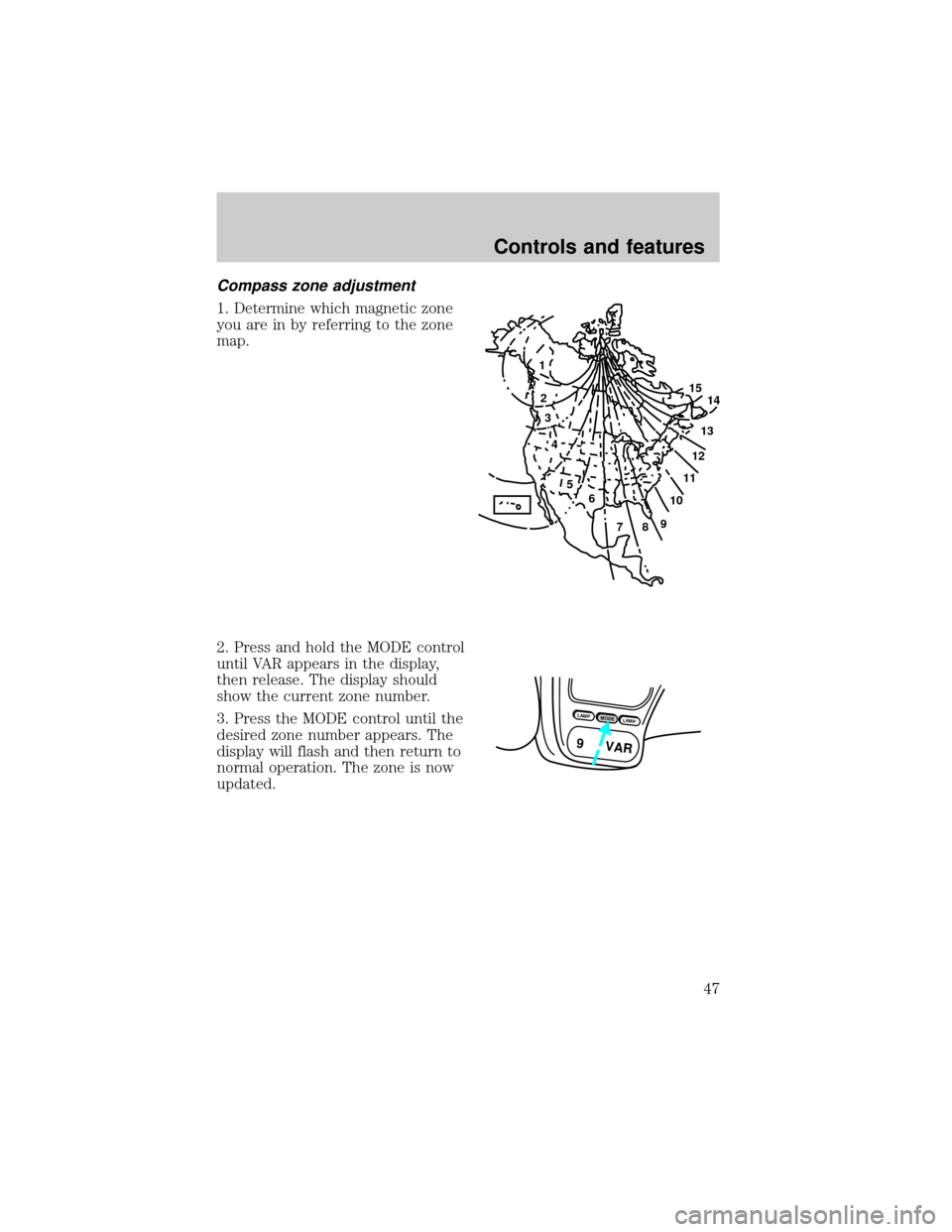
Compass zone adjustment
1. Determine which magnetic zone
you are in by referring to the zone
map.
2. Press and hold the MODE control
until VAR appears in the display,
then release. The display should
show the current zone number.
3. Press the MODE control until the
desired zone number appears. The
display will flash and then return to
normal operation. The zone is now
updated.
1
2
3
4
5
6
7891011121314 15
LAMPMODELAMP
9 VAR
Controls and features
47
Page 48 of 210
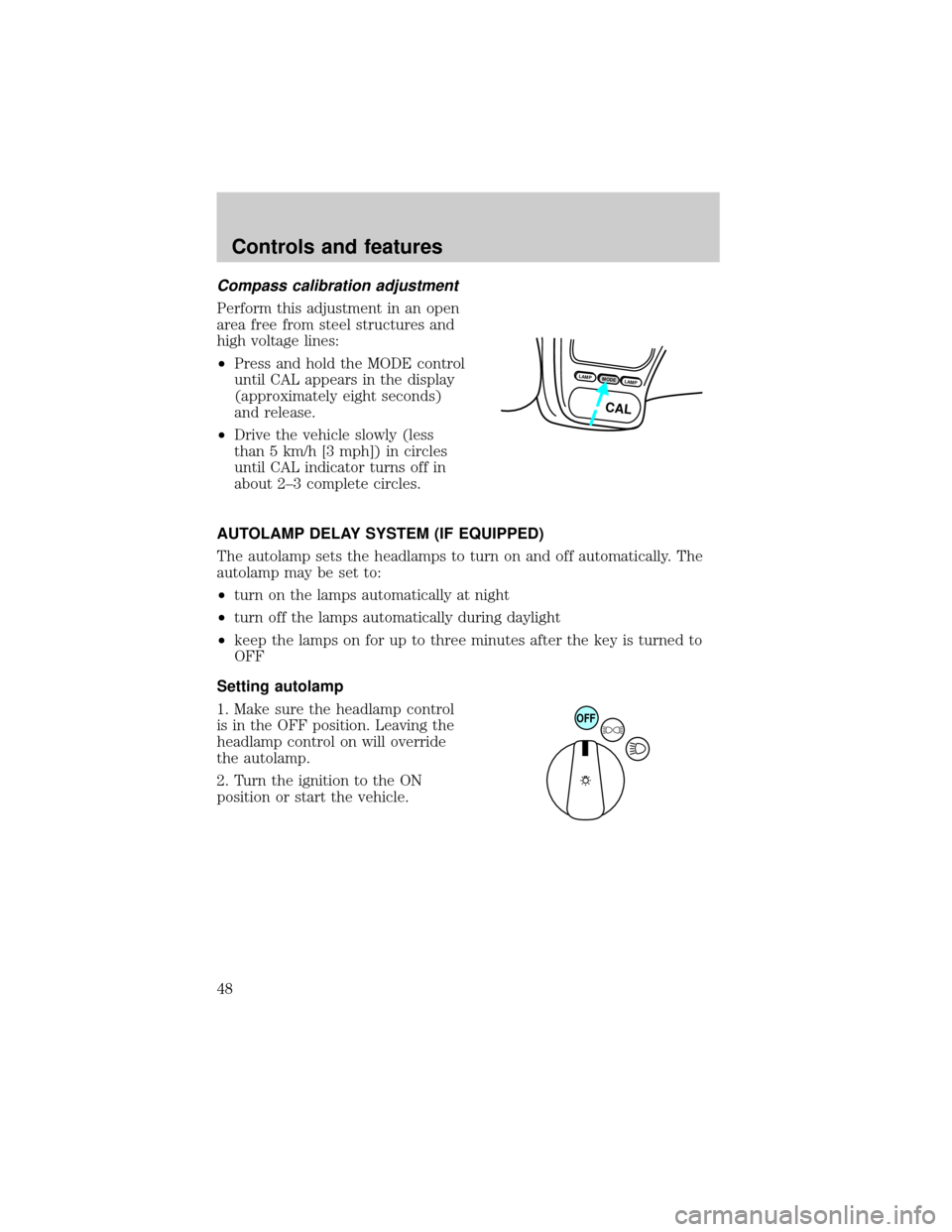
Compass calibration adjustment
Perform this adjustment in an open
area free from steel structures and
high voltage lines:
²Press and hold the MODE control
until CAL appears in the display
(approximately eight seconds)
and release.
²Drive the vehicle slowly (less
than 5 km/h [3 mph]) in circles
until CAL indicator turns off in
about 2±3 complete circles.
AUTOLAMP DELAY SYSTEM (IF EQUIPPED)
The autolamp sets the headlamps to turn on and off automatically. The
autolamp may be set to:
²turn on the lamps automatically at night
²turn off the lamps automatically during daylight
²keep the lamps on for up to three minutes after the key is turned to
OFF
Setting autolamp
1. Make sure the headlamp control
is in the OFF position. Leaving the
headlamp control on will override
the autolamp.
2. Turn the ignition to the ON
position or start the vehicle.
LAMPMODELAMP
CAL
OFF
Controls and features
48