1998 CADILLAC CATERA reset
[x] Cancel search: resetPage 161 of 346

Downloaded from www.Manualslib.com manuals search engine PUSHBUTTONS: The six numbered pushbuttons let
you return to your favorite stations. The RDS
PTY
mode must be off to use this mode. You can set up
to
24 stations (six AM, six FM1, six FM2 and six
weather). Just:
1. Turn the radio on.
2. Press BAND to select AM, FM1, FM2 or weather.
3. Tune in the desired station.
4. Press and hold one of the six numbered buttons for
more than two seconds. Whenever you press that
numbered button for less than two seconds, the
station you set will return.
5. Repeat the steps for each pushbutton.
When battery power is removed and later applied, you
will not have to reset your radio presets because the
radio remembers them.
PRESET SCAN: Press and hold SCAN for more than
two seconds until you hear a beep to listen to each of
your preset stations for
five seconds. The radio will go
to the first preset station stored on your pushbuttons,
stop for five seconds, then
go on to the next preset
station. Press
SCAN again to stop scanning. If a preset
station has weak reception, the radio will not stop at the
preset station.
Using RDS Mode
Your audio system is equipped with Radio Data Systems
(RDS). RDS mode gives you many useful new features.
When RDS is on, the radio can:
seek only to stations with the types of programs you
want to listen to,
seek to stations with traffic announcements,
0 receive announcements concerning local and
0 receive and display messages from radio stations and
national emergencies,
search
for a stronger station when a station is too
RDS features are only available for use on
FM stations
which broadcast RDS information.
n RDS SELECT Press the orange rectangular
button to use the alternate RDS functions (RDS, TA,
MSG, PTY and
C PTY > ) located on the six numbered
pushbuttons. RDS
SELECT will appear on the display.
The alternate
RDS functions are only available when
you are using the
FM band of your radio.
weak
for listening.
Page 163 of 346

Downloaded from www.Manualslib.com manuals search engine Turn it to the left to decrease volume. TA VOLUME
will appear on the display while the volume is
being adjusted.
When a traffic announcement comes on the tuned radio station or a related network station, you will hear it,
even if the volume is muted or a cassette tape or
compact disc is playing.
If the radio tunes to a related
network station for a traffic announcement,
it will return
to the original station when the announcement is
finished. If the cassette tape or compact disc player was
being used, the tape or compact disc will stay in the
player and resume play at the point where it stopped.
Press the RDS SELECT button, followed by this button
again to turn
TA off.
MSG (3): When RDS is on, if the current station has a
message,
MSG will appear on the display. Press the
RDS SELECT button, followed by this button to see the
message. If the whole message does not appear on the
display, parts
of the message will appear every three
seconds until the message is completed. To see the parts
of the message faster than every three seconds, press this
button again.
A new group of words will appear on the
display. Once the complete message has been displayed,
MSG will disappear from the display until another new
MSG is received. Each message can only be read once.
PTY (4): This button is used to turn on and off Program
Type (PTY) seeks and scans. Press the RDS SELECT
button, followed by this button. The PTY display will
turn on. RDS SELECT PTY NEWS will appear on the
display for three seconds. (The PTY shown will be the
last PTY selected.) Press the
RDS SELECT button,
followed by this button again to turn the PTY
display off.
< PTY > (5) (6): With RDS on, press the RDS
SELECT button, followed by or > . The PTY
display will turn on, if
it is not already on. RDS
SELECT: PTY NEWS will appear on the display for
three seconds. (The PTY shown will be the last PTY selected.) While this message is displayed, use and
> to move up and down the PTY list. If you pause on a
PTY for three seconds, PRESET
PTY NEWS will
appear on the display. While this message is displayed,
you can save the
PTY in a preset by pressing one of the
six numbered pushbuttons until you hear a beep. Allow
three seconds for the message to disappear if you do not
want to save the PTY in a preset. See “Radio Data
Systems
(RDS) Program Type (PTY) Selections” in
the Index.
Page 164 of 346

Downloaded from www.Manualslib.com manuals search engine When the PTY display is on, press SEEK and SCAN to
find radio stations of the PTY you want to listen to. The
last PTY selected will be used for seek and scan modes.
If a station with the selected PTY is not found, NONE
FOUND will appear on the display. If both PTY and TA
are on, the radio will search for stations with traffic
announcements and the selected
PTY.
PUSHBUTTONS: The six numbered pushbuttons let
you return to your favorite Program Types (PTYs).
These buttons have factory PTY presets.
See “Radio
Data Systems (RDS) Program Type (PTY) Selections”
in the Index. You can set up to
12 PTYs (six FMl and
six FM2). Just:
1. Turn PTY on.
2. Press BAND to select
FMl or FM2.
3. Tune an RDS station with the PTY you desire.
4. Press and hold one of the six numbered buttons for
more than two seconds until you hear a beep.
Whenever you press that numbered button for less
than two seconds, the PTY you set will return.
5. Repeat the steps for each pushbutton.
When battery power is removed and later applied, you
will not have to reset your RDS presets because
the
radio remembers them.
HR or MN: Press the RDS SELECT button, followed
by one
of these buttons to display the time for the
current station. STATION TIME IS will be displayed. If
a time has not been sent to the radio, NO STATION
TIME will be displayed. If
you have recently tuned to
the station, you may need
to wait a minute before the
time is available to the radio. To set the clock to the
current displayed station time, press and hold HR or MN
until TIME UPDATED is displayed. There
is a two
second delay before the time is updated. RDS mode
does not have to be on to use this function, but you must
be tuned to an FM RDS station.
ALERT This type of announcement warns of national
or local emergencies.
You will not be able to turn off
alert announcements. Alert announcements will come on
even if RDS mode is turned off. ALERT appears on the
display when an alert announcement plays. The radio
uses TA volume during these announcements.
To
increase volume, turn the PWRNOL knob to the right.
Turn it to the left to decrease volume. TA VOLUME
will appear on the display while the volume is being
adjusted. When an alert announcement comes on the
tuned radio station or a related network station, you will
hear it, even
if the volume is muted or a cassette tape or
compact disc
is playing. If the radio tunes to a related
network station for an alert announcement,
it will return
to
the original station when the announcement is
Page 165 of 346

Downloaded from www.Manualslib.com manuals search engine finished. If the cassette tape or compact disc player, play
will stop for the announcement and resume when the
announcement is finished.
Setting the Tone
TONE:
Press and release this button until the desired
tone control (BASS or TREBLE) is found. The radio
keeps separate tone settings for each band, each preset
(except weather band presets) and each source.
LEVEL: After selecting the desired tone control, press
the plus
(+) or minus (-) symbol on this button to select
the desired level.
Adjusting the Speakers
4 SPEAKER: Press and release this button until the
desired BALANCE or FADE control
is found.
LEVEL: After selecting the desired BALANCE or
FADE control, press the plus
(+) or minus (-) symbol on
this button to select the desired level.
Playing a Cassette Tape
until the radio is on. If you want to insert a cassette tape
when the ignition is off, first press the eject button.
While the tape is playing, use the VOL, TONE, LEVEL
and SPEAKER controls just as you do for the radio.
Other controls may have different functions when a tape
is inserted. The display will show
an underlined tape
symbol. TAPE PLAY will appear on the display when a
tape is playing, with an arrow to indicate which side of
the tape is playing.
If
an error occurs while trying to play a cassette tape, it
could be that:
The cassette tape is tight and the cassette player
cannot turn the hubs of the tape. Hold the cassette
tape with the open end down and try turning the right
hub to the left with a pencil. Flip the tape over and
repeat. If the hubs do not
turn easily, your cassette
tape may be damaged and should not be used
in the
player. Try a new tape to be sure your player is
working properly.
The cassette tape is broken. (Check to see if your
tape is broken. Try a new tape.)
With the radio on, insert a cassette tape. The tape will
begin playing as soon as
it is inserted. When one side of
your cassette tape is done playing, auto reverse plays the
other side of your cassette tape. Cassette tapes may be
loaded with the radio off
but they will not start playing
3-18
Page 166 of 346
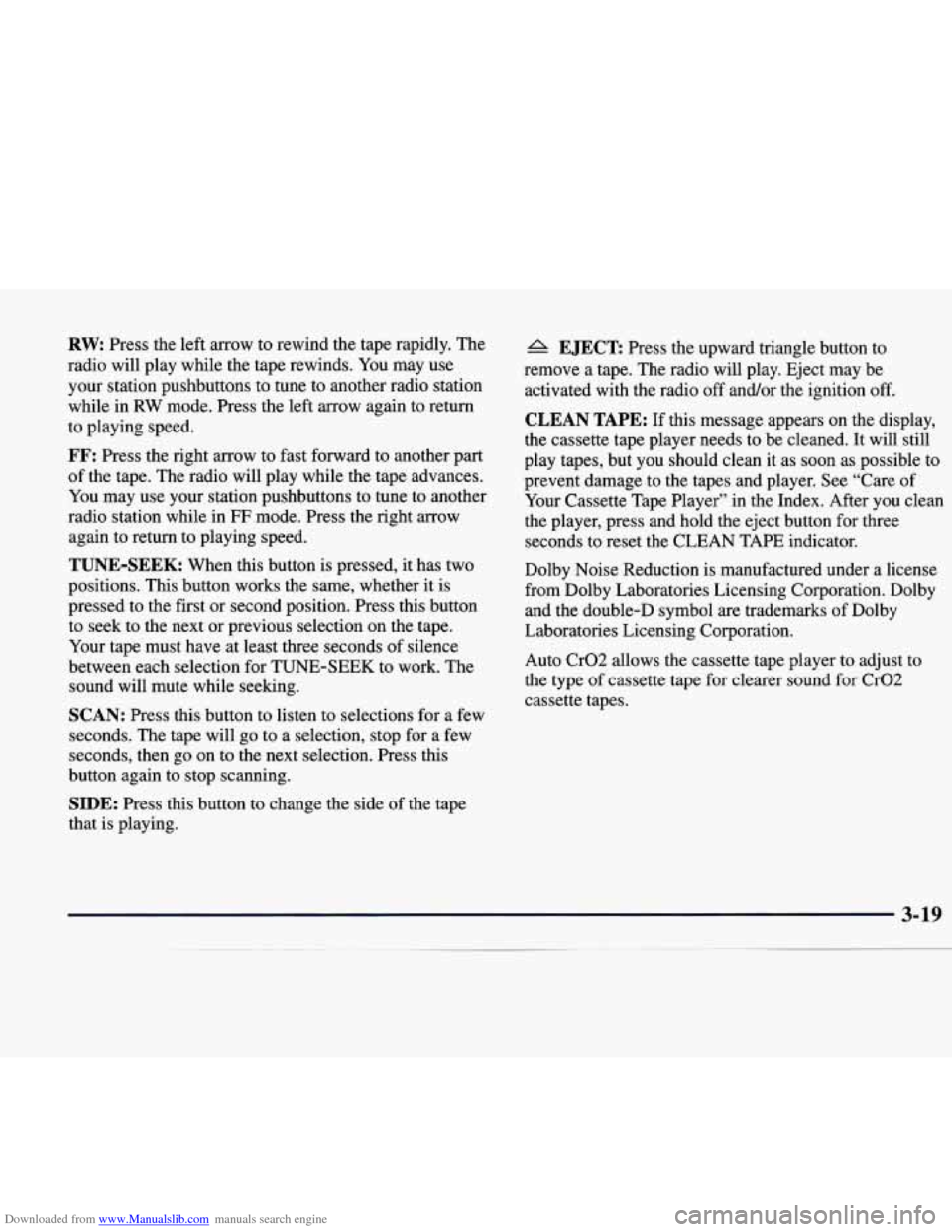
Downloaded from www.Manualslib.com manuals search engine RW Press the left arrow to rewind the tape rapidly. The
radio will play while the tape rewinds. You may use
your station pushbuttons to tune to another radio station
while in
RW mode. Press the left arrow again to return
to playing speed.
FF: Press the right arrow to fast forward to another part
of the tape. The radio will play while the tape advances.
You may use your station pushbuttons to tune to another
radio station while in
FF mode. Press the right arrow
again to return to playing speed.
TUNE-SEEK: When this button is pressed, it has two
positions. This button works the same, whether it is
pressed
to the first or second position. Press this button
to seek to the next or previous selection on the tape.
Your tape must have at least three seconds of silence
between each selection for TUNE-SEEK to work. The
sound will mute while seeking.
SCAN: Press this button to listen to selections for a few
seconds. The tape will go to a selection, stop for a few
seconds, then go on to the next selection. Press this
button again to stop scanning.
SIDE: Press this button to change the side of the tape
that is playing.
A EJECT Press the upward triangle button to
remove a tape. The radio will play. Eject may be
activated with the radio off and/or the ignition
off.
CLEAN TAPE: If this message appears on the display,
the cassette tape player needs to be cleaned. It will still
play tapes, but you should clean it as soon as possible to
prevent damage to the tapes and player. See “Care of
Your Cassette Tape Player” in the Index. After you clean
the player, press and hold the eject button for three
seconds to reset the CLEAN TAPE indicator.
Dolby Noise Reduction is manufactured under a license
from Dolby Laboratories Licensing Corporation. Dolby
and the double-D symbol are trademarks of Dolby
Laboratories Licensing Corporation.
Auto Cr02 allows the cassette tape player to adjust to
the type
of cassette tape for clearer sound for Cr02
cassette tapes.
Page 168 of 346
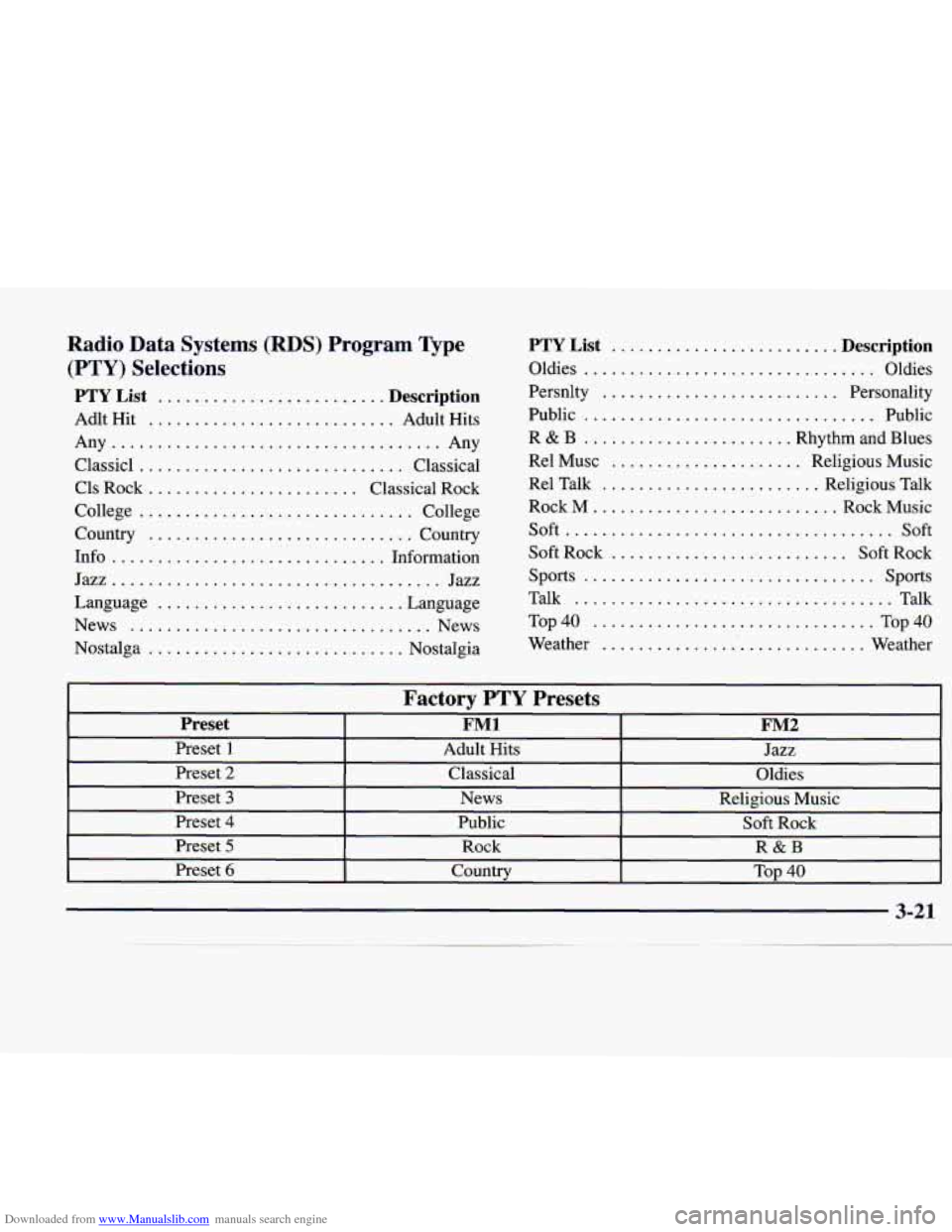
Downloaded from www.Manualslib.com manuals search engine Radio Data Systems (RDS) Program Type
(PTY) Selections
PTY List ......................... Description
Adlt Hit ........................... Adult Hits
Any
.................................... Any
Classic1
............................. Classical
Cls Rock
....................... Classical Rock
College
.............................. College
Country
............................. Country
Info
.............................. Information
Jazz..
.................................. Jazz
Language
........................... Language
News
................................. News
Nostalga
............................ Nostalgia
PTY List ......................... Description
Oldies ................................ Oldies
Persnlty
.......................... Personality
Public
................................ Public
R
& B ....................... Rhythm and Blues
Re1 Musc
..................... Religious Music
Re1 Talk
........................ Religious Talk
Rock
M ........................... Rock Music
Soft..
.................................. Soft
Soft Rock
.......................... Soft Rock
Talk
................................... Talk
Top40
............................... Top40
Weather
.............................. Weather
sports
................................ sports
Factorv PTY Presets
I
Y
Preset I FMl I FM2 I I
I Preset 1 I Adult
Hits I Jazz I
Preset 2 Classical
Oldies
Preset
3 News Religious Music
Preset 4 Public
Soft Rock
Preset
5 Rock R&B
Preset
6 Country Top 40
3-21
Page 173 of 346
Downloaded from www.Manualslib.com manuals search engine Theft-Deterrent Feature
THEFTLOCK@ is designed to discourage theft of your
radio. Your vehicle has a “built-in” theft-deterrent
feature
on each radio that is automatic -- there is no
programming required. The radio in your vehicle cannot
be used in any other vehicle. When the radio was
originally installed in your vehicle at the factory, it
stored the Vehicle Identification Number (VIN). Each
time the ignition is turned on, the VIN is verified. If the
vehicle’s VIN does
not match the VIN stored in the
radio, the radio/audio system will not play. If the radio is
removed from your vehicle, the original
VIN in the
radio can be used to trace the radio back to your vehicle.
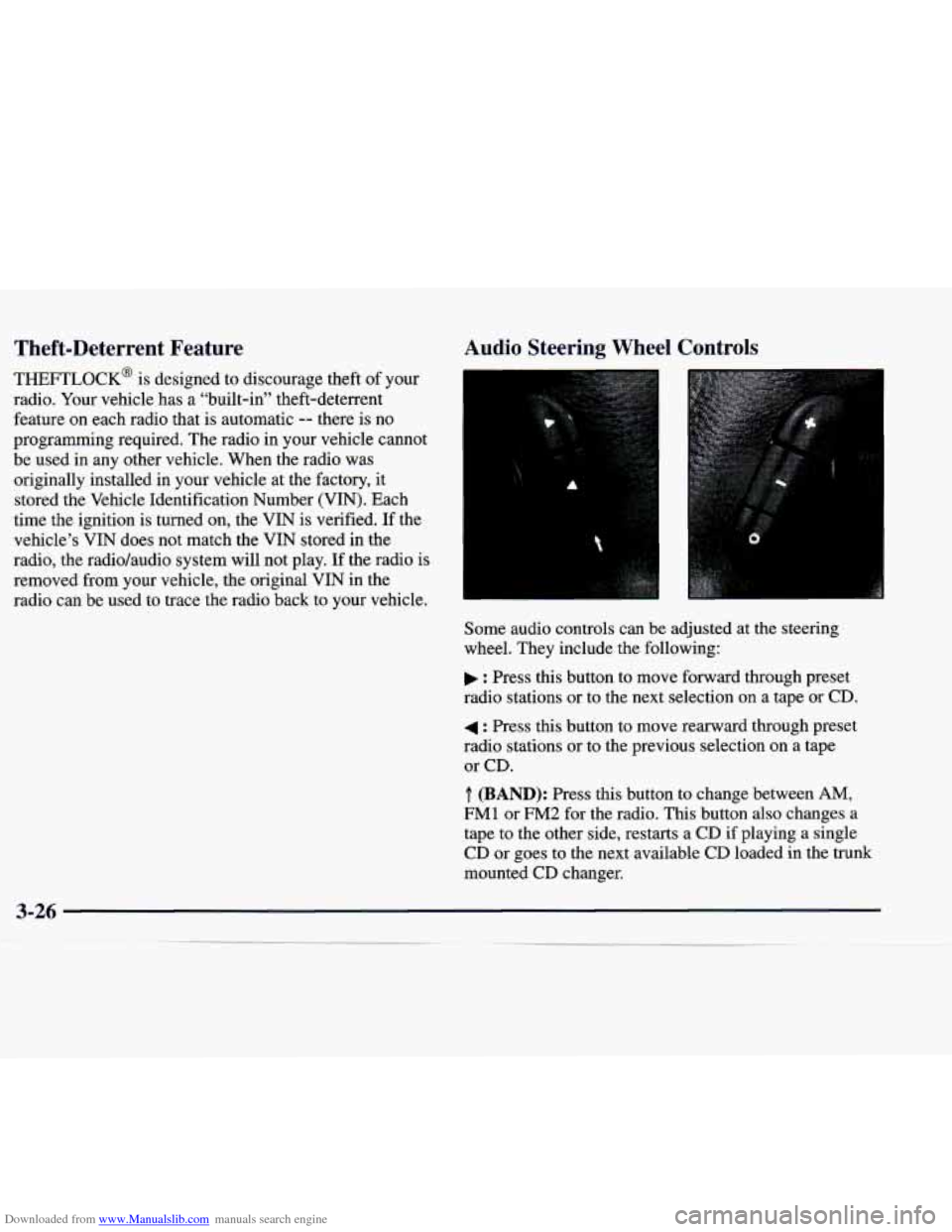
Audio Steering Wheel Controls
Some audio controls can be adjusted at the steering
wheel. They include the following:
: Press this button to move forward through preset
radio stations or to the next selection on a tape
or CD.
4 : Press this button to move rearward through preset
radio stations or to the previous selection
on a tape
or CD.
.T. (BAND): Press this button to change between AM,
FM1 or FM2 for the radio. This button also changes a
tape to the other side, restarts a
CD if playing a single
CD or goes to the next available
CD loaded in the trunk
mounted CD changer.
Page 175 of 346

Downloaded from www.Manualslib.com manuals search engine NOTICE:
Before you add any sound equipment to your
vehicle
-- like a tape player, CB radio, mobile
telephone or two-way radio
-- be sure you can
add what you want.
If you can, it’s very
important to do it properly. Added sound
equipment may interfere with the operation
of
your vehicle’s engine, radio or other systems, and
even damage them. Your vehicle’s systems may
also interfere with the operation
of sound
equipment that has been added improperly.
So, before adding sound equipment, check with
your dealer and be sure to check Federal rules
covering mobile radio and telephone units.
Care of Your Cassette Tape Player
A tape player that is not cleaned regularly can cause
reduced sound quality, ruined cassettes or a damaged
mechanism. Cassette tapes should be stored in their
cases away from contaminants, direct sunlight and
extreme heat. If they aren’t, they may not operate
properly or may cause failure of the tape player.
Your tape player should be cleaned regularly after every
50 hours of use. Your radio may display CLN or
CLEAN
TAPE to indicate that you have used your tape
player for
50 hours without resetting the tape clean
timer.
If this message appears on the display, your
cassette tape player needs to be cleaned. It will still play
tapes, but you should clean
it as soon as possible to
prevent damage to your tapes and player.
If you notice a
reduction in sound quality,
try a known good cassette to
see if it
is the tape or the tape player at fault. If this other
cassette has no improvement in sound quality, clean the
tape player.
The recommended cleaning method for your cassette
tape player is the use
of a scrubbing action,
non-abrasive cleaning cassette with pads which scrub
the tape head as the hubs of the cleaner cassette turn.
The recommended cleaning cassette is available through
your dealership
(GM Part No. 12344789).
3-28